 By
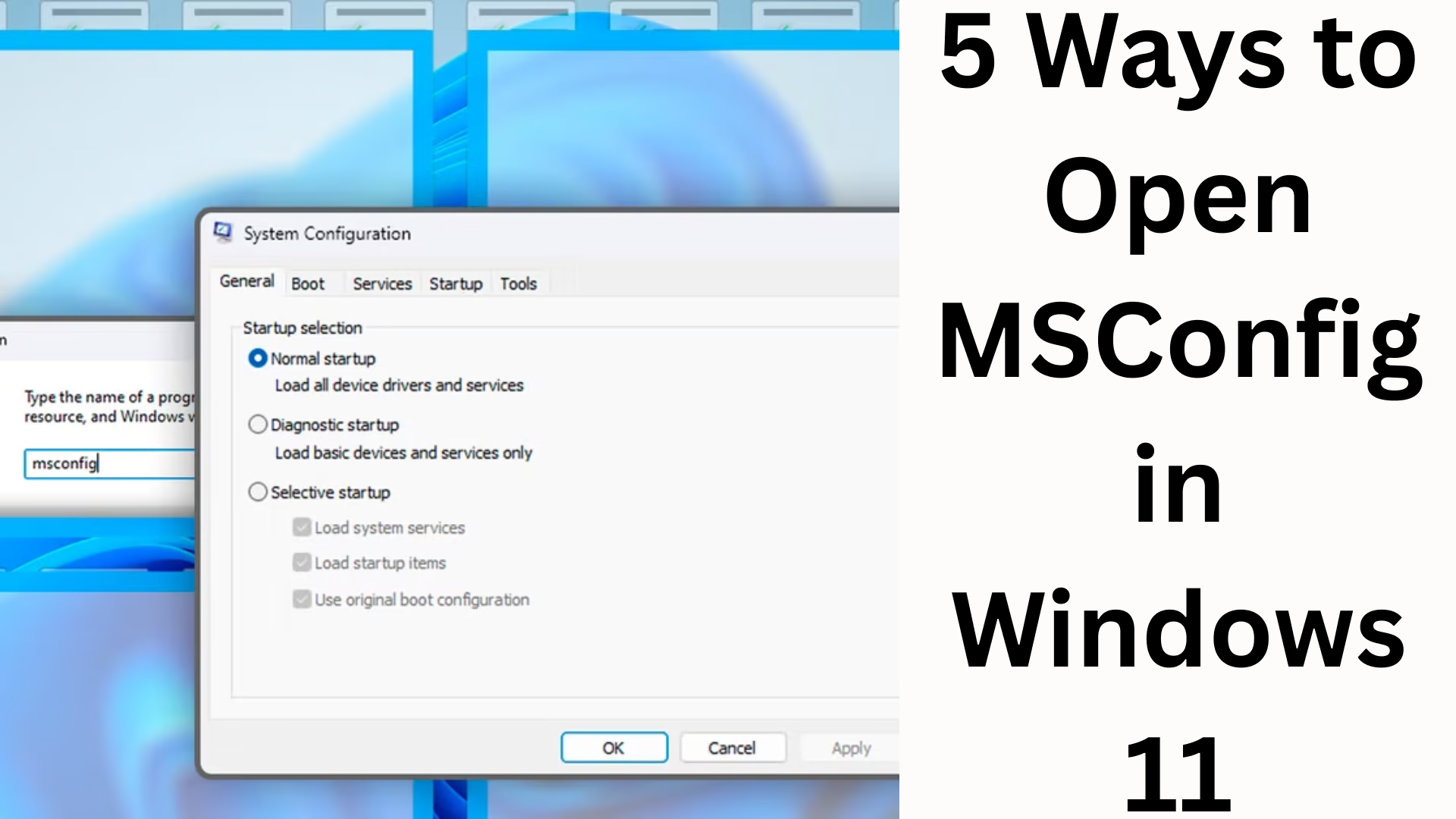
BySystem Configuration (MSConfig) in Windows 11 is a powerful tool for fixing startup issues, controlling boot settings, managing services, and performing advanced troubleshooting. If your system is running slowly, experiencing long boot times, or having unwanted services run at startup, MSConfig can be a valuable solution.
In this detailed guide, we’ll explain the 5 most reliable, fast, and simple ways to open MSConfig in Windows 11, perfect for every user.
1. Open MSConfig with the Run Command (The Fastest Way)
The fastest way to open any system utility in Windows is via the Run Command.
Steps:
1. Press the Win + R keys
2. In the Run window, type:
msconfig
3. Press Enter
4. *System Configuration will open immediately.
This method is the easiest, and every Windows user should know how to use it.
2. Open MSConfig from Windows Search
Search in Windows 11 is much faster and more advanced. You can also open MSConfig by entering a command directly into Search.
Steps:
1. Click the Start menu (Windows icon).
2. Type System Configuration in the search bar.
3. Click the app that appears.
4. MSConfig will open.
This method is useful for users who don’t want to use the Run command.
3. Open MSConfig from the Command Prompt (CMD)
If you prefer the command line in Windows or the GUI isn’t working for some reason, CMD is an excellent alternative.
Steps:
1. Open the Start menu
2. Type – CMD
3. Click on Command Prompt
4. In CMD, type:
`msconfig`
5. Press Enter
This method is very helpful for technical users when troubleshooting.
4. Run MSConfig from PowerShell
PowerShell is more powerful than CMD and is available by default in Windows 11.
Steps:
1. Open the Start menu
2. Type – Windows PowerShell
3. Click on Apps
4. Now, type:
`msconfig` in PowerShell
5. Press Enter
Running MSConfig from PowerShell is considered a more stable and professional method.
5. Open MSConfig from File Explorer
If your CMD, PowerShell, or Search aren’t working properly, running MSConfig directly from a system file is a great option.
Steps:
1. Open File Explorer
2. Type in the address bar:
`C:\Windows\System32\msconfig.exe`
3. Press Enter
4. The MSConfig file will run immediately.
You can also create a shortcut to this file on your desktop so that you can open MSConfig with just one click in the future.
Key Features of MSConfig and Their Uses
MSConfig in Windows 11 isn’t just for opening; it’s also important to use it correctly. Here’s a brief overview of its important tabs:
1. General Tab
This gives you basic boot settings:
Normal Startup – Everything runs normally
Diagnostic Startup – Starts Windows with only essential drivers and services
Selective Startup – The user can decide which services will start
2. Boot Tab
This controls the Windows boot process:
Safe Boot
Boot Log
Base Video
OS Boot Information
Timeout Settings
The Boot tab is extremely useful if your system is having trouble booting.
3. Services Tab
From here you can:
Enable/Disable background services
Increase system speed by stopping unwanted services
Pro tip:
Always tick “Hide all Microsoft services” to avoid accidentally shutting down system services.
4. Startup Tab
In Windows 11, this tab directly opens the Task Manager, from where you can control startup programs.
5. Tools Tab
This is the most important section because from here you can directly open tools like:
Event Viewer
System Information
Command Prompt
Registry Editor
Performance Monitor
When should you use MSConfig?
We can primarily use MSConfig in the following situations:
System startup is very slow
Unwanted services are running
Windows is not booting properly
Need to enter Safe Mode
Perform deep troubleshooting
Change boot settings
MSConfig is an advanced tool, so use it with caution.
Conclusion
These 5 ways to open MSConfig in Windows 11 are extremely useful for every user. Whether you’re a regular user or an IT professional, this tool plays a vital role in improving your system’s boot, services, and startup.
Of these, Run Command and Search are the fastest methods, while CMD, PowerShell, and File Explorer are more advanced and extremely effective when troubleshooting.
Want to grow your website organically? Contact us now
MSConfig in Windows 11: Frequently Asked Questions (FAQs)
1. What is MSConfig?
MSConfig (System Configuration) is a built-in Windows tool that allows us to control boot settings, startup programs, services, and advanced system troubleshooting.
2. Is MSConfig safe to use?
Yes, MSConfig is safe, but changing the wrong settings can affect system startup. Therefore, only change settings that you are aware of.
3. MSConfig won’t open in Windows 11. What to do?
If MSConfig won’t open:
Run `msconfig`* from CMD or PowerShell
Go to File Explorer and run C:\Windows\System32\msconfig.exe*
Run SFC /SCANNOW* to scan the system
Update Windows
4. What is the difference between MSConfig and Task Manager?
MSConfig* is used for boot settings and system service management.
Task Manager* is used for live process and startup application management.
The Startup tab has now been moved to Task Manager.
5. Can I turn on Safe Mode from MSConfig?
Yes, Safe Mode can be enabled by going to the Boot tab* of MSConfig and selecting:
Safe Boot
Minimal / Network / Alternate Shell
6. Does disabling services from MSConfig speed up the system?
Yes, disabling unwanted third-party services can improve system boot time and performance.
Always keep “Hide all Microsoft services” enabled.
7. Can I disable Windows Update from MSConfig?
Windows Update cannot be disabled from MSConfig because it is an essential Microsoft service. This requires using Services.msc.
8. Where can I find MSConfig from File Explorer?
Actual location of MSConfig:
C:\Windows\System32\msconfig.exe
9. Is there an alternative to MSConfig?
Yes, there are some alternatives:
Task Manager (Startup Apps Control)
Services.msc (Services Control)
Boot Options (Advanced Startup Settings)
But MSConfig is a simpler and more comprehensive option.
10. When should MSConfig not be used?
This should be avoided in the following situations:
If technical knowledge is low
If the system has a serious OS-level issue
If there is a risk that the system will not boot due to incorrect settings