 By
ByThe problem of BitTorrent Classic not opening on Windows 11, or the software running but not opening, has been encountered by many users. After installing updates, BitTorrent Classic may stop working due to file corruption, Windows Security blocking it, or incompatible settings. In this detailed guide, we will explore 6 effective ways to resolve the issue where BitTorrent Classic won’t open on Windows 11, step by step.
Why is BitTorrent Classic not opening? Main Reasons
There can be several potential reasons why BitTorrent Classic is not running on Windows 11:
Windows Update Compatibility Issues
Corrupted program files
Antivirus or Windows Defender is blocking the program
Conflicting background services
Missing .NET Framework or Visual C++ Redistributable
Lack of administrator privileges
Therefore, a simple tweak might fix the problem, or you might need to apply several fixes.
1. Run BitTorrent Classic in Administrator Mode
Sometimes, apps in Windows 11 don’t launch due to a lack of required permissions.
Steps
1. Right-click on the BitTorrent icon on the Desktop or Start Menu
2. Click on Run as Administrator
3. If this works, set it permanently
Permanent Fix
1. Right-click on the icon → Properties
2. Compatibility tab
3. Check “Run this program as an administrator.”
4. Apply → OK
If it were a permission issue, this method would immediately resolve the problem.
2. Allow BitTorrent in Windows Security (Defender)
Windows Defender often blocks torrent programs, considering them potentially unsafe.
To allow BitTorrent:
1. Open the Start menu and search for Windows Security
2. Click on Virus & Threat Protection
3. Manage Ransomware Protection
4. Controlled Folder Access → Turn Off (Temporary)
5. Allow an app through Controlled Folder Access
6. Add the BitTorrent.exe location
If BitTorrent is blocked, allowing it should make the software open properly. 3. Completely Uninstall and Clean Install BitTorrent
If some of the program’s internal files are corrupted, reinstalling is the most effective method.
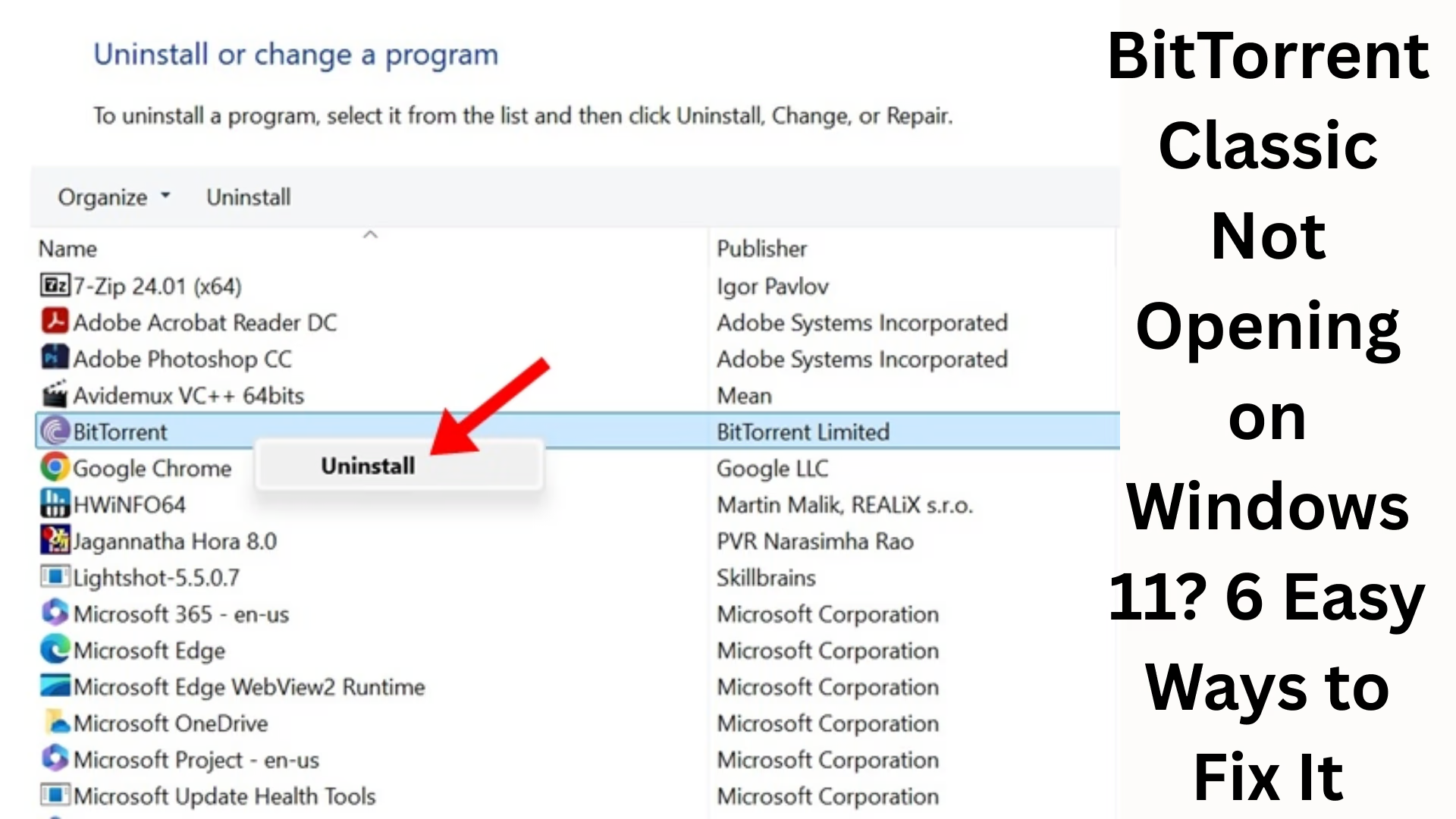
Proper Uninstallation Method:
1. Settings → Apps → Installed Apps
2. BitTorrent → Uninstall
3. Delete Registry and leftover files
Win + R → %AppData% → Delete the “BitTorrent folder”
Win + R → Regedit
Search for the following paths:
“`
HKEY_CURRENT_USER\SOFTWARE\BitTorrent
HKEY_LOCAL_MACHINE\SOFTWARE\BitTorrent
“`
Delete both (with caution)
Now install the latest Windows 11-compatible version of BitTorrent Classic.
4. Run BitTorrent in Compatibility Mode
Many older apps do not natively support the Windows 11 architecture.
Steps:
1. BitTorrent Icon → Right-Click → Properties
2. Compatibility → Run this program in compatibility mode for
3. Select Windows 8 or Windows 7
4. Apply → OK
Often, the compatibility switch fixes program-launching issues.
5. Restart Windows Explorer and Background Services
If the application is stuck in the background, a restart is necessary.
Kill BitTorrent Related Processes:
1. Ctrl + Shift + Esc → Task Manager
2. Find BitTorrent.exe or an Unknown background service (high CPU usage)
3. End Task
After this, restart your PC and open BitTorrent.
6. Install Required Windows Components (.NET + Visual C++)
Some essential components need to be updated on your system for file execution.
Download and Install:
.NET Framework 3.5 + .NET 4.8
Visual C++ Redistributable 2013, 2015–2022
If these are outdated on your system, the app will not open.
Additional Bonus Fixes
Add an Exception in the Firewall
Control Panel → Windows Firewall
Allow an app → Add BitTorrent
Temporarily Disable VPN
Many VPNs and Proxies block app launches.
Disable Startup Optimization
BitTorrent settings → UI → Uncheck “Start minimized”.
BitTorrent Classic Not Working – Final Summary
| Problem | Solution |
| —————— | ——————————— |
| App not opening | Run as administrator + Compatibility |
Security block | Allow in Windows Defender |
Files corrupted | Clean uninstall + Registry removal |
Missing Components | Install .NET + Visual C++ |
If you follow all these methods in the order described above, in 90% of cases, BitTorrent Classic will open immediately on Windows 11.
Want to grow your website organically? Contact us now
FAQ – BitTorrent Classic Not Opening on Windows 11
Q1 – Why is BitTorrent Classic not opening on Windows 11?
The main reasons for this problem are: Windows Defender blocking the application, corrupted files, missing .NET components, or the program not having administrator permissions.
Q2 – Does Windows 11 support BitTorrent Classic?
Yes, Windows 11 supports BitTorrent Classic, but you need the latest version of the software installed.
Q3 – Can antivirus software block BitTorrent?
Yes, many antivirus programs and Windows Security consider torrent apps a potential threat and block them.
Q4 – What should I do if BitTorrent still doesn’t open after installation?
Try running the program as an administrator, enabling Compatibility Mode, or completely uninstalling the software and performing a clean installation.
Q5 – Is it safe to delete registry entries?
Yes, it is safe to delete only BitTorrent-related registry entries. However, modifying incorrect keys can cause problems in Windows.
Q6 – Can a VPN cause the BitTorrent opening issue?
Yes, some VPN and proxy settings can prevent BitTorrent from starting. Try disabling your VPN and then attempting to open the app again.
Q7 – Are there any alternatives to BitTorrent available?
Yes, alternatives such as qBittorrent, uTorrent Web, and BitComet are available.