 By
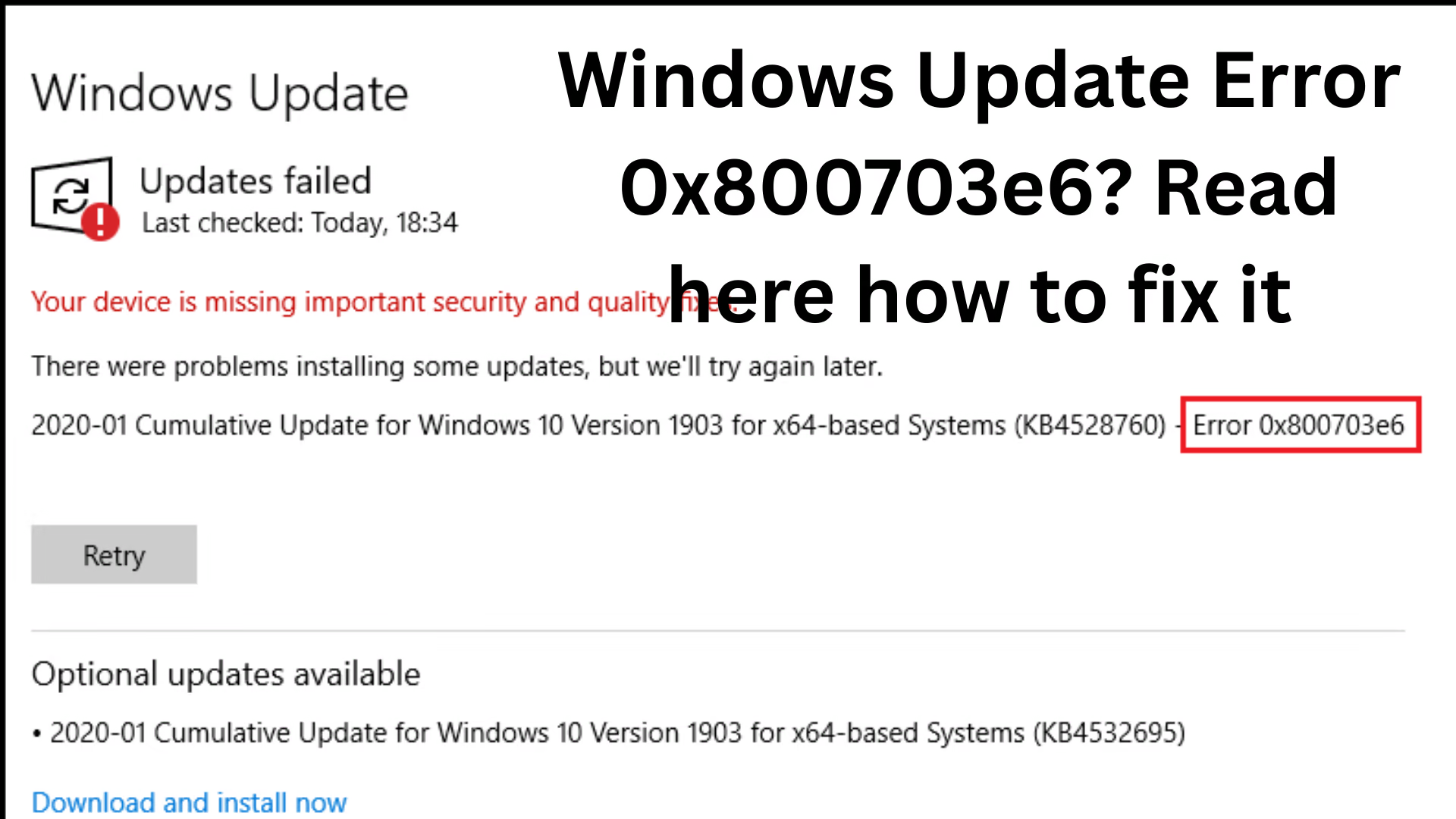
ByWindows Update Error 0x800703e6 has become a common problem for Windows users, preventing system updates from installing successfully. This error often appears when Windows Update files are corrupted, system files are modified, or a third-party antivirus interferes with the Windows update process. In this article, we will discuss in detail the causes of this error and how to fix it step-by-step, so that your system can install updates smoothly again.
What is Windows Update Error 0x800703e6?
When there is external interference or corruption in the Windows Update file or process, the system displays Error Code 0x800703e6 (Invalid access to memory location). This directly indicates that the file or service accessing Windows Update is not being given proper control.
This error mainly appears due to the following reasons:
Corruption of Windows system files
Malfunctioning update components
Interference from third-party antivirus
Conflict in registry files
Stuck pending updates
Malware or suspicious program interference
Main Causes of Windows Update Error 0x800703e6
| Cause | Description |
| —————————— | —————————————————- |
| Corrupted Update Components | The Windows update folder or cache becomes corrupted |
| Third-Party Antivirus Blocking | Security program blocks the update |
| System File Corruption | Essential OS files are damaged |
| Broken Registry Entry | Conflict in registry keys related to the update process |
| Malware Infected Files | Virus interferes with Windows update |
10 Reliable Ways to Fix Windows Update Error 0x800703e6
Follow the methods described below step-by-step and check for updates after applying each method.
1. Run the Windows Update Troubleshooter
This is a built-in Windows solution that scans and fixes update-related problems.
Go to Windows Search
Type Troubleshoot Settings
Click on Other Troubleshooters
Windows Update → Run
This resets stuck or conflicting update components.
2. Temporarily Disable Third-Party Antivirus
Sometimes, antivirus software blocks Windows updates, mistaking them for suspicious activity.
Open your antivirus software
Turn off real-time protection
Restart your system
Run the update again
Note: Turn the protection back on after the update is complete.
3. Run SFC and DISM Commands
The best way to fix corrupted system files is:
Open Command Prompt in administrator mode and run the command:
“`
sfc /scannow
“`
Then run these commands one by one:
“`
DISM /Online /Cleanup-Image /CheckHealth
DISM /Online /Cleanup-Image /ScanHealth
DISM /Online /Cleanup-Image /RestoreHealth
“`
Restart and try the update again.
4. Reset SoftwareDistribution and Catroot2 Folders
These two folders store Windows Update cache and temporary data; corruption in these folders can cause update errors.
Run the following commands in Command Prompt:
“`
net stop wuauserv
net stop bits
“`
Now navigate to this location:
“`
C:\Windows\SoftwareDistribution
“`
Delete all files in this folder.
Then reset catroot2:
“`
net stop cryptsvc
ren C:\Windows\System32\catroot2 catroot2.old
net start cryptsvc
“`
Finally, restart your computer.
5. Restart Windows Update Services
If the services are not running correctly, the update will fail.
Open Run (Win + R):
“`
services.msc
“`
Restart or start the following services:
Windows Update
BITS (Background Intelligent Transfer Service)
Cryptographic Services
MSI Installer
6. Update the System in Clean Boot Mode
A clean boot runs Windows with minimum drivers.
Open msconfig
Services → Hide all Microsoft services → Disable all
Restart and run the update
7. Install the Update with Windows Update Assistant
If the update is not working through normal methods:
Download the official Microsoft Update Assistant
Run it
Install the update manually
8. Fix the Registry
If corrupt values are present in the registry.
Open Registry Editor (regedit in run)
Go to this path:
“`
HKEY_LOCAL_MACHINE\SOFTWARE\Policies\Microsoft\Windows\WindowsUpdate
“`
Delete the problematic keys (only do this if you have the necessary knowledge)
9. Run a Malware Scan
Malware can hijack your update process.
Open Windows Security
Run a Quick Scan or Offline Scan
10. Last Resort – Windows Reset or Repair Install
If all the above steps fail:
Settings → System → Recovery → Reset this PC
You have two options:
| Option | What happens |
| —————– | ———————- |
| Keep My Files | Data remains safe |
| Remove Everything | Complete fresh install |
How to prevent Windows Update Error 0x800703e6 from recurring in the future
| Tips | Benefit |
| —————————- | —————————- |
| Regular disk cleanup | Prevents cache build-up |
| Virus & malware protection | Reduces security threats |
| Keep drivers updated | Prevents OS conflicts |
| Do not install unknown tools | Prevents registry corruption |
| Create system restore points | Useful in emergencies |
Conclusion
Windows Update Error 0x800703e6 is mainly caused by corrupt system files, faulty update cache, antivirus conflicts, malware, and service failures. Following the steps mentioned above one by one will resolve this problem in almost every system. If the error is recurring, a clean boot, resetting update components, and a Windows reset prove to be the most effective options.
Want to grow your website organically? Contact us now
Windows Update Error 0x800703e6 – FAQs (Frequently Asked Questions)
1. What does Windows Update Error 0x800703e6 mean?
This error indicates invalid access to a memory location. This means there is an error, corruption, or blocking in the file or service that Windows Update is trying to access.
2. Can antivirus software cause Windows Update Error 0x800703e6?
Yes, many third-party antivirus programs block Windows Update, considering it suspicious activity, which can cause this error.
3. Can SFC and DISM commands fix this error?
Yes, SFC and DISM commands repair corrupt system files and are very useful in fixing update errors.
4. Will Windows Update install automatically after fixing Error 0x800703e6?
Yes, once the root cause is fixed, Windows Update will resume normally, and updates will install automatically.
5. Is a Windows Reset necessary?
A Reset or Repair Install should only be the last resort. It’s better to try other solutions first.
6. Will deleting the SoftwareDistribution folder cause any harm?
No, it stores cache and temporary update files. Deleting it does not harm the system, and it will regenerate new update files.
7. Can this error be caused by hardware issues?
In very rare cases, it can be triggered by faulty RAM or SSD errors, but most of the time, the cause is related to software and system files.
8. Can fixing this error result in system data loss?
No, the methods mentioned above do not cause data loss. However, if a Windows Reset is performed, backing up your data is essential.
9. How quickly should this update error be fixed?
As soon as possible, because not updating Windows affects both security and performance.
10. Can the Microsoft Update Assistant help resolve this issue?
Yes, the Microsoft Update Assistant performs manual and forced updates, which can bypass the error.