 By
ByWindows computers accumulate many unwanted and old files over time, filling up storage, slowing down the system, and negatively impacting performance. Therefore, you can automatically delete old files using the Auto Delete Old Files feature in Windows 10 and Windows 11.
In this article, we will detail the four most effective and safe ways to auto-delete old files in Windows. All methods use Windows’ built-in features without any third-party software.
1. Auto Delete Old Files Using Storage Sense
Windows’ Storage Sense feature automatically clears old, temporary, download, and recycle bin files.
Enable Storage Sense
1. Open Settings
2. Go to System → Storage
3. Turn on Storage Sense
Configure Storage Sense for Auto Cleanup
1. Click Configure Storage Sense or run it now
2. Set the following settings:
Run Storage Sense: Every day / Week / Month
Delete temporary files: Enable
Recycle Bin files delete: 1 day / 14 days / 30 days
Downloads folder files delete: 1 day / 7 days / 30 days
When is this feature useful?
When your PC frequently runs out of storage
When you forget files in Downloads
When a lot of Temp files accumulate
Storage Sense is completely automatic and removes old files without any intervention.
2. Use a Task Scheduler for Automatic File Deletion
If you want to auto-delete files in a specific folder, such as:
Old Backup Files
Log Files
Camera Footage
Downloaded Installers
This method is best.
Step-by-Step Process
1. Create a Cleanup Script
Create a .BAT file. Example:
“`
ForFiles /p “C:\OldFiles” /s /d -30 /c “cmd /c del @file”
“`
This will delete files older than 30 days.
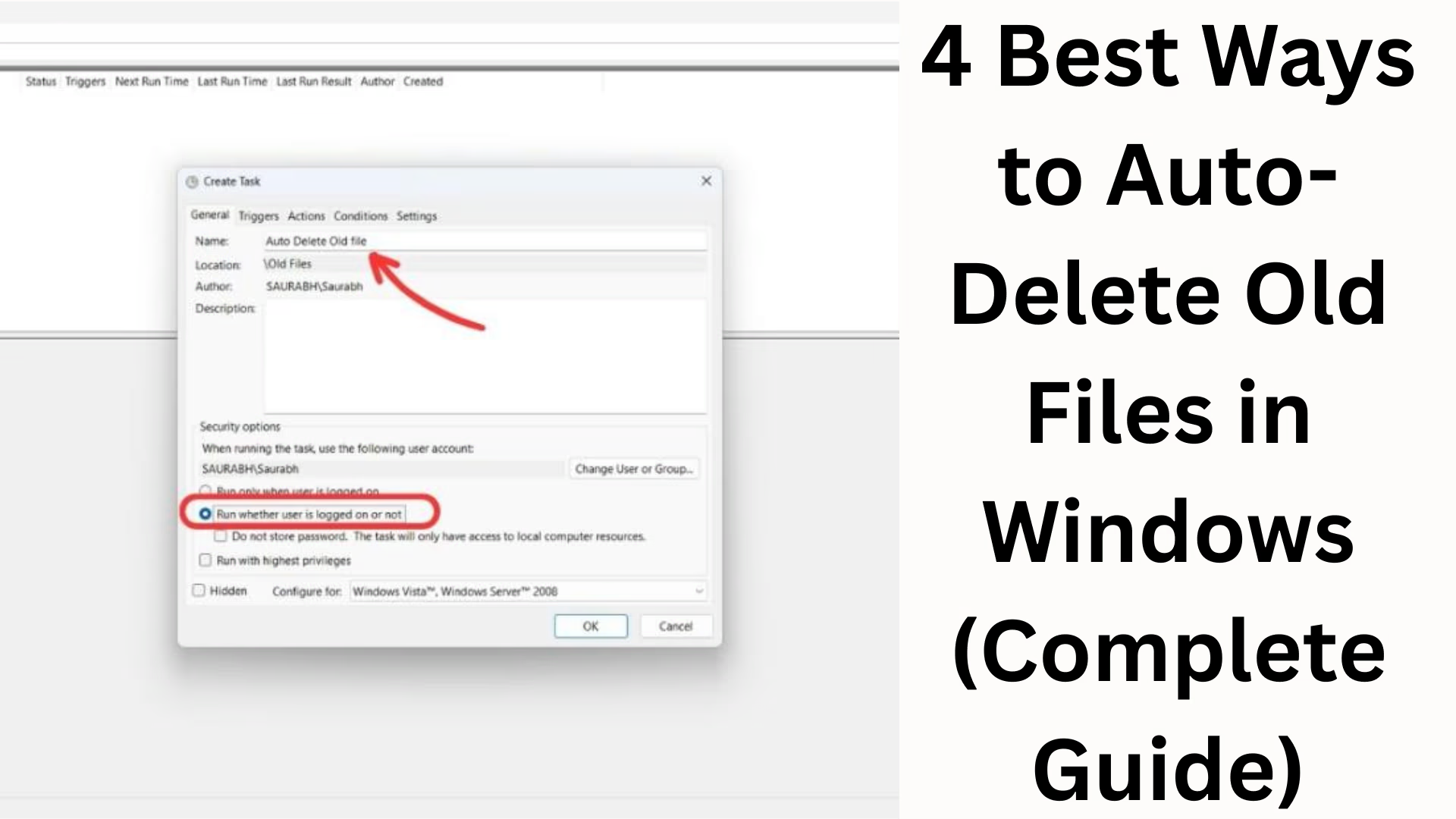
2. Set up automation in Task Scheduler
1. Search for Task Scheduler in the Start Menu
2. Click Create Basic Task
3. Name it: Auto Delete Old Files
4. Select Trigger: Daily / Weekly
5. Select Start a Program in Action
6. Select the BAT file created above
7. Click Finish
When is this feature useful?
If you want to manage a specific folder
Large backup files are created daily
Using a server or CCTV system
Task Scheduler is the most powerful method because it can target custom folders.
3. Schedule Disk Cleanup to Auto-Delete Temporary Files
The Windows Disk Cleanup tool removes several unwanted system files:
Temporary Files
System Cache
Old Installation Files
Update Residual Data
Steps to Automatically Run Disk Cleanup
1. Run this command in Command Prompt:
“`
cleanmgr /sageset:1
“`
2. A window will open—select the files you want to delete.
3. Open Task Scheduler.
4. Create Basic Task → Start a Program.
5. Enter this command:
“`
cleanmgr /sagerun:1
“`
Now, Windows will automatically run Disk Cleanup on your set schedule.
When is it useful?
PCs often face low storage issues.
More files remain after Windows updates.
Regular system maintenance is required.
4. Use the Downloads & Recycle Bin Auto-Clean Settings.
Windows 11 has an Auto Cleanup option for both the Downloads and Recycle Bins.
Set Recycle Bin Auto Delete.
1. Settings → System → Storage
2. Open Storage Sense.
3. “Delete files in my Recycle Bin if they have been there for…”
4. Select 1 day / 14 days / 30 days / 60 days.
Set Downloads Folder Auto Delete.
1. Settings → Storage Sense.
2. “Delete files in my Downloads folder if they haven’t been opened for…”
3. Select 1 day / 7 days / 30 days.
When is it useful?
When you download too many files
When you forget to empty the Recycle Bin frequently
Have a laptop or tablet with low storage
This method is the easiest and works without scripts.
Which method is best?
| Method | Easy | Customizable | Powerful |
| ——————- | —– | ———— | ——– |
| Storage Sense | ⭐⭐⭐⭐⭐ | ⭐⭐ | ⭐⭐ |
| Task Scheduler | ⭐⭐⭐ | ⭐⭐⭐⭐⭐ | ⭐⭐⭐⭐⭐ |
| Disk Cleanup | ⭐⭐⭐ | ⭐⭐⭐⭐ | ⭐⭐⭐⭐ |
| Auto-Clean Settings | ⭐⭐⭐⭐⭐ | ⭐ | ⭐⭐ |
If you want to automate everything → Storage Sense
If you want to auto-delete specific folders → Task Scheduler
If you want to maintain performance → Disk Cleanup
If you want to manage downloads/recycle bin → Auto-Clean Settings
Conclusion
Automatically deleting old files in Windows is incredibly easy. By using these four methods correctly, you can:
Keep your system running smoothly
Save storage
Get rid of unwanted files
Increase your productivity
Regular auto-maintenance improves your PC’s speed, performance, and storage.
Want to grow your website organically? Contact us now
FAQ – Common Questions About Auto-Delete Old Files in Windows
1. Is Storage Sense Safe?
Yes, Storage Sense is completely safe* because it only deletes temporary files, cache, Recycle Bin, and unused downloads. It does not delete any important files on the system.
2. Can I set Auto-Delete only for specific folders?
Yes, you can auto-delete old files in any custom folder using Task Scheduler + BAT Script*. This method is 100% customizable.
3. Is Auto-Deleting the Downloads Folder Right?
If you download a lot of files and often forget what you downloaded, this feature is quite useful.
However, if the downloaded files are important, this feature should be used with caution*.
4. Won’t Auto-Delete slow down your system?
No, deleting old files improves system performance* because disk space is freed up and the cache is cleaned.
5. Will all these methods work in Windows 10?
Yes, Storage Sense, Task Scheduler, and Disk Cleanup*—all three work exactly the same in both Windows 10 and Windows 11.
6. Can I recover deleted files by turning on Recycle Bin Auto Delete?
If Recycle Bin Auto Delete is on and files have been deleted, it is difficult to recover them without software.
So, don’t keep important files in the Recycle Bin.
7. After how many days can old files be deleted in Task Scheduler?
You can set any range:
1 day
7 days
30 days
90 days
Custom number of days
You can modify this by changing `-30` in the BAT script.
8. Will Auto Delete also remove virus files?
Virus files are often hidden or protected.
Therefore, Auto Delete doesn’t work on them.
Use antivirus software to remove viruses.
9. Does Auto Delete extend the life of an SSD?
Yes, when the SSD isn’t overloaded with unwanted files and the system isn’t overloaded, its write cycles are reduced, which can increase its life.
10. Is Auto Delete an alternative to manual cleanup?
Yes, it’s the best option for people who:
Use your PC daily
Download files frequently
Forget to clean
Auto Delete makes your PC maintenance easy and automatic.