 By
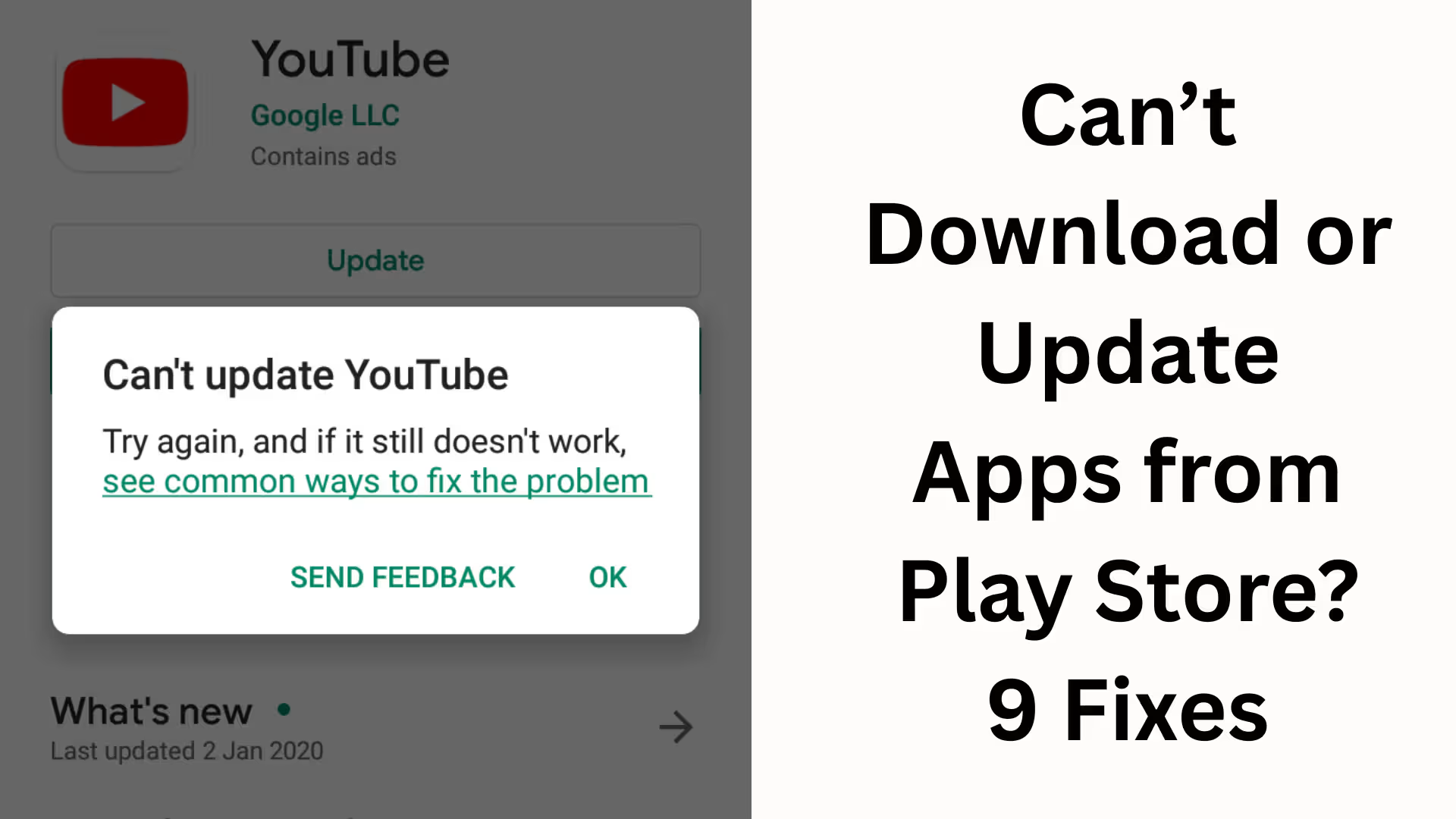
ByToday, the Google Play Store is the most essential platform for Android users. However, sometimes problems arise where apps don’t download, updates get stuck, or remain pending. Here, we are sharing 9 of the most effective and practical solutions in detail for this common but frustrating problem related to the Play Store, which you can use to completely fix this issue.
1. Ensure a Stable and Fast Internet Connection
The biggest reason for apps not downloading or updating from the Play Store is a weak or unstable internet connection.
Always ensure that:
Wi-Fi or Mobile Data is working correctly
The network is not disconnecting frequently
No VPN or Proxy is being used
If you are facing problems on Wi-Fi, switch to Mobile Data or vice versa. Sometimes, changing the network immediately resolves the problem.
2. Reset the Network by Turning Airplane Mode ON/OFF
This is a small but very effective method.
We recommend that you:
Turn Airplane Mode ON for 30–40 seconds
Then turn it OFF and let the network reconnect
This completely resets your mobile network, and the Play Store download problem often gets fixed automatically.
3. Clear the Play Store App’s Cache and Data
The Play Store’s cache and corrupted data can be a major cause of download errors. To clear it:
1. Go to Settings > Apps > Google Play Store
2. Tap on Storage
3. Clear Cache and then Clear Data
Note that clearing data will reset Play Store settings, but your Google Account will remain safe.
4. Also Clear the Cache of Google Play Services
The Play Store doesn’t work alone; it depends on Google Play Services.
If there is a problem with Play Services, apps will not download.
Settings > Apps > Google Play Services
Storage > Clear Cache
This step is very important, and people often overlook it.
5. Remove and Re-add your Google Account
Sometimes the problem lies in your Google Account sync. We suggest:
Settings > Accounts > Google
Remove your Google Account
Restart your phone
Then add the same account again
This method completely fixes Play Store Authentication Errors.
6. Set Date & Time Settings to Automatic
Incorrect Date and Time is also a major cause of Play Store errors.
Always ensure that:
Date & Time → Automatic Date & Time is ON
Time Zone is also Automatic
If the Date/Time doesn’t match the server, the Play Store stops downloads.
7. Free up Storage Space
If your phone has low internal storage, apps will not download or update.
Check that:
At least 1–2 GB of free space is available
Remove unnecessary apps, videos, and cache files
In low storage situations, the Play Store often stops downloads without showing a proper error message.
8. Update Play Store and Android System
An old Play Store or outdated Android version can also cause problems.
Open Play Store
Profile Icon > Settings > About
Tap on Update Play Store
Also check for System Updates because many Play Store bugs are fixed in new updates.
9. Check if Download Manager is Enabled
In some cases, apps don’t download if the Download Manager is disabled.
Settings > Apps > Download Manager
If disabled, enable it
Clearing the cache is also beneficial
The Download Manager controls Play Store downloads, so it’s crucial that it’s active.
Extra Tips: To avoid Play Store Issues
We are also sharing some additional tips to prevent this problem from recurring in the future:
Avoid using VPNs frequently
Do not install Mod APKs and untrusted apps
Avoid apps that tamper with the Play Store
Restart your phone regularly
Conclusion
Apps not downloading or updating from the Play Store is a common problem, but it can be easily fixed by following the right steps. We have shared 9 of the most reliable and effective fixes here, which are effective on almost every Android device.
If you follow all these methods in order, your Play Store problem will be completely resolved.
Want to grow your website organically? Contact us now
FAQ: Frequently Asked Questions Related to Apps Not Downloading or Updating from the Play Store
Question 1: Why does the app on the Play Store keep showing “Pending”?
Answer: This problem usually occurs due to a weak internet connection, low storage, corrupted cache, or a disabled Download Manager. It can be fixed by changing the network, clearing the cache, and freeing up storage space.
Question 2: Can a Google Account cause Play Store downloads to stop?
Answer: Yes, if there is a problem with Google Account sync, apps will not download or update. Removing and re-adding the account usually fixes this problem.
Question 3: Is there any harm in clearing the Play Store cache?
Answer: No, clearing the cache is completely safe. It only removes temporary files; your data or account will not be deleted.
Question 4: Can using a VPN stop Play Store downloads?
Answer: Yes, sometimes a VPN or proxy can prevent a proper connection with Google Servers, which stops apps from downloading. Try turning off the VPN and trying again.
Question 5: What happens if the Download Manager is disabled?
Answer: If the Download Manager is disabled, the Play Store will not be able to download any apps. It is essential to enable it.
Question 6: How much free storage is needed for app downloads?
Answer: At least 1-2 GB of free storage is necessary. If the storage is completely full, the Play Store automatically stops downloads.
Question 7: Why doesn’t the Play Store work if the date and time are incorrect?
Answer: The Play Store connects to Google Servers. If the date and time are incorrect, an authentication error may occur. Keep Automatic Date & Time turned ON.
Question 8: Does the Play Store not work on older Android versions?
Answer: Very old Android versions may have bugs in the Play Store. It’s best to install system updates if available.
Question 9: Is it necessary to update the Play Store?
Answer: Yes, an outdated Play Store can cause download errors. Always keep the Play Store updated to the latest version.
Question 10: What to do if the problem persists even after trying all the fixes?
Answer: In this case, restarting the phone, performing a system update, and, as a last resort, performing a factory reset (after backing up your data) might be the solution.