 By
ByIn today’s digital age, Internet Connection Sharing (ICS) in Windows 11 can be a useful but sometimes troublesome feature for users. When multiple devices are connected to the same network, ICS can cause problems such as slow network speeds, security risks, IP conflicts, and internet disconnections. The solution is to completely disable Internet Connection Sharing in Windows 11.
This detailed guide will explain all possible ways to disable ICS in Windows 11, so you can regain complete control over your network without any hassle.
What is Internet Connection Sharing (ICS)?
Internet Connection Sharing (ICS) is a built-in Windows feature that allows one computer’s internet connection to be shared with other computers or devices. This feature is typically active when:
You use a Wi-Fi Hotspot
You share Ethernet to Wi-Fi
You use a Virtual Network or VPN
However, sometimes this feature gets enabled automatically, leading to network-related problems.
Why is it necessary to disable Internet Connection Sharing in Windows 11?
To improve network speed
To prevent unwanted devices from accessing the internet
To enhance network security
To avoid conflicts with VPNs or office networks
To eliminate IP address conflict issues
Method 1: Disable ICS from Network Adapter Settings
This is the easiest and safest method.
Step-by-Step Process
1. Click on the Start Menu
2. Open Settings
3. Go to Network & Internet
4. Select Advanced Network Settings
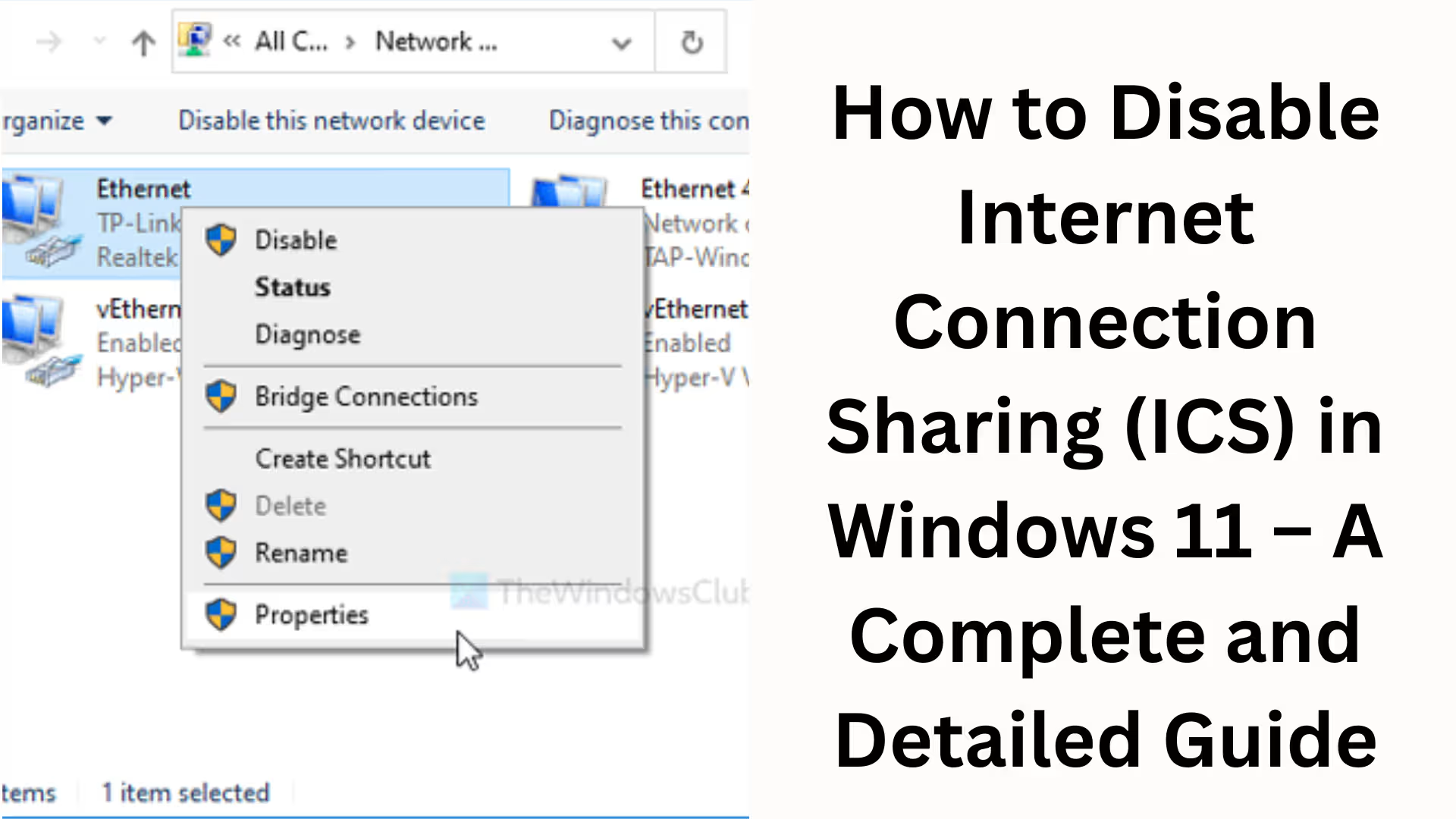
5. Click on More Network Adapter Options
6. Right-click on the network adapter that is sharing the internet connection
7. Select Properties
8. Open the Sharing tab
9. Uncheck the checkbox for “Allow other network users to connect through this computer’s Internet connection”
10. Click OK
This method will immediately disable Internet Connection Sharing.
Method 2: Disable ICS from Windows Services (Permanent Solution)
If ICS keeps enabling itself repeatedly, this method is the most effective.
Steps
1. Press Windows + R
2. Type services.msc and press Enter
3. Find Internet Connection Sharing (ICS) in the list
4. Double-click on it
5. Set the Startup Type to Disabled
6. Click Stop in Service Status
7. Click Apply and then OK
This method permanently disables ICS.
Method 3: Disable Internet Sharing via Command Prompt (CMD)
This method is fast and effective for advanced users.
Steps
1. Search for CMD in the Start Menu
2. Click Run as Administrator
3. Type the following command:
“`
netsh interface set interface “Local Area Connection” disable
“`
Or for Wi-Fi:
“`
netsh wlan stop hostednetwork
“`
4. Press Enter
This disables both the Hotspot and ICS.
Method 4: Disable Windows 11 Mobile Hotspot
Sometimes ICS remains active due to the Mobile Hotspot.
Steps
1. Open Settings
2. Go to Network & Internet
3. Click on Mobile Hotspot
4. Turn the toggle Off
Method 5: Disable ICS via Group Policy Editor (Pro Users)
> This method is for Windows 11 Pro / Enterprise users. Steps
1. Press Windows + R
2. Type gpedit.msc
3. Navigate to:
“`
Computer Configuration > Administrative Templates > Network > Network Connections
“`
4. Double-click on “Prohibit use of Internet Connection Sharing”
5. Select Enabled
6. Click Apply and OK
What changes will you see after ICS is disabled?
The internet will become more stable and faster
No unknown devices will be able to use the internet
VPN and office networks will work correctly
Network security will improve
Common ICS-related problems and solutions in Windows 11
ICS is enabling itself repeatedly
Use the Services Method
Hotspot is turning on automatically
Disable Mobile Hotspot
Internet is disconnecting
Reset the Network
The correct way to reset the network
1. Open Settings
2. Go to Network & Internet > Advanced Network Settings
3. Click on Network Reset
4. Select Reset Now
Note: You will need to re-enter your Wi-Fi password after the reset.
Best Practices for Securing your Network in Windows 11
Always keep ICS disabled
Use a strong Wi-Fi password
Do not turn on the hotspot on public networks
Keep unknown network adapters disabled
Keep your Firewall and Antivirus enabled
Conclusion
Disabling Internet Connection Sharing in Windows 11 not only gives you better control over your network but also improves speed, security, and stability. Among all the methods mentioned above, the Services Method and Network Adapter Method are considered the most reliable. If you are using a professional or office network, it is crucial to keep ICS completely disabled.
Want to grow your website organically? Contact us now
FAQs – Frequently Asked Questions Related to Disabling Internet Connection Sharing (ICS) in Windows 11
Question 1: What is Internet Connection Sharing (ICS)?
Internet Connection Sharing (ICS) is a feature in Windows 11 that allows one computer’s internet connection to be shared with other devices. This feature is used in Wi-Fi Hotspots, Ethernet sharing, and some virtual network setups.
Question 2: Why does ICS turn on automatically in Windows 11?
The main reasons for ICS turning on automatically in Windows 11 are – enabling Mobile Hotspot, using a VPN or Virtual Adapter, a network reset, or changes to network settings by third-party software.
Question 3: What problems can arise if ICS remains enabled?
If ICS remains enabled, it can lead to slow internet speeds, frequent network disconnections, IP address conflicts, and weakened network security.
Question 4: What is the best way to completely disable ICS in Windows 11?
The most effective method is to disable the Internet Connection Sharing service through Services (services.msc). This method permanently disables ICS.
Question 5: Does turning off Mobile Hotspot also disable ICS?
Yes, in many cases, turning off Mobile Hotspot automatically disables ICS, as the two are interconnected.
Question 6: Will disabling ICS turn off my internet connection?
No, disabling ICS only stops internet sharing. Your own internet connection will continue to work normally.
Question 7: Can ICS be disabled in Windows 11 Home?
Yes, ICS can be disabled in Windows 11 Home through Network Adapter Settings, Services, and the Command Prompt (CMD). The Group Policy Editor is only available in Pro and Enterprise versions.
Question 8: Will the VPN work correctly after disabling ICS?
Yes, after disabling ICS, the VPN works more stably, and network conflict issues are avoided.
Question 9: Can ICS be enabled again?
If ICS is not disabled in Services or if Mobile Hotspot is enabled, ICS may be enabled again.
Question 10: Why is it important to keep ICS disabled on an office or corporate network?
Keeping ICS disabled on an office network is important to maintain network security, prevent unauthorized devices from connecting, and avoid the risk of data leaks.
Question 11: What to do if internet problems persist even after disabling ICS?
In this situation, reset the network, update the network drivers, and ensure that no virtual adapters are unnecessarily enabled.
Question 12: Can ICS be re-enabled after a Windows Update?
In some cases, major Windows updates can reset network settings, which may re-enable ICS. In such cases, disable it again using the Services method.