 By
ByIntroduction
Taking screenshots in Windows 11 has become a common but crucial task today. Whether you need to create office presentations, prepare online tutorials, or share a screenshot of a technical problem, screenshots are needed in every situation. By default, Windows 11 saves all screenshots to the Pictures > Screenshots folder, but many users want this folder to be saved on another drive, such as the D Drive, E Drive, or a custom folder.
In this article, we present all the easy, safe, and effective ways to change the screenshot folder location in Windows 11 in detail.
What is the Screenshot Folder in Windows 11?
When you press Windows + PrtScn, Windows 11 automatically takes a screenshot of the screen and saves it to a specific location. This location is:
This PC > Pictures > Screenshots
If your C Drive is filling up or you want better file management, changing the screenshot folder is a wise decision.
Why is it necessary to change the Screenshot Folder Location?
To save C Drive space
To organize data on a separate drive
To maintain SSD performance
To keep work and personal screenshots separate
To make backup and sync easier
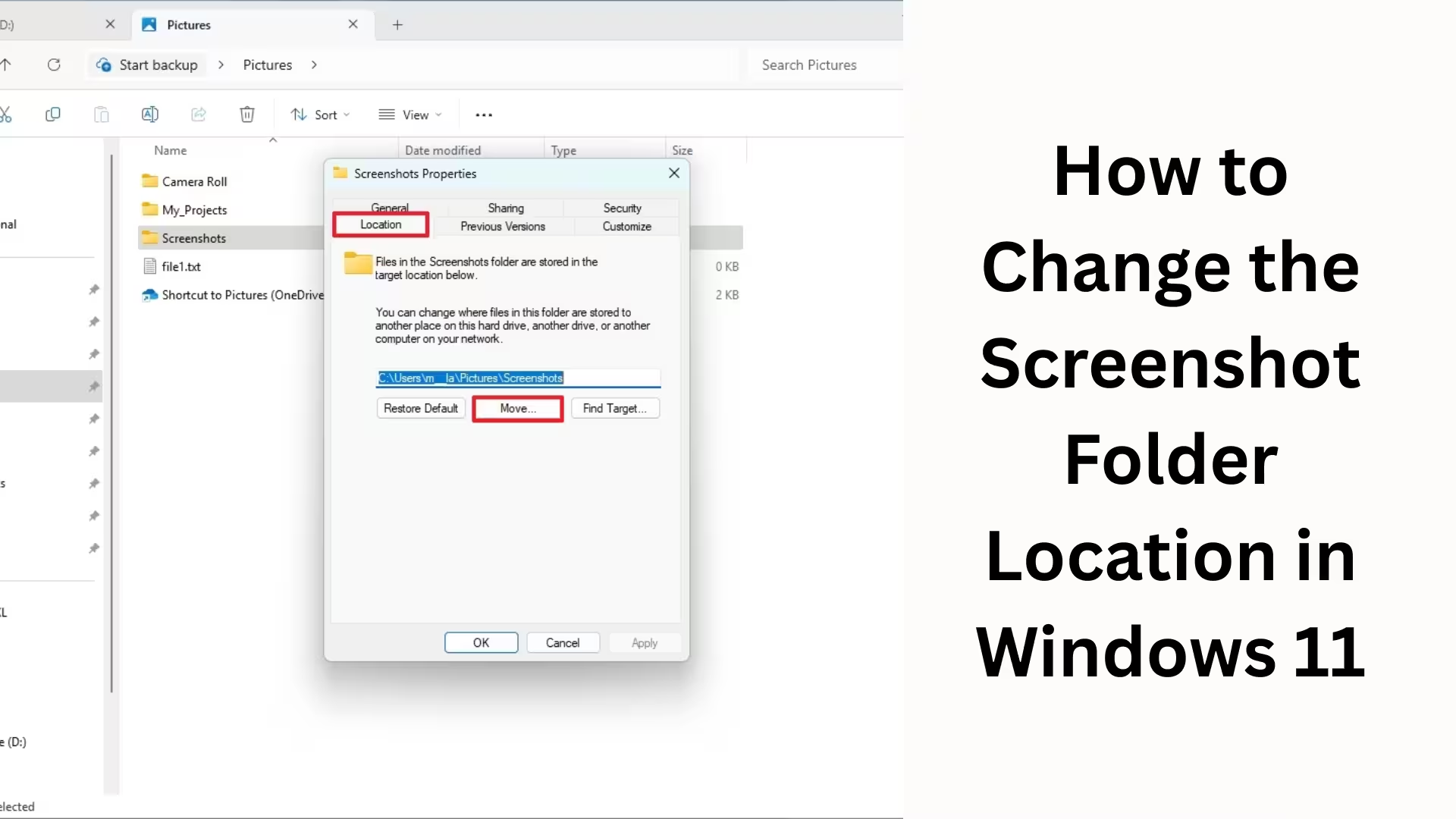
Method 1: Change Screenshot Folder Location using File Explorer
Step-by-Step Process
1. Open File Explorer
2. Go to the Pictures Folder
3. Right-click on the Screenshots Folder
4. Select the Properties option
5. Click on the Location Tab
6. Click on the Move button
7. Now select your preferred new location (e.g., D:\Screenshots)
8. Click on Select Folder
9. Click Apply and then Yes
From now on, all your screenshots will be saved in the new location.
Method 2: Change Screenshot Location using Registry Editor (For Advanced Users)
This method is for advanced users. Incorrect changes can damage the system. Steps to Change the Location via the Registry
1. Press Windows + R
2. Type regedit and press Enter
3. Navigate to the following path:
“`
HKEY_CURRENT_USER\Software\Microsoft\Windows\CurrentVersion\Explorer\User Shell Folders
“`
4. On the right side, find {B7BEDE81-DF94-4682-A7D8-57A52620B86F}
5. Double-click on it
6. Enter the new location in the Value Data field
Example:
“`
D:\My Screenshots
“`
7. Click OK
8. Restart your system
Now Windows 11 will recognize your new Screenshot Folder location.
Method 3: Preventing OneDrive Screenshot Folder Sync
Sometimes screenshots automatically save to OneDrive. If you want to save screenshots to your local drive:
1. Click on the OneDrive icon
2. Open Settings
3. Go to the Backup tab
4. Disable the option to save screenshots to OneDrive
How to Change the Location of Screenshots Taken with Snipping Tool
Windows 11’s Snipping Tool doesn’t save screenshots directly to a folder, but instead displays a Save dialog. You can:
Change the default save location
Or save each screenshot to your desired location
Methods for Taking Screenshots with Keyboard Shortcuts
Windows + PrtScn → Auto-save
PrtScn → Clipboard
Alt + PrtScn → Active Window
Windows + Shift + S → Snipping Tool
Only screenshots taken with Windows + PrtScn are saved to the Screenshots folder. Benefits of Changing Screenshot Folder Location
Better Storage Management
Faster System Performance
Reduced Risk of Data Loss
Professional Workflow
Easier Backup and Cloud Sync
Common Problems and Solutions
Screenshot not saving to the new location
Restart your system
Check if the location path is correct
Check folder permissions
The screenshots folder is missing
Manually create a new Screenshots folder in the Pictures folder
Ensure the name is exactly correct
Best Practices for Screenshot Management in Windows 11
Organize screenshots into folders by date or project
Regularly delete unnecessary screenshots
Utilize cloud backup effectively
Ensure sufficient storage for high-resolution screenshots
Conclusion
Changing the screenshot folder location in Windows 11 is a simple yet incredibly useful process. Whether you use File Explorer or the Registry Editor, following the correct method will help you make your system more organized and efficient. We have explained every possible method in detail in this article so that you can change the screenshot location without any trouble and make your digital workflow more professional.
Want to grow your website organically? Contact us now
Frequently Asked Questions (FAQ) – How to Change the Screenshot Folder Location in Windows 11
Question 1: Where are screenshots saved by default in Windows 11?
In Windows 11, screenshots are saved by default in the This PC > Pictures > Screenshots folder when you use the Windows + PrtScn keyboard shortcut.
Question 2: Can I change the Screenshots folder from the C Drive to the D Drive?
Yes, you can easily change the Screenshots folder location from the C Drive to the D Drive or any other drive. You can use the Properties > Location > Move option.
Question 3: Will changing the Screenshot Folder Location affect old screenshots?
No, when changing the location, Windows asks you whether to move old screenshots to the new location. You can choose Yes or No depending on your needs.
Question 4: Is it safe to change the Screenshot Location using the Registry Editor?
Yes, it is safe if you use the correct Registry Path and Value. However, this method is considered suitable for advanced users. It is best to take a Registry Backup before making any changes.
Question 5: Why aren’t screenshots taken with Windows + PrtScn saving to the new location?
Possible reasons for this could be:
The system hasn’t been restarted
The new folder location doesn’t exist
The folder permissions aren’t correct
To resolve, restart the system and recheck the folder path.
Question 6: Where are screenshots taken with the Snipping Tool saved?
Screenshots taken with the Snipping Tool aren’t automatically saved to a folder. You have to choose the location yourself each time you save.
Question 7: Does OneDrive affect the screenshot location?
Yes, if Screenshot Backup is enabled in OneDrive, screenshots may be automatically saved to the OneDrive folder. You can turn this option off in OneDrive Settings.
Question 8: What to do if the Screenshots folder is accidentally deleted?
You can manually create a new folder in the Pictures folder and name it “Screenshots”. Windows will then automatically recognize it.
Question 9: Does changing the Screenshots location improve system performance?
Yes, especially when you move screenshots from the C Drive to another drive, the load on the system is reduced, and performance is improved.
Question 10: Can every Windows 11 user change the Screenshots folder location?
Yes, both Administrators and Standard Users can change the Screenshots folder location, provided they have write permission to that drive or folder.
Question 11: Can the Screenshot Location Be Reset After a Windows 11 Update?
In some cases, the location may be reset after major Windows updates. In such cases, you may need to set the location again.
Question 12: Is it okay to set the Screenshot Folder to an External Hard Drive?
Yes, you can set the Screenshot Folder to an External Hard Drive or USB Drive, but make sure that drive is connected when taking screenshots.
Question 13: What is the easiest way to change the Screenshot Folder location?
The easiest and safest way is:
Pictures > Screenshots > Properties > Location > Move
Question 14: Do you need any software to change the screenshot location?
No, Windows 11 has built-in options that allow you to change the location without any third-party software.
Question 15: Can screenshots be saved with auto-naming (Screenshot (1), Screenshot (2))?
No, Windows 11 automatically names screenshots in order. However, you can manually change the name later.