
 By
ByIntroduction
In today’s digital age, fast and secure internet has become a primary need for every Android user. Often, even with high-speed internet plans, we face problems like slow browsing, delayed website loading, and app lag. A major reason for this can be an incorrect or slow DNS server.
In this article, we will explain in detail how to find the fastest DNS server for Android, how to test it, and how to set it up correctly so that your internet experience is better than ever before.
What is a DNS Server and Why is it So Important?
A DNS (Domain Name System) server works like the Internet’s phonebook. Whenever we type a website name, the DNS server translates that name into an IP address.
If the DNS server is slow, the website will take time to open, no matter how fast your internet speed is.
Benefits of a Fast DNS Server:
Websites load faster
Lower ping in gaming
Smoother video streaming
Improved online privacy
Relief from some restrictions imposed by the ISP
Why is it Important to find the Fastest DNS Server on Android?
Every DNS server does not perform equally well in every location. A DNS that is fast in India might be slow in another country. Therefore, Android users should choose a DNS server according to their location. Our objectives are:
Minimum response time
Maximum uptime
Enhanced security and privacy
Popular and Fast DNS Servers for Android
Below are some of the most reliable and fastest DNS servers widely used by Android users:
1. Google Public DNS
Primary DNS: 8.8.8.8
Secondary DNS: 8.8.4.4
Advantages: Fast, reliable, global coverage
2. Cloudflare DNS
Primary DNS: 1.1.1.1
Secondary DNS: 1.0.0.1
Advantages: Extremely fast, privacy-friendly, low latency
3. OpenDNS
Primary DNS: 208.67.222.222
Secondary DNS: 208.67.220.220
Advantages: Parental controls, secure browsing
4. Quad9 DNS
Primary DNS: 9.9.9.9
Secondary DNS: 149.112.112.112
Advantages: Malware protection, enhanced security
How to Test the Fastest DNS Servers on Android
Simply changing your DNS is not enough; performing a speed test is essential to choosing the right DNS.
Method 1: Using a DNS Speed Test App
Several apps are available on the Google Play Store, such as:
DNS Speed Test
DNS Changer & Tester
PingTools Network Utilities
Steps:
1. Install the app
2. Select the list of DNS servers
3. Check the latency and response time
4. Choose the DNS with the lowest ms
The Right Way to Change DNS on Android
Now we will show you how to change DNS on Android without any technical difficulties.
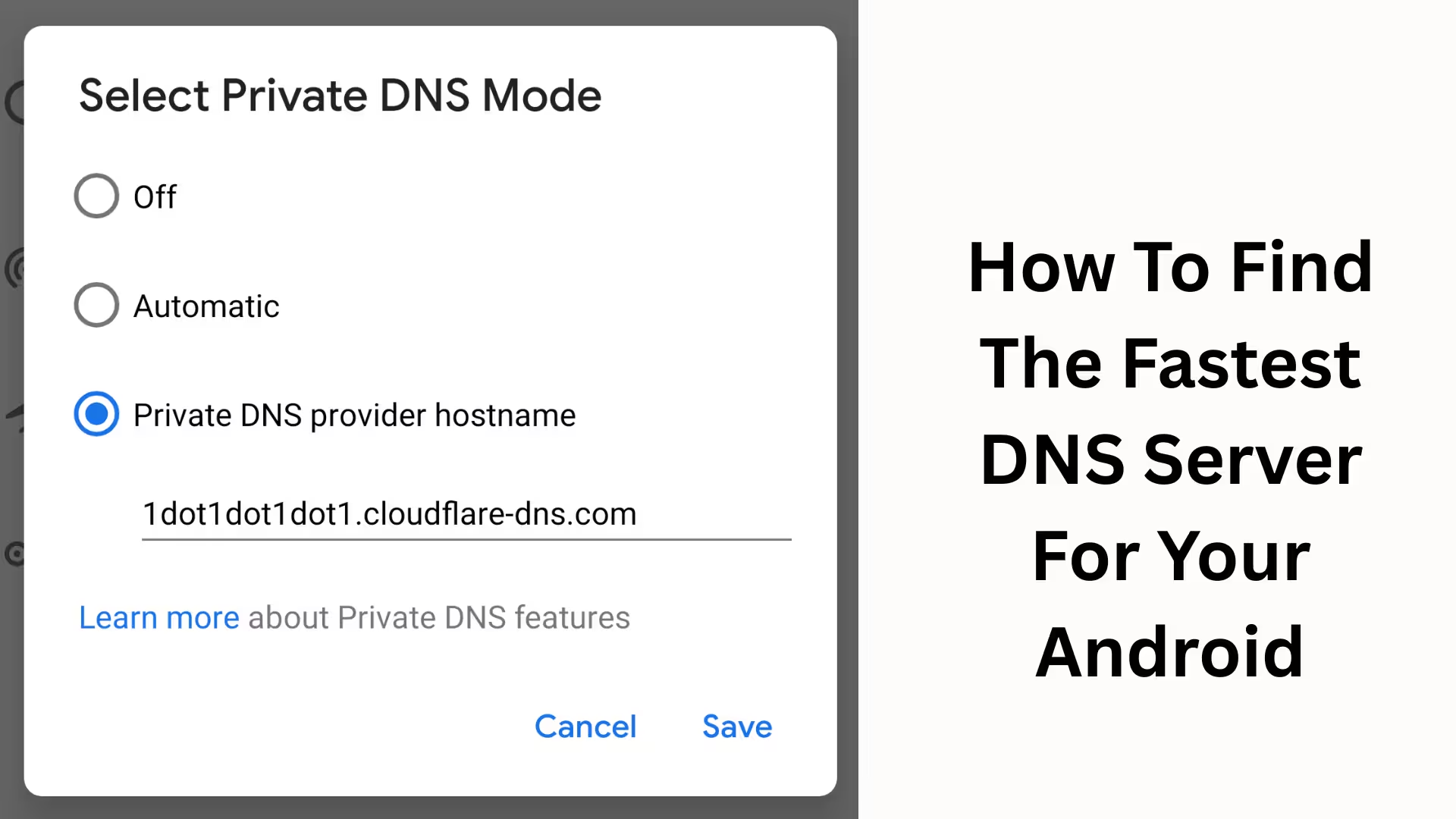
Method 1: Using Private DNS (Android 9 and above)
Steps:
1. Open Settings
2. Go to Network & Internet
3. Select Private DNS
4. Select Private DNS Provider Hostname
5. Enter the hostname, for example:
Cloudflare: one.one.one.one
Google: dns.google
6. Save
Method 2: Changing DNS on a Wi-Fi Network
1. Open Wi-Fi Settings
2. Long-press on the connected network
3. Select Modify Network
4. Change IP Settings to Static
5. Enter your preferred DNS in DNS 1 and DNS 2
6. Save
Best DNS for Gaming and Streaming
If you play games like PUBG, Free Fire, COD Mobile, or stream on Netflix, YouTube, or Hotstar, choosing the right DNS becomes even more important.
Best DNS for Gaming & Streaming:
Cloudflare DNS (1.1.1.1) – Low latency
Google DNS (8.8.8.8) – Stable and fast
How to Choose the Right DNS for Security and Privacy
Today, not only speed but also data security is crucial.
Some DNS servers may log your browsing data.
Privacy-Focused DNS:
Cloudflare DNS – No-log policy
Quad9 DNS – Threat blocking
AdGuard DNS – Blocks ads and trackers
Things to Keep in Mind After Changing DNS
Restart your phone after making the changes
Perform an internet speed test again
If a website doesn’t open, try changing the DNS
Always use two DNS servers (Primary + Secondary)
Conclusion
In this article, we have explained in detail how to find, test, and properly set up the fastest DNS server for Android. By choosing the right DNS server, you can:
Increase internet speed
Improve your gaming experience
Watch streaming content without buffering
Protect your online privacy
If you want fast, secure, and reliable internet on your Android device, changing your DNS is a small but highly effective step.
Want to grow your website organically? Contact us now
Frequently Asked Questions (FAQ)
1. What is a DNS server?
DNS (Domain Name System) is the internet system that translates website names into IP addresses, allowing your browser to connect to the correct server.
2. Does changing DNS increase internet speed?
Yes, a faster DNS server can reduce website loading times, resulting in a faster and smoother browsing experience, especially if your ISP’s DNS is slow.
3. Is changing DNS on Android safe?
Absolutely safe, provided you use a reliable DNS provider such as Google DNS, Cloudflare DNS, or Quad9.
4. Which DNS is considered the fastest on Android?
In most cases, Cloudflare DNS (1.1.1.1) and Google DNS (8.8.8.8) are considered the fastest and most stable, but the final result depends on your location.
5. Does changing DNS affect mobile data?
No, changing DNS does not have any additional impact on your data balance; it only speeds up name resolution.
6. Is there a difference between Private DNS and Normal DNS?
Yes, Private DNS is encrypted, making your browsing more secure, while Normal DNS is usually not encrypted.
7. Does changing DNS reduce ping in gaming?
In many cases, yes. A DNS with faster response times can improve the connection to game servers, resulting in a slight improvement in ping.
8. Do I need to set a different DNS for every Wi-Fi and mobile network?
Yes, if you manually set DNS on a Wi-Fi network, it will only apply to that network. For Mobile Data, Private DNS is the easiest method.
9. Can websites be blocked after changing DNS?
Some DNS providers, like AdGuard or Quad9, may block dangerous or suspicious websites for security reasons. This is beneficial for security.
10. What to do if the internet doesn’t work after changing the DNS? In this situation:
Restart your phone
Check your DNS settings again
Switch to another reliable DNS server


