
 By
ByWhat are the Optional Features in Windows 11?
We consider the Optional Features in Windows 11 as additional tools and services that are not active by default on every system. These features allow users to customize, optimize, and enhance the functionality of their system according to their needs.
Optional Features include several important options such as .NET Framework, Windows Media Player, Wireless Display, Internet Explorer Mode, Hyper-V Components, and RSAT Tools.
Why do you need to add or Remove Optional Features in Windows 11?
We often find that not all features are necessary for every user.
Some features are removed to improve performance.
Some features are added for development, network management, or media playback.
Removing unnecessary features saves storage space and keeps the system running smoothly.
How to Add Optional Features in Windows 11 via Settings
Step-by-Step Process
1. Open the Start Menu.
2. Click on Settings.
3. Select the Apps section from the left-hand side.
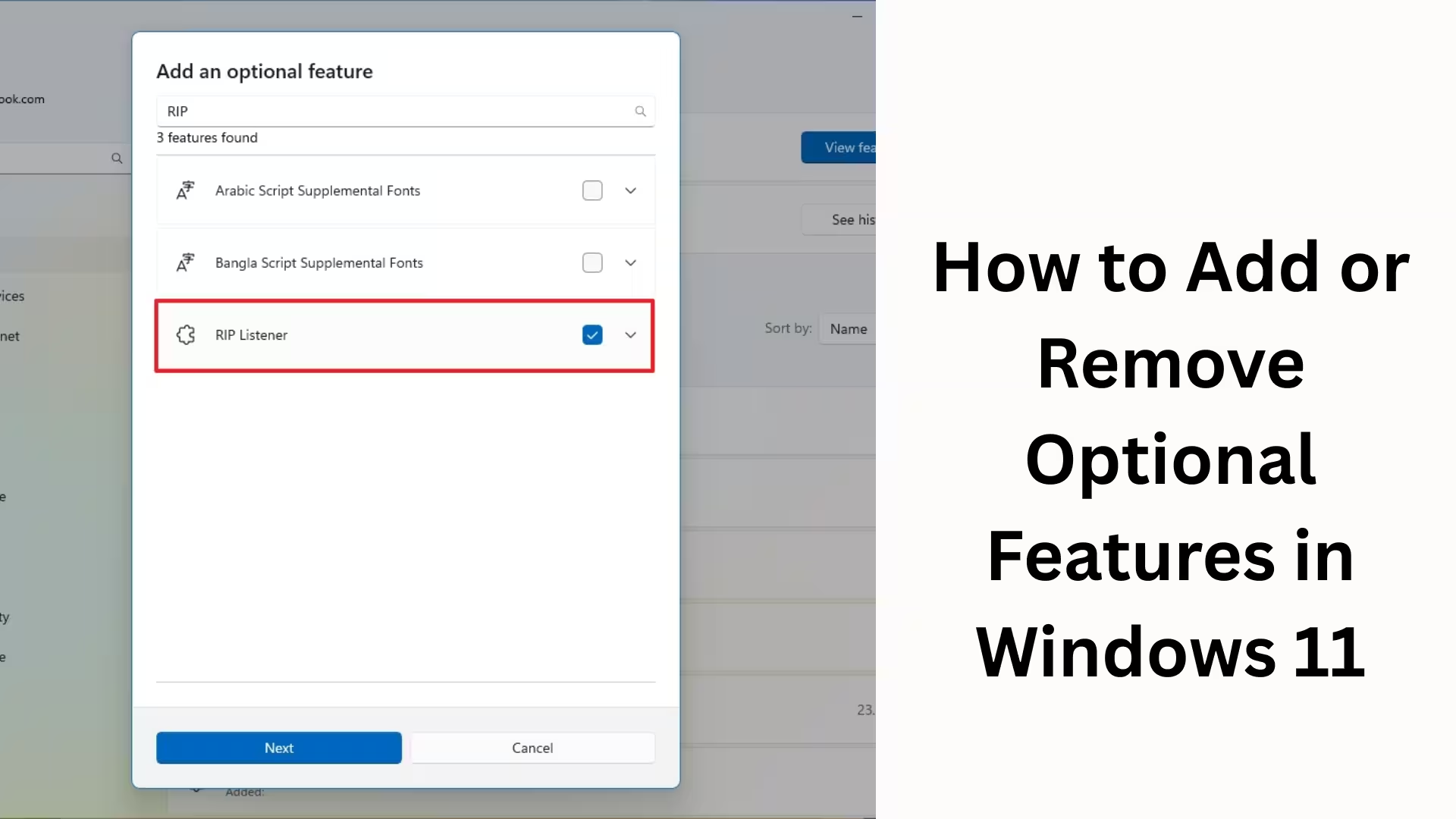
4. Now click on the Optional Features option.
5. Click on the View Features button at the top.
6. Search for or select the feature you want to add.
7. Click Next → Install.
Once the installation is complete, the feature will be active on your system.
How to Remove Optional Features from Windows 11
Process in Easy Steps
1. Go to Settings → Apps → Optional Features.
2. A list of Installed Features will appear below.
3. Click on the feature you want to remove.
4. Press the Uninstall button.
5. After the process is complete, the feature will be removed from the system.
This method is very useful for users who want to keep their system lightweight and fast.
A Professional Way to Manage Optional Features using Command Prompt
We recommend using Command Prompt for advanced users. To view the list of Optional Features:
“`
DISM /Online /Get-Capabilities
“`
To install an Optional Feature:
“`
DISM /Online /Add-Capability /CapabilityName:FeatureName
“`
To remove an Optional Feature:
“`
DISM /Online /Remove-Capability /CapabilityName:FeatureName
“`
This method is considered most effective for IT professionals and administrators.
Method to Add or Remove Optional Features using PowerShell
PowerShell is a powerful tool in Windows 11.
To view installed features:
“`
Get-WindowsCapability -Online
“`
To add a feature:
“`
Add-WindowsCapability -Online -Name FeatureName
“`
To remove a feature:
“`
Remove-WindowsCapability -Online -Name FeatureName
“`
Using PowerShell makes automation and scripting easier.
Most Useful Optional Features in Windows 11
Based on our experience, we have compiled a list of some important features:
.NET Framework 3.5 – For supporting older software
Hyper-V – For running virtual machines
Windows Media Player Legacy – For playing media files
Wireless Display – For screen casting
RSAT Tools – For network administration
Internet Explorer Mode – For legacy websites
Adding or removing these features as needed improves the system experience.
Things to keep in mind when managing Optional Features
Understand the utility of a feature before removing it
Avoid removing features related to system files
A restart may be required after installation
Use only reliable features
We always recommend prioritizing system stability.
The Role of Optional Features in Windows 11 Performance Optimization
By properly managing Optional Features, we can:
Reduce Boot Time
Decrease RAM Usage
Increase Overall Speed
Make the system faster by removing unnecessary background services
This method is especially beneficial for low-end or mid-range PCs.
Conclusion
Adding or removing Optional Features in Windows 11 is a smart way to customize your system according to your needs. Adding the right features increases productivity, and removing unnecessary features makes the system lighter and faster.
In this guide, we have covered all three methods—Settings, Command Prompt, and PowerShell—in detail so that users of all skill levels can easily manage these features.
Want to grow your website organically? Contact us now
Frequently Asked Questions (FAQ)
What are the Optional Features in Windows 11?
Optional Features in Windows 11 are additional system features that users can enable (add) or disable (remove) according to their needs. These features are not active by default on all systems.
Does removing Optional Features affect the system?
Removing unnecessary Optional Features can improve system performance, free up storage space, and speed up boot time. However, removing essential features may cause some apps to malfunction.
What is the easiest way to add Optional Features in Windows 11?
The easiest way is:
Settings → Apps → Optional Features → View Features → Install
This method is most suitable for beginners and general users.
Can Optional Features be managed from the Command Prompt?
Yes, you can easily add or remove Optional Features using the Command Prompt (DISM command). This method is considered better for advanced and professional users.
What is the difference between PowerShell and Command Prompt?
PowerShell is a more powerful and automation-friendly tool, while Command Prompt is used for basic system commands. Both can be used to manage Optional Features.
Is an internet connection required to install Optional Features?
In most cases, yes, because Windows needs to download the feature files from Microsoft servers. Some features may already be present on the system.
Is a system restart required after installing Optional Features?
Some features require a restart, while others start working without one. Windows usually notifies you through a notification.
What are the most commonly used Optional Features in Windows 11?
The most commonly used features are:
.NET Framework 3.5
Hyper-V
Windows Media Player Legacy
Wireless Display
RSAT Tools
Does removing Optional Features affect Windows Update?
No, removing Optional Features does not affect the Windows Update process, unless an update-dependent feature is removed.
How are optional features useful for low-end PCs?
By removing unnecessary optional features on low-end systems, we can reduce RAM usage, decrease CPU load, and increase overall speed, resulting in smoother system performance.
Can the removed optional features be added back later?
Yes, any removed optional feature can be easily added back later through the settings or command line.



This is a great post! I didn’t realize how much adding or removing optional features like Hyper-V and .NET Framework could impact system performance. It’s helpful to know how these features can be tailored based on what I actually need.