 By
ByIntroduction
The Microsoft Store is the most important platform for Windows 11 users to download apps, games, movies, and digital content. However, sometimes certain apps or content are not available in your country or region. In such a situation, changing the Microsoft Store Country & Region becomes an effective solution. In this detailed article, we explain the entire process of changing the Microsoft Store Country & Region in Windows 11 step-by-step and in a professional manner.
Why is it Necessary to change the Microsoft Store Country & Region?
The availability of apps and games varies by country.
Some exclusive apps are only available in select countries.
Limitations due to language, currency, and content licensing exist.
Region-limited features are provided by developers.
For all these reasons, changing the Microsoft Store Region in Windows 11 becomes a crucial requirement for many users.
Things to consider before changing the Microsoft Store Country & Region in Windows 11
Some pre-installed apps may not work properly after changing the region.
Payment methods may need to be updated to suit the new country.
The currency displayed in the Store may change.
Frequently changing the region is not recommended.
The correct way to change the Microsoft Store Country & Region in Windows 11
Step 1: Open Windows Settings
Press Windows + I on the keyboard
Or click the Start Menu and select Settings.
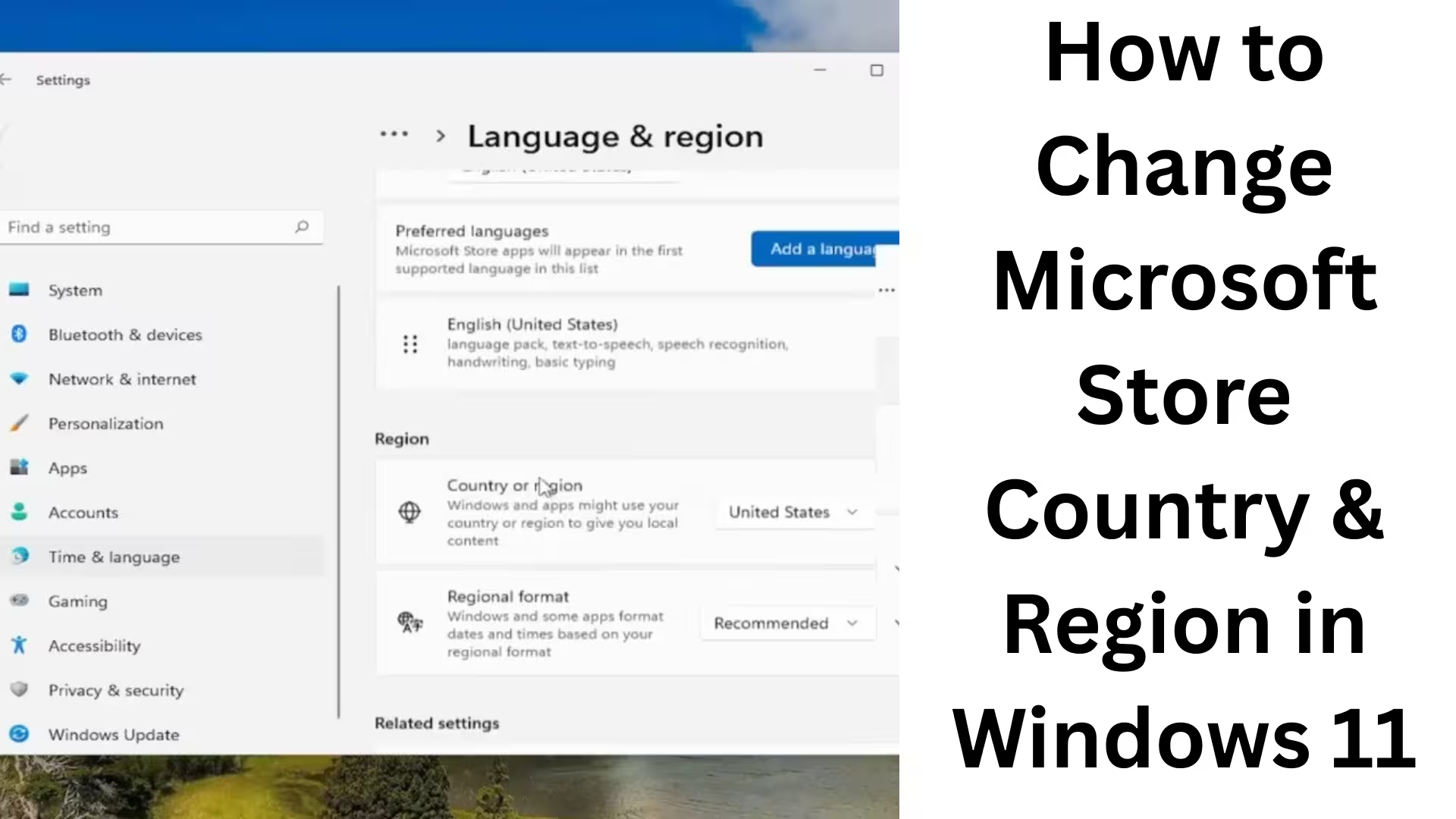
Step 2: Select the Time & Language option.
Click Time & Language in the Settings window.
Now open the Language & Region option on the left.
Step 3: Change the Country or Region.
Click the “Country or region” drop-down menu.
Select the country of your choice from here.
Example: United States, United Kingdom, Canada, etc.
Important: This setting controls the content of the Microsoft Store.
Step 4: Restart Windows
After changing the region, it’s necessary to restart the system.
Changes will not take full effect without a restart.
How to Refresh the Microsoft Store App
After changing the region, old data may appear in the Store. Refreshing the Store is essential.
Procedure to Reset the Microsoft Store
Press Windows + R
Type in the Run box:
“`
wsreset
“`
Press Enter
After a few seconds, the Microsoft Store will automatically open.
Now, the Store will display content based on the new country and region.
Why It May Be Necessary to Change Your Microsoft Account Region
Sometimes, simply changing the Windows Region doesn’t work. In such cases, it’s necessary to update your Microsoft Account Region as well.
Steps to Change Your Microsoft Account Region
Open your Microsoft Account in a browser
Go to the Your Info or Payment & Billing section
Update the Address and Country information
Save Changes
Apps Not Showing Up in the Microsoft Store? Solution
If apps aren’t showing up even after changing the region, try the following:
Sign out and sign in to the Microsoft Store
Clear the Store Cache
Check Windows Update
Keep the Date & Time setting on Auto
Benefits of changing the region in Windows 11
Access to exclusive apps and games
Get the latest features and updates first
Access to international content
Availability of developer tools and beta apps
Disadvantages of changing the region in Windows 11
Some local apps may stop working
Subscription and billing issues may arise
Frequent changes may lead to account restrictions
Is it necessary to use a VPN?
A VPN isn’t required to change the Microsoft Store’s country and region. Changing the Windows region setting is sufficient. However, some users use a VPN to access content, but it’s not mandatory.
Conclusion
Changing the Microsoft Store Country & Region in Windows 11 is a simple yet effective process, allowing you to access apps, games, and digital content from around the world. By following all the steps above in the correct order, you can change the Microsoft Store region without any technical issues and take full advantage of Windows 11.
Want to grow your website organically? Contact us now
FAQ – Frequently Asked Questions about Changing Microsoft Store Country & Region in Windows 11
Q1. Is it safe to change the Microsoft Store Country & Region in Windows 11?
Yes, it’s completely safe. This is an official Windows setting and does not negatively affect the system or license.
Q2. Does the Microsoft Store update automatically after changing the Country & Region?
No, it’s necessary to refresh or reset the Microsoft Store after changing the region so that the new content displays correctly.
Q3. Is a VPN required to change the Region?
No, a VPN is not required. Simply changing the Region Setting in Windows 11 is sufficient.
Q4. Does changing the Region affect apps that were installed before the change?
Generally, no. However, some region-specific apps may show limited features or may not receive updates.
Q5. Is it also necessary to change the Country of the Microsoft Account?
In some cases, yes. Especially when encountering issues related to payments, subscriptions, or paid apps, updating the Microsoft Account Region is beneficial.
Q6. What should I do if apps are not showing up in the Microsoft Store?
Sign out of and then sign back into the Microsoft Store.
Clear the Store cache using the `wsreset` command.
Restart your system.
Ensure your Date & Time is set to automatic.
Q7. Can I change the Country & Region repeatedly?
Technically, it’s possible, but frequent changes are not recommended as it can lead to account and subscription-related issues.
Q8. Does changing the Region also change the Store’s language?
Changing the Region changes the content and currency. The language is controlled separately through the Language Settings.
Q9. Does changing the Region affect Windows Update?
No, Windows Update works normally. Some feature updates may be available earlier or later, depending on the region.
Q10. Which Country is considered the best for the Microsoft Store?
Most users choose the United States (US) because it has the largest selection of apps, games, and updates available.
Are you searching for the best hosting plan? Click now and get 20% off