
 By
ByA new era of Copilot Vision in Windows 11
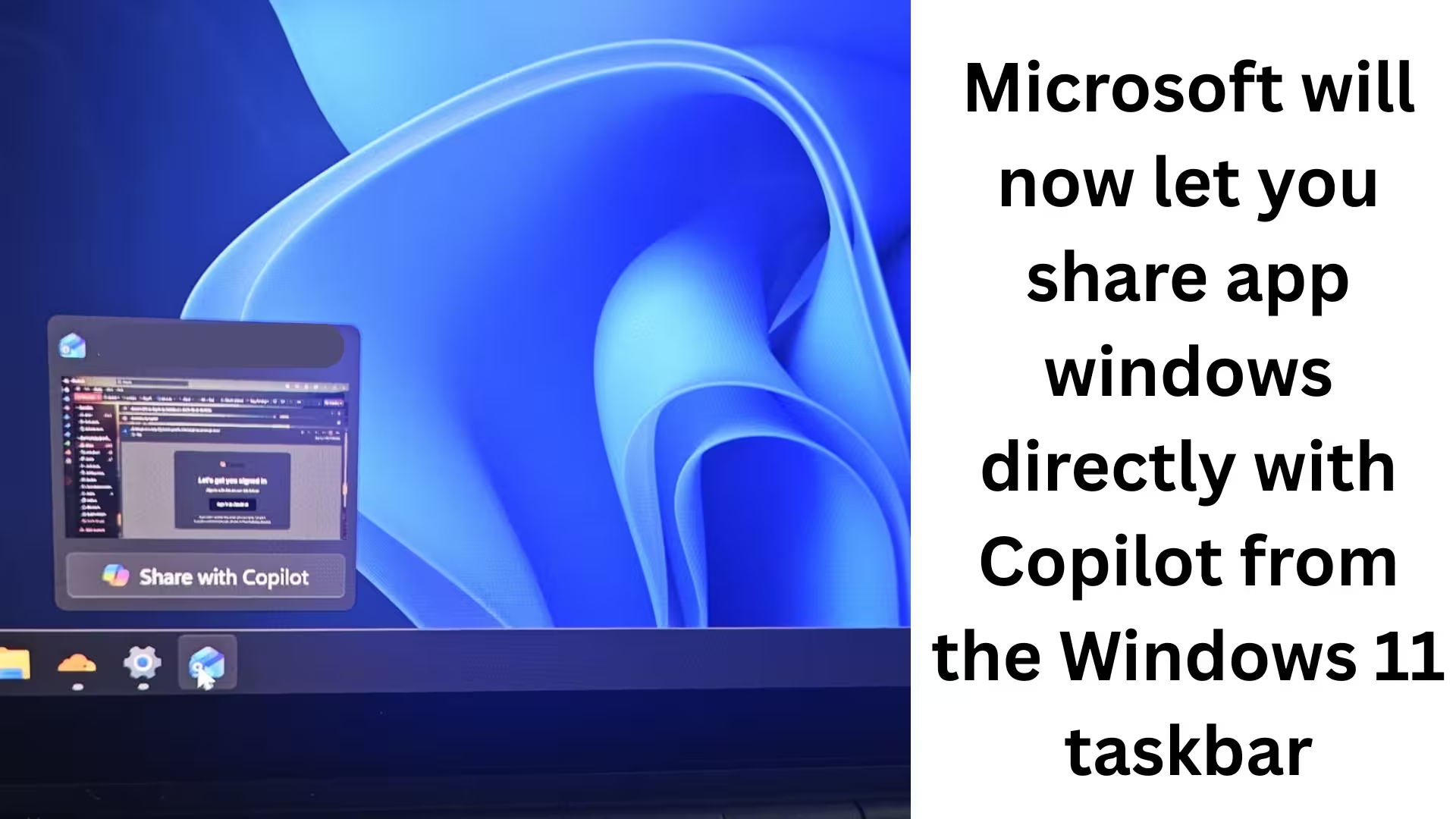
We are witnessing a major transformation with the continuous integration of Microsoft Copilot into Windows 11. Microsoft has now started rolling out a feature that could completely change the way users work. This new feature is called “Share with Copilot,” and it will be available directly from the Windows 11 taskbar.
When you hover your mouse over an app on the taskbar, you will now see a new option — Share with Copilot. This allows you to share the window of any open app with Copilot and ask questions based on that screen.
This feature is part of Copilot Vision and aims to provide users with guided assistance on the same screen they are working on.
What is the “Share with Copilot” feature, and why is it important?
Share with Copilot is a new system-level feature in Windows 11 that allows Copilot to “see” the window of any open app. This doesn’t mean Copilot will control your system; it can only read the content displayed on your screen.
We see this as a read-only and dictate-only AI assistance, where Copilot:
Understands the content displayed on the screen
Provides suggestions based on that content
Highlights the correct buttons or options
This feature is especially useful for users who:
Want to draft email replies
I am confused about finding the right options in the software
Areyou learning a new app or interface
How Copilot Vision works
When you share an app window with Copilot, Copilot analyzes that window using cloud-based AI. For example:
An email is open in Outlook
A web page in a browser
The system settings screen
Copilot can read that content, but:
It cannot click anywhere
It cannot navigate to another email or tab
It does not work with DRM-protected or sensitive content
In other words, Copilot can only see what we see — nothing more.
Guided Assistance: Copilot’s Biggest Strength
Microsoft calls this feature Guided Assistance. In this mode, Copilot:
Displays its own AI cursor
Highlights the correct button or option on the screen
Provides the user with step-by-step instructions
In our experience, Copilot may sometimes make mistakes in its initial responses, but when we give it clear instructions, it correctly analyzes the screen and provides accurate guidance.
This feature can be especially useful for new users.
Is this feature only for Copilot+ AI PCs?
No. This is the most important aspect of this update.
Although we first saw this feature on an Intel Lunar Lake Copilot+ PC, Microsoft has clarified that:
This feature is not limited to AI PCs
It will also be available on non-AI PCs from both AMD and Intel
All Windows 11 users will receive this update
This means that Copilot is becoming a core experience of Windows 11, not just a feature limited to high-end hardware.
Windows 11 KB5072033 Update and Rollout Details
The Share with Copilot feature:
Is rolling out with the Windows 11 KB5072033 update
Build number: 26200.7462 / 26100.7462 or newer
This feature is ON by default
The rollout is gradual, meaning not all users will receive it at once
Microsoft has confirmed this feature in its official release notes. Which technology is Microsoft using?
Microsoft has used a specific Windows API for this feature, called:
Windows.UI.Shell.ShareWindowCommandSource
This API was originally designed for:
Teams
Zoom
Other communication apps
to allow them to display options like “Start sharing / Stop sharing” in the Windows Shell.
But Microsoft has used it for Copilot.
Limited Access API and Microsoft’s advantage
This API is a Limited Access Feature, which means:
Not every developer can use it
Microsoft’s permission is required
An unlock token is needed
Microsoft itself can use this API without any restrictions. This is why:
Only Copilot is getting this feature
Other AI or third-party tools cannot immediately replicate it
This clearly demonstrates Microsoft’s ecosystem control.
Is “Share with Copilot” safe?
According to Microsoft:
Copilot does not work on DRM-protected content
It does not access sensitive data
It is limited to visible content only
However, many users may find this feature intrusive, as it appears on every app window — even on apps like VPNs or Netflix.
How to Disable “Share with Copilot” in Windows 11
If you don’t like this feature, you can easily turn it off.
Step-by-step guide:
1. Open Settings
2. Go to Personalization
3. Click on Taskbar
4. Expand Taskbar behaviors
5. Find the “Share any window from my taskbar with” option
Here you will find these options:
All apps (default)
Communication apps (Teams, Zoom, etc.)
None
If you select None, “Share with Copilot” will completely disappear from the taskbar.
Why did this feature suddenly appear
On most systems, this option is:
Set to All apps by default
This is why the feature suddenly appears
Users feel it has been added without their permission
In reality, it’s part of a Windows Update.
The future of Windows 11 and Copilot
We can clearly see that Microsoft is:
Integrating Copilot into every part of the OS
Making AI a core functionality instead of an optional feature
Transforming Windows 11 into an AI-powered operating system
Share with Copilot is a big step in this direction, and it may become even more advanced in the future.
Conclusion
We believe that Share with Copilot:
Can increase productivity
Can make learning easier for new users
But it can also be a cause for concern for privacy-conscious users
The good news is that Microsoft has provided an option to disable it. Windows 11 users can now decide how much access they want to give to Copilot.
Also read:
Another new model of AirPods Pro 3 is coming: The next big upgrade with an IR camera
How to Remove api.cactus-search.com (All Methods) – Complete Information
How to Normalize Volume in Windows 11 – Complete Step-by-Step Guide
How to Launch Multiple Apps Simultaneously in Windows – A Complete and Effective Guide
Frequently Asked Questions (FAQ)
Question 1: What is the “Share with Copilot” feature in Windows 11?
Answer: “Share with Copilot” is a new feature in Windows 11 that allows you to share the window of any open app directly with Microsoft Copilot. Copilot then analyzes the screen and provides suggestions and guidance.
Question 2: Can Copilot control my entire screen?
Answer: No. Copilot Vision operates in read-only mode only. This means Copilot can only see what is displayed on the screen, but it cannot automatically click, scroll, or navigate.
Question 3: Is this feature only for Copilot+ AI PCs?
Answer: No. This feature is being rolled out to all Windows 11 PCs, regardless of whether they are Intel, AMD, or non-AI PCs.
Question 4: Which Windows update includes the “Share with Copilot” feature?
Answer: This feature is included in the Windows 11 KB5072033 update, which includes Build number 26200.7462 / 26100.7462 or later.
Question 5: Can Copilot read my emails or private data?
Answer: Copilot can only read the content that is currently open on your screen. It does not work on DRM-protected or sensitive content and does not access any other data in the background.
Question 6: Can I disable “Share with Copilot”?
Answer: Yes, you can easily disable it.
Go to Settings → Personalization → Taskbar → Taskbar behaviors and set the “Share any window from my taskbar with” option to None.
Question 7: Which apps does Copilot work with?
Answer: Copilot appears with almost all app windows, such as Outlook, browsers, system apps, etc. However, it does not work correctly with DRM-protected apps like Netflix.
Question 8: What is the main benefit of Copilot Vision?
Answer: Copilot Vision provides guided assistance. It highlights the correct button or option on the screen, showing us what to click and where, making tasks faster and easier.
Question 9: Will this feature be available to all users simultaneously?
Answer: No. Microsoft is releasing it through a gradual rollout, so some users will see the feature immediately, while others will receive it later.
Question 10: Does “Share with Copilot” affect Windows 11 performance?
Answer: It doesn’t have a significant impact during normal use. Copilot is only active when we share an app window, so it doesn’t unnecessarily consume system resources.
Are you searching for the best hosting plan? Click now and get 20% off


[…] Microsoft will now let you share app windows directly with Copilot from the Windows 11 taskbar […]
[…] Microsoft will now let you share app windows directly with Copilot from the Windows 11 taskbar […]