
 By
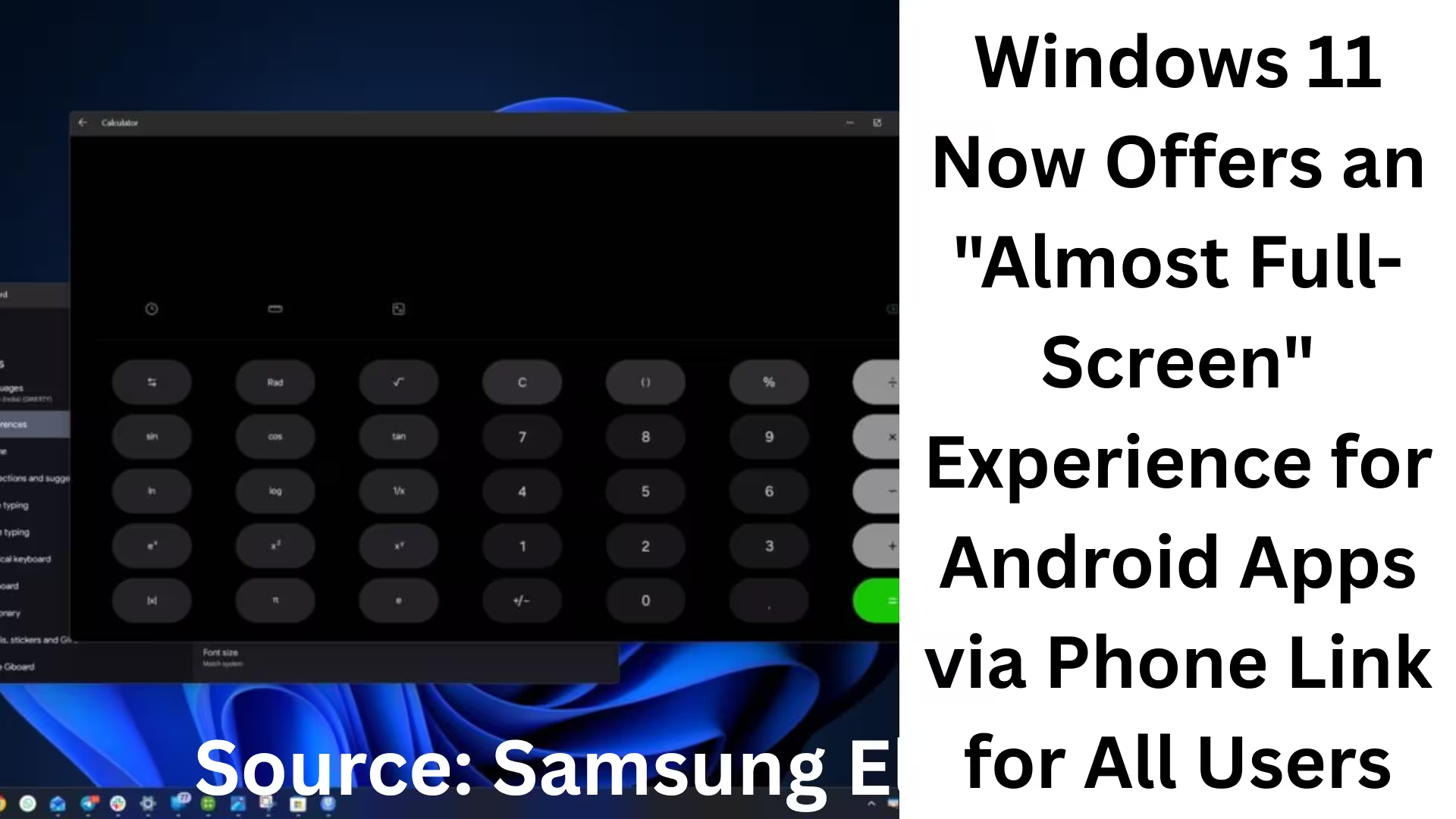
ByMicrosoft Windows 11 is continuously making its ecosystem more powerful and useful. The company has now given a new dimension to the experience of using Android apps on a PC through the Phone Link app. With this new update, users can now run Android apps on Windows 11 in an almost full-screen (Expanded Screen) mode, utilizing approximately 90% of the desktop screen.
This feature was previously limited to Windows Insiders, but it has now been rolled out to all supported devices. This update is crucial for users who want a seamless experience between their mobile and PC.
What is the Phone Link’s Expanded Screen Feature?
Expanded Screen is not a new Windows UI, but rather a technology that renders the layout of Android apps to suit larger screens. When a user opens an Android app on their PC via Phone Link, this feature instructs the phone to relaunch the same app in a wider layout. Phone Link then streams this larger layout to Windows 11.
The result is that Android apps now appear not in small, limited windows, but with an almost full-screen experience.
Why Android Apps on Windows 11 Now Look More Professional
Previously, using Android apps on a PC felt like a compromise because the window was too small. Now, with Expanded Screen:
Better visual experience
Easier multitasking
Larger text and UI elements
Desktop-level productivity
This feature is especially useful for users who use apps like WhatsApp, Instagram, Notes, or business apps on their PC for extended periods.
How to Identify if the Expanded Screen Feature is Available
When you open an Android app in the Phone Link app, a notification appears on the screen indicating that the apps can be viewed in Expanded Screen mode. If you don’t see this option, then:
1. Open the Microsoft Store
2. Update the Phone Link app
3. Ensure Windows 11 is updated to the latest version
In some cases, this feature may appear with a slight delay due to account-based rollout.
Why Some Android Apps Don’t Support Expanded Screen
Microsoft has clarified that not all Android apps support this feature. The reasons:
Some apps are not designed for wide layouts
Some apps require a restart to change the layout
Some apps are not optimized for tablets or larger screens
The same happens in Android—when the screen size changes, the app needs to reload for the new configuration.
Tablet-Style Experience but with Desktop Power
While this feature may look like a tablet-style experience, it actually utilizes Android’s large-screen rendering system. When the Android system indicates that an app supports a larger layout:
Phone Link creates a larger canvas
The app is run on that canvas
That view is then mirrored to Windows 11
This gives the user an experience that almost bridges the gap between mobile and PC.
Why it’s called “Almost Full-Screen”
Although apps appear much larger in Expanded Screen mode, approximately 10% of the screen space remains unused. This is due to:
Windows UI limitations
Multi-window management
Background process control
However, given the open-source nature of Android, Microsoft may overcome this limitation in the future.
Issues with Apps like WhatsApp
Some Android apps, such as WhatsApp, do not work correctly in Expanded Screen mode. In many cases:
Text appears blurry
UI elements are stretched
Image quality is reduced
It depends on the app developers how they optimize their apps for larger screens. Why the “Apps” section isn’t showing in Phone Link
If the “Apps” section isn’t visible in your Phone Link app, it means your phone is not currently on the list of supported devices.
List of Supported Android Phones
According to Microsoft, the Phone Link Apps feature is available on select phones from these brands:
Samsung: Galaxy Fold, Note20 5G/Ultra, S22, S23, S24+
HONOR: Magic4 Pro, Magic6 Series
OnePlus: Select series
OPPO: Find and Reno Series
Realme: Select models
Xiaomi: Some of the latest devices
Select phones from ASUS and vivo
All these devices have Link to Windows pre-installed.
The Importance of Android 11 or Later
If your phone is running Android 11 or later, you can take advantage of advanced features such as:
Multiple Apps Streaming
Improved layout support
Smoother performance
New Phone Link Features: More than just Apps
Besides the Expanded Screen feature, Microsoft has recently added several new features to Phone Link:
Ability to lock your PC from your Android phone
Improved notification syncing
Faster app streaming
Enhanced security integration
All these changes make Windows 11 a true cross-device platform.
The Future of Windows 11 and Android
The Expanded Screen feature clearly shows that Microsoft no longer wants to be limited to just Windows. Deep integration with Android:
Speeds up workflows
Eliminates the mobile-desktop gap
Takes the user experience to the next level
This synergy between Windows 11 and Android is expected to become even stronger in the future.
Are you searching for the best hosting plan? Click now and get 20% off
Frequently Asked Questions (FAQ)
Q1. How can I run Android apps in almost full-screen mode on Windows 11?
To run Android apps in almost full-screen mode on Windows 11, you use the Microsoft Phone Link app. Its Expanded Screen feature relaunches Android apps on your phone in a larger layout and then streams that view to your PC, utilizing approximately 90% of the desktop screen.
Q2. Is the Expanded Screen feature available to all users?
Yes, this feature is now available to all eligible users. Previously, it was only available to Windows Insiders, but it has now been rolled out publicly. If the feature is not visible, you should update the Phone Link app from the Microsoft Store.
Q3. What is the difference between Expanded Screen and Full-Screen?
Expanded Screen is not completely 100% full-screen. Approximately 10% of the screen space remains unused. This is why it’s called “Almost Full-Screen.” However, it provides a much larger and more usable experience compared to the previous compact view.
Q4. Do all Android apps support Expanded Screen?
No, not all Android apps support Expanded Screen. Some apps are not designed for larger layouts, while others require a restart to change the layout.
Q5. Why doesn’t WhatsApp work correctly in Expanded Screen mode?
Some apps, like WhatsApp, show blurry text and a poor UI in Expanded Screen mode. This is because the app is not yet fully optimized for larger screen layouts.
Q6. Why is the “Apps” section not visible in the Phone Link app?
If the “Apps” section is not visible in Phone Link, it means your phone is not included in the list of supported devices. This feature is only available on select Android smartphones.
Q7. Which phones support the Phone Link Apps feature?
The Phone Link Apps feature is available on select phone brands, including:
Some models from Samsung, HONOR, OPPO, OnePlus, Realme, Xiaomi, ASUS, and vivo, which have Link to Windows pre-installed.
Q8. Which Android version is required for Phone Link Expanded Screen?
The phone must have at least Android 11 or a newer version. This provides features such as Multiple Apps Streaming and improved layout support.
Q9. Does the Expanded Screen feature affect PC performance?
No, in normal use, this feature does not negatively impact PC performance. It runs the app on the phone’s hardware and only streams the view to the PC.
Q10. What other new features have been added to Phone Link besides Android Apps?
Several new features have recently been added to Phone Link, such as:
The ability to lock your PC from your Android phone
Improved notification syncing
Faster and smoother app streaming
Enhanced security and control
Q11. Is it possible that the Expanded Screen will become fully full-screen in the future?
Given the open-source nature of Android and Microsoft’s continuous updates, it is possible that the Expanded Screen feature could become fully full-screen in the future.
Q12. What benefits do users get from Windows 11 and Android integration?
This integration provides users with several major benefits, such as:
A better multitasking experience
Seamless workflow between mobile and PC
Time savings and increased productivity
Also read:
Separate Changelog for AI Components in Windows 11: Microsoft’s New Strategy
Snapdragon X2 PCs to Launch with Windows 11 26H1 by April 2026; Older PCs to Receive Windows 11 26H2
How to Keep WhatsApp Always Online: 7 Effective Methods (2026 Guide)
Samsung Galaxy S26 Ultra Receives New Launch Date Update – Get All the Details
Images Not Downloading from Google Chrome on Android?
7 Best and Effective Ways to Block Spam Calls on iPhone (2026 Guide)
Microsoft’s Windows 11 SE: An OS that challenged ChromeOS, now set to become history in 10 months
Microsoft will now let you share app windows directly with Copilot from the Windows 11 taskbar
Another new model of AirPods Pro 3 is coming: The next big upgrade with an IR camera
How to Remove api.cactus-search.com (All Methods) – Complete Information
How to Normalize Volume in Windows 11 – Complete Step-by-Step Guide
How to Launch Multiple Apps Simultaneously in Windows – A Complete and Effective Guide
Are you searching for the best hosting plan? Click now and get 20% off

[…] Windows 11 Now Offers an “Almost Full-Screen” Experience for Android Apps via Phone Link for All… […]