 By
ByWindows 11 is a modern and powerful operating system, but sometimes accidentally uninstalling important software or programs becomes a common problem. In such cases, users want to know how to recover uninstalled programs in Windows 11. In this detailed article, we present all the effective, practical, and working methods to recover deleted programs on Windows 11 in detail.
Common Reasons for Programs Being Uninstalled in Windows 11
Accidental uninstallation
Incorrect use of system cleaners or third-party tools
Software removal during Windows Update
System Reset or Refresh
Program removal due to Virus or Malware
In these situations, it is possible to restore uninstalled programs by following the correct method.
Method 1: Recovering Uninstalled Apps from the Microsoft Store
If you installed an app from the Microsoft Store, recovering it is the easiest.
Steps:
1. Open the Microsoft Store
2. Click on Library in the upper right corner
3. Go to the “Not Installed” section
4. Press the Install button on the app you want to recover
This method is 100% safe and effective for Store apps.
Method 2: Reinstalling Programs from the Control Panel
Sometimes it seems that a program has been removed, while it is still present in the system.
Steps:
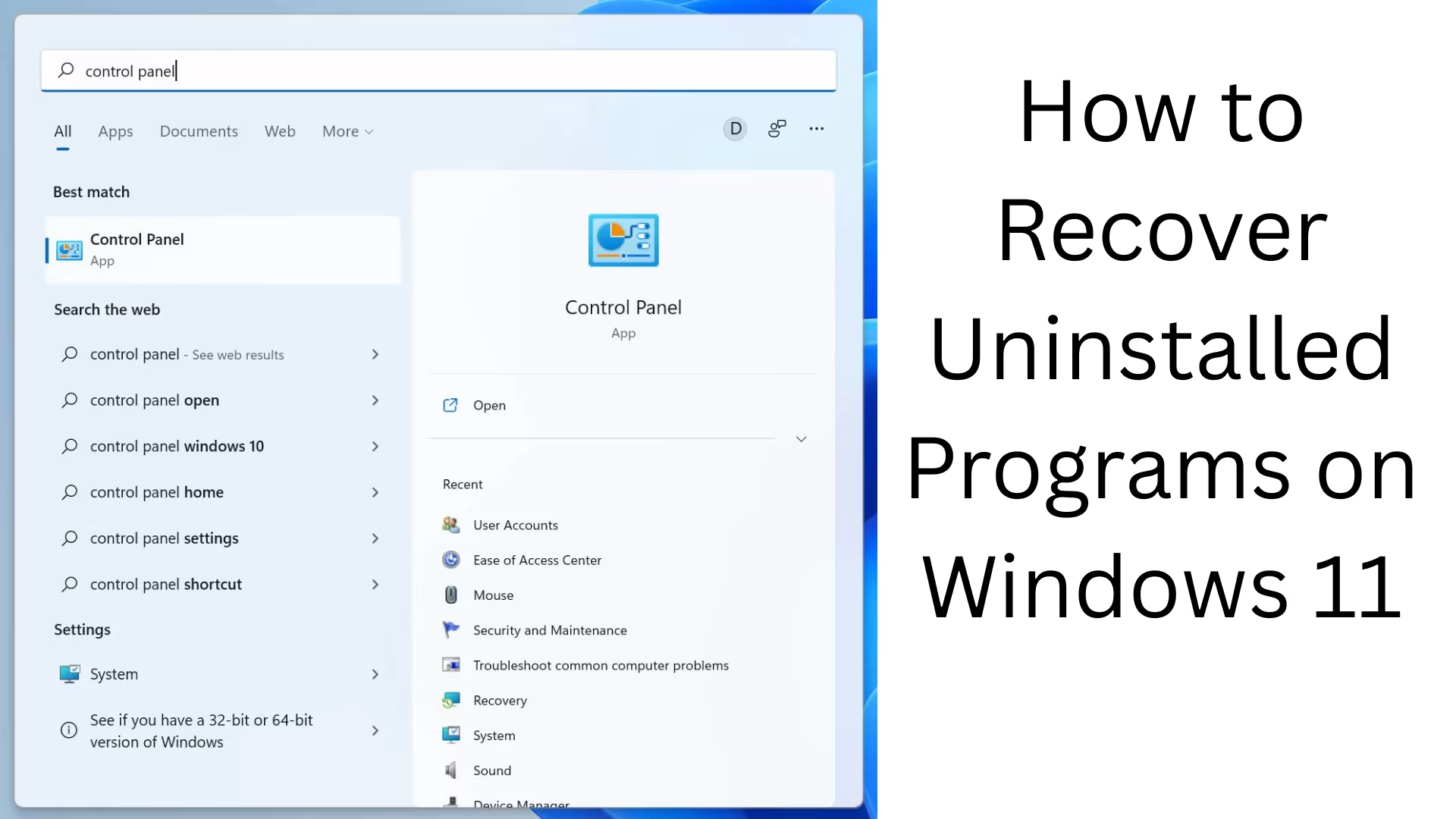
1. Open the Control Panel
2. Go to Programs > Programs and Features
3. Check if the program is present in the list
4. If it is disabled, select the Enable or Repair option
This method is especially useful for desktop software.
Method 3: Recovering Programs using System Restore
System Restore is a powerful feature of Windows 11 that takes the system back to a previous working state.
Steps:
1. Type “Create a Restore Point” in the search bar.
2. Open the System Protection tab.
3. Click on System Restore.
4. Select the date when the program was present.
5. Allow the restore process to complete.
Note:
A restore point must have been created previously.
This method restores system files and programs.
Also read: How to Update PowerShell in Windows – A Complete and Detailed Guide
Method 4: Restoring Deleted Programs from Windows Backup
If you previously enabled Windows Backup, this method is highly effective.
Steps:
1. Go to Settings > Accounts > Windows Backup
2. View Backup History
3. Restore the system from a previous backup
This method is best for users who maintain regular backups.
Method 5: Recovering Uninstalled Programs with Third-Party Software
When a program is completely removed from the system, professional recovery software comes in handy.
Best Recovery Tools for Windows 11:
Revo Uninstaller Pro
EaseUS Data Recovery Wizard
Stellar Data Recovery
AOMEI OneKey Recovery
How it works:
This software scans registry entries and program files.
It recovers deleted application data.
In many cases, the entire software is recovered.
This method is extremely useful for advanced users.
Method 6: Recovery from the Program Installation Folder
Sometimes, even after a program is uninstalled, its files remain.
Steps:
1. Go to: C:\Program Files or C:\Program Files (x86)
2. Find the relevant program folder.
3. If the `.exe` file exists, run it.
4. Or choose the Repair/Reinstall option.
This method is especially effective for older desktop software.
Method 7: How to Get Programs Back After a Windows Reset
If you have reset Windows 11:
After the reset, Windows provides a list of removed apps.
Identify the program name from that list and reinstall it.
Download the latest version from the official website.
This method helps in identifying and restoring programs after a reset. How to Prevent Programs from Being Uninstalled in the Future
Safe Measures:
Always create a System Restore Point
Maintain regular full system backups
Avoid using unknown cleaner software
Carefully read the confirmation message when uninstalling a program
Keep your antivirus and malware protection active
Conclusion
Recovering uninstalled programs in Windows 11 is entirely possible, provided the correct method is used and action is taken promptly. Microsoft Store, System Restore, backups, and professional recovery tools—all these methods prove highly effective in different situations. If you wisely implement all the methods mentioned above, your worries about losing important software will be eliminated.
Are you searching for the best hosting plan? Click now and get 20% off
FAQs – Questions Related to Recovering Uninstalled Programs in Windows 11
Q1. Can uninstalled programs be recovered in Windows 11?
Yes, uninstalled programs in Windows 11 can be recovered using several methods, such as System Restore, Windows Backup, Microsoft Store, or third-party recovery software.
Q2. Can a program be recovered if a System Restore Point was not created?
Yes, in this case, you can recover the program by reinstalling it from the Microsoft Store, downloading the software from the official website, or using recovery tools.
Q3. How to recover apps removed from the Microsoft Store?
Open the Microsoft Store, go to Library > Not Installed Apps, and reinstall the relevant app from there.
Q4. Will performing a System Restore delete my personal files?
No, System Restore only restores system settings and installed programs. Your personal files remain safe.
Q5. How to find programs removed after resetting Windows 11?
After a Windows reset, the system displays a list of removed apps. You can reinstall the programs based on that list.
Q6. Is it safe to recover programs using third-party software?
If you use trusted and reputable recovery software (such as EaseUS, Stellar, Revo Uninstaller Pro), this method is safe and effective.
Q7. Can an uninstalled program be recovered without an internet connection?
Yes, if the program’s files are still present on the system. Otherwise, an internet connection will be required to download the software again.
Q8. What can I do to prevent programs from being accidentally uninstalled in the future?
Create regular System Restore Points
Keep Windows Backup enabled
Avoid unknown cleaner tools
Read the confirmation carefully when uninstalling
Q9. Can programs be uninstalled due to a virus or malware?
Yes, some malware can delete or corrupt system programs. Therefore, using updated antivirus software is essential.
Q10. Which method is the most effective?
System Restore is the most effective method if available. Otherwise, backup or the Microsoft Store is the next best option.