 By
ByThe New Avatar of Copilot in Windows 11 File Explorer
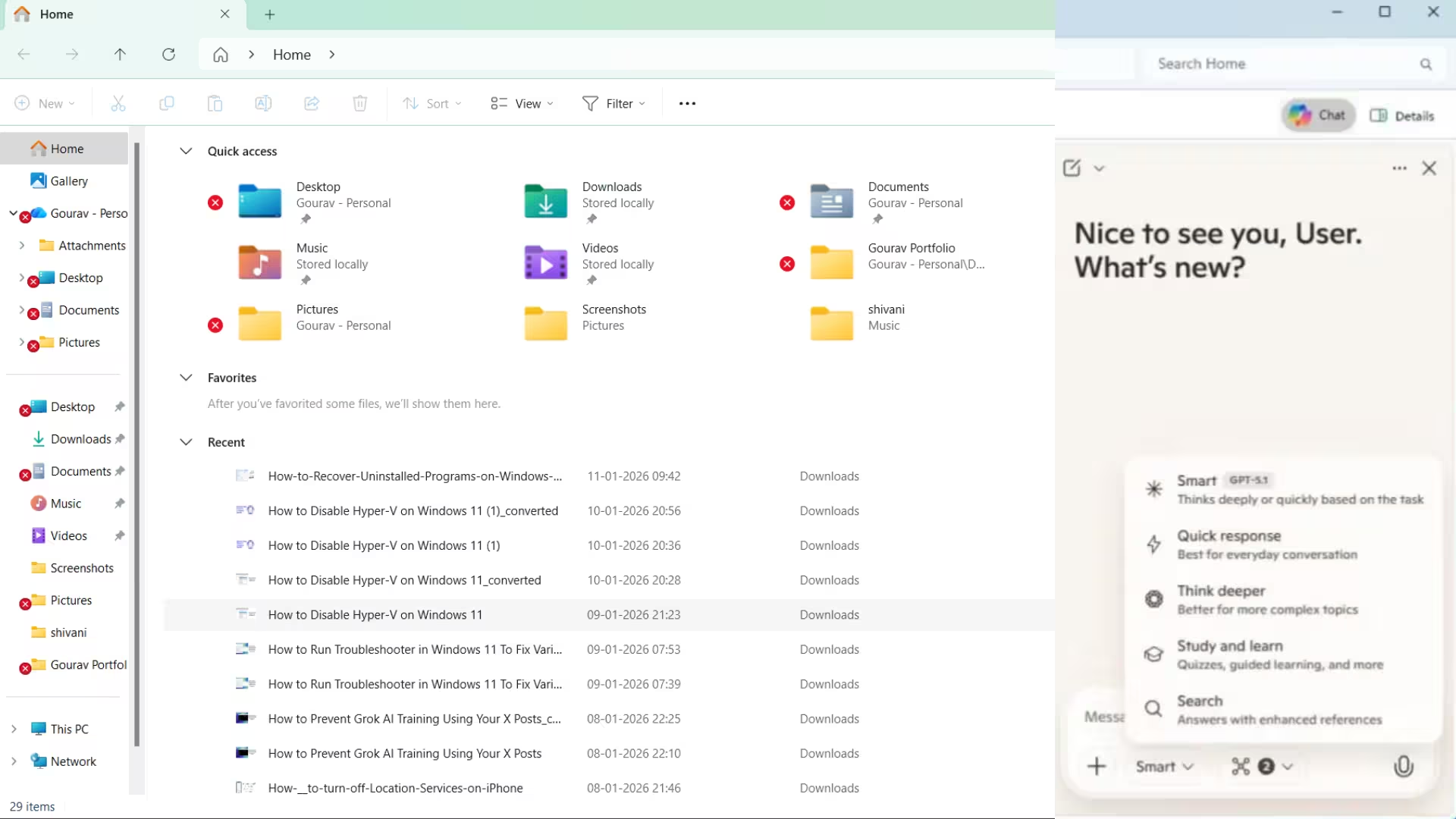
We are witnessing Microsoft gradually transforming Windows 11 into an AI-first operating System. A major and crucial step in this direction is the native integration of Copilot within File Explorer. Until now, File Explorer was merely a tool for viewing, copying, and managing files, but now it is evolving into an AI-powered interface.
The changes observed in the latest preview builds of Windows 11 clearly indicate that Copilot will be docked directly within File Explorer, similar to how the Details Pane or Preview Pane currently exist.
How Copilot will work in File Explorer
Until now, Copilot’s integration with File Explorer has been very limited. Users would right-click on a file → Ask Copilot, and then the file would open in the Copilot app. This method relied on launching a separate app.
The new integration will completely change the situation:
Copilot Chat Pane directly within File Explorer
Ask questions about file content without opening the file
AI Summary of entire folders
Smart analysis of files and folders
AI-assisted file management and organization
This means that File Explorer will no longer be just a file manager, but will become an AI-assisted data interface.
Concrete evidence found in Windows 11 Preview Builds
Windows experts @PhantomOfEarth and @a_donglee have discovered a new unlabeled Copilot button within File Explorer in Windows 11 Build 26220.7523. This button appears near the existing Details Pane, indicating that Copilot is being added to the Side Pane UI.
This discovery has also been confirmed by reliable tech websites like Windows Central and Windows Latest, making it clear that Microsoft is seriously testing this feature.
The Transformation of File Explorer: From Navigation to Intelligence
We believe that this change is not just a new feature, but a transformation of the entire philosophy of File Explorer. Until now:
File Explorer = Finding files + Opening files
In the future:
File Explorer = Understanding files + Analyzing files + Making decisions
Users will be able to ask Copilot:
“Which are the important documents in this folder?”
“Create a summary of this PDF.”
“Move all invoices from last month to a separate folder.”
“What sensitive information is in this file?”
This is a new chapter in AI interaction with local data.
Privacy and Security: The biggest question
While this feature seems powerful, the associated privacy concerns are equally serious.
Also read: How to Recover Uninstalled Programs in Windows 11 – A Complete and Detailed Guide
Some crucial questions arise:
Will Copilot process files locally or send them to the cloud?
Will the AI scan files automatically or only on the user’s command?
Will all files be accessible to Copilot or only indexed content?
How will this feature work on Enterprise and Office PCs?
Will users have the option to completely opt out?
File Explorer is the most sensitive part of the operating system. Therefore, transparency and user control are absolutely essential.
Not limited to Copilot+ PCs, but for all Windows 11 users?
The indications so far suggest that this feature is not limited to Copilot+ PCs. This means it might not only be for systems with AI hardware, but also for standard Windows 11 PCs.
If this happens, it further strengthens Microsoft’s AI strategy:
AI is not limited to high-end machines
AI for every Windows user
Could Microsoft change or cancel this feature?
Microsoft’s history shows that many Copilot features have:
Launched late
Changed in design
Or been quietly removed
Therefore, it is also possible that:
User feedback is negative
Questions about privacy increase
Performance doesn’t meet expectations
So Microsoft might redesign or delay this integration. But the way this feature seems to be integrated into the core of File Explorer suggests that this is not a temporary experiment. The Strategy to Make Windows an AI-First Shell
We are clearly seeing that Microsoft wants to transform Windows from just an OS into an AI-driven environment.
AI in the Start Menu
Copilot in the Taskbar
AI Suggestions in Settings
And now AI Chat in File Explorer
All of this together is leading Windows towards a conversational operating system, where users will interact more by asking questions than by clicking.
What does this actually mean for users?
We believe this change will be:
Extremely useful for power users
Time-saving for content creators
A productivity booster for Office and enterprise users
But also:
A cause for concern for privacy-conscious users
A potential performance issue on low-end PCs
Requiring AI control and permissions
Therefore, the success of this feature will entirely depend on:
Clear controls, fast performance, and transparency.
Conclusion: Not just a feature, but a direction
The arrival of Copilot in File Explorer tells us that Microsoft wants to change our relationship with Windows. Now, files will not just be data, but a medium for interaction with AI.
This feature is:
More than a superficial change, it’s a fundamental shift
More than a gimmick, it’s a strategic transformation
And more than an experiment, it’s a glimpse into the future
The question is no longer whether Copilot will come to File Explorer, but how much users will embrace it.
Are you searching for the best hosting plan? Click now and get 20% off
Frequently Asked Questions (FAQ)
Question 1: What is Copilot in Windows 11 File Explorer?
Answer: Copilot in Windows 11 File Explorer is a native AI chat interface that allows users to interact with files and folders directly through AI. This provides summaries, information, and analysis of files without needing to open them.
Question 2: Will Copilot work directly within File Explorer?
Answer: Yes, Microsoft is testing integrating Microsoft Copilot directly into File Explorer as a docked pane, eliminating the need to open a separate app.
Question 3: How does Copilot currently work in File Explorer?
Answer: Currently, users right-click on a file and select “Ask Copilot,” which opens the file in the Copilot app. The new feature will completely change this.
Question 4: What will Copilot be able to do in File Explorer?
Answer: With Copilot, users will be able to:
View file summaries
Get an overview of folders
Ask questions about file content
Manage and organize files using AI
Question 5: Will this feature be available for all Windows 11 PCs?
Answer: Based on current indications, this feature is not limited to Copilot+ PCs and may be available on regular Windows 11 PCs in the future.
Question 6: What are the privacy concerns regarding Copilot in File Explorer?
Answer: The biggest concerns are:
Whether the file data will be processed locally or sent to the cloud
Whether Copilot will automatically scan files
How much control and opt-out options users will have
Question 7: Will Copilot work differently on Enterprise or Office PCs?
Answer: Microsoft has not yet provided clear information on this, but different privacy and access policies will likely apply to Enterprise devices.
Question 8: Can Microsoft cancel this feature?
Answer: Yes, Microsoft can delay, redesign, or cancel Copilot features based on user feedback, as has happened with several features in the past.
Question 9: What benefits will users gain from the integration of Copilot into File Explorer?
Answer: It will save users time, increase productivity, and make file management smarter, faster, and more intelligent.
Question 10: Does this change reflect the future of Windows?
Answer: Absolutely. The integration of Copilot into File Explorer indicates that Microsoft aims to make Windows an AI-first operating system.
Content credit: pureinfotech.com