 By
ByMicrosoft has officially released Windows 11 Build 26220.7535 (KB5072046) for the Dev and Beta Channels. This update is considered the first significant preview for Windows 11 version 25H2, including Copilot-based accessibility features, admin controls, improvements to the Resume feature, and a long list of system-level fixes.
In this article, we are providing an in-depth analysis of every new feature, improvement, and known issue in this build, giving you a clear glimpse into the future of Windows 11.
Brief Introduction to Windows 11 KB5072046
KB5072046 is an Insider Preview Quality Update, made available specifically for the Dev and Beta channels. With this update, Microsoft has officially upgraded the Beta Channel from 24H2 to 25H2. This means that the builds currently available on the Dev and Beta channels are identical.
Microsoft has also clarified that in the future, when the Dev Channel is moved to a higher build, it will not be possible to switch channels without a full reinstallation. Therefore, the company is advising Insiders to switch to the Beta Channel now.
Copilot-Powered Image Description in Narrator: A New Era of Accessibility
The biggest and most impactful change in this build is found in Windows Narrator.
Copilot AI Now Provides Image Descriptions
Previously, advanced AI-based image descriptions were only available on Copilot+ PCs, but with Build 26220.7535, Microsoft has fully integrated Copilot AI into Narrator.
This feature is now available on all Windows 11 devices. Important Shortcuts
Narrator Key + Ctrl + D → Description of the focused image
Narrator Key + Ctrl + S → Description of the entire screen
This change makes Windows 11 significantly more useful and inclusive, especially for visually impaired users.
Administrative Controls for Microsoft Copilot App
Microsoft has added a key feature for IT administrators in this update.
Copilot App can now be uninstalled
Also read: Copilot in Windows 11 File Explorer: Microsoft’s Biggest AI Leap Yet
The Microsoft Copilot App can now be completely removed on networked or managed devices.
New Policy: RemoveMicrosoftCopilotApp
Supported Editions:
Windows 11 Enterprise
Windows 11 Pro
Windows 11 Education
Group Policy Path
“`
User Configuration > Administrative Templates > Windows AI > Remove Microsoft Copilot App
“`
This change is extremely useful for organizations that want strict control over AI features.
Major Improvements to Cross-Device Resume Feature
Microsoft has made the Resume feature even more powerful for developers.
Link to Windows no longer required
Previously, developers had to use the Link to Windows app to implement the Resume feature.
Now, Microsoft has integrated it with the Windows Notification System (WNS).
Benefits
Faster and more reliable resume experience
Seamless resumption of apps across different devices
Easier implementation for developers
This feature further strengthens the connection between the Windows and mobile ecosystems.
Visual and Accessibility Improvements to Spotlight Feature
Windows Spotlight has also received a facelift in this update.
A new icon has been added to the desktop
Easier access to Spotlight settings
Improved user interaction
This change elevates Spotlight from just a background feature to a more interactive experience.
Start Menu, File Explorer, and System-Level Fixes
Windows 11 Build 26220.7535 is not limited to new features; it also includes several important bug fixes. Start Menu
Fixed an issue where the shutdown warning dialog would disappear.
Resolved a UI glitch during multi-user sign-in.
File Explorer
Fixed an issue where explorer.exe would crash when opening the desktop context menu.
Input and Snipping Tool
Fixed a black flash bug that occurred when drawing with a pen.
Printing Improvements
Resolved an issue where two print dialogs would appear instead of one.
The print dialog’s close button now has a UI-consistent color.
Fixed text truncation on the Printers & Scanners page.
Windows Update
The issue where the update settings page would get stuck on loading is now fixed.
Known Issues (Work in Progress)
Microsoft has also acknowledged some known issues that are actively being worked on.
Xbox Full Screen Experience (FSE)
Some apps may exhibit unexpected behavior,
especially those that rely on a fixed window size.
Taskbar Issues
Start Menu not opening on click
Apps not appearing in the System Tray
Autohide Taskbar is activating prematurely
Settings App
Settings app is crashing when interacting with audio devices
Bluetooth
Issue with Bluetooth device battery level not displaying
Fix is in progress
Click to Do
Copilot prompt box does not appear when the Microsoft 365 Copilot app is not running
How to Download and Install Windows 11 KB5072046
If you want to install this build, follow these steps:
1. Open Settings
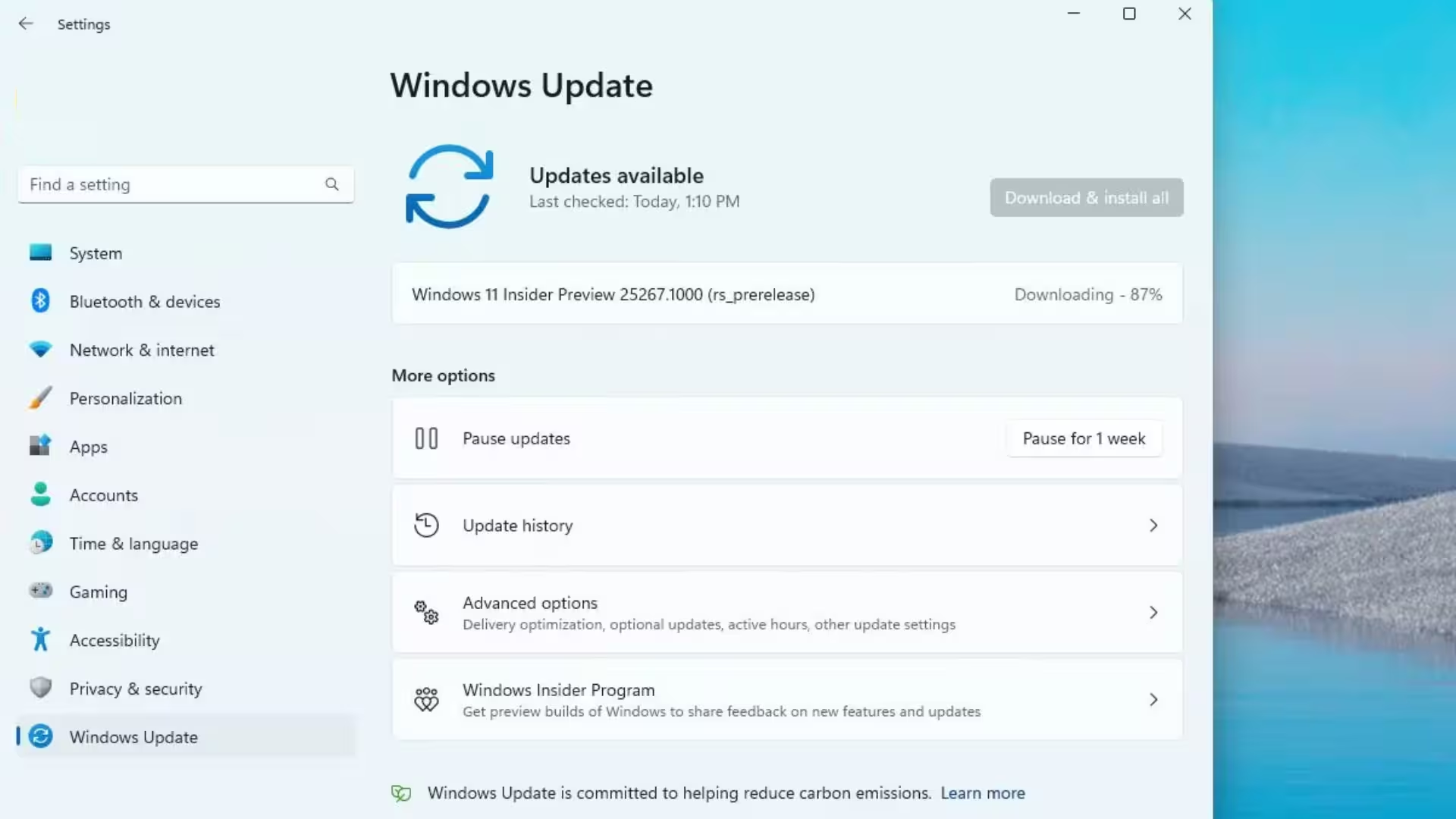
2. Go to Windows Update > Windows Insider Program
3. Enroll in the Dev or Beta Channel
4. Turn on the “Get the latest updates as soon as they’re available” option
5. Click Check for Updates
6. Download and install KB5072046 (Build 26220.7535)
A Strong Step Towards Windows 11 25H2
We believe that Windows 11 Build 26220.7535 is not just a preview update, but a clear indication that Microsoft is seriously working on AI-driven accessibility, admin controls, and cross-device productivity.
The expansion of Copilot into Narrator, the new architecture of the Resume feature, and system-level stability improvements make Windows 11 25H2 a mature and future-oriented update.
Are you searching for the best hosting plan? Click now and get 20% off
FAQ – Frequently Asked Questions related to Windows 11 Build 26220.7535 (KB5072046)
Q1. What is Windows 11 Build 26220.7535 (KB5072046)?
This is an Insider Preview Quality Update released for Windows 11 version 25H2, made available by Microsoft through the Dev and Beta Channels. It includes new features, improvements, and several bug fixes.
Q2. Which channels is this update available for?
This update is available for both the Dev and Beta Channels of the Windows Insider Program. Currently, the same build has been released on both channels.
Q3. Is the Beta Channel now based on 25H2?
Yes, Microsoft has updated the Beta Channel from 24H2 to 25H2, making the builds on both the Dev and Beta channels identical.
Q4. What’s new in Narrator?
Windows Narrator now includes a Copilot AI-based Image Description feature, which provides a detailed description of any image or the entire screen.
Q5. What are the shortcuts for image description in Narrator?
Narrator Key + Ctrl + D: Description of the focused image
Narrator Key + Ctrl + S: Description of the entire screen
Q6. Can the Microsoft Copilot App be removed?
Yes, network administrators can now uninstall the Copilot App using a new policy, RemoveMicrosoftCopilotApp.
Q7. Which Windows editions have the Copilot App removal feature?
This feature is available in Windows 11 Enterprise, Pro, and Education editions.
Q8. What improvements have been made to the Cross-Device Resume feature?
The Resume feature no longer relies on the Link to Windows App and has been made faster and more efficient through the Windows Notification System (WNS).
Q9. What changes have been made to the Spotlight feature?
A new desktop icon has been added for Windows Spotlight, making it easier to access and control the feature.
Q10. What bugs have been fixed in this update?
This build fixes several issues related to the Start Menu, File Explorer, Windows Update, Input, Printing, and the Snipping Tool.
Q11. Are there any known issues in this update?
Yes, some known issues still exist, such as Taskbar glitches, Settings app crashes, Bluetooth battery level not displaying, and issues related to the Xbox Full Screen Experience.
Q12. How to download Windows 11 KB5072046?
You need to join the Dev or Beta Channel in the Windows Insider Program, then go to Windows Update and click on “Check for Updates” to download this build.
Q13. Is this update for stable users?
No, this is a Preview Update, primarily designed for testing and feedback. It should be used with caution on stable systems.
Q14. Will it be possible to switch from the Dev Channel to the Beta Channel in the future?
According to Microsoft, once the Dev Channel moves to a higher build, it will not be possible to switch channels without a full reinstallation.
Q15. Is this update important for the future of Windows 11?
Absolutely, this update clearly indicates that Microsoft is making AI, Accessibility, and Productivity the main pillars of Windows 11’s future.
Content credit: pureinfotech.com