 By
ByQuick Settings is a very useful feature in Windows 11, allowing us to quickly access important settings like Wi-Fi, Bluetooth, Airplane Mode, Brightness, Volume, Accessibility, and Battery Saver. This feature saves us from having to repeatedly open the Settings app and makes tasks faster and simpler.
In this detailed article, we will explore how to add, remove, and reset Quick Settings in Windows 11 so we can customize our system to our needs.
What are Quick Settings in Windows 11?
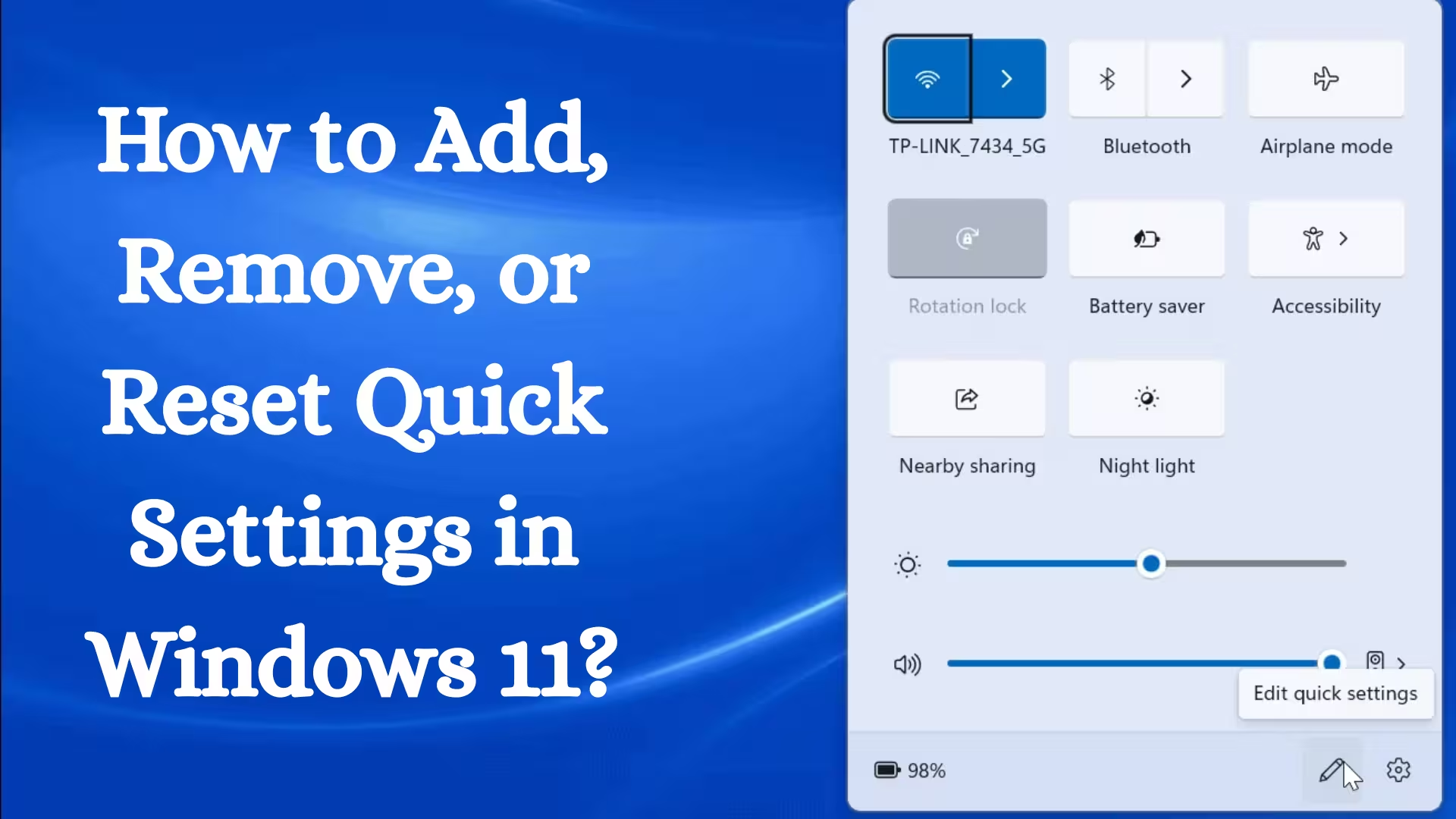
Quick Settings is a shortcut panel in Windows 11 that opens when you click the Network, Sound, or Battery icons on the right side of the taskbar. It contains toggle buttons for key system settings that we can add or remove as needed.
This feature is especially beneficial for users who want to change settings quickly.
How to Add Quick Settings in Windows 11
If we want to add a new setting to the Quick Settings panel, follow the steps below:
Step 1: Open Quick Settings
Click the Wi-Fi, Sound, or Battery icon on the right side of the taskbar
or
Press Windows + A on the keyboard
Step 2: Click Edit Quick Settings
Click the pencil (Edit Quick Settings) icon at the bottom
Step 3: Select the Add button
Now click the “Add” button
You will see available options here, such as:
- Wi-Fi
- Bluetooth
- Airplane Mode
- Nearby Sharing
- Mobile Hotspot
- Night Light
- Accessibility
- Keyboard Layout
- Cast
Step 4: Select the required option
Click the setting you want to add
Finally, click Done
The selected setting will now appear in the Quick Settings panel.
How to Remove Quick Settings in Windows 11
If unnecessary options are visible in the Quick Settings panel and we want to remove them, follow the procedure below:
Step 1: Press Windows + A
Open the Quick Settings panel.
Step 2: Click the Edit (pencil) icon
Step 3: Select the Remove option
Click the Remove (–) icon above the setting you want to remove.
Step 4: Click Done
That option will now be removed from Quick Settings.
How to Reorder Quick Settings
We can change the order of the Quick Settings tiles as per our convenience.
Procedure:
1. Press Windows + A
2. Click Edit Quick Settings
3. Drag and drop any tile to a new location
4. Click Done
This way, we can keep the most frequently used settings at the top.
How to Reset Quick Settings in Windows 11
Sometimes Quick Settings doesn’t work correctly, or custom settings get corrupted. In such a case, we can reset it.
Method 1: Reset via Registry Editor
Note: Be careful when making changes to the Registry.
1. Press Windows + R
2. Type `regedit` and press Enter
3. Navigate to the following path:
HKEY_CURRENT_USER\Software\Microsoft\Windows\CurrentVersion\Control Center\Quick Actions
4. Right-click the Quick Actions folder
5. Select Delete
6. Restart the system
Quick Settings will return to their default state after a restart.
Method 2: Restart Windows Explorer and Reset
1. Press Ctrl + Shift + Esc
2. Open Task Manager
3. Click Windows Explorer
4. Press the Restart button
This process sometimes fixes temporary issues with Quick Settings.
Quick Settings Not Working – Solutions
If the Quick Settings panel won’t open or isn’t working, try the following solutions:
1. Check Windows Update
Settings → Windows Update
Click Check for Updates
2. Run the System File Checker
Open Command Prompt (Admin) and run the following command:
sfc /scannow
3. Run the DISM Tool
DISM /Online /Cleanup-Image /RestoreHealth
These commands fix errors in system files.
Helpful Tips to Make Quick Settings More Effective
- Keep only essential toggles
- Keep frequently used settings at the top
- Add Accessibility Options if necessary
- Enable Night Light and Battery Saver for quick access
- Keep Wi-Fi and Bluetooth enabled for quick control
Quick Settings vs. Settings App – Which is Better?
| Features | Quick Settings | Settings App |
| —————- | ————– | ———— |
| Fast Access | | |
| Detailed Control | | |
| Customization | | | |
| Quick On/Off | | |
Quick Settings is best for quick control, while the Settings app is useful for detailed changes.
Key Benefits of Windows 11 Quick Settings
- Time Savings
- Fast Control
- Simplified Interface
- Personal Customization
- Improved User Experience
Impact on Security and Performance
Using Quick Settings doesn’t impact system performance but rather improves user experience. Quickly turning off toggles like Bluetooth, Wi-Fi, or Airplane Mode also saves battery.
Conclusion
In this detailed guide, we learned how to add, remove, reorder, and reset Quick Settings in Windows 11. With the right customization, we can make our system more productive, organized, and faster.
Frequently Asked Questions (FAQ) – Windows 11 Quick Settings
1. What are Quick Settings in Windows 11?
Quick Settings is a shortcut panel that allows us to quickly access important settings like Wi-Fi, Bluetooth, Airplane Mode, Brightness, Volume, and Battery Saver. Press Windows + A to open it.
2. How to open Quick Settings?
To open Quick Settings:
Press Windows + A on the keyboard
or
Click the Network, Sound, or Battery icon on the right side of the taskbar.
3. How to add a new setting to Quick Settings?
1. Press Windows + A
2. Click the Edit (pencil) icon below
3. Select the Add button
4. Click the required option
5. Click Done
4. How to remove an option from Quick Settings?
1. Open Quick Settings
2. Click the Edit icon
3. Click the Remove (–) option on the tile you want to remove.
4. Press Done
5. Can the Quick Settings be reordered?
Yes, we can reorder tiles by dragging and dropping them. This keeps the most frequently used settings at the top.
6. Quick Settings not working, what to do?
- Check Windows Update
- Restart Windows Explorer from Task Manager
- Run the `sfc /scannow` command in Command Prompt
- Restart the system if necessary.
7. How to reset Quick Settings?
Removing the Quick Actions folder via Registry Editor and restarting the system restores Quick Settings to its default state.
8. Do Quick Settings help save battery?
Yes, we can save battery by quickly turning off Wi-Fi, Bluetooth, or Airplane Mode.
9. Can all settings be added to Quick Settings?
No, only options provided by Windows 11 can be added.
10. What is the difference between Quick Settings and the Settings app?
Quick Settings is for quick on/off control, while the Settings app is used for detailed configuration and advanced options.
Are you searching for the best hosting plan? Click now and get 20% off