 By
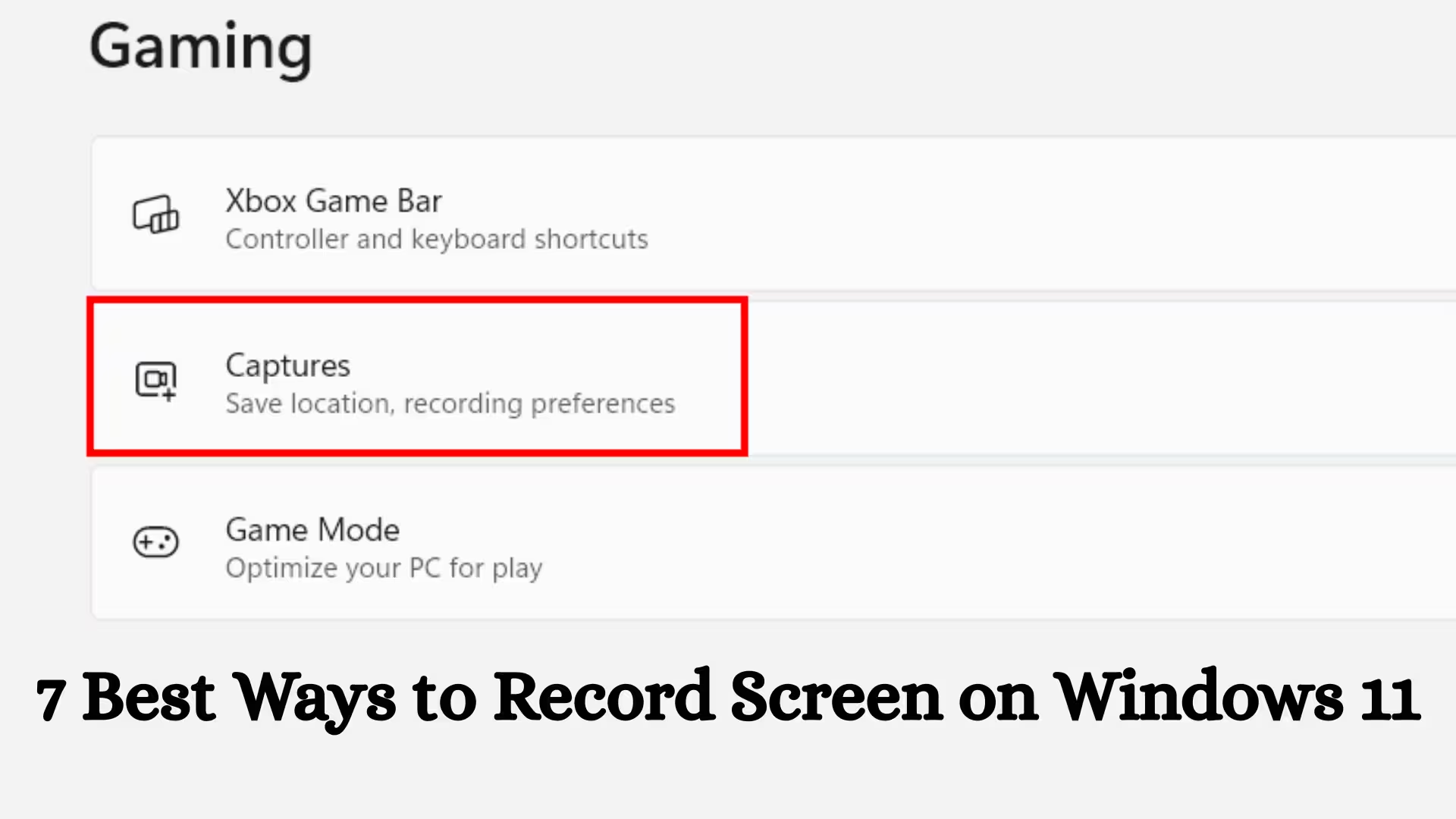
ByIn today’s digital age, screen recording on Windows 11 has become extremely important for content creators, gamers, online teachers, and professionals. Whether we’re creating tutorials, recording gameplay, saving meetings, or documenting a technical issue, screen recording has become a must-have feature. In this article, we’ll explore the 7 best ways to easily record screens in Windows 11.
1. Screen Recording with the Xbox Game Bar (Built-in and Easy Method)
The Xbox Game Bar comes pre-installed in Windows 11 and is suitable for gaming as well as general screen recording.
How to Use:
- Press Windows + G on your keyboard.
- Open the “Capture” panel.
- Click the Record button or press Windows + Alt + R.
Key Features:
- Microphone audio recording support.
- Background recording.
- Use without any additional software.
This method is best for users who want a free and built-in screen recorder.
2. Recording a Screen with Snipping Tool
Snipping Tool now comes with a screen recording feature in Windows 11.
Steps:
- Search for Snipping Tool in the Start menu.
- Select the “Record” option.
- Select an area of the screen.
- Start recording.
Advantages:
- Lightweight and fast.
- Suitable for short video clips.
- Simple interface.
This method is especially suitable for users who need to record a small portion of the screen.
3. Professional Screen Recording with Microsoft Clipchamp
Microsoft Clipchamp is the official video editor for Windows 11 that also offers screen recording.
Usage Procedure:
- Open the Clipchamp app.
- Select “Create a new video.”
- Click the “Record & Create” option.
- Select Screen Recording.
Features:
- Video editing tools.
- Audio and webcam recording.
- Cloud storage support.
This method is ideal for those who want to do editing while recording.
Also read: How to Unhide Apps on iPhone?
4. OBS Studio – Advanced and Professional Solution
OBS Studio is a powerful and free open-source software.
Install and Setup:
- Download and install OBS Studio.
- Add Display Capture to “Sources.”
- Click the Record button.
Key Benefits:
- High-quality recording.
- Multi-screen support.
- Live streaming option.
This method is best for YouTubers and professional content creators.
5. Screen Recording via PowerPoint
Microsoft PowerPoint also has a screen recording feature.
How to:
- Open PowerPoint.
- Select “Screen Recording” in the Insert tab.
- Select an area.
- Start recording.
When useful:
- When creating presentations.
- When creating educational videos.
This method is extremely convenient for office users.
6. Bandicam – Lightweight and Effective Screen Recorder
Bandicam is a popular third-party tool that provides high-quality recordings with minimal system resources.
Features:
- 4K UHD recording.
- Real-time drawing tools.
- Game recording mode.
This is ideal for users who focus on game recording.
7. ScreenRec – Free and Cloud-Based Alternative
ScreenRec is a free and lightweight tool that comes with cloud storage.
Features:
- Instant sharing links.
- HD recording.
- Videos without watermarks.
This method is ideal for recording team meetings and client demos.
Things to consider when screen recording in Windows 11
- Storage space should be sufficient.
- Choose 1080p or 4K settings for high quality.
- Adjust the microphone and system audio settings.
- Close all unnecessary apps before recording.
Which method is best for you?
| Use | Most suitable method |
| —————— | —————— |
| Normal recording | Xbox Game Bar |
| Short clip | Snipping Tool |
| With editing | Clipchamp |
| Professional video | OBS Studio |
| Office work | PowerPoint |
| Game recording | Bandicam |
| Cloud sharing | ScreenRec |
Advanced tips for Windows 11 screen recording
- Remember keyboard shortcuts.
- Keep notifications off during recording.
- Check audio sync.
- Keep the output format MP4.
Conclusion
There are many options available for screen recording in Windows 11, whether you need built-in features or advanced professional tools. Here, we have detailed 7 of the best and most effective methods that can help you easily record your screen as needed. Choosing the right tool depends on your workload, budget, and needs. If we regularly create video content, OBS Studio or Clipchamp are better options, while for casual use, Xbox Game Bar and Snipping Tool are sufficient.
Frequently Asked Questions (FAQ) – Screen Recording in Windows 11
1. Does Windows 11 have a built-in screen recorder?
Yes, Windows 11 comes with the Xbox Game Bar and Snipping Tool built in, allowing us to record our screens without any third-party software.
2. What’s the easiest way to record your screen in Windows 11?
The easiest way is to use the Xbox Game Bar. Simply press Windows + G and then click the Record button. This method is fast, free, and convenient.
3. Can we record the entire screen in Windows 11?
Yes, we can record the entire screen or a specific window. The Xbox Game Bar allows you to record the entire screen or an app window, while the Snipping Tool allows you to select a custom area.
4. Does Windows 11 screen recording also record audio?
Yes, we can record both microphone audio and system sound. It’s essential to turn on the audio settings on the Xbox Game Bar. Audio controls are also available at the advanced level in tools like OBS Studio.
5. Is screen recording possible without a watermark?
Yes, Windows 11’s built-in tools don’t have any watermarks. Furthermore, OBS Studio also provides high-quality recording without a watermark.
6. Is internet access required for screen recording in Windows 11?
No, built-in tools like the Xbox Game Bar and Snipping Tool work offline. The Internet is only required if we want to upload or share videos to the cloud.
7. Where are screen recording video files saved?
Videos recorded with the Xbox Game Bar are usually saved in the Videos > Captures folder. We can easily access this through File Explorer.
8. Can we record screens in 4K quality?
Yes, if our system supports 4K, we can record 4K screens using OBS Studio or other advanced tools. Keep in mind that this requires sufficient storage and a high-performance system.
9. Can we record our screens using PowerPoint?
Yes, Microsoft PowerPoint has a “Screen Recording” feature. It’s especially useful for creating presentations and educational videos.
10. How to fix lag or frame drops during screen recording?
Close unnecessary apps.
Keep GPU drivers updated.
Set the recording quality according to system capacity.
Ensure sufficient RAM and storage.
11. Can we record a small portion of the screen in Windows 11?
Yes, in Snipping Tool and OBS Studio, we can select a custom area and record only the required portion of the screen.
12. Which is the best option for game recording?
The Xbox Game Bar and OBS Studio are both excellent options for recording games. OBS Studio offers more advanced features and controls, while the Xbox Game Bar is a faster and simpler solution.
Are you searching for the best hosting plan? Click now and get 20% off