 By
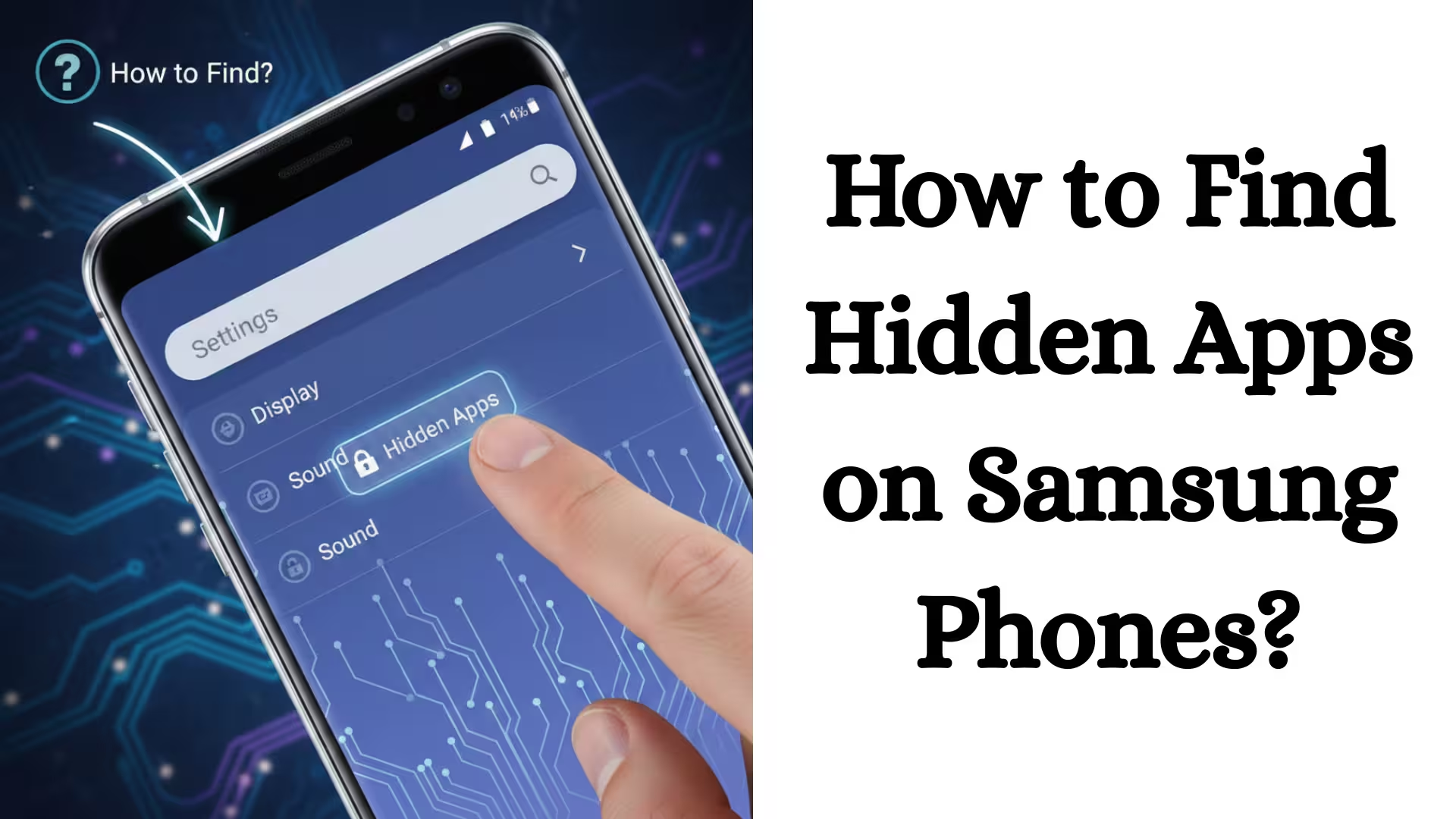
BySamsung smartphones are one of the most popular Android devices among users today. Sometimes, we intentionally or accidentally hide certain apps on our Samsung phones. Later, when we need them, they’re not visible. In such a situation, it’s important to understand how to find hidden apps on Samsung phones.
In this detailed guide, we’ll show you step-by-step methods to easily find and unhide hidden apps on your Samsung phone.
What are hidden apps on Samsung phones?
Hidden apps are applications that are hidden from the home screen or app drawer. This feature is especially useful for privacy. This feature is available on most Samsung smartphones within the One UI interface.
Ways to Find Hidden Apps on a Samsung Phone
1. Find Hidden Apps from the App Drawer
First, we can find hidden apps directly through the app drawer.
Step-by-step process:
1. Go to your Samsung phone’s Home Screen.
2. Open the App Drawer by swiping up.
3. Tap the Three Dots (⋮) at the top right.
4. Now select Home Screen Settings.
5. Here you will see the Hide Apps option.
This section will display all the apps that have been hidden. Tap the app you want to unhide and press the Remove (–) icon.
2. Find Hidden Apps through Settings
If you can’t find the app in the app drawer, you can also check through your phone’s settings.
Procedure:
1. Open Settings.
2. Scroll down and tap the Apps option.
3. Here you will see a list of all the apps installed on your phone.
If an app isn’t visible on the Home screen but is listed here, it’s likely hidden.
3. Find Hidden Apps in Samsung Secure Folder
Sometimes apps are placed in the Secure Folder.
What is Secure Folder?
Secure Folder is a special security feature from Samsung that keeps apps and data in a separate secure location.
How to view apps in Secure Folder:
1. Open Settings.
2. Tap Biometrics and Security.
3. Select Secure Folder.
4. Log in with a PIN/password.
Here you can find apps that aren’t visible in the regular app drawer.
4. Check apps with Parental Control or Digital Wellbeing
Sometimes apps are also hidden or restricted by Parental Control or Digital Wellbeing & Parental Controls.
How to check:
1. Open Settings.
2. Go to Digital Wellbeing and Parental Controls.
3. Check App Limits and Restricted Apps.
5. Hidden Apps Due to a Third-Party Launcher
If you’ve installed a third-party launcher on your Samsung phone, such as:
Nova Launcher
Microsoft Launcher
Apps may be hidden in that launcher’s settings.
Solution:
1. Open the launcher’s settings.
2. Find the Hidden Apps or App Drawer Settings option.
3. Unhide the apps from there.
How to Unhide Hidden Apps on a Samsung Phone
Unhide from Home Screen Settings
1. Long-press on the Home Screen.
2. Select Settings.
3. Go to Hide Apps.
4. Unselect the apps you want to show.
5. Tap Done.
Remove an app from the Secure Folder
1. Open the Secure Folder.
2. Long-press the app.
3. Select Move out of Secure Folder.
Advanced Tricks to Find Hidden Apps in Samsung One UI
Use the Search Bar
1. Open the App Drawer.
2. Type the app’s name in the search bar above.
If the app is installed, it will appear in the search results.
Check in Safe Mode
If you suspect a third-party app is causing the problem:
1. Press the Power button.
2. Tap and hold Power Off.
3. Select the Safe Mode option.
Only system apps run in Safe Mode. From here, you can check if the app is actually installed.
Why do apps become hidden on Samsung phones?
- Accidentally Using the Hide Apps Option
- Shifting to Secure Folder
- Parental Control Settings
- Third-Party Launcher Settings
- UI Changes After a System Update
How to Identify Hidden Spy Apps?
If you think a suspicious app is hidden on your phone:
1. Go to Settings > Apps.
2. Check for apps with unfamiliar names.
3. Check App Permissions.
4. Check Data Usage.
Ways to Prevent Hidden Apps on Samsung Phones
Check the App List regularly.
Use Secure Folder wisely.
Install only trusted apps.
Download apps from the Play Store.
Conclusion
In this detailed guide, we’ve covered how to find and unhide hidden apps on Samsung phones, and how to avoid this problem in the future. Whether the app is hidden from the home screen, in Secure Folder, or hidden by a third-party launcher, there’s a solution for every situation.
Frequently Asked Questions (FAQ) – How to Find Hidden Apps on a Samsung Phone
1. Where are hidden apps found on Samsung phones?
Hidden apps on Samsung phones are typically found in the App Drawer, Home Screen Settings (Hide Apps section), or Secure Folder. You can also view a complete list of all installed apps by going to Settings > Apps.
2. Are hidden apps completely removed from the phone?
No, hidden apps are only hidden from the Home screen or App Drawer; they are not deleted from the phone. They remain installed on the system and can be viewed through Settings.
3. Where is the Hide Apps option on Samsung?
To view the Hide Apps option:
Long-press on the Home screen → Settings → Hide Apps
From here, you can hide or unhide apps.
4. How to view hidden apps in the Secure Folder?
If the app is in Secure Folder, go to:
Settings → Biometrics and Security → Secure Folder
Log in by entering your password/PIN. Here you’ll find apps that aren’t visible in the regular app list.
5. Can apps in Secure Folder be viewed without a password?
No, Secure Folder is a secure, encrypted feature. Apps in Secure Folder cannot be accessed without the correct PIN, password, or biometrics.
6. How to find hidden apps with a third-party launcher?
If you’ve installed a third-party launcher like Nova Launcher or another launcher, check the Hidden Apps section in its settings. Apps can be unhidden from there.
7. Can Parental Controls hide apps?
Yes, if App Restrictions or App Limits are set in Digital Wellbeing & Parental Controls, some apps may appear restricted or hidden.
8. How to see a complete list of all installed apps on a Samsung phone?
Go to Settings → Apps. Here you’ll see a list of all apps installed on your phone, whether they’re hidden or not.
9. What to do if the app isn’t found in the search?
Check Settings > Apps
Check the Secure Folder
Restart the phone in Safe Mode
Ensure the app hasn’t been uninstalled.
10. Do hidden apps affect phone speed?
No, hiding apps doesn’t directly affect phone performance. They work in the background like normal apps.
11. Why do apps hide automatically on Samsung?
Apps don’t hide automatically. This can usually happen:
By accidentally using the Hide Apps option
By moving to the Secure Folder
By changing Launcher settings.
12. What is the way to permanently remove hidden apps?
If you want to completely remove the app:
Settings → Apps → Select the app → Tap Uninstall.
This will completely remove the app from your phone.
Are you searching for the best hosting plan? Click now and get 20% off