 By
ByFor Windows users, Services.msc is an essential tool for managing system services. However, users often encounter issues with Services.msc fails to open, throws an error, or freezes. This problem can stem from system file corruption, permission issues, or Windows configuration glitches. Here, we present 11 of the most effective and tested solutions to help you resolve this issue immediately.
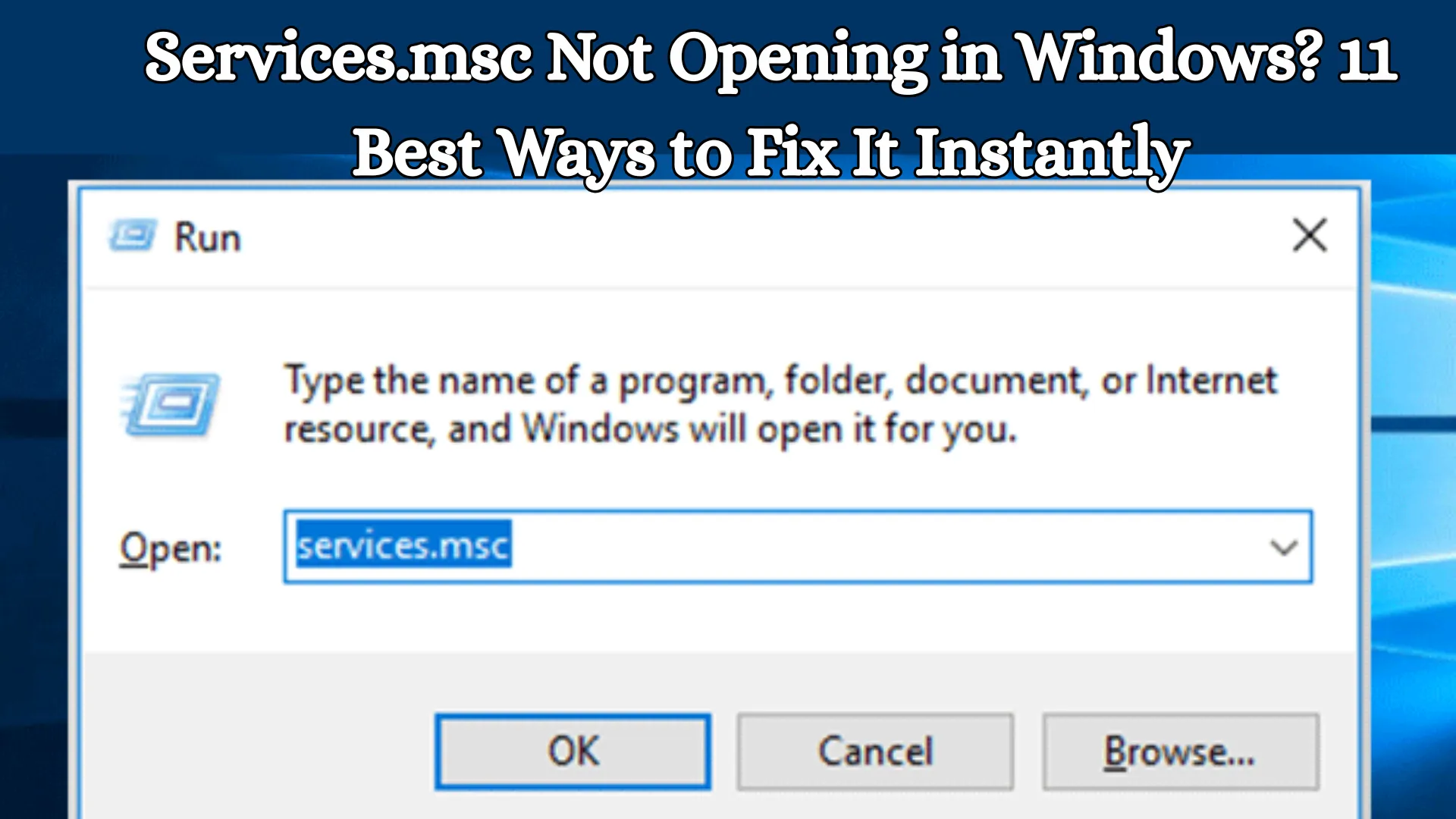
1. Open Services.msc via the Run Command
First, let’s try the basic method:
Press Win + R
Type: `services.msc`
Press Enter
If it fails to open using this method, the underlying issue may be more complex.
2. Run a System File Checker (SFC) Scan
Corrupted system files can prevent Services.msc from opening.
Open the Command Prompt as an Administrator
Enter the command:
“`
sfc /scannow
“`
Allow the scan to complete
This process repairs damaged system files.
3. Repair the Windows Image using the DISM Tool
If SFC does not resolve the issue, use DISM:
“`
DISM /Online /Cleanup-Image /RestoreHealth
“`
This command performs a deep-level repair of Windows image files.
4. Open with Administrative Privileges
Often, Services.msc fails to open due to insufficient permissions.
Search for “Services” in the Start Menu
Right-click → Run as Administrator
5. Restart Windows Services
This issue often arises when certain key services are stopped:
Go to Run → `services.msc`
Once it opens, restart the following services:
Remote Procedure Call (RPC)
Windows Management Instrumentation
6. Fix the Registry
Incorrect Registry settings can also be the cause of the problem:
Go to Run → `regedit`
Navigate to:
“`
HKEY_LOCAL_MACHINE\SYSTEM\CurrentControlSet\Services
“`
Ensure that no entries are corrupted.
Exercise caution when editing the Registry.
Also read: How to Fix the ‘Driver Power State Failure’ BSOD Error in Windows
7. Check in Safe Mode
Check whether `services.msc` opens while in Safe Mode:
Restart your system
Go to Advanced Options → Safe Mode
Then, open `services.msc`
If it works in Safe Mode, there is a third-party software conflict.
8. Create a New User Account
Sometimes, the user profile becomes corrupted:
Go to Settings → Accounts → Family & other users
Create a new User Account
Log in to the new account and check
9. Update Windows
Outdated systems may contain bugs:
Go to Settings → Windows Update
Click “Check for updates”
Install the latest updates
10. Run a Malware Scan
Viruses or malware can block system tools:
Open Windows Defender
Run a Full Scan
Alternatively, use a trusted antivirus program
11. Use System Restore
If the problem started recently:
Go to Control Panel → Recovery
Click “Open System Restore”
Select a previous restore point
This method reverts the system to a previous working state.
Additional Pro Tips (Advanced Fixes)
Check the Group Policy Editor
Run → `gpedit.msc`
Check for System Restrictions
View Error Logs via Event Viewer
Run → `eventvwr`
Analyze System Errors
Also read: How to Prevent Others From Changing Your Windows 11 Wallpaper?
Conclusion
Services.msc failing to open is a serious, yet resolvable, issue. By following all the methods outlined above in sequence, we can easily fix this problem. In particular, solutions such as SFC, DISM, and Admin Access prove to be the most effective.
Frequently Asked Questions (FAQ)
1. What is Services.msc, and why is it used?
Services.msc is a crucial Windows management tool that allows us to start, stop, restart, and configure all of the system’s background services. This tool plays a vital role in maintaining the system’s performance and stability.
2. What are the main reasons why Services.msc might not open?
This issue is typically caused by corrupt system files, incorrect permissions, viruses/malware, or Windows Update issues. In many cases, third-party software can also block it.
3. Can Services.msc be opened without Admin privileges?
In some cases, yes; however, Administrator permissions are generally required to manage services. Therefore, it is always best to open it using the “Run as Administrator” option.
4. Are the SFC and DISM commands safe to use?
Yes, both SFC (System File Checker) and DISM (Deployment Image Servicing and Management) are official Windows tools and are completely safe. They are designed specifically to repair system files.
5. What should I do if Services.msc opens in Safe Mode but not in Normal Mode?
This indicates that a third-party software or startup program is causing a conflict. In such cases, performing a “Clean Boot” or uninstalling recently installed software would be beneficial.
6. Can creating a new User Account resolve the issue?
Yes, if your existing user profile has become corrupt, creating a new User Account can restore Services.msc to proper working order.
7. Is it necessary to make changes to the Registry?
Not always; however, if the issue is related to the Registry, making the appropriate modifications may be necessary. Keep in mind that extreme caution is essential when editing the Registry, as incorrect modifications can adversely affect the system.
8. Can Windows Update fix this issue?
Yes, often this problem arises due to pending updates or an outdated system. Updating Windows provides bug fixes and security patches, which can resolve the issue.
9. Can viruses or malware block Services.msc?
Yes, certain malware programs can disable or block system tools. Therefore, performing a full system scan is crucial.
10. When should I use System Restore?
If the problem has started recently and other solutions have failed, you can use System Restore to revert the system to a previous working state.
11. What should I do if none of the methods work?
If all troubleshooting steps fail, your final option is to perform a Windows Reset or a Clean Installation. This will restore the system to a completely fresh state and resolve the issue.
12. Is there an alternative way to access Services.msc?
Yes, you can also manage Windows Services via the Command Prompt or PowerShell, though Services.msc remains the easiest method for GUI-based management.
13. Can this issue occur in all versions of Windows?
Yes, this issue can be observed in Windows 10, Windows 11, and older versions as well—particularly when there are corruptions in system files or settings.
14. Can this problem recur?
If the system frequently experiences file corruption, malware infections, or improper shutdowns, this issue may indeed recur. Therefore, regular system maintenance is essential.
15. Is there a shortcut to open Services.msc?
Yes, you can open it instantly by pressing Win + R and typing “services.msc”. This is the fastest and easiest method.