 By
ByGoogle Chrome is one of the most popular web browsers in the world. Millions of users use Chrome daily for browsing the Internet, online work, digital marketing, banking, streaming, and more. However, extensions installed in Chrome sometimes cause problems, slowing the browser, crashing it, or preventing some websites from loading properly.
In such a situation, starting Chrome without extensions can prove to be an effective solution. Running Chrome in Windows 11 with Extensions disabled makes it easier to diagnose the problem and check the actual functionality of the browser.
In this detailed guide, we will explain in detail all the easy and effective ways to launch Chrome without any extensions on Windows 11.
What are Chrome Extensions?
Chrome Extensions are small software tools that add additional features to the browser. For example:
Ad Blocker
Password Manager
SEO Tools
Screenshot Extensions
VPN Extensions
Productivity Tools
Although these extensions are useful, sometimes:
Reduces the speed of the browser.
Create conflicts with websites.
Can crash Chrome.
May pose security and privacy risks.
For this reason, it sometimes becomes necessary to run Chrome without extensions.
Why does Chrome need to start without Extensions in Windows 11?
Running Chrome in extension-free mode is useful in the following situations:
Browser crashing frequently
If Chrome closes as soon as it opens, it’s likely a bad extension.
slow browsing speed
Excessive extensions use up RAM and CPU.
Website Loading Problems
Some extensions may affect the JavaScript or CSS of websites.
security check
Sometimes suspicious extensions can track user data.
troubleshooting
Turning off extensions temporarily is the best way to find out the real cause of the problem.
Also read: How to Fix the ‘Invalid Value for Registry’ Error in Windows?
Method 1: Use Incognito Mode
Chrome’s Incognito Mode disables most extensions by default.
Step:
Open Chrome.
Click on the three dots at the top right.
Select New Incognito Window.
keyboard shortcuts
Ctrl + Shift + N
Most extensions are not active in this mode unless they have been allowed in Incognito Mode.
Method 2: Start Chrome without Extensions from the Command Line
This is considered the most effective method.
Step 1
Search for Command Prompt in Windows Search.
Step 2
Type the following command:
chrome.exe –disable-extensions
If Chrome’s path is different, use the full path:
“C:\Program Files\Google\Chrome\Application\chrome.exe” –disable-extensions
Result
Chrome will launch, but none of the extensions will activate.
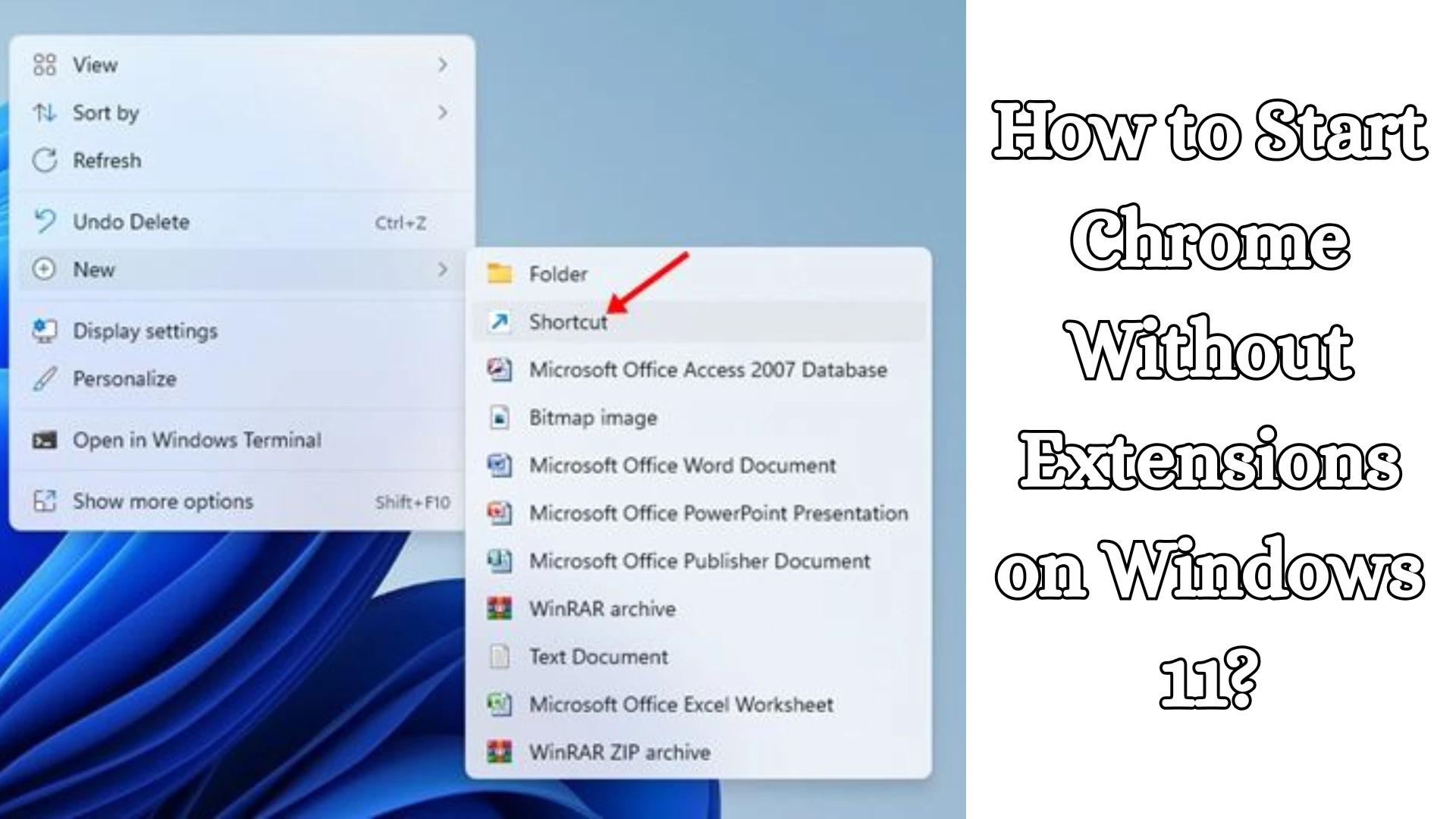
Method 3: Run Chrome Without Extensions by Creating a Desktop Shortcut
This method is most convenient if you want to use Chrome regularly without extensions.
Step 1
Find Chrome Shortcut on the desktop.
Step 2
Right-click on the shortcut.
Step 3
Open Properties.
Step 4
Add this at the end in the Target box:
–disable-extensions
Example:
“C:\Program Files\Google\Chrome\Application\chrome.exe” –disable-extensions
Step 5
Click on Apply and OK.
Now, whenever Chrome is opened with this shortcut, all extensions will remain disabled.
Method 4: Disable all extensions manually
If you only want to turn off the extension temporarily:
phase
Open Chrome.
Write in the address bar:
chrome://extensions
Press Enter.
Turn off the toggle switches of all extensions.
Now Chrome will work without any active extensions.
Also read: How to Disable Reserved Storage on Windows 11?
Method 5: Create a New Chrome Profile
Sometimes the problem occurs in a particular user profile.
Steps to create a new profile
Open Chrome.
Click on Profile Icon.
Select Add.
Create a new profile.
New profiles usually do not have any extensions installed.
What is an option like Chrome Safe Mode?
Many users search for Chrome Safe Mode, but Chrome actually doesn’t have Safe Mode like Firefox.
In place of:
Incognito Mode
Disable Extensions Command
New Profile
Guest Mode
is used.
Run Chrome in Guest Mode
Guest Mode launches Chrome with minimal settings.
stage
Open Chrome.
Click on Profile Icon.
Select Guest.
Most personal settings and extensions are not available in this mode.
How to Determine if an Extension is Causing the Problem?
If Chrome functions correctly without extensions but encounters issues in normal mode, it is likely that an extension is at fault.
How to Identify the Culprit:
Disable all extensions.
Enable them one by one.
Check Chrome after enabling each extension.
Identify the extension that triggers the problem.
Common Issues Caused by Chrome Extensions
High Memory Usage
Some extensions run continuously in the background.
Browser Freezing
Outdated extensions or those with poorly written code can cause Chrome to freeze.
Security Risks
Extensions from unknown developers can increase the risk of data theft.
Website Compatibility Issues
Many websites may not function correctly due to extension scripts.
Additional Steps to Improve Chrome Performance on Windows 11
Remove Unnecessary Extensions
Uninstall any extensions that are no longer in use.
Keep Chrome Updated
The latest version offers improved stability and security.
Clear the Cache
Accumulated cache data can be the root cause of various issues.
Check Hardware Acceleration
Disabling hardware acceleration can sometimes lead to improved performance.
Run a Malware Scan
Suspicious software can interfere with Chrome’s behavior.
Benefits of Running Chrome Without Extensions
Faster browsing speeds
Reduced RAM usage
Enhanced security
Fewer crashes
Easier troubleshooting
More stable performance
Improved website compatibility
Conclusion
Launching Chrome without extensions on Windows 11 is a highly effective method for diagnosing browser issues and boosting performance. Whether you utilize Incognito Mode, Guest Mode, the Command Line, or the Shortcut Method, all these approaches help run Chrome in a clean and stable environment. If Chrome functions flawlessly without extensions, the problem is almost certainly linked to one of your installed extensions. In such cases, removing the faulty extension can significantly enhance Chrome’s speed, security, and reliability.
FAQ – Chrome Without Extensions on Windows 11
Can Chrome be run completely without any extensions? Yes, Chrome can be run completely without extensions by using the `–disable-extensions` command.
Does Incognito Mode disable all extensions?
Most extensions are disabled, but extensions that have been granted permission for Incognito Mode may remain active.
Does Guest Mode disable extensions?
Yes, in most cases, individual extensions are not available in Guest Mode.
Does Chrome have a Safe Mode?
No, Chrome does not have a Safe Mode like Firefox. The “Disable Extensions” mode is used as an alternative.
Can extensions slow down Chrome?
Yes, a large number of extensions—or those that are poorly built—can affect Chrome’s speed and performance.
Does disabling Chrome extensions delete data?
No, disabling extensions does not delete their data. They are merely temporarily deactivated.
Does creating a new Chrome profile remove extensions?
Generally, no extensions are installed in a new profile, allowing you to run Chrome in a clean environment.
Is it safe to add `–disable-extensions` to the Chrome shortcut?
Yes, this is an official command-line parameter for Google Chrome and is completely safe.