 By
ByThe ‘TPM Device Not Detected’ error has become a serious problem for Windows 10 and Windows 11 users, especially when TPM is required for system functions like Windows Update, BitLocker, or Windows 11 Upgrade. In this article, we present practical, precise, and effective methods in a step-by-step manner so you can permanently resolve this issue without any confusion.
1. Enable TPM in BIOS/UEFI
In most cases, this error occurs because TPM is disabled in the BIOS/UEFI.
Steps:
Restart your system
Open BIOS by pressing Del / F2 / F10 / Esc during boot
Go to the Security or Advanced section
Enable TPM, PTT (Intel), or fTPM (AMD)
Save changes and reboot the system
This method is considered the most effective and primary solution.
2. Properly activate Intel PTT or AMD fTPM
TPM can be of two types:
Intel Platform Trust Technology (PTT)
AMD Firmware TPM (fTPM)
If your system does not have a dedicated TPM chip, activating the firmware TPM is necessary.
Suggestion:
Intel CPU → Enable PTT
AMD CPU → Enable fTPM
This setting is usually found in Advanced → CPU Configuration.
3. Verify TPM Version 2.0
Windows 11 requires TPM 2.0. This error may also appear if you have TPM 1.2.
Verification Method:
Press Win + R
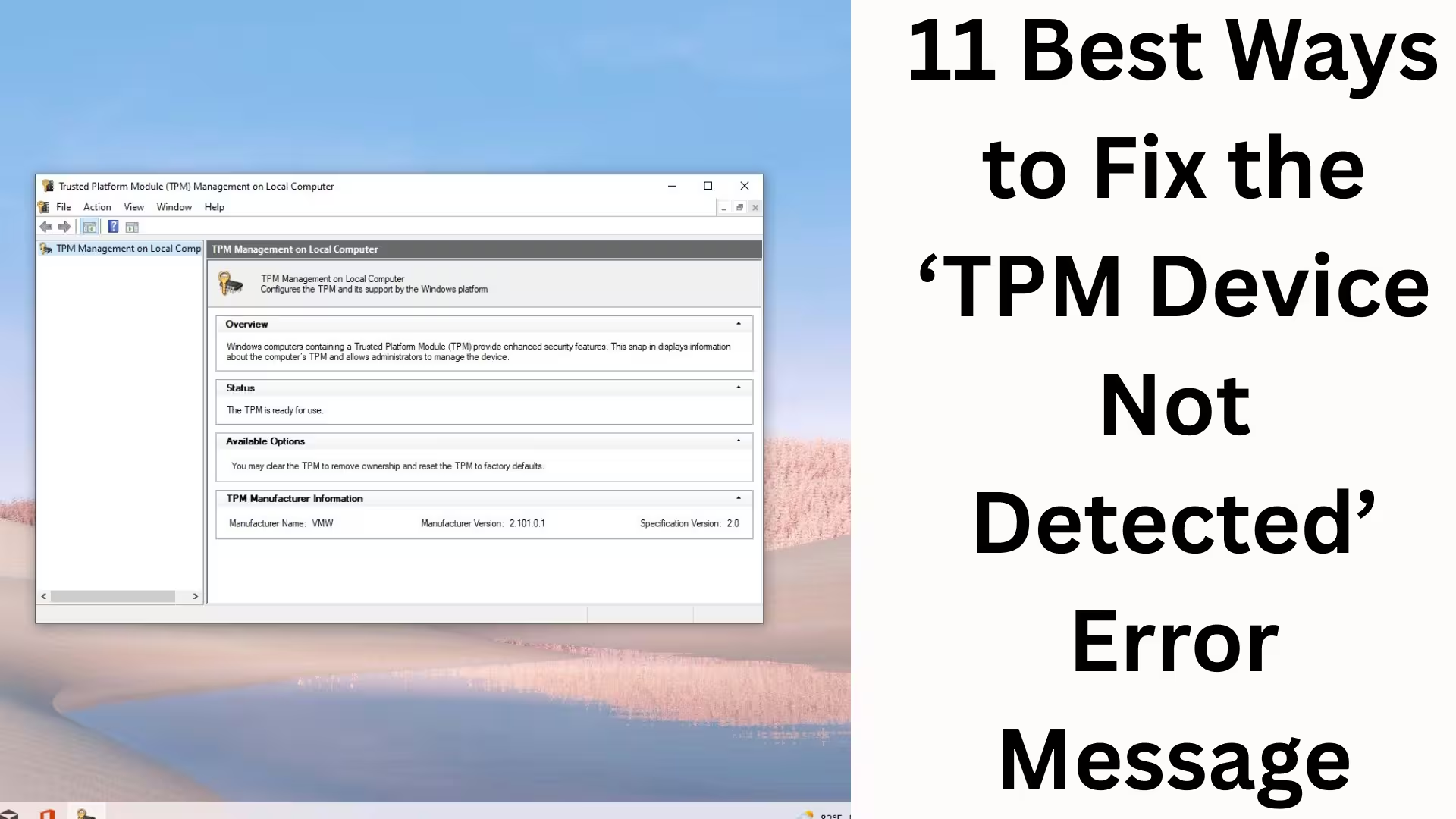
Type `tpm.msc`
Check the Version in TPM Manufacturer Information
If the version is not 2.0, a BIOS update or firmware upgrade may be required.
4. Update BIOS to the Latest Version
An outdated BIOS may not correctly recognize the TPM.
Benefits:
Improved TPM compatibility
Secure Boot and CPU features are updated
Note:
Only download the BIOS from the motherboard manufacturer’s official website.
5. Enable Secure Boot
TPM and Secure Boot are interconnected. A TPM error may occur if Secure Boot is disabled.
Steps:
Go to BIOS
Boot → Secure Boot
Enable Secure Boot
Set Boot Mode to UEFI
6. Reset BIOS Settings by performing a CMOS Reset
An incorrect BIOS configuration can disable TPM.
CMOS Reset methods:
Remove the battery from the motherboard and wait 5 minutes
Or use the Clear CMOS Jumper
Afterward, go to BIOS and re-enable TPM.
7. Update the TPM Driver in Device Manager
Sometimes the TPM driver becomes corrupted or outdated.
Procedure:
Open Device Manager
Go to the Security Devices section
Right-click on Trusted Platform Module
Select Update Driver
This method also fixes Windows Update errors.
8. Reset Windows Security Settings
Incorrect security policies can block TPM.
Steps:
Open Windows Security
Device Security → Security Processor Details
Security Processor Troubleshooting
Select the Clear TPM option
Note: Secure your BitLocker key beforehand.
9. Allow TPM through Group Policy Editor
In Enterprise or Pro versions, Group Policy can disable TPM.
Steps:
Win + R → gpedit.msc
Computer Configuration → Administrative Templates → System → TPM Services
Set all TPM Policies to Not Configured or Enabled
10. Fix TPM via Windows Registry
The Registry fix is effective for advanced users.
Path:
“`
HKEY_LOCAL_MACHINE\SYSTEM\CurrentControlSet\Services\TPM
“`
Set:
`Start` = 2
`Type` = 1
Restart the system after making Registry changes. 11. Verify Hardware Compatibility
If all the methods above fail, it’s possible that:
The motherboard does not support TPM
The TPM chip is faulty
The CPU is not Windows 11 compatible
Solution:
Install an external TPM module
Or upgrade to a compatible motherboard
Additional Helpful Tips
Always use UEFI Mode
Avoid Legacy Boot
Keep Windows Update fully updated
Use system tools only from trusted sources
Conclusion
These 11 proven and practical methods we’ve outlined should provide you with a permanent solution to the ‘TPM Device Not Detected’ error. With the correct BIOS settings, updated firmware, and secure Windows configuration, this problem can be completely resolved. If you want to take advantage of Windows 11 upgrades or security features, properly configuring TPM is essential.
Want to grow your website organically? Contact us now
FAQ – Frequently Asked Questions related to the TPM Device Not Detected Error
Question 1: What is the TPM Device Not Detected Error?
Answer: This error appears when the Windows system fails to detect the Trusted Platform Module (TPM). This problem typically arises during Windows 11 upgrades, BitLocker enablement, or security updates.
Question 2: Why is TPM necessary for Windows 11?
Answer: TPM 2.0 is mandatory in Windows 11 for security reasons. This feature enhances data encryption, Secure Boot, and system integrity.
Question 3: Can Windows 11 be installed without TPM?
Answer: Officially, no. Although some unofficial methods exist, they can introduce security risks and update problems. Having TPM enabled is essential for a secure experience.
Question 4: What is the difference between TPM 1.2 and TPM 2.0?
Answer:
TPM 1.2: Older technology, limited encryption support
TPM 2.0: Advanced security, required for Windows 11 and modern features
Question 5: Why am I still getting the error even after enabling TPM?
Answer: Possible reasons include:
Outdated BIOS Version
Secure Boot Disabled
Incorrect Boot Mode (Legacy)
Corrupt TPM Configuration
Question 6: Will enabling TPM delete my data?
Answer: Generally, no, but if you use the Clear TPM option, BitLocker keys might be removed. Therefore, it’s essential to back up your data first.
Question 7: How can I check if TPM is present in my system?
Answer:
Press Win + R
Type `tpm.msc`
The TPM status and version will be displayed on the screen
Question 8: Is the process for enabling TPM different for laptops and desktops?
Answer: The basic process is the same, but the BIOS menu names may vary depending on the manufacturer, such as Dell, HP, Lenovo, ASUS, etc.
Question 9: What is an External TPM Module?
Answer: This is a hardware module that can be installed on the motherboard when an in-built TPM is not available. It only works with TPM-compatible motherboards.
Question 10: Will Windows Update work correctly after fixing the TPM error?
Answer: Yes, once the TPM is properly enabled, Windows Updates, Security Patches, and Feature Updates will install without interruption.
Question 11: Is a BIOS update safe?
Answer: If the BIOS update is performed from the official website and for the correct model, it is a completely safe and recommended procedure.
Question 12: Can the TPM error reappear in the future?
Answer: Usually not, but it’s necessary to check the TPM settings again after a BIOS reset, CMOS clear, or major hardware change.
Question 13: Does TPM affect system performance?
Answer: No, TPM only handles security processes and does not negatively impact system speed or performance.
Question 14: Are TPM settings available in the Home Edition?
Answer: Yes, the TPM feature is present in Windows Home, Pro, and Enterprise editions, but some advanced controls are only available in Pro/Enterprise.
Question 15: How to permanently prevent TPM errors?
Answer:
Keep your BIOS and Windows updated
Keep Secure Boot and UEFI enabled
Avoid unnecessary BIOS resets
Use only trusted drivers and tools