 By
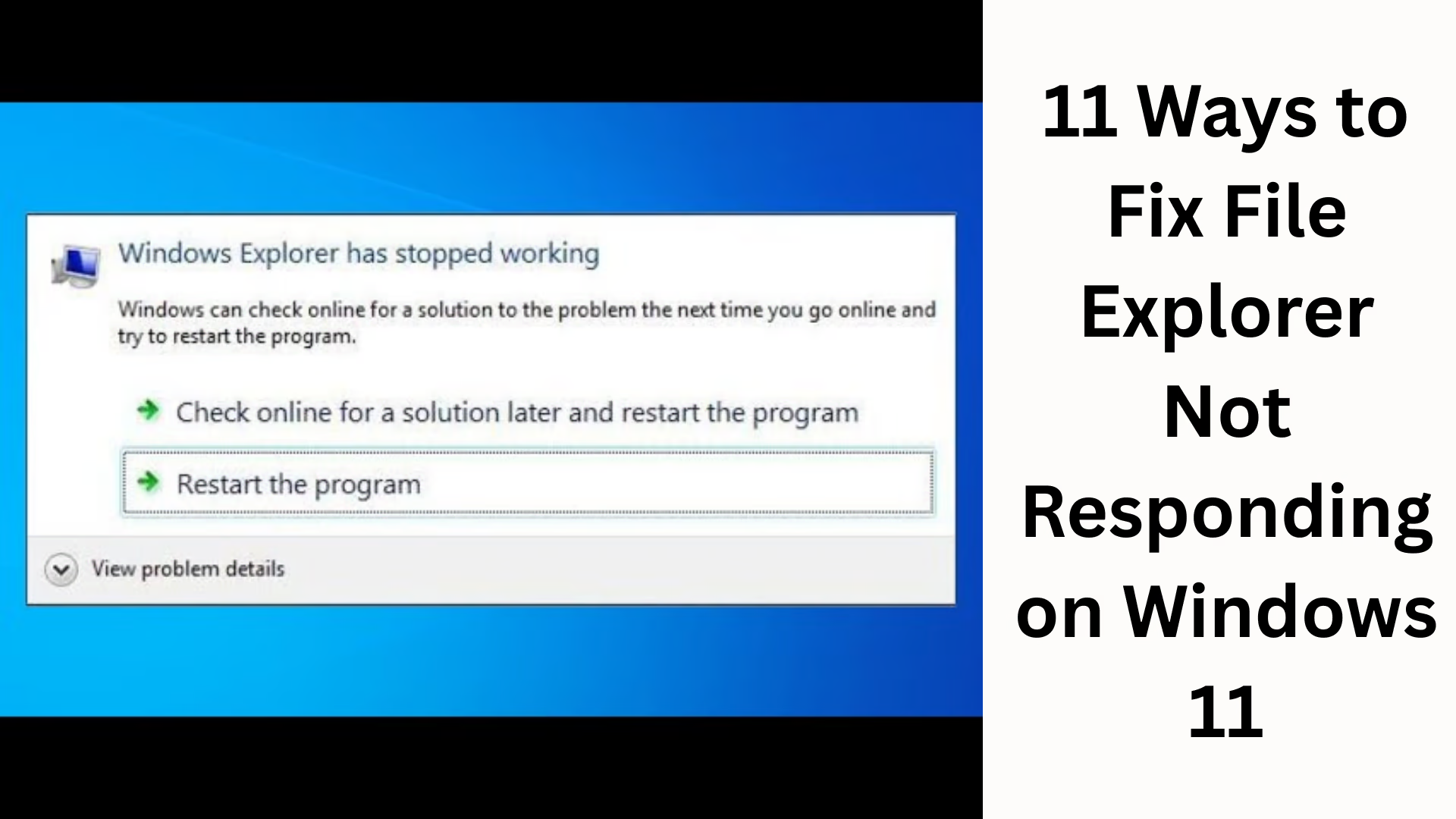
ByFile Explorer Not Responding is a common but extremely annoying issue among Windows 11 users. When File Explorer hangs, runs slowly, or crashes repeatedly, the overall system experience is affected. We’ve brought you the best and most effective solutions for Windows 11 File Explorer not responding fixes, which you can try to easily fix this problem.
1. Restart Windows 11 File Explorer
The simplest solution to File Explorer hanging is to restart it.
How to do it:
1. Open Task Manager by pressing Ctrl + Shift + Esc.
2. Find Windows Explorer in the Processes tab.
3. Select it and click Restart.
Sometimes this simple step solves the problem.
2. Clear File Explorer History
A corrupted File Explorer cache and history can also cause the Not Responding issue.
Method:
1. Open the Control Panel.
2. Select File Explorer Options.
3. Click Clear in the General tab.
Doing this can speed up Explorer performance.
3. Keep Windows 11 up to date with the latest updates
Outdated Windows updates can cause system bugs.
Go to Settings:
Settings > Windows Update > Check for updates
If updates appear, install them immediately.
New updates often fix File Explorer-related issues.
4. Run System File Checker (SFC) and DISM Scan
If system files are corrupted, File Explorer may crash.
SFC Scan:
Open Command Prompt (Admin) and type:
“`
sfc /scannow
“`
DISM Scan:
“`
DISM /Online /Cleanup-Image /RestoreHealth
“`
These scans repair Windows system files.
5. Disable Quick Access
Many users have reported that File Explorer hangs due to a corrupt Quick Access.
Steps:
1. Open File Explorer Options.
2. Select Open File Explorer to: under This PC.
3. Uncheck both options in the Privacy section.
This makes Explorer run faster and smoother.
6. Rebuild the Windows Search Index
A corrupt index can also cause File Explorer to become unresponsive.
To fix this:
1. Settings → Privacy & Security → Searching Windows
2. Advanced indexing options
3. Click Rebuild
Index rebuilding takes time, but performance improves significantly.
7. Reduce Startup Apps
If Windows 11 has too many startup programs, the system slows down and affects File Explorer.
Solution:
1. Open Task Manager
2. Go to the Startup Apps tab and disable unnecessary apps.
Less startup load = faster File Explorer.
8. Remove Temporary Files and Cache
Temporary files accumulated in Windows slow down the system.
Cleanup Steps:
1. Settings → System → Storage
2. Select Temporary Files
3. Remove all selected files.
Clean storage = smoother performance.
9. Disable Thumbnails in File Explorer
Thumbnail corruption is a major cause of File Explorer crashes.
How to turn it off:
1. Open File Explorer Options
2. Go to the View tab
3. Check Always show icons, never thumbnails
Turning off thumbnails makes Explorer much more stable.
10. Disable Hardware-Accelerated Graphics
Sometimes GPU acceleration affects File Explorer load.
Steps:
1. Settings → System → Display
2. Graphics
3. Turn off Hardware-accelerated GPU scheduling
If the GPU driver is not compatible, this feature can cause File Explorer to hang.
11. Perform a Clean Boot
Clean Boot can help you determine which third-party program is causing File Explorer to hang.
How to do it:
1. Open msconfig
2. Go to the Services tab
3. Select Hide all Microsoft services
4. Disable all other services
5. Restart the PC
If File Explorer now runs fine, a third-party app was the problem.
Conclusion
The File Explorer Not Responding issue in Windows 11 can be caused by a variety of reasons, such as a corrupt cache, outdated system files, faulty indexing, or background programs. The 11 effective fixes mentioned above can easily resolve this issue. We recommend trying them step-by-step to pinpoint the exact cause and ensure your system runs smoothly without interruptions.
Want to grow your website organically? Contact us now
FAQ – Frequently Asked Questions About File Explorer Not Responding in Windows 11
The questions below are designed for users who experience File Explorer hanging, crashing, or not responding in Windows 11. These questions will address your concerns and help you understand the problem.
1. Why does File Explorer repeatedly become unresponsive in Windows 11?
There are several reasons why File Explorer becomes unresponsive:
Corrupted cache and history
Outdated Windows updates
Errors in system files
Corrupt Quick Access entries
Corrupted thumbnails
Heavy startup programs
Virus or malware
2. Can restarting File Explorer resolve the issue?
Yes, in most cases, restarting File Explorer from Task Manager resolves the issue immediately by refreshing all background processes in Explorer.
3. Does disabling Quick Access speed up File Explorer?
Yes, if there are corrupt folders or files in Quick Access, File Explorer may hang.
Disabling it makes Explorer run faster and smoother.
4. What effect do Windows updates have on File Explorer?
Outdated or buggy Windows updates can affect File Explorer.
The latest Windows 11 updates include many bug fixes related to File Explorer, so it’s important to keep the system updated.
5. Is it necessary to disable thumbnails?
If File Explorer crashes when opening very heavy folders, it’s best to disable thumbnails.
Corrupted thumbnails may be the main cause of the problem.
6. Why should you run an SFC and DISM scan?
These scans repair corrupted or missing files on the system.
If File Explorer is crashing due to this, SFC/DISM will quickly fix the issue.
7. Can viruses or malware affect File Explorer?
Yes, malware can block system processes and cause File Explorer to crash.
Be sure to perform a full virus scan.
8. What is Clean Boot, and how does it help?
Clean Boot starts the system with only essential Microsoft services.
This can help you identify which external software is causing File Explorer to hang.
9. Can low PC storage also slow down File Explorer?
Yes, if your PC is low on storage or has a lot of temporary files, File Explorer slows down.
Cleaning up storage improves performance.
10. What if all of the above methods don’t work?
If none of the methods work, you can try these three last resorts:
Create a new user profile
Restore a Windows Restore Point
Reset/repair a Windows 11 install