 By
ByIn Windows 11, we often need to temporarily disable or permanently block certain user accounts, whether for security reasons, privacy protection, or to control access for another employee or user. In this guide, we present the 5 simplest and most effective ways to disable user accounts in Windows 11.
All the methods described below are official methods and can be easily used without any third-party software.
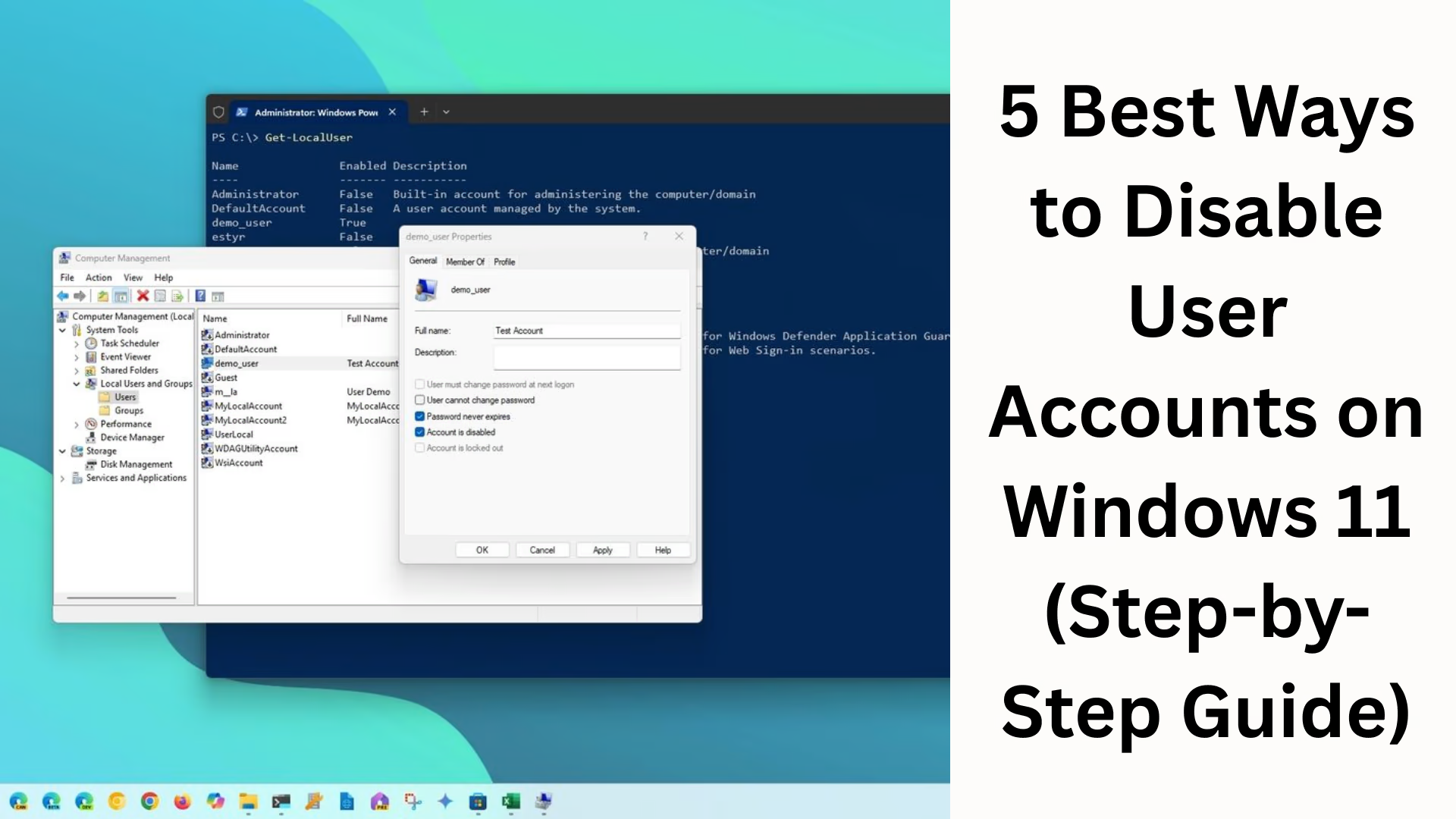
1. Disable User Account in Windows 11 using Local Users and Groups
This is the most direct and professional way to disable a user account in Windows 11, especially in office systems and multi-user computers.
Steps:
1. Press Windows + R
2. Type: lusrmgr.msc in the Run box and press Enter
3. The Local Users and Groups window will open
4. Go to the Users folder
5. Right-click on the User Account you want to disable
6. Select Properties
7. Tick “Account is disabled.”
8. Click Apply → OK
Now that the user account will not appear on the login screen, and no one will be able to log in with that ID.
2. Disable User Account using Command Prompt (CMD)
Using CMD, we can disable any account directly in the command session. This method is excellent for users who are terminal-friendly or manage remote computers.
Steps:
1. Search for CMD in the Start Menu
2. Click Run as Administrator
3. Type the command:
“`
net user “Username” /active:no
“`
Example:
“`
net user Amit /active:no
“`
The user’s login access will be disabled immediately.
To re-enable the user account, use the CMD command:
“`
net user “Username” /active:yes
“`
3. Disabling User Account using PowerShell
PowerShell is an even more powerful tool than CMD and is specifically designed for system management.
Steps:
1. Type PowerShell in Windows Search
2. Select Run as Administrator
3. Type the command:
“`
Disable-LocalUser -Name “Username”
“`
Example:
“`
Disable-LocalUser -Name “Rohit”
“`
To enable:
“`
Enable-LocalUser -Name “Rohit”
“`
The PowerShell method is best for automation.
4. How to Disable a User Account from Control Panel
This method is easiest for those who prefer working without commands and technical terms.
Steps:
1. Search for Control Panel in Start
2. Click on User Accounts
3. Select Manage another account
4. Select the account you want to disable
5. Choose Change the account type or Block Option (depending on Windows configuration)
This method is most suitable for Home PCs and basic users.
5. Account Disable Using Group Policy (Professional & Enterprise Editions)
This advanced method is applied to corporate offices and organizational systems.
Steps:
1. Log in to the system with the Administrator ID
2. Press Windows + R
3. Type: gpedit.msc and press Enter
4. Navigate to:
“`
Computer Configuration →
Windows Settings →
Security Settings →
Local Policies →
Security Options
“`
5. Find the policy: Accounts: Administrator account status
6. Disable it
If you want to disable another local user, go to Policy Management and edit the account policy for that user.
Benefits of Disabling a User Account
| Benefit | Description |
| ————————– | ——————————————- |
| Increased Security | Prevents Unauthorized Access |
| Temporary Block Possible | Disable without losing files and settings |
| Parental Control Implementation | Access control for children |
| When Employees Leave | Company data remains safe |
| Hack Attack Prevention | Suspicious accounts can be disabled |
When should you disable a user account in Windows 11?
When an employee leaves the job
When a family computer is used by multiple users
When you encounter a security threat
When a user is temporarily not using the system
When you need to track system performance and usage
What is the difference between Disable and Delete in Windows? | Disable | Delete |
| ——————————— | ———————- |
| Temporary | Permanent |
| Can be enabled in the future | Difficult to restore |
| All files remain safe | Data may be deleted |
| Best for Organizations | Suitable for personal PCs |
In fact, disabling is a safer option than deleting, because you can grant account access again in the future.
Conclusion – The Best Way to Disable User Accounts in Windows 11
Managing user accounts in Windows 11 is a crucial part of system security and management. Of the five methods discussed above, CMD and PowerShell are the fastest, while the Control Panel and Local User Management are more user-friendly. Group Policy is an advanced and organization-focused method.
You can choose any method based on your requirements and easily secure your Windows system.
Want to grow your website organically? Contact us now
FAQs related to Disabling User Accounts in Windows 11
1. Does disabling a user account delete its files?
No, disabling an account keeps the user’s files, documents, images, desktop files, etc., completely safe. Only login access is disabled.
2. Can I re-enable a disabled account?
Yes, you can re-enable the account at any time using CMD, PowerShell, or Local Users and Groups.
3. Is Local User Management (lusrmgr.msc) available in Windows 11 Home Edition?
This feature is not available by default in some Home Editions; in such cases, you can disable the account using CMD or PowerShell.
4. Is disabling safer than deleting?
Disabling is safer because it keeps the data safe and the account can be restored in the future. Deleting can result in data loss.
5. Can I also disable the built-in Administrator account?
Yes, you can disable the built-in Administrator account using Group Policy or CMD. However, only do this if you have another administrator account.
6. What happens if I accidentally disable the administrator account?
If you don’t have another administrator account, it might be difficult to log in to the system or make changes. So, disable with caution.
7. Will the disabled account appear on the login screen?
No, the disabled account does not show up on the login screen and cannot be logged into in any way.
8. Can disabling a user account be used for parental control?
Yes, this is the easiest and safest way if you want to control your children’s system usage.
9. Is third-party software required?
No, disabling an account is entirely possible using Windows’ built-in tools.
10. Is this a permanent disability?
No, it remains temporarily disabled until you re-enable it.