 By
ByIn today’s digital age, knowing your computer’s full specifications is crucial. Whether you need to install new software, play games, check for Windows updates, or upgrade your hardware, having accurate information about your PC is essential in every situation. Windows 11 includes several built-in tools that allow you to easily view your PC’s full specifications without any third-party software.
In this article, we will explore 7 of the most effective and reliable ways to check your PC’s full specifications on Windows 11 in detail.
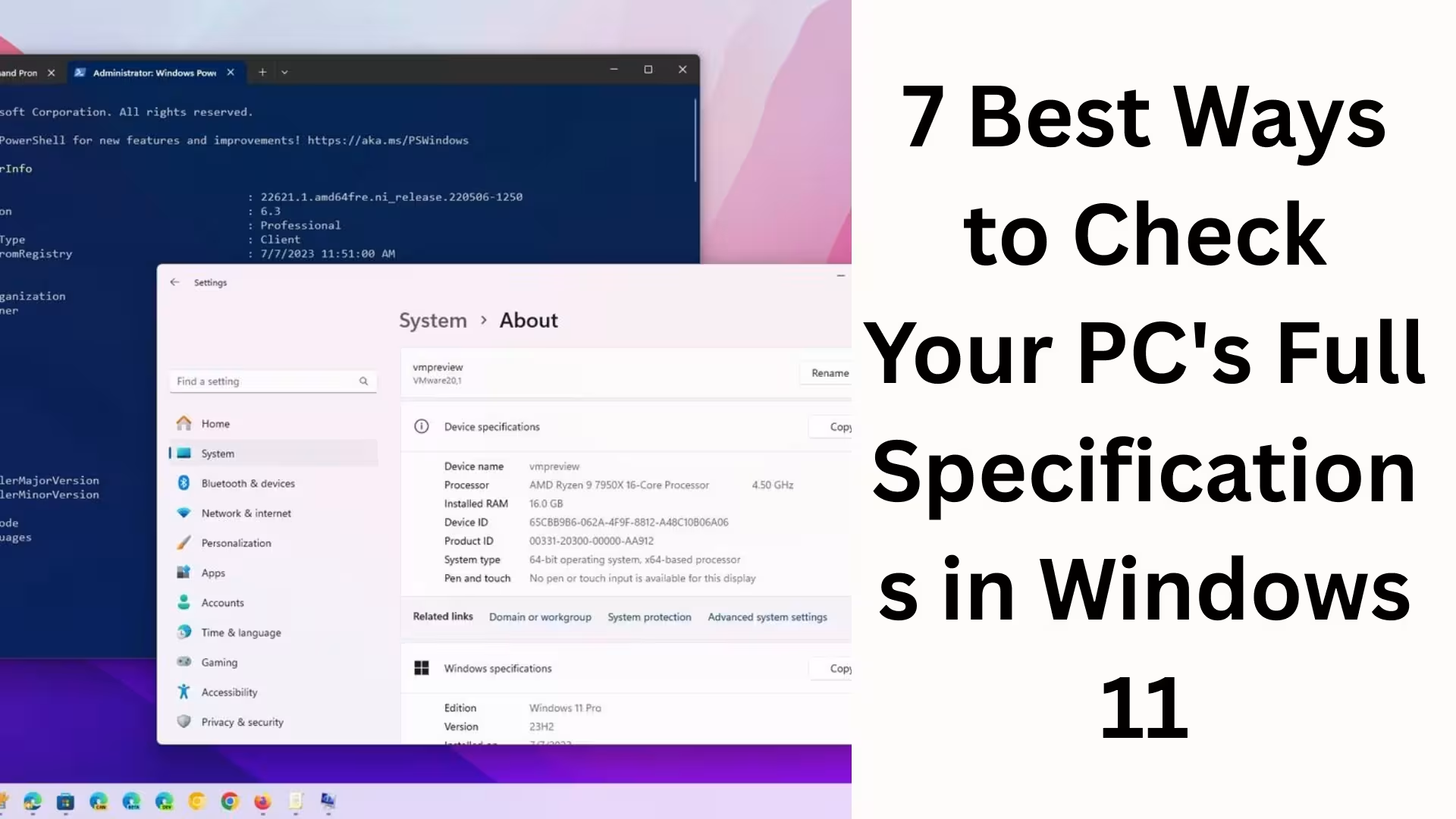
1. View Your PC’s Full Specifications via the Settings App
The Settings app is the easiest and safest method in Windows 11.
Steps:
Open the Start Menu
Click on Settings
Go to the System section
Scroll down and click on About
Here you will find the following information:
Device Name
Processor (CPU model and speed)
Installed RAM
System Type (64-bit / 32-bit)
Windows 11 Edition and Version
This method is ideal for users who want to see basic but important PC specifications quickly.
2. Check Advanced Specifications with the System Information Tool
If you need in-depth and advanced information about your system, the System Information Tool is the most powerful option.
Steps:
Press Windows + R
Type `msinfo32` in the Run box
Press Enter
Here you will find:
Motherboard Manufacturer and Model
BIOS Version
Processor Architecture
Installed Physical Memory
Secure Boot and TPM Status
Complete information about Graphics, Storage, and Network
This tool is handy for technical users and IT professionals.
3. View GPU and Audio Details with the DirectX Diagnostic Tool
For information related to gaming and graphics, the DirectX Diagnostic Tool (dxdiag) is the best method.
Steps:
Press Windows + R
Type `dxdiag`
Click OK
This tool provides us with:
Display (GPU Name, VRAM, Driver Version)
Sound Devices
Input Devices
DirectX Version
This method is essential if you are a gamer, video editor, or graphic designer.
4. View Real-Time Hardware Specifications from Task Manager
Task Manager is useful not only for closing apps but also for hardware monitoring.
Steps:
Press Ctrl + Shift + Esc
Go to the Performance Tab
Here we see in real-time:
CPU Usage and Model
RAM Usage and Total Memory
Disk Type (SSD / HDD)
GPU Model and Usage
Network Speed
This method is perfect for users who want to see live performance and specifications.
5. Check PC Specifications via Command Prompt
For users who prefer the command line, this method is the fastest.
Steps:
Search for CMD in the Start Menu
Open Run as Administrator
Type this command:
“`
systeminfo
“`
In a few seconds, we get:
OS Version
System Manufacturer
Processor Details
RAM Size
Network Adapter Information
Boot Time
This method is also very useful for scripting and automation.
6. Get Complete Hardware and Software Information with PowerShell
PowerShell is even more powerful than the Command Prompt.
Steps:
Search for PowerShell in the Start Menu
Open Run as Administrator
Type the command:
“`
Get-ComputerInfo
“`
This command gives us:
Hardware Summary
OS Build Number
Windows Activation Status
BIOS and Firmware information
System Locale and Time Zone
This method is suitable for advanced users and system administrators.
7. View Individual Hardware Details from Device Manager
If we need information about a single hardware component, Device Manager is the best option. Steps:
Press Windows + X
Select Device Manager
Here we can see:
Processor Details
Display Adapters (GPU)
Disk Drives
Network Adapters
USB and Bluetooth Devices
Driver Status and Updates
This method is especially useful for driver issues and hardware troubleshooting.
Why is it important to know your Windows 11 PC specifications?
To check software compatibility
Before running games and high-end applications
For Windows Updates and Security Features (TPM, Secure Boot)
To plan hardware upgrades
To improve system performance
Without the right information, the likelihood of making wrong decisions increases.
Conclusion
Knowing your PC’s full specifications in Windows 11 is now easier than ever. Whether you use the Settings app or advanced tools like System Information and PowerShell, there’s a method available for every user. With the help of the 7 methods mentioned above, you can obtain every detail of your system accurately and reliably.
Want to grow your website organically? Contact us now
FAQ – Frequently Asked Questions about Viewing Full PC Specifications in Windows 11
Question 1: How can I view my PC’s full specifications in Windows 11 in the easiest way?
Answer: The easiest way to view your PC’s full specifications in Windows 11 is through Settings > System > About. Here you can quickly find essential information such as Processor, RAM, System Type, and Windows Version.
Question 2: Where can I find accurate CPU and RAM information in Windows 11?
Answer: For accurate CPU and RAM information, you can use the Task Manager’s Performance tab or the System Information (msinfo32) tool. Both methods provide real-time and detailed data.
Question 3: How do I check my Graphics Card (GPU) information in Windows 11?
Answer: The DirectX Diagnostic Tool (dxdiag) or Task Manager > Performance > GPU are the best options for viewing complete graphics card information. Here you’ll find important details such as GPU Name, VRAM, and Driver Version.
Question 4: Can I view PC specifications using Command Prompt?
Answer: Yes, by running the `systeminfo` command in Command Prompt, you can easily view OS Version, RAM, Processor, System, Network Details, and other system information. This method is fast and reliable.
Question 5: What system information can I get from PowerShell?
Answer: The `Get-ComputerInfo` command in PowerShell provides almost complete information related to Hardware, Software, BIOS, Firmware, Windows Activation, and System Configuration, all in one place.
Question 6: How do I view Motherboard and BIOS information in Windows 11?
Answer: You can easily obtain complete information about the Motherboard Manufacturer, Model Number, and BIOS Version through the System Information (msinfo32) tool.
Question 7: What is Device Manager used for?
Answer: Device Manager is used to view and update/troubleshoot information about individual hardware components such as the Processor, GPU, Disk Drive, Network Adapter, and Drivers.
Question 8: Is it possible to view full specifications in Windows 11 without any additional software?
Answer: Absolutely, with the built-in tools in Windows 11, such as Settings, System Information, Task Manager, Command Prompt, and PowerShell, we can view the complete PC specifications without any third-party software.
Question 9: Why is it important to know your PC specifications?
Answer: Knowing your PC specifications is crucial for software compatibility, gaming requirements, hardware upgrades, Windows updates, and improving system performance.
Question 10: Where can I find information about TPM and Secure Boot in Windows 11?Answer: You can easily find information about the TPM status and whether Secure Boot is enabled or disabled through System Information (msinfo32) and Windows Security settings.