 By
ByThe firewall is a crucial part of system security in Windows 11. It protects your computer from unwanted network access, malware, and cyberattacks. However, sometimes due to misconfiguration, third-party software, VPNs, or network changes, the firewall may not function correctly. In such cases, resetting the firewall settings becomes the most effective solution.
In this detailed guide, we are sharing 7 of the most reliable and effective ways to reset the Windows 11 firewall, which can help resolve almost all network-related issues.
Important things to know before resetting the firewall
Before resetting the firewall, it’s important to know that:
All custom firewall rules will be removed
The list of allowed or blocked apps will be reset
Many network-related errors may be automatically fixed
If you have created any specific rules previously, it’s best to note them down.
1. Reset Firewall from Windows Security (Easiest Method)
This method is considered the safest for both beginner and advanced users.
Steps:
1. Open Windows Security from the Start Menu
2. Click on Firewall & Network Protection
3. Scroll down and select Restore firewalls to default
4. Click on the Restore defaults button
Advantage:
No commands or technical knowledge required
Recommended method by Microsoft
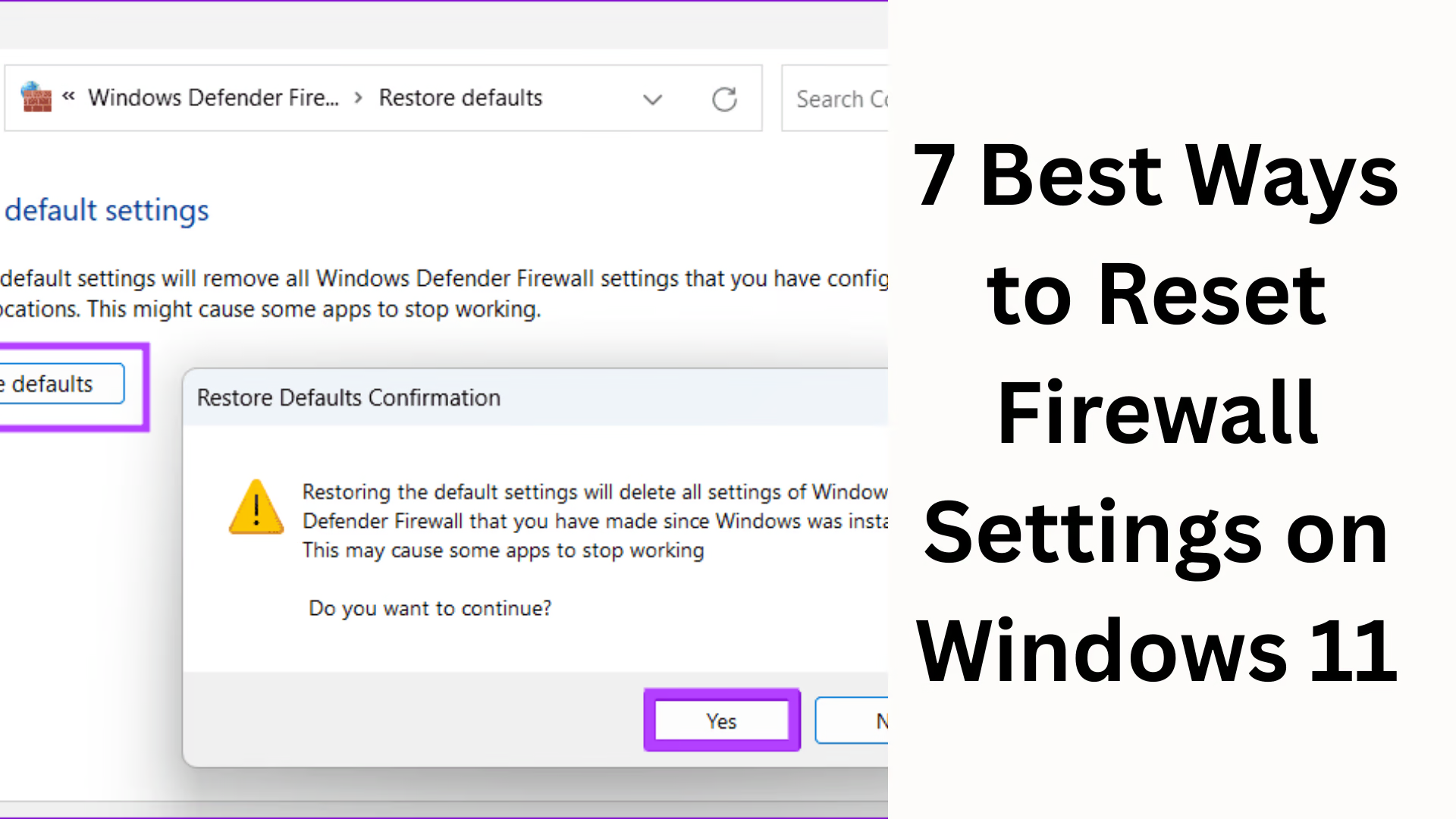
2. Reset Firewall Settings from Control Panel
The Control Panel is still very useful for many system-level settings.
Steps:
1. Open the Run dialog (Windows + R)
2. Type `control` and press Enter
3. Go to System and Security → Windows Defender Firewall
4. Click on Restore defaults on the left side
5. Press Restore defaults to confirm
This method is useful when the Windows Security app is not opening.
3. Reset Firewall from Command Prompt (Admin)
This method is highly effective for professional users and IT administrators. Steps:
1. Search for `cmd` in the Start Menu
2. Select Run as administrator
3. Type the following command:
“`bash
netsh advfirewall reset
“`
4. Press Enter and restart the system
Benefits:
The firewall is completely restored to its default state
Hidden or corrupted rules are also removed
4. Reset Firewall using Windows PowerShell
PowerShell is an even more powerful tool than Command Prompt.
Steps:
1. Start Menu → PowerShell
2. Run as Administrator
3. Run this command:
“`powershell
(New-Object -ComObject HNetCfg.FwPolicy2).RestoreLocalFirewallDefaults()
“`
When to use:
When the CMD command doesn’t work
For an advanced system-level reset
5. Manual Reset from Advanced Firewall Settings
If you only need to remove custom rules, this method is best.
Steps:
1. Run (Windows + R) → `wf.msc`
2. Windows Defender Firewall with Advanced Security will open
3. Select Inbound Rules and Outbound Rules on the left
4. Delete all custom rules
Note:
This method does not perform a complete reset, but helps in removing incorrect rules.
6. Reset Firewall using Group Policy Editor (Pro Version)
This method is only for Windows 11 Pro, Enterprise, or Education.
Steps:
1. Run → `gpedit.msc`
2. Computer Configuration → Administrative Templates
3. Network → Network Connections → Windows Defender Firewall
4. Open Domain, Private, and Public Profiles
5. Set all configured policies to Not Configured
Advantage:
Ideal for corporate or office systems
Eliminates policy conflict issues
7. Reset Firewall with Network Reset (Last Resort)
If internet problems persist even after a firewall reset, perform a network reset. Steps:
1. Settings → Network & Internet
2. Advanced network settings
3. Click on Network reset
4. Select Reset Now and restart your PC
What this does:
Resets Firewall + Network Adapters + DNS
Resolves critical network errors
What to do after Firewall Reset
After resetting the firewall, be sure to do the following:
Re-allow necessary apps
Check VPN or Antivirus settings
Run Windows Update at least once
Common problems and solutions related to Firewall Reset
Internet stopped working?
→ Run the Network Troubleshooter
An app’s access is being blocked?
→ Manually allow it in the Firewall
Frequent Firewall errors?
→ Try removing third-party antivirus software
Conclusion
Resetting Firewall settings in Windows 11 is the most effective solution for network and security-related problems. You can choose the most suitable method from the 7 methods mentioned above, depending on your situation. If a simple reset doesn’t work, using Command Prompt or PowerShell is the best option.
Want to grow your website organically? Contact us now
Frequently Asked Questions (FAQ)
Question 1: What gets deleted when I reset the Firewall in Windows 11?
Resetting the Firewall removes all custom firewall rules, settings for allowed/blocked apps, and manual changes. However, Windows’ default security settings remain intact.
Question 2: Can resetting the Firewall disconnect the internet?
In some cases, the internet connection might be temporarily affected after a reset, especially if network or VPN-related settings were previously modified. Restarting your PC or running the Network Troubleshooter usually resolves this issue.
Question 3: Do I need to re-allow apps after resetting the Firewall?
Yes, apps or software that you previously allowed manually will need to be re-allowed in Windows Defender Firewall after the reset.
Question 4: Is resetting the Firewall via Command Prompt safe?
Yes, if you open Command Prompt as an administrator and run the correct command (`netsh advfirewall reset`), it is a completely safe and effective method.
Question 5: Can the Firewall be reset in Windows 11 Home?
Yes, Windows 11 Home users can reset the Firewall through Windows Security, Control Panel, Command Prompt, and PowerShell. Only the Group Policy Editor method is not available in the Home version.
Question 6: What is the difference between Firewall Reset and Network Reset?
Firewall Reset only restores security rules to their default settings, while Network Reset resets the Firewall along with the Network Adapter, DNS, and other network settings.
Question 7: How often should I reset the Firewall?
You don’t need to reset the Firewall frequently. Do it only when you are experiencing persistent issues such as network errors, blocked apps, or firewall malfunctions.
Question 8: Should I reset the Firewall if I have a third-party antivirus?
If you have third-party antivirus or firewall software installed on your system, be sure to check its settings after the reset, as it sometimes automatically manages the Windows Firewall.
Question 9: Does resetting the firewall increase the risk of viruses or malware?
No, resetting the firewall does not weaken security, as Microsoft’s default and secure firewall settings are automatically applied after the reset.
Question 10: What should I do if the problem persists after resetting the firewall?
In this case:
Run Windows Update
Perform a Network Reset
Temporarily disable your antivirus or VPN and check again