 By
ByIntroduction
We all know that Windows 11 is a state-of-the-art and powerful operating system, where the Local Group Policy Editor (gpedit.msc) plays a crucial role in system control and security. Sometimes, while making changes to system settings, Group Policy gets misconfigured, leading to problems related to Windows Update, Security, Login, Network, or Performance. In such cases, resetting Local Group Policy settings to default becomes the most effective solution.
In this detailed guide, we explain all the effective, safe, and proven methods for resetting Local Group Policy in Windows 11.
What is Local Group Policy, and why is resetting it necessary?
Local Group Policy is an advanced administrative tool in Windows that allows us to control system security policies, user restrictions, administrative templates, and system behavior.
Main reasons for resetting:
Windows Update is being disabled
Command Prompt or Run dialog is being blocked
Control Panel or Settings access is being blocked
Login restrictions or password policy errors
System instability after malware or incorrect tweaks
In all these situations, resetting Group Policy to the default helps make Windows 11 stable and smooth.
Method 1: Resetting Local Group Policy using Command Prompt (Most effective method)
This method is fast, safe, and the most commonly used.
Steps:
1. Click on the Start Menu
2. Search for CMD
3. Right-click on Command Prompt and select Run as administrator
4. Type the following commands:
“`
RD /S /Q “%WinDir%\System32\GroupPolicy”
RD /S /Q “%WinDir%\System32\GroupPolicyUsers”
“`
5. Now restart the system
Advantages of this method:
All administrative and user policies are completely reset to the default
No trace of any incorrect policy remains
Windows 11 returns to its factory policy
Method 2: Resetting Group Policy using PowerShell
If you are a power user, PowerShell is an excellent option. Steps:
1. Start Menu → PowerShell
2. Run as Administrator
3. Execute the command given below:
“`
secedit /configure /cfg %windir%\inf\defltbase.inf /db defltbase.sdb /verbose
“`
4. Restart the system after the process is complete.
Benefits of PowerShell Reset
Security Policies are also reset to the default
Useful for Corporate or Advanced Systems
Error-free Reset Process
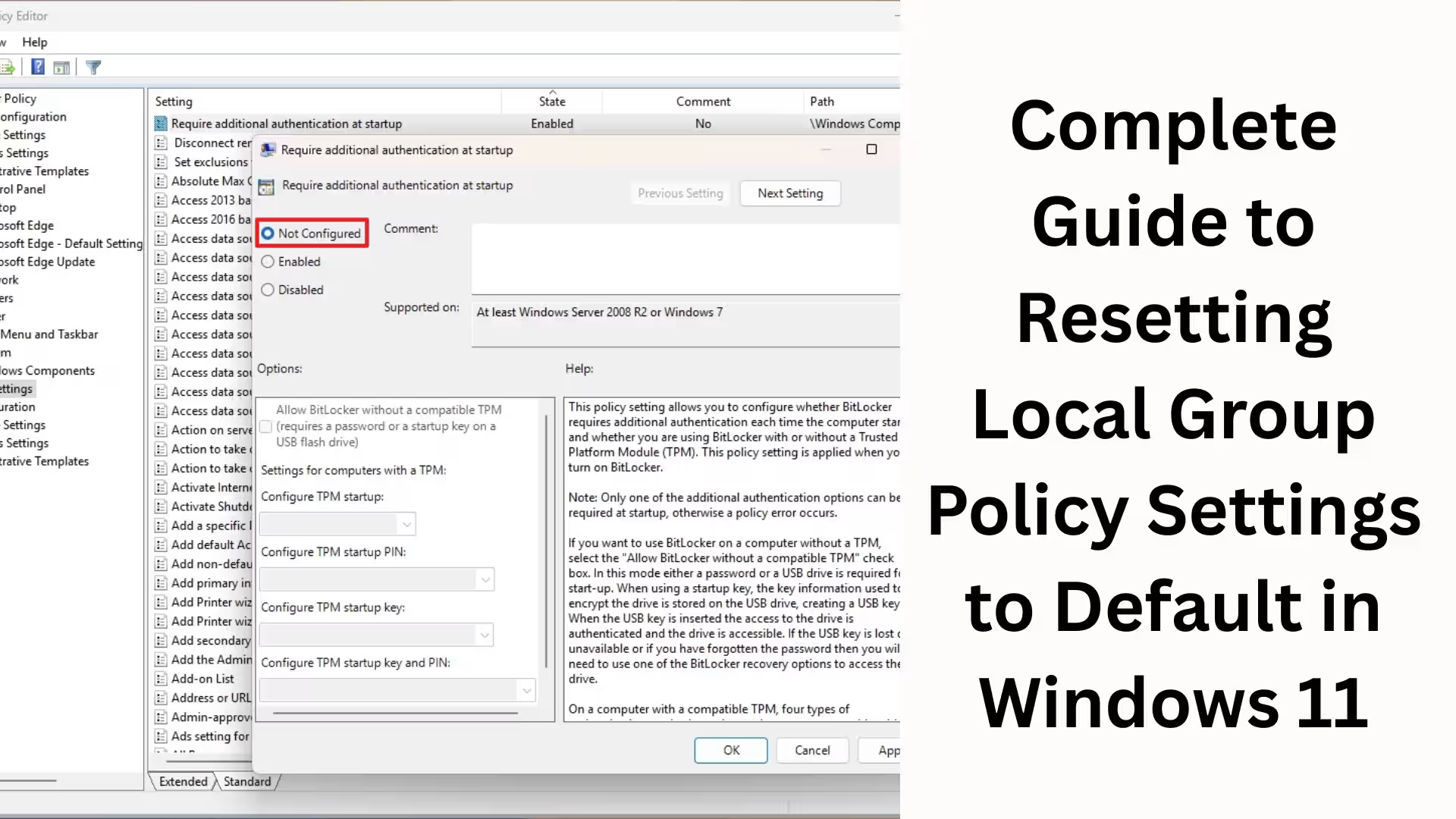
Method 3: Manual Reset via Local Group Policy Editor
This method is for users who want to reset specific policies.
Steps:
1. Press Win + R
2. Type gpedit.msc
3. Navigate to:
Computer Configuration
User Configuration
4. Go to each policy and set it to Not Configured
Points to Note
This method is time-consuming
Every policy has to be changed manually for a complete reset
It may be a little difficult for beginners
Method 4: Group Policy Reset via Registry Cleanup
Group Policy is directly related to the Windows Registry.
Steps:
1. Win + R → regedit
2. Navigate to the following paths:
“`
HKEY_LOCAL_MACHINE\Software\Policies
HKEY_CURRENT_USER\Software\Policies
“`
3. Delete the Policies folder
4. Restart the system
Important Warning
Always take a backup before making changes to the Registry
Deleting the wrong key can cause Windows to crash
Necessary Verification Steps After Reset
After the reset, it is very important to ensure that the policies have been applied correctly. Verification Command
Type the following in Command Prompt (Admin):
“`
gpupdate /force
“`
Expected Result
Policies Successfully Updated
No Error Message
System Performance Improved
Benefits of Resetting Local Group Policy
Windows Update starts working again
Security Features are restored
Login and User Restrictions are removed
System Speed and Stability are improved
Malware tweaks are completely removed
Which Users Should Reset Group Policy?
IT Administrators
Advanced Windows Users
Users whose Windows 11 has been incorrectly restricted
Corporate or Office Systems
Gaming and Performance-focused Users
Which Users Should Exercise Caution?
Beginner Users
Those making Registry changes without a backup
Office Domain-Connected Systems
Conclusion
Resetting Local Group Policy settings to default in Windows 11 is a powerful troubleshooting technique that makes the system stable, secure, and smooth again. In this guide, we have explained all the professional and tested methods in detail so that you can restore your Windows 11 to its correct state without any risk.
If you want complete control over Windows 11’s advanced settings, performance optimization, and security controls, this guide is a complete solution for you.
Want to grow your website organically? Contact us now
FAQ – Frequently Asked Questions about Local Group Policy Reset in Windows 11
Q1. What is Local Group Policy?
Local Group Policy is an advanced system tool in Windows 11 that allows you to control security settings, user restrictions, administrative controls, and system behavior. It is especially useful for advanced users and IT administrators.
Q2. Why is it necessary to reset Local Group Policy in Windows 11?
Resetting Group Policy becomes necessary when you encounter problems in Windows 11, such as update errors, login problems, blocked settings, disabled Command Prompt, or performance issues. This removes all incorrect or unnecessary policies.
Q3. Does resetting Local Group Policy delete data?
No. Resetting Group Policy only restores system settings to their default values; your personal files, documents, photos, or software are not deleted.
Q4. How to reset Group Policy in Windows 11 Home Edition?
Although gpedit.msc is not available by default in Windows 11 Home, you can reset Group Policy using the Command Prompt and PowerShell methods.
Q5. What needs to be done after resetting the Group Policy?
After the reset, you should:
Restart your system.
Run the gpupdate /force command.
This ensures that all default policies are applied correctly.
Q6. Does resetting Group Policy affect Windows activation?
No. It does not affect Windows activation, license, or product key. The reset is limited only to policies.
Q7. How often is it safe to reset Local Group Policy?
It is completely safe to reset whenever there is a serious policy-related problem in the system. However, frequent resets without reason are not recommended.
Q8. What is the difference between Group Policy Reset and Windows Reset?
Group Policy Reset: Only system policies are restored to default.
Windows Reset: The entire OS is refreshed, and apps may be removed.
Therefore, Group Policy Reset is a safer and more targeted solution.
Q9. Is resetting Group Policy beneficial after a malware infection?
Yes. Many malware programs apply hidden policies that restrict the system. Resetting Group Policy completely removes policies created by malware.
Q10. Does performance improve after resetting Group Policy?
Yes. After the reset:
System lag is reduced
Windows services run properly
Overall stability and performance improve