 By
ByIntroduction
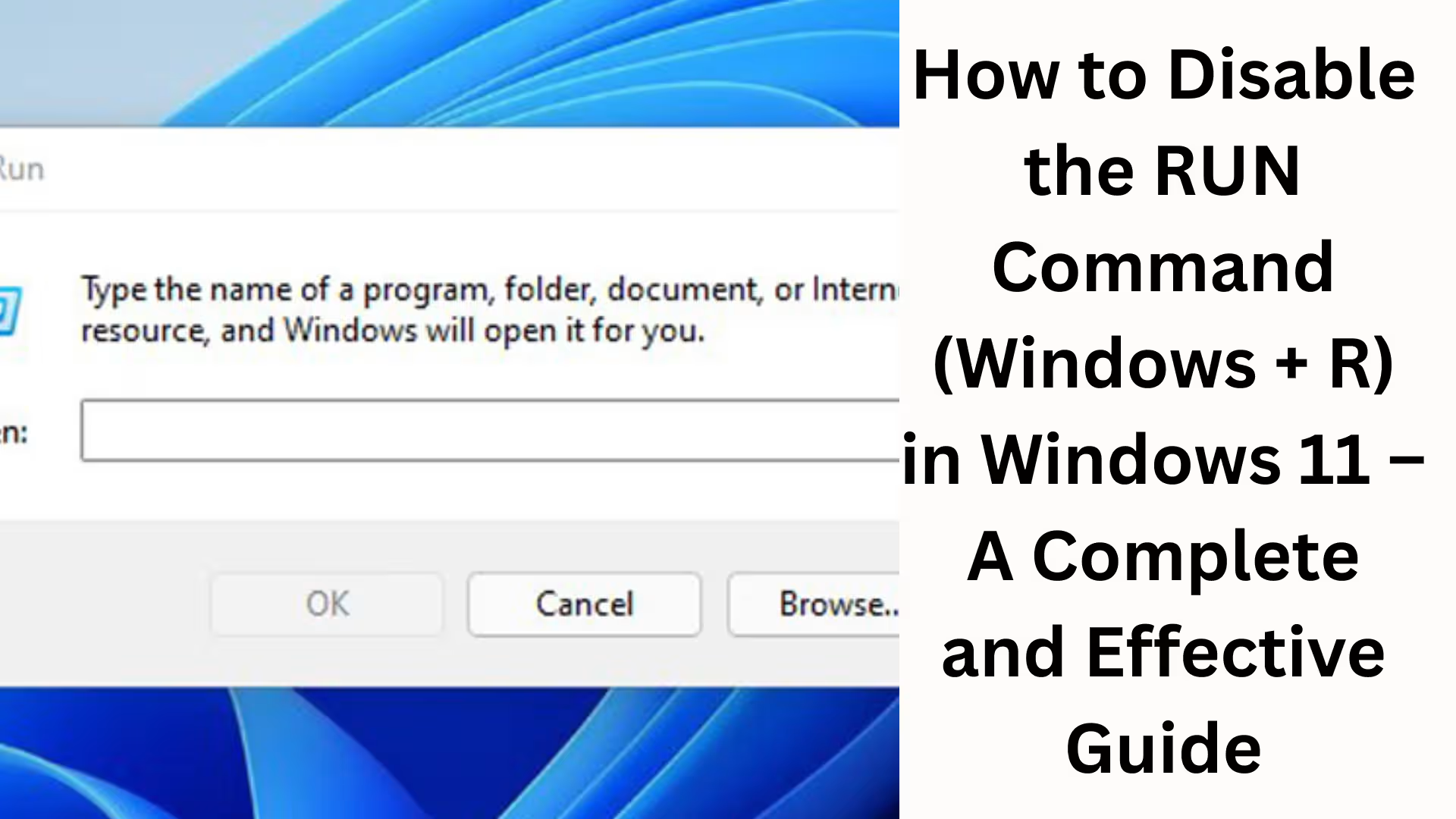
Windows 11 is a modern and secure operating system, but in many organizations, schools, cyber cafes, office networks, and public computer environments, the RUN command (Windows + R) can become a potential security risk. Through the RUN command, any user can directly access the Registry Editor, Command Prompt, PowerShell, System Tools, and sensitive system files.
For this reason, we are presenting safe and permanent methods to completely disable the RUN command in Windows 11, thereby strengthening system security and administrative control.
Why is Disabling the RUN Command Necessary?
To prevent unauthorized access
Protection against tampering with system settings
Protection from malware and script execution
Control for child PCs, school labs, and office systems
Preventing employee misuse
Method 1: Disable the RUN Command using Group Policy Editor (The safest method)
> This method is available in Windows 11 Pro, Enterprise, and Education editions.
Step-by-Step Process
1. Press Windows + R and type `gpedit.msc`
2. The Local Group Policy Editor will open
3. Navigate to this path:
User Configuration → Administrative Templates → Start Menu and Taskbar
4. Double-click on “Remove Run menu from Start Menu” on the right side
5. Select the Enabled option
6. Click Apply and then OK
7. Restart the system
Result
Windows + R is completely disabled
The RUN option will also be removed from the Start Menu
The user will not be able to access the RUN command in any way
Method 2: Disable the RUN Command using Registry Editor (For Windows 11 Home Users)
> This method also works in Windows 11 Home Edition.
Important Warning
Be sure to create a backup before making any changes to the Registry. Step-by-Step Process
1. Press Windows + R
2. Type `regedit` and press Enter
3. Navigate to this path:
HKEY_CURRENT_USER\Software\Microsoft\Windows\CurrentVersion\Policies\Explorer
4. Right-click on the empty space on the right
5. Select New → DWORD (32-bit) Value
6. Name it: NoRun
7. Set the Value Data to: 1
8. Close the Registry Editor
9. Restart your computer
Result
The RUN command will be disabled
The RUN option will be missing from the Start Menu
Method 3: Disabling the RUN Command via Command Prompt (Advanced Users)
> This method is useful for IT Administrators and System Managers.
Command
“`
reg add “HKCU\Software\Microsoft\Windows\CurrentVersion\Policies\Explorer” /v NoRun /t REG_DWORD /d 1 /f
“`
Open Command Prompt as Administrator
Execute the command
Restart the system
Method 4: Blocking the Keyboard Shortcut (Windows + R)
If you only want to disable the Windows + R shortcut:
Using Group Policy
1. Open `gpedit.msc`
2. Navigate to:
User Configuration → Administrative Templates → Windows Components → File Explorer
3. Enable “Turn off Windows Key hotkeys”
Result
All Windows Key-based shortcuts will be disabled
Windows + R will also not work
Method 5: Disabling the RUN Command using Third-Party Tools
Some Enterprise Management Tools:
Microsoft Intune
Endpoint Manager
Kiosk Mode Configuration
Local Security Policy
> This method is more effective in large networks. What will not work after disabling the RUN command?
`regedit`, `cmd`, `msconfig` will not open directly.
The Windows + R shortcut will be completely disabled.
The RUN dialog box will not appear.
How to re-enable the RUN command?
If you need to enable the RUN command in the future:
Group Policy
Remove Run menu from Start Menu → Disabled
Registry
Set the NoRun value to 0 or delete it.
Common Problems and Solutions
Problem: RUN is not disabling.
Solution:
Check the correct User Policy.
A restart is mandatory.
Problem: Disabling is required for only one user.
Solution:
Use User Configuration Policy.
Security Best Practices
Along with disabling RUN, restrict CMD, PowerShell, and Registry access as well.
Use Standard User Accounts.
Limit Admin Rights.
Perform regular audits and monitoring.
Conclusion
Disabling the RUN command (Windows + R) in Windows 11 is a crucial step for system security. Whether you are a Home User or an IT Administrator, all the methods described above are effective, secure, and permanent. By choosing the right method, you can completely protect your system from unauthorized changes, misuse, and security risks.
Want to grow your website organically? Contact us now
Frequently Asked Questions (FAQ)
Question 1: What is the RUN Command (Windows + R) in Windows 11?
Answer: The RUN command is a shortcut tool in Windows that allows users to quickly open System Tools, Settings, Registry Editor, Command Prompt, and other advanced features directly. It is activated by pressing Windows + R.
Question 2: Why is it necessary to disable the RUN command in Windows 11?
Answer: Through the RUN command, any user can modify sensitive system settings, run unwanted commands, or execute malware scripts. Therefore, disabling it is necessary for security in offices, schools, cyber cafes, and shared PCs.
Question 3: Can the RUN command be disabled in Windows 11 Home Edition?
Answer: Yes, the RUN command can be completely disabled in Windows 11 Home Edition through the Registry Editor. The Group Policy Editor is not available in the Home version.
Question 4: Will disabling the RUN command completely stop Windows + R from working?
Answer: Yes, after disabling the RUN command, the Windows + R shortcut will not work, and the RUN dialog box will not open.
Question 5: Does disabling the RUN command harm the system?
Answer: No, disabling the RUN command does not negatively affect the system. It only restricts the shortcut and access, which improves security and control.
Question 6: Can the RUN command be disabled for only one user on the same computer?
Answer: Yes, the RUN command can be disabled for a specific user only through the User Configuration Policy and the HKEY_CURRENT_USER Registry path.
Question 7: How to open Command Prompt or Registry after disabling the RUN command?
Answer: Even after disabling the RUN command, an administrator can still open Command Prompt and Registry Editor through the Start Menu Search, Control Panel, or System Tools, provided there are no separate restrictions on them.
Question 8: Can the RUN command be enabled again?
Answer: Yes, the RUN command can be re-enabled at any time by disabling the setting in Group Policy or by removing the NoRun value from the Registry or setting it to 0.
Question 9: Does disabling the RUN command affect Windows Updates?
Answer: No, disabling the RUN command does not affect Windows Update, security patches, or system performance.
Question 10: Is disabling the RUN command a completely safe method?
Answer: Yes, this method is based on policies and registry settings supported by Microsoft and is widely used to enhance system security.
Question 11: Can Windows Key shortcuts be disabled separately?
Answer: Yes, Windows Key hotkeys can be disabled through Group Policy, which will also disable other shortcuts, including Windows + R.
Question 12: Does disabling the RUN command increase protection against malware?
Answer: Absolutely, disabling the RUN command significantly reduces the risk of malware scripts, unauthorized commands, and hidden executions.
Question 13: Which method is best for office or school computers?
Answer: Disabling the RUN command through the Group Policy Editor is considered the safest and most permanent method for office, school, and enterprise environments.
Question 14: Is it advisable to disable the RUN command using third-party software?
Answer: In large networks, trusted tools like Microsoft Intune or Endpoint Manager can be useful, but for general users, the built-in Windows methods are better and safer.
Question 15: Is a system restart necessary after disabling the RUN command?
Answer: Yes, a system restart is mandatory for the settings to take full effect.