 By
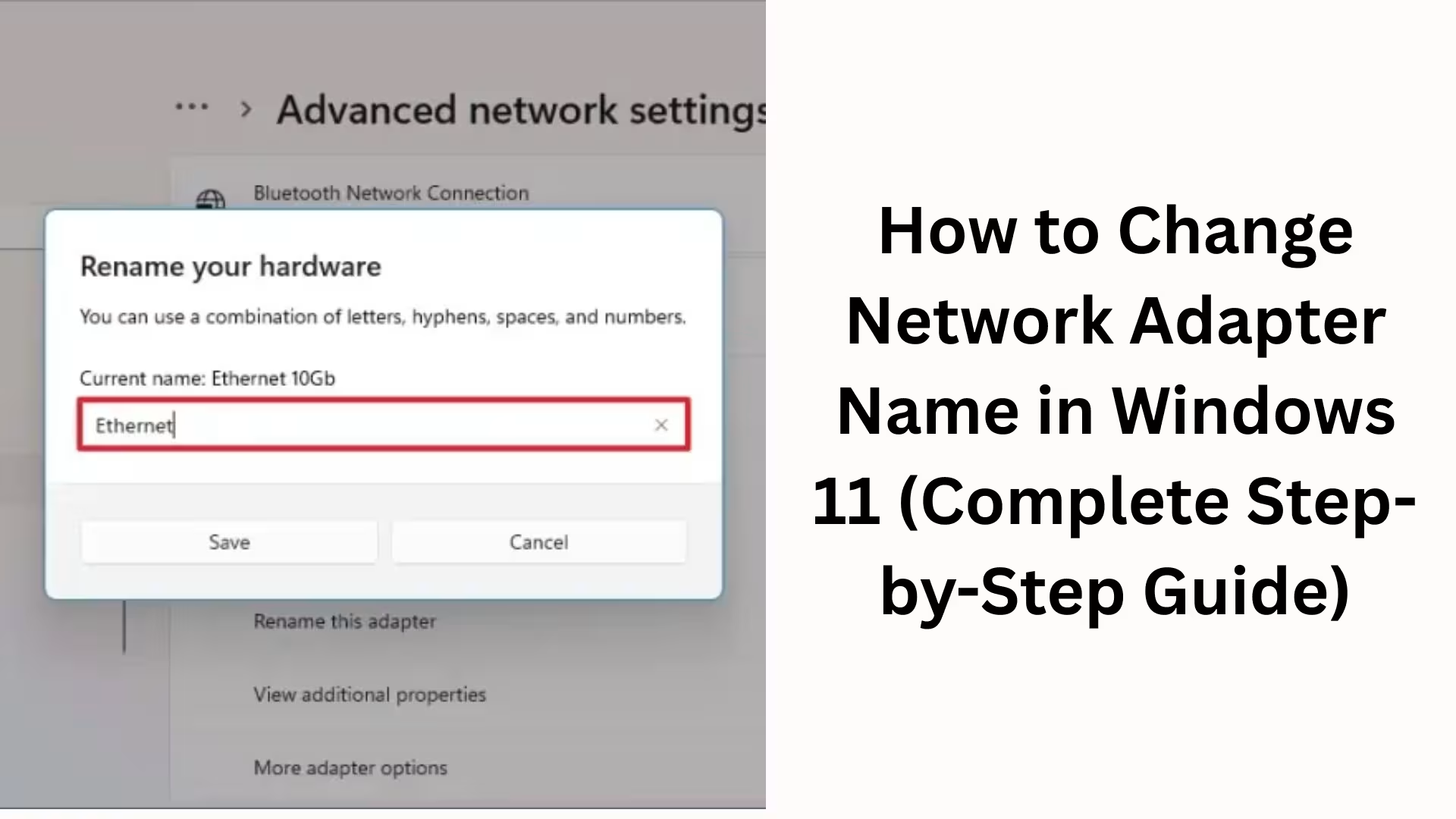
ByChanging the network adapter name in Windows 11 is often necessary, especially when your system has multiple network connections, such as Wi-Fi, Ethernet, Virtual Adapter, VPN Adapter, etc. Having the correct name makes network management, troubleshooting, and professional setup easier.
Here, we explain all possible, safe, and effective ways to change the network adapter name in Windows 11 in detail, so you can easily rename the adapter in any situation.
Why is Changing the Network Adapter Name Necessary?
To make identification easier when you have multiple networks
To give a distinct identity to Virtual Adapters like VPN, VirtualBox, Hyper-V
For professional network management in office or server environments
To simplify network troubleshooting
For custom network configurations
Default names in Windows 11, such as Ethernet, Wi-Fi, or Local Area Connection, can sometimes cause confusion.
Method 1: Change Network Adapter Name from Settings (Easiest Method)
This method is the simplest and safest for new users.
Steps:
1. Open the Start Menu and click on Settings
2. Go to Network & Internet
3. Scroll down and select Advanced network settings
4. Click on More network adapter options
5. The Network Connections window will now open
6. Right-click on the adapter you want to rename
7. Select the Rename option
8. Type the new name and press Enter
Your Network Adapter will immediately appear with the new name.
Method 2: Rename Network Adapter from Control Panel
This method will be more familiar to older Windows users.
Steps:
1. Press Win + R
2. Type `control` and press Enter
3. Go to Network and Internet → Network and Sharing Center
4. On the left side, click on Change adapter settings
5. Right-click on the adapter → Rename
6. Enter the new name and press Enter
This method also works perfectly in Windows 11.
Method 3: Change Network Adapter Name using PowerShell (For Advanced Users)
If you are an advanced user, IT professional, or system administrator, PowerShell is the fastest method.
PowerShell Command:
1. Search for `PowerShell` in the Start Menu
2. Open as Run as Administrator
3. First, run the command to see all adapters:
“`
Get-NetAdapter
“`
4. Now, to change the name:
“`
Rename-NetAdapter -Name “OldName” -NewName “NewName”
“`
Example:
“`
Rename-NetAdapter -Name “Ethernet” -NewName “Office LAN”
“`
The name changes instantly without any GUI.
Method 4: Rename Adapter using Command Prompt (CMD)
CMD can also be used to rename a network adapter.
Steps:
1. Open CMD as Run as Administrator
2. To see all networks:
“`
netsh interface show interface
“`
3. Now, to change the name:
“`
netsh interface set interface name=”OldName” newname=”NewName”
“`
This method is useful for scripting and automation.
Method 5: Change Network Adapter Name using Registry Editor (Expert Level)
The Registry method is only for advanced users. Incorrect changes can damage the system.
Steps:
1. Win + R → `regedit` → Enter
2. Navigate to this path:
“`
HKEY_LOCAL_MACHINE\SYSTEM\CurrentControlSet\Control\Network
“`
3. Open the `{4D36E972-E325-11CE-BFC1-08002BE10318}` GUID
4. Find the correct key for your adapter
5. Modify the Name or PnpInstanceID
6. Restart the system
This method is useful for hidden or stuck adapter names. Things to keep in mind when renaming a Network Adapter
Administrator access may be required
The network may disconnect/reconnect after renaming
Renaming a VPN or Virtual Adapter may affect related software
Taking a backup is mandatory before using the Registry method
What to check after changing the Network Adapter Name
Whether the Internet connection is working correctly
Whether the VPN/Virtual Network is connecting properly
Whether Network Sharing Settings have been affected
Whether there are any conflicts in Firewall Rules
Common Problems and their Solutions
Rename Option is Greyed Out
Log in with an Admin Account
Restart the Network Service
PowerShell Command doesn’t work
Check the exact Adapter Name
Run PowerShell in Administrator Mode
Network disappears after renaming
Restart the system
Reset the network
Adapter Naming Best Practices in a Professional Environment
Location-Based Names such as Office-LAN, Home-WiFi
Purpose-Based Names such as VPN-Work, Backup-Network
Use prefixes for Virtual Adapters: VM-, VBOX-
Keep names short and clear
Benefits of improving Network Management in Windows 11
Better Network Organization
Faster Troubleshooting
Professional system setup
Easier handling of multiple networks
Ideal for IT and Enterprise use
Conclusion
Changing the Network Adapter name in Windows 11 is not only easy but also a smart network management step. With several methods like Settings, Control Panel, PowerShell, CMD, and Registry, you can rename the adapter according to your needs. Proper naming makes your system cleaner, more professional, and more manageable.
Want to grow your website organically? Contact us now
FAQ – Frequently Asked Questions about Changing Network Adapter Names in Windows 11
Q1. Is it safe to change the Network Adapter name in Windows 11?
Yes, changing the Network Adapter name in Windows 11 is completely safe. It does not negatively affect your internet connection or network speed, provided you are only changing the name and not tampering with other network settings.
Q2. Will changing the Network Adapter name disconnect the internet?
No, simply changing the name will not disconnect the internet. However, in some cases, the network might disconnect for a few seconds during the renaming process, but it will automatically reconnect.
Q3. Can both Wi-Fi and Ethernet names be changed?
Yes, in Windows 11, you can easily change the names of Wi-Fi, Ethernet, VPN, and Virtual Adapters (VMware, VirtualBox, Hyper-V).
Q4. Is Administrator permission required to rename the Network Adapter?
In most cases, Administrator permission is required, especially when you are changing the name using PowerShell, CMD, or Registry Editor. Admin access may also be requested sometimes when using Settings or Control Panel.
Q5. How to check the Network Adapter name using PowerShell?
To see all Network Adapters in PowerShell, use this command:
“`
Get-NetAdapter
“`
This will show you the correct adapter name, which you can use when renaming it.
Q6. Will the VPN work after changing the Network Adapter name?
Yes, the VPN will work normally, but some VPN software recognizes the adapter name. In such cases, it’s best not to change the VPN adapter name too much or restart the VPN software after renaming.
Q7. The Rename option is not visible, what should I do?
If the Rename option is not visible:
Log in with an Admin account
Restart Network Services
Use the Control Panel or PowerShell method
Q8. Can the Network Adapter name be reverted to default?
Yes, you can revert the adapter name to default or any desired name at any time. There is no limit to renaming in Windows 11.
Q9. Is it okay to rename a Virtual Network Adapter?
Yes, renaming a Virtual Network Adapter is perfectly fine. In fact, it makes identifying and managing virtual networks easier, especially in IT and server environments.
Q10. Is it necessary to rename it using the Registry Editor?
No, using the Registry Editor is only necessary in rare cases, such as when the adapter name is stuck or cannot be changed using normal methods. For most users, Settings or Control Panel is sufficient.
Q11. Will renaming the Network Adapter reset the network?
No, renaming does not reset the network. It’s simply a name change; the network configuration remains unchanged.
Q12. How many Network Adapters can be renamed on a single system?
You can rename all the Network Adapters on your system, regardless of their number.
Q13. Is it appropriate to rename an adapter in an office or company network?
Yes, adopting a proper naming convention in an office environment makes network management more professional and easier.
Q14. Is a system restart necessary after renaming a Network Adapter?
In most cases, a restart is not necessary, but if the network doesn’t work correctly after renaming, restarting the system can be helpful.
Q15. Will the Network Adapter name change after a Windows Update?
No, Windows Update does not automatically change the Network Adapter name. Once renamed, the name remains permanent.