 By
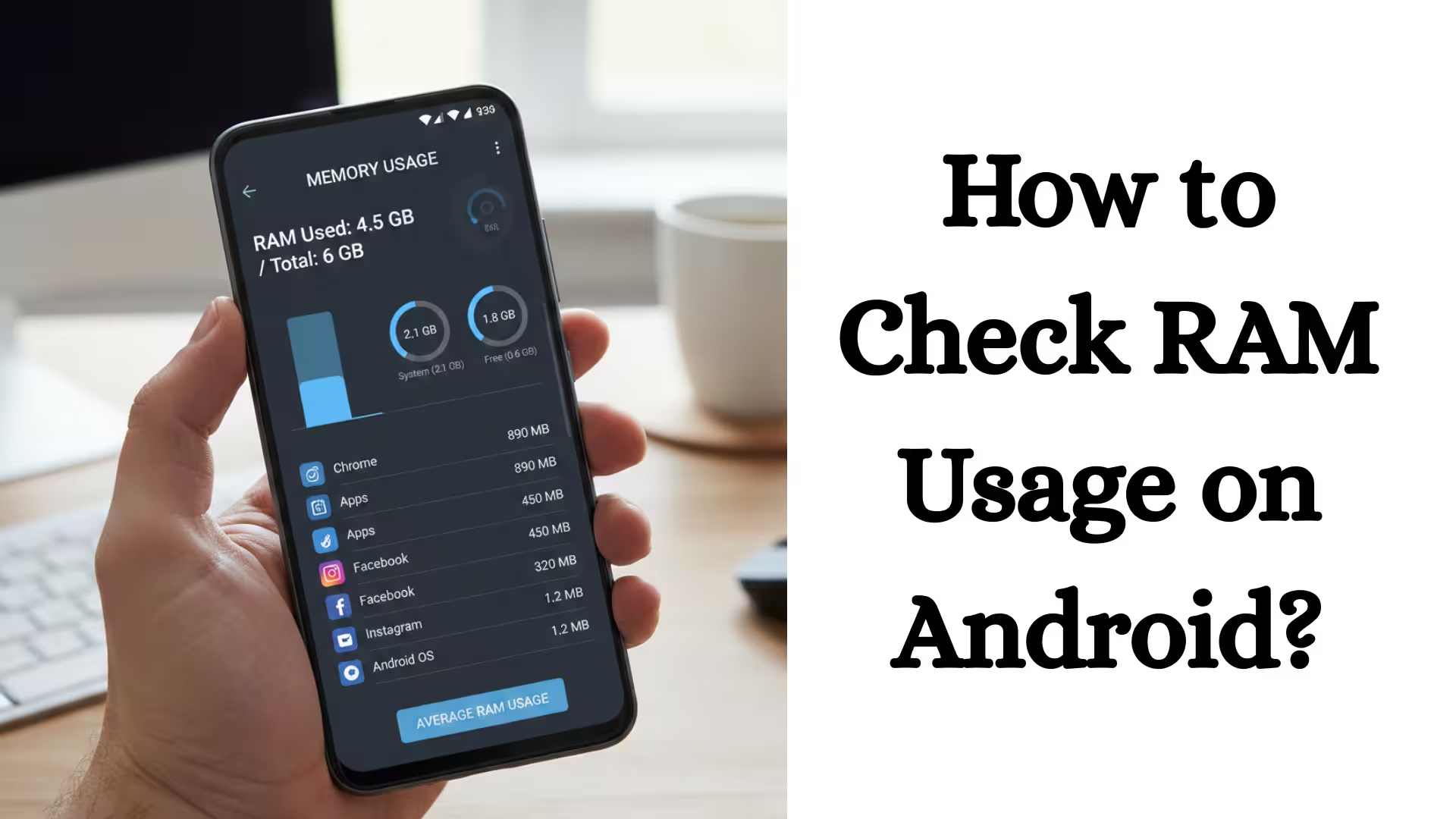
ByToday, Android smartphones have become a vital part of our daily needs. Whenever a phone starts to slow down, hang, or apps crash frequently, the primary cause is excessive RAM usage. Therefore, it’s crucial to know how to check RAM usage in Android, which apps are consuming how much RAM, and how we can manage RAM.
In this detailed guide, we’ll explain the correct way to check RAM usage in Android, the process of checking RAM in different versions, using developer options, RAM monitoring through third-party apps, and practical ways to optimize RAM.
What is RAM and its role in Android?
RAM (Random Access Memory) is the memory where your phone’s running apps and processes are temporarily stored. The more RAM you have, the better the multitasking experience.
When you open multiple apps at once—like WhatsApp, Instagram, Chrome, and YouTube—they all use RAM. If RAM gets full, the phone slows down.
How to Check RAM Usage in Android (Without Any Apps)
1. How to Check RAM Usage from Settings
Most new Android phones already have an option to view RAM usage.
Step-by-step process:
1. Open Settings
2. Scroll down and tap About Phone
3. Tap Build Number 7 times (to activate Developer Options)
4. Now go back to Settings
5. Open System > Developer Options
6. Tap Memory or Running Services here
Here you’ll see:
Total RAM
How much RAM is being used
Which apps are using how much RAM
This method is the most accurate and reliable because it shows system-level data.
How to Check RAM Usage on Samsung, Xiaomi, Realme
How to Check RAM on a Samsung Phone
1. Open Settings
2. Go to Battery and Device Care
3. Tap on Memory
Here you’ll find complete RAM details – both used and free memory.
How to Check RAM Usage on Xiaomi (MIUI)
1. Open Settings
2. Go to Additional Settings
3. Select Developer Options
4. View Memory Usage
In MIUI, you can also view RAM data for 3 hours, 6 hours, or 1 day.
Also read: How to Find Hidden Apps on Samsung Phones?
How to Check RAM Usage on a Realme/Oppo Phone
1. Open Settings
2. About Phone
3. Turn on Developer Mode by tapping Version 7 times
4. Go to Developer Options and view Running Services
How to Monitor RAM Usage with Third-Party Apps
If your phone doesn’t clearly display RAM data from Developer Options, you can use trusted apps.
Popular RAM Monitoring Apps:
- Device Info HW
- CPU-Z
- Activity Monitor
With these apps, you can see:
- Real-time RAM usage
- Background processes
- CPU and battery status
How to view running apps and background processes in Android
To understand RAM usage, it’s important to know which apps are running in the background.
Procedure:
- Settings > Developer Options
- Running Services
- Here you’ll see Active Apps and Cached Processes.
Active apps consume more RAM, while cached processes use less.
How to Reduce Android RAM Usage
1. Close Unnecessary Apps
Although Android manages RAM itself, it’s beneficial to manually close heavy apps like games or video editing apps.
2. Turn Off Background App Refresh
Some apps constantly sync data in the background.
Settings > Apps > App Name > Background Data Restrict
3. Turn Off Auto-Start Apps
Many apps start as soon as the phone is turned on.
Settings > Apps > Autostart Management
4. Use Lite Version Apps
- Facebook Lite
- Instagram Lite
- YouTube Lite
These apps take up less RAM.
5. Clear the Cache
Settings > Storage > Cached Data
Regularly clearing the cache improves both RAM and storage.
What is Virtual RAM, and how does it work?
Many Android phones these days come with a Virtual RAM or RAM Expansion feature. This uses a portion of the phone’s storage as RAM.
Settings > RAM Expansion > Enable
Although it’s not as fast as real RAM, it helps with multitasking.
How much RAM is enough for Android?
| Usage Type | Required RAM |
| ————————— | ———– |
| Normal Use | 4GB |
| Social Media + Multitasking | 6GB |
| Gaming | 8GB or more |
If your phone has 2GB or 3GB of RAM, it’s important to regularly monitor RAM usage.
Important Points About Android RAM Usage
- 50-70% RAM usage is normal.
- Seeing free RAM doesn’t necessarily mean the phone is slow.
- Android manages RAM itself.
- Task killer apps are often harmful.
The Quickest Way to Check RAM Usage in Android (Quick Summary)
1. Open Settings
2. Turn on Developer Options
3. Go to the Memory section
4. Check Running Apps
This method is useful and accurate for every Android user.
Conclusion
If your phone is slowing down or apps are frequently quitting, the first thing we should do is check RAM usage in Android. Proper monitoring can help us understand which apps are taking up too much RAM and which ones need to be removed or limited.
Regularly monitoring RAM usage, controlling background apps, and removing unnecessary apps helps maintain your smartphone’s performance. Using the methods above, you can easily check your Android phone’s RAM status and manage it better.
Frequently Asked Questions (FAQ) – How to Check RAM Usage in Android
1. How to check RAM usage in Android?
We can check RAM usage on our Android phone by going to Settings > Developer Options > Memory or Running Services. Here, we get information about total RAM, used RAM, and free RAM.
2. Can we check RAM without turning on Developer Options?
On some smartphones, like Samsung, we can check RAM usage directly in Settings > Battery and Device Care > Memory. However, most phones require Developer Options for detailed information.
3. How to turn on Developer Options?
We can activate Developer Mode by going to Settings > About Phone, then tapping Build Number 7 times. After this, Developer Options appear in Settings.
4. How much RAM usage is considered normal in Android?
Generally, 50% to 70% RAM usage is normal. The Android system automatically manages RAM, so it’s not necessary to have all the RAM free.
5. Which apps consume the most RAM?
Apps like gaming, social media, video editing, and browsers use the most RAM. We can see how much RAM each app is using by going to Running Services.
6. Are RAM cleaner apps useful?
Most RAM cleaner apps temporarily free up RAM, but Android already manages RAM. Therefore, it’s not necessary to use a RAM cleaner frequently.
7. What is Virtual RAM?
The Virtual RAM or RAM Expansion feature uses a portion of the phone’s storage as RAM. This helps with multitasking, but it’s not as fast as real RAM.
8. What to do if your phone is slow?
If your phone is slowing down, we should:
Close unnecessary apps
Restrict background apps
Clear the cache
Uninstall less-used apps
9. Does having more RAM make your phone run faster?
More RAM provides better multitasking. However, phone speed isn’t solely dependent on RAM, but also on the processor and storage type.
10. How to View Running Apps on Android?
We can view Active Apps and Background Processes by going to Settings > Developer Options > Running Services. This shows which apps are using RAM.
Are you searching for the best hosting plan? Click now and get 20% off