 By
ByGoogle Chrome is the world’s most widely used web browser, and its Autofill feature helps users save time by automatically filling in forms with passwords, addresses, payment details, and more. However, sometimes old, incorrect, or unwanted data gets saved in Chrome, which needs to be removed, especially if you share your laptop, are switching devices, or want to protect your privacy.
In this guide, we will explain in detail all the ways to clear Autofill in Google Chrome — for all devices, including computers, laptops, Android, and iPhones.
What is Autofill, and why is it necessary to clear it?
Autofill is a browsing feature that remembers the information you have saved –
Email ID
Passwords
Address
Debit/Credit Card Details
Contact Information
Information-filled forms
and automatically fills it in the same form the next time. Clearing this is important because:
Old and incorrect information is removed
Privacy and security are strengthened
The possibility of errors in payment and address information is reduced
Data remains secure before selling, exchanging, or giving away your device
How to Clear Autofill in Chrome – Step by Step (Laptop/PC)
Follow these steps to clear Autofill data in the Chrome browser:
1️ Open Chrome Browser Settings
Open Chrome
Click on the three dots (Menu) in the upper right corner
Click on Settings
2️ Go to Privacy and Security
On the left side, select Privacy and security
Then select Clear Browsing Data
3️ Select the Advanced Tab
You will now see two tabs — Basic and Advanced
Select Advanced
4️ Select Autofill Form Data and Passwords
Here you will find several options:
✔ Browsing history
✔ Cookies
✔ Cached images
✔ Autofill form data
✔ Passwords and other sign-in data
➡ Tick Autofill form data and Password data
5️ Select the Time Range
The dropdown options are:
Last hour
Last 24 hours
Last 7 days
4 weeks
All time (best option)
6️ Click on Clear data
That’s it! Your Autofill data has been deleted from Chrome.
How to Delete a Specific Autofill Entry in Chrome
If you don’t want to delete all the data and only want to remove a specific email, address, or name, follow this method —
1️ Open Chrome Settings
Settings → Autofill
2️ You will find three options here
Passwords
Payment methods
Addresses and more
Click on the one you want to remove.
3️ Click on the Delete icon
A delete (trash) button will be available next to each data entry; click on it.
➡ This keeps the rest of the Autofill data safe, and only the unwanted entry is removed.
Removing Autofill from the Keyboard in Chrome (Using a Shortcut)
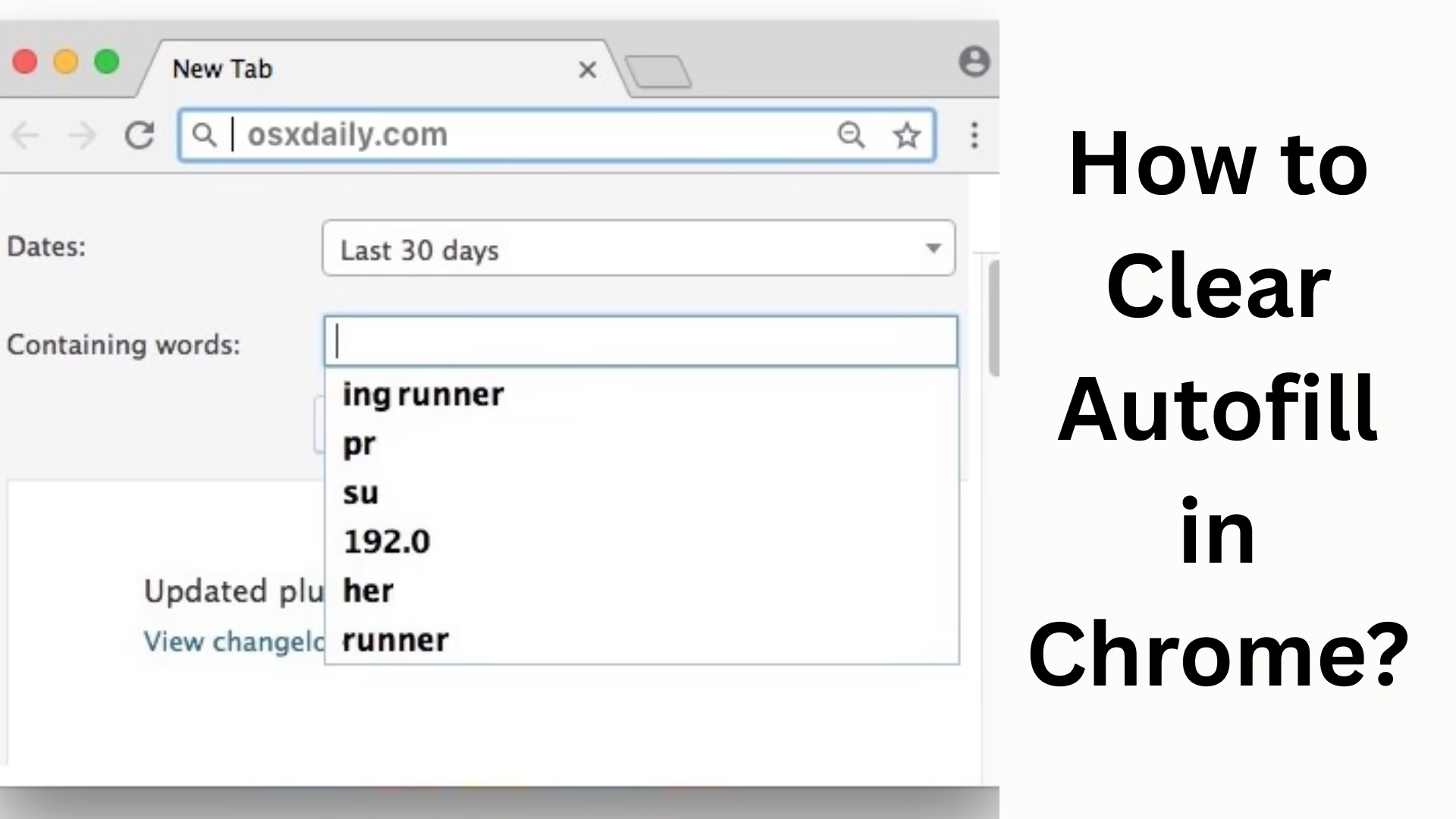
If you are typing in a form and an Autofill suggestion appears that you want to remove:
The Autofill suggestion appears
Press Shift + Delete on your keyboard
➡ That Autofill entry will be deleted immediately
This method is the fastest and smartest. How to Clear Autofill in Android (Chrome Browser)
If you use Chrome on your mobile device, the method for removing Autofill is slightly different.
Step-by-step:
1. Open the Chrome app
2. Tap the three dots at the top → Settings
3. Scroll down and open Autofill and payments
Here you will find:
Passwords
Payment methods
Addresses and more
▶ Deleting Passwords
Settings → Passwords → Tap on the password you want to delete → Delete
▶ Deleting Addresses
Settings → Addresses and more → Select the address → Delete
▶ Deleting Saved Credit/Debit Cards
Settings → Payment methods → Select the card → Remove
➡ Note — Make sure to have a secure backup before deleting bank cards.
How to Delete Chrome Autofill on iPhone/iPad
For iOS users, removing Autofill in Chrome is very easy.
Follow these steps:
1. Open the Chrome app
2. Three dots → Settings
3. Autofill and Payments
4. Go to Passwords / Settings / Credit Card
5. Select the item you want to remove → Swipe Left → Delete
How to Disable Autofill in Chrome in the Future (Stop Saving Autofill)
If you don’t want Chrome to save any of your data, turn off these settings:
➡ Settings → Autofill →
Passwords → Save passwords → Off
Payment methods → Save and fill → Off
Addresses → Save and fill → Off
Now Chrome will never save your data.
Does deleting Autofill data remove saved passwords?
➡ If you checked: Passwords and sign-in data
Then your saved passwords will be deleted.
➡ If you only deleted Autofill form data
Only entries like Name, Address, Email, Phone will be removed.
Things to keep in mind when clearing Autofill
| Caution | Reason |
| ——————————————- | ——————————– |
| Select Time Range “All Time” | Old unwanted data will also be removed |
| Do not clear Passwords if you don’t remember them | Problems with Gmail, Facebook login |
| Take a screenshot before removing Credit Card | Needed for online payments |
| Delete regularly on shared computers | Privacy remains secure |
Shortcut to Clear Autofill and Browsing History in one click (Windows/Mac)
Open this URL in Chrome:
“`
chrome://settings/clearBrowserData
“`
➡ The Clear Autofill page will open directly.
Conclusion
Clearing Autofill in Google Chrome is important for your privacy, security, and browser experience. Regularly deleting Autofill data not only removes incorrect entries but also protects confidential information.
For Laptops, Windows, Mac, Android, and iPhone — you can easily delete unwanted Autofill data by following the steps mentioned above.
Want to grow your website organically? Contact us now
FAQs – Questions and Answers Related to Clearing Autofill in Chrome
Q1. Will clearing Autofill also delete my Google Account data?
No, clearing Autofill in Chrome will only delete the data saved in the browser. Your Google Account, Gmail, Drive, etc., will not be affected.
Q2. Will deleting Autofill also remove saved passwords?
Saved passwords will only be deleted if you have checked the “Passwords and other sign-in data” option. If you only delete “Autofill form data,” your passwords will not be deleted.
Q3. Can Chrome stop asking to save Autofill information every time?
Yes, you can turn off the Auto-Save settings for Passwords, Payments, and Addresses in the Settings.
Q4. Is the method for deleting Autofill the same on both mobile and laptop?
No, the steps are different for both. On a PC/Laptop, it is removed from the Advanced Options within Settings, while on a mobile device, it’s done through the Autofill and Payments section.
Q5. Does clearing Autofill make Chrome faster?
Yes, removing unnecessary autofill form data makes the browser lighter, which improves performance.
Q6. Can Autofill data be restored after clearing it?
No, deleted Autofill data cannot be restored, so be careful before deleting it.
Q7. Is it necessary to clear Autofill before selling a computer?
Yes, it is very important for your privacy and security so that your personal details don’t fall into the wrong hands.
Q8. Are Autofill and Cookies the same thing?
No, Autofill saves your form information, while Cookies store your browsing activity and preferences.
Q9. Is it safe to save payment card details in Chrome Autofill?
Chrome encrypts payment information and implements security measures, but it is not advisable to save it on a shared or public computer.
Q10. Is there a shortcut to clear Autofill?
Yes, you can directly open this URL in Chrome:
“`
chrome://settings/clearBrowserData
“`