 By
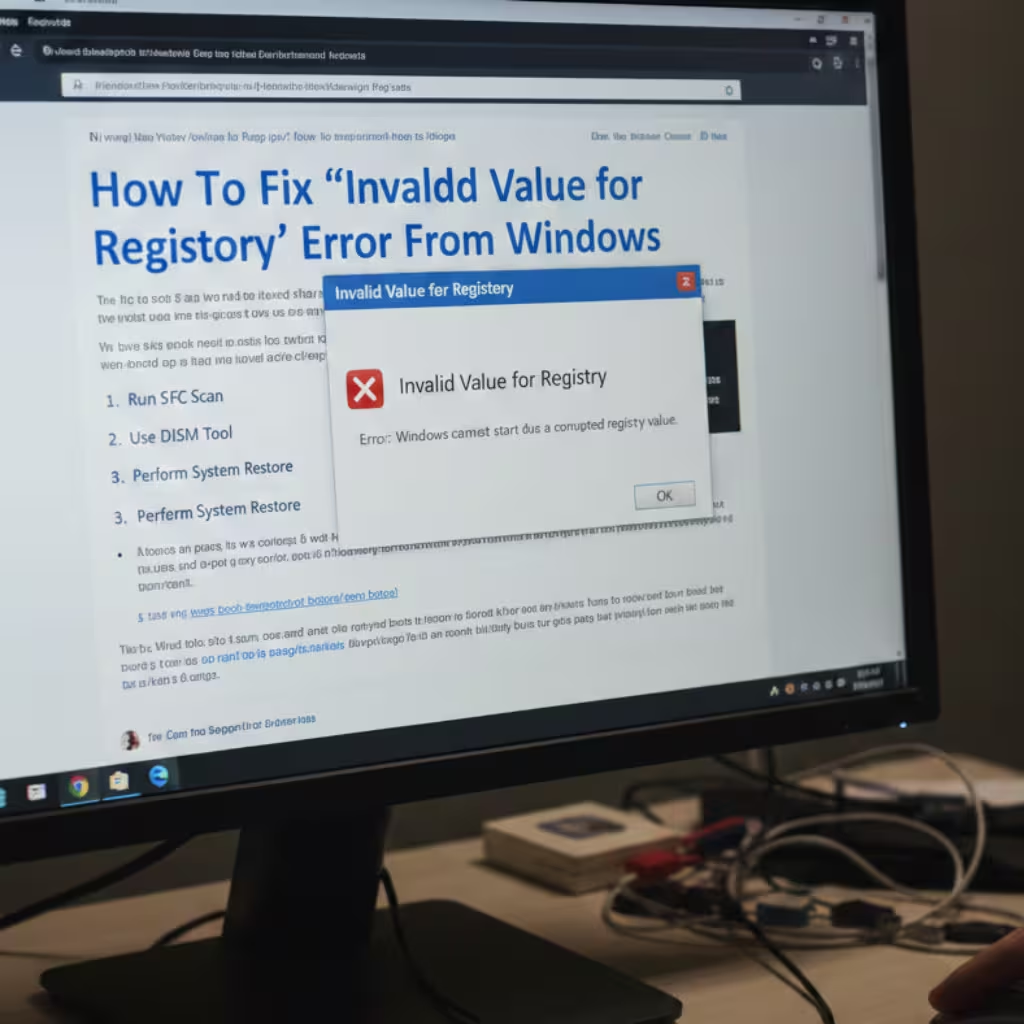
ByWhen we try to open a photo, video, or app on a Windows PC and suddenly see an “Invalid Value for Registry” error, it’s usually caused by a glitch in the system registry. This error often occurs when a system update is incomplete, an app becomes corrupted, or a registry entry is incorrectly modified.
In this detailed guide, we’re sharing all the effective ways to permanently fix the ‘Invalid Value for Registry’ error in Windows.
What is the ‘Invalid Value for Registry’ error?
The Registry is the Windows database where all important system and application settings are stored. When an entry is incorrect, corrupted, or mismatched, the system can’t read the correct value, resulting in this error.
This issue typically occurs in the following situations:
- After a Windows Update
- When opening the Photos or Media Viewer app
- After changing the default app
- After making a manual change to the registry
Method 1: Reset the Windows Photos App
If this error occurs when opening Photos, the first step is to reset the Photos app.
Steps:
1. Open the Start Menu and click Settings.
2. Go to Apps → Installed Apps.
3. Find Microsoft Photos.
4. Click the three dots → Select Advanced Options.
5. Scroll down and click Reset.
Restart the system after resetting. This fixes the problem in most cases.
Method 2: Delete old entries using the Registry Editor
Be sure to take a registry backup before this procedure.
How to take a backup:
1. Press Windows + R
2. Type `regedit` and press Enter
3. File → Export
4. Save the backup file
Now to fix the problem:
1. Open the Registry Editor
2. Navigate to the following path:
HKEY_CURRENT_USER\Software\Classes\Local Settings\Software\Microsoft\Windows\CurrentVersion\AppModel\Repository\Packages
3. Look for entries showing an old version number.
4. Delete any duplicate or outdated entries.
Restart the system and check again.
Method 3: Run the System File Checker (SFC Scan)
If registry files are corrupt, an SFC scan is very effective.
Steps:
1. Click Start
2. Search for “Command Prompt”
3. Select Run as Administrator
4. Type the command below:
sfc /scannow
5. Press Enter and let the process complete.
This tool scans for and automatically repairs all corrupt system files.
Method 4: Use the DISM Tool
If SFC doesn’t resolve the issue, run the DISM command.
Type the following command in Command Prompt (Admin):
DISM /Online /Cleanup-Image /RestoreHealth
This repairs the Windows image and helps fix registry value errors.
Method 5: Reset Default Apps
Sometimes this error occurs due to incorrectly set default apps.
Steps:
1. Settings → Apps → Default Apps
2. Scroll down and click Reset to Microsoft Recommended Defaults
This will restore the default values for all file types.
Method 6: Complete Windows Update
Incomplete updates also cause Registry conflicts.
1. Open Settings
2. Go to Windows Update
3. Install Pending Updates
4. Restart the system
Method 7: Check by performing a Clean Boot
If a third-party app is causing the problem, perform a Clean Boot.
Steps:
1. Press Windows + R
2. Type `msconfig`
3. Go to the Services tab
4. Tick Hide All Microsoft Services
5. Click Disable All
6. Open the Startup tab → Task Manager
7. Disable all Startup Apps
Restart the system.
Method 8: Create a New User Account
Sometimes this error occurs due to a corrupt user profile.
To create a new account:
1. Settings → Accounts
2. Family & Other Users
3. Add Account
4. Create a New Local User
Log in to the new account and check for the problem.
Method 9: Use System Restore
If the problem started recently, perform a System Restore.
1. Search for Start → “Create a Restore Point.”
2. Click System Restore
3. Select an earlier date
4. Start the restore
Advanced Solution: Reinstall the Photos App from PowerShell
If the Photos App is completely corrupt, reinstall it.
Run this command in PowerShell (Admin):
get-appxpackage Microsoft.Windows.Photos | remove-appxpackage
Then reinstall the Photos App from the Microsoft Store.
Ways to Avoid the ‘Invalid Value for Registry’ Error
Don’t make uninformed changes to the registry
Don’t leave Windows Updates incomplete
Perform regular SFC scans
Use a trusted antivirus
Continuously create System Restore Points
Conclusion
The ‘Invalid Value for Registry’ error is a common but annoying problem in Windows. Following the correct steps can permanently fix it. First, reset the app, then run SFC and DISM, and if necessary, perform a manual Registry fix.
Frequently Asked Questions (FAQ) – ‘Invalid Value for Registry’ Error in Windows
1. Why does the ‘Invalid Value for Registry’ error occur?
This error occurs when a value in the Windows Registry becomes corrupt, incorrect, or outdated. This problem often occurs after a Windows Update, app corruption, or changing default app settings.
2. Does this error occur only in the Photos app?
No. Although it most often appears when opening the Photos app, it can occur when opening any app, media file, or system program.
3. Is it safe to make changes to the Registry Editor?
It is safe if done with the correct information. However, deleting incorrect entries can cause serious system problems. Therefore, always create a Registry backup before making any changes.
4. Can an SFC scan completely fix this problem?
Yes, if the problem is caused by corrupt system files, the sfc /scannow command automatically repairs them. However, if the registry entry was manually corrupted, additional steps may be required.
5. What is the difference between DISM and SFC?
SFC (System File Checker) scans and repairs system files.
DISM (Deployment Image Servicing and Management) repairs the Windows image and fixes deeper-level problems.
Running both commands together yields better results.
6. Can creating a new user account fix the problem?
Yes. If the current user profile is corrupt, creating a new account and logging in may resolve the error.
7. Does an incomplete Windows Update cause this error?
Yes. An incomplete or failed update can cause conflicts in registry values, leading to this error.
8. Is System Restore a safe solution?
Yes. If the problem started recently, reverting to an older restore point can restore the system to a previous stable state.
9. Could it be caused by a virus?
In some cases, yes. Malware or untrusted software can alter the registry. Therefore, always use a trusted antivirus.
10. How to avoid this error in the future?
Don’t make unnecessary changes to the registry.
Perform Windows Update regularly.
Run system file scans regularly.
Continue to create restore points.
Only install apps from official sources.