 By
ByWindows 11 offers a modern and simple experience for gamers, especially when you use the Xbox App and its Full Screen Experience. If you want your PC to automatically log in without a password prompt as soon as it boots and then open directly in Xbox Full Screen mode, this guide is for you. Here, we’re sharing a step-by-step, easy, and in-depth method so you can start your gaming session without interruption.
The Complete Guide to Enabling Windows 11 Auto Sign-In
Windows 11 hides the Auto Login feature by default. But you can easily activate it by changing a few settings.
1. Enable Auto Login with the Netplwiz Command
The easiest way to auto-login in Windows 11 is with the Netplwiz command.
Step-by-Step Process
1. Press Windows + R
2. When the Run box opens, type:
netplwiz
3. Press Enter
4. A new User Accounts window will open.
5. Your account will appear there.
6. Uncheck the following option:
“Users must enter a username and password to use this computer.”
7. Click Apply.
8. A new box will open asking for your Windows password.
9. Enter the password and press OK.
10. Press OK again and close the window.
Now, your system will automatically log in without asking for a password as soon as it boots.
2. Set up Auto Sign-In by removing the password from Windows 11 Settings
If Netplwiz doesn’t work, try this:
Steps
1. Open Settings
2. Go to → Accounts
3. Then → Sign-in Options
4. Click Password
5. Select “Remove Password.”
6. The system will ask for your current password.
7. Remove the password.
Windows will now become passwordless and log in directly.
3. Disable Windows Hello (PIN, Fingerprint, Face)
Disabling Windows Hello options is essential to ensure smooth auto login for the Xbox Full Screen Experience.
How to do it?
1. Open Settings
2. Accounts → Sign-in Options
3. Disable features like PIN, Facial Recognition, Fingerprint, etc.
4. Turn off “Only allow Windows Hello sign-in.”
Windows will no longer ask for any type of sign-in.
How to Auto-Launch the Xbox App on Windows 11 After Boot
Now we’ll ensure that the Xbox App opens directly after Windows 11 automatically logs in.
Enable the Xbox App in Startup Apps
1. Open Task Manager by pressing Ctrl + Shift + Esc
2. Go to the Startup tab
3. Find the Xbox App in the list
4. Enable it
Now, as soon as your Windows boots, the Xbox App will auto-launch.
How to Enable the Xbox Full-Screen Experience in Direct Boot
The Xbox App in Windows 11 has a Full Screen Experience Mode. Follow the steps below to set it to Auto Start.
1. Set Full Screen Auto Launch in the Xbox App
1. Open the Xbox App
2. Click the Profile Icon
3. Open Settings
4. Select the General tab
5. Scroll down and enable “Launch in Full Screen Mode.”
Now the Xbox App will open in full screen every time.
2. Add the Xbox Full-Screen Shortcut to the Startup Folder
If you want a 100% direct full-screen boot, this is the most effective method.
Steps
1. Right-click on the desktop
2. New → Shortcut
3. Type in the location:
“`
xbox://fullscreen
“`
4. Once the shortcut is created, copy it.
5. Open the Run box (Windows + R).
6. Type:
“`
shell:startup
“`
7. Press Enter
8. Paste the Xbox Full Screen Shortcut into the opened Startup Folder.
As soon as Windows completes Auto Sign-In, the Xbox Full Screen interface will automatically launch.
How to Optimize Xbox Full-Screen Performance on Windows 11
It’s a good idea to apply a few settings to make the gaming experience smoother.
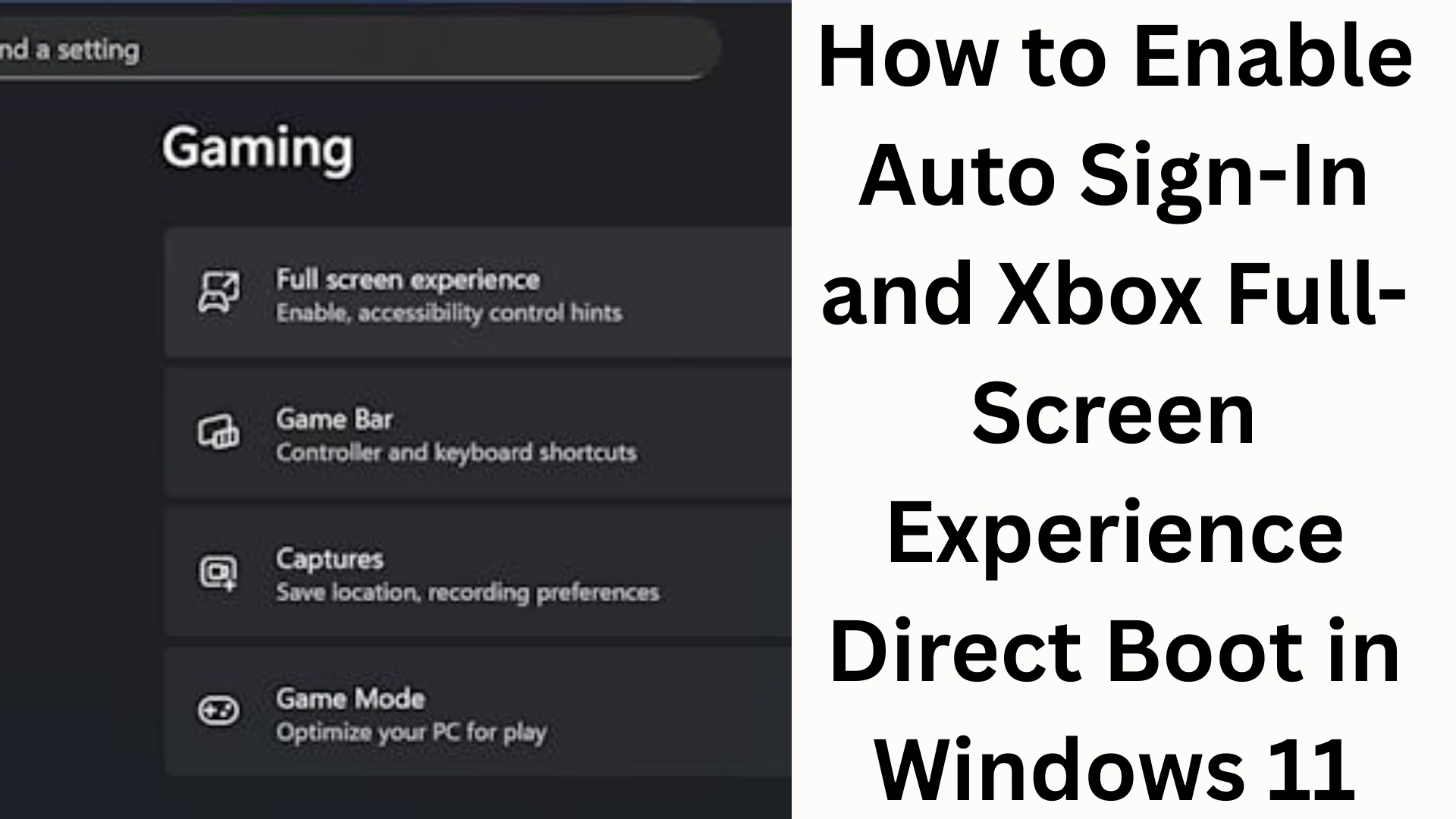
1. Turn on Game Mode
1. Settings
2. Gaming → Game Mode
3. Game Mode = On
2. Set Graphics Preferences to High Performance
1. Settings
2. System → Display
3. Graphics Settings
4. Add the Xbox App
5. Select Options → High Performance
3. Disable Background Apps
1. Settings
2. Apps → Startup
3. Disable Unwanted Apps
Troubleshooting: If Xbox Full-Screen Direct Boot Doesn’t Work
1. Update the Xbox App
Open the Microsoft Store → Library → Update All
2. Reset Gaming Services
1. Settings
2. Apps → Installed Apps
3. Gaming Services
4. Advanced Options
5. Reset
3. Grant Full-Screen Shortcut Permission
Shortcut → Properties → Run as Maximized
Conclusion
We’ve covered This detailed guide covers all the important and advanced methods for setting up Auto Sign-In, Auto Launch Xbox App, and Direct Boot to Xbox Full Screen Experience on Windows 11. After following these steps, your PC will seamlessly boot directly into a perfect full-screen Xbox environment—every gamer’s favorite.
Want to grow your website organically? Contact us now
FAQs – Common questions about Auto Sign-In and Xbox Full Screen Experience in Windows 11
1. Is Auto Sign-In secure in Windows 11?
If your system is for personal use and only you use it, Auto Sign-In is secure. However, if multiple people use the same system, enabling it could pose a security risk.
2. Can Auto Login be enabled without removing the password?
Yes, you can set Auto Login without removing the password using the netplwiz command. The password will remain on the system, but login will be automatic.
3. How to make the Xbox App always open in full screen?
Enabling this option in the Xbox App’s Settings → General → Launch in Full Screen Mode will always open the app in full screen.
4. What if the Xbox Full Screen Experience isn’t auto-booting?
Update the Xbox App
Reset Gaming Services
Add the Full Screen Shortcut Correctly to the Startup Folder
Set the App to High Performance Graphics Mode
5. Does Xbox Full-Screen Mode Improve PC Performance?
Yes, Full Screen Mode provides better FPS and smoother rendering because it reduces desktop rendering load.
6. Will Auto Boot to Xbox Full Screen Experience work on every system?
This feature works fine on most Windows 11 systems. However, if your system is older or the Xbox App isn’t updated, some issues may arise.
7. Do both the Microsoft Store version of the Xbox App and PC Game Pass include Full-Screen Auto Launch?
Yes, both do, provided you enable Full Screen Mode in the app’s settings.
8. Will Auto Sign-In work when Windows Hello is on?
No. Auto Sign-In will only work if Windows Hello (PIN, Fingerprint, Face Lock) is disabled.
9. Can I enable the Xbox App in Startup Apps to auto-launch in Full Screen?
Yes. Enabling the Xbox App in Startp and turning on Full Screen Mode will open the Xbox Full Screen as soon as the system boots.
10. Why is the Shortcut Method better for a Full-Screen Experience?
The Shortcut Method 100% auto-triggers Full Screen Mode, especially when the app isn’t automatically opening in Full Screen.