 By
ByWhat is Emergency Restart in Windows 11?
For Windows 11 users, Emergency Restart is a very useful but little-known feature. This feature comes in handy when your system completely freezes, hangs, or stops responding, and neither the mouse nor keyboard shortcuts work. When normal Restart or Shut Down options fail, Emergency Restart forces your system to restart safely.
This feature is especially effective in situations like driver crashes, graphics freezes, pre-blue screen errors, or getting stuck on the login screen.
Why is Emergency Restart necessary?
We all know that Windows 11 is a modern and advanced operating system, but sometimes:
The system completely hangs
The screen turns black or white
The mouse and keyboard stop working
Even the Task Manager doesn’t open
In such situations, people often shut down the system by pressing the power button, which increases the risk of data corruption, system file damage, and boot errors.
This is where Emergency Restart emerges as a safe alternative.
The Correct Way to Enable Emergency Restart in Windows 11
Here, we are explaining how to enable Emergency Restart in Windows 11 step-by-step and in very simple language.
Method 1: Emergency Restart via Keyboard Shortcut
This is the easiest and fastest method.
Step-by-Step Process
1. First, press Ctrl + Alt + Delete on your keyboard simultaneously.
2. A screen will now open.
3. A Power Icon will appear in the lower right corner of this screen.
4. Now press and hold the Ctrl key.
5. While holding down Ctrl, click on the Power Icon.
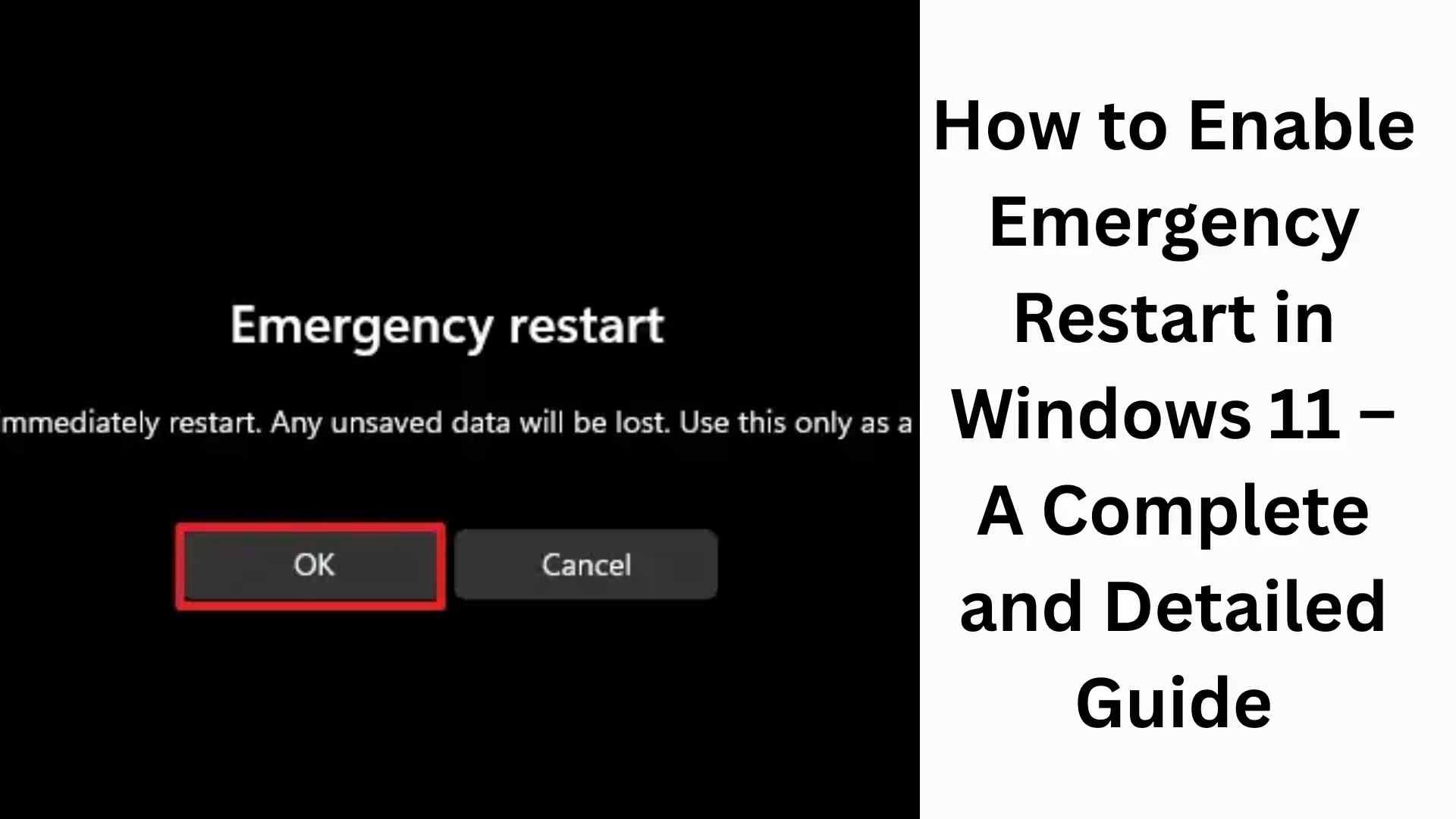
6. You will now see the Emergency Restart option.
7. Clicking OK will immediately restart the system.
This process works without any additional software.
Method 2: Emergency Restart from the Login Screen
Even if Windows 11 is not booting completely and you are stuck on the Login Screen, an Emergency Restart is still possible. Steps
Go to the Login Screen
Click on the Power Icon in the bottom right corner
Press and hold the Ctrl key
While holding Ctrl, click on Restart
The Emergency Restart process will begin
Difference between Emergency Restart and Normal Restart
| Feature | Normal Restart | Emergency Restart |
| ———– | ———————- | —————————– |
| Use Case | Normal use | When the system freezes |
| Data Saving | Closes applications | Forces a restart |
| Response | System response required | Works even without a response |
| Risk | Low | Controlled and safe |
We recommend using Emergency Restart only in emergencies.
When to use Emergency Restart
Based on our experience, Emergency Restart is most useful in these situations:
Windows 11 is completely frozen
A black screen appears
The mouse and keyboard are unresponsive
Task Manager does not open
The system is stuck at high CPU or RAM usage
The system hangs while connected via Remote Desktop
Advantages of Emergency Restart
Reduced risk of data corruption
Less stress on hardware
No need to shut down using the power button
Windows system files remain safe
Professional and IT-support friendly solution
Disadvantages of Emergency Restart
Although safe, it does have some limitations:
Unsaved data may be lost
Frequent use can affect the system
It is not a daily-use feature
Is Emergency Restart enabled by default in Windows 11?
Yes, Emergency Restart is enabled by default in Windows 11.
You don’t need to enable it separately.
You just need to know the correct keyboard combination. What to do if Emergency Restart doesn’t work
If Emergency Restart is not working, try these options:
Press and hold the Power Button for 10 seconds
Restart the system after it shuts down
Check the hardware in the BIOS
Boot into Safe Mode
Important Precautions Related to Emergency Restart
Do not use it repeatedly
Always try a Normal Restart first
Update drivers if the problem persists
Keep Windows Update always up-to-date
Tips to improve Windows 11 Performance
Frequent use of Emergency Restart indicates a problem with the system. Therefore:
Disable unnecessary Startup Apps
Perform Disk Cleanup
Check RAM and Storage
Run an Antivirus scan
Keep Graphics Drivers updated
Conclusion
We believe that Emergency Restart in Windows 11 is a valuable feature for every user. It not only keeps your system safe but also protects your hardware and data from damage. If you use Windows 11, knowing about this feature is crucial.
By using the right method at the right time, you can avoid major problems and keep your system running smoothly for a long time.
Want to grow your website organically? Contact us now
Frequently Asked Questions (FAQ)
Question 1: Why does Windows Security repeatedly show the same virus on startup?
Answer: The main reason is that the virus or malware has not been completely removed. Sometimes a file remains in the Startup programs, Scheduled Tasks, Cache, or System Restore points, causing Windows Security to detect it again every time.
Question 2: Is this virus actually present in the system, or could it be a false warning?
Answer: Both situations are possible. In some cases, it’s a false positive detection, where Windows Security mistakenly identifies a safe file as a threat. However, in most cases, some part of the malware is still present in the system.
Question 3: Can clearing the Protection History solve the problem?
Answer: Yes, sometimes simply clearing the Protection History stops the virus alert from appearing on startup, especially if the threat has already been removed but the record remains.
Question 4: What is a Windows Defender Offline Scan and why is it necessary?
Answer: An Offline Scan runs before the system boots, allowing for the easy removal of hidden or active malware. This scan is very effective against viruses that are not detected by a normal scan.
Question 5: Can a third-party antivirus cause this problem?
Answer: Yes. If more than one antivirus is installed on the system, they can conflict with each other, causing Windows Security to repeatedly show false alerts. Always use only one antivirus program.
Question 6: Will deleting System Restore Points affect my data?
Answer: No, deleting System Restore Points does not affect your personal files. It only removes old restore snapshots, which may contain hidden malware.
Question 7: How to identify a virus in Startup Programs?
Answer: Look for programs in the Startup tab with unusual names, unknown publishers, or programs you didn’t install. Disabling such programs is usually safe.
Question 8: Can not updating Windows also cause this problem?
Answer: Yes. If you have an older version of Windows or outdated security definitions, Defender may not be able to handle threats properly and will repeatedly show the same virus. Regular updates are crucial.
Question 9: Is it necessary to reset Windows every time a virus is detected?
Answer: No. In most cases, the methods described above will completely resolve the problem. Resetting Windows should only be a last resort, when no other method works.
Question 10: What is the best way to prevent this problem in the future?
Answer:
Install only trusted software
Avoid pirated or cracked apps
Scan USB and external drives
Run a full system scan regularly
Do not disable Windows Security