 By
ByWhen we install a new SSD (Solid State Drive) in our computer or laptop, we usually expect the system to be faster, smoother, and more responsive. However, many users experience problems like slow internet, connection issues, drops, or network errors after installing a new SSD.
In this detailed guide, we share accurate and practical steps to fix internet problems after a new SSD, step by step.
Why do internet problems occur after a new SSD?
Internet issues after an SSD replacement are not directly caused by the SSD itself, but by related system changes:
- Fresh Windows Installation
- Missing or Outdated Drivers
- Network Configuration Reset
- Changes to BIOS Settings
- Windows Network Services Disabled
Therefore, we need to take the right technical steps.
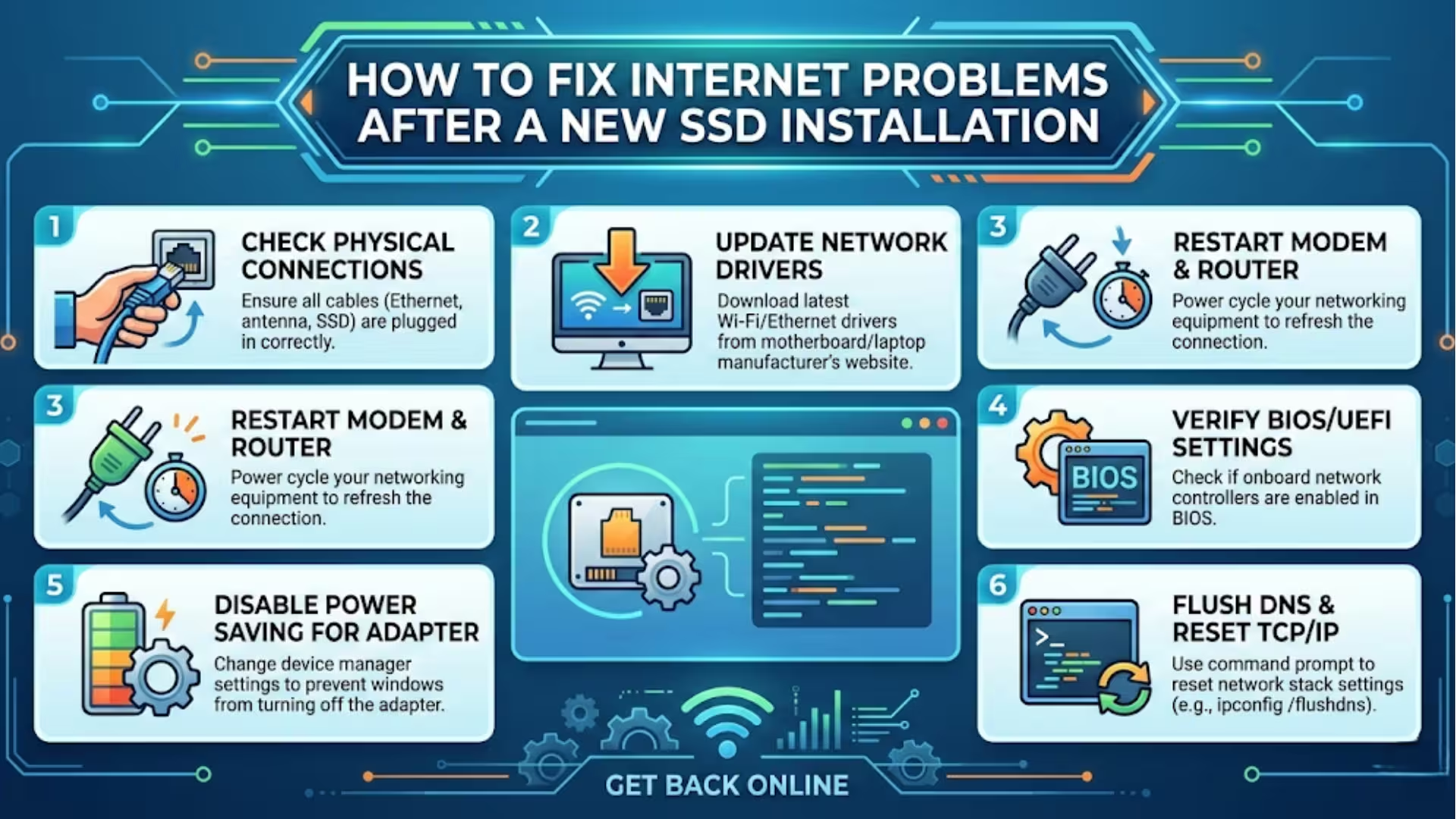
1. Update or reinstall the network driver
If you’ve installed a new Windows driver, sometimes the network adapter driver isn’t automatically installed when you install an SSD.
How to check the driver:
1. Open Device Manager
2. Click Network Adapters
3. If a yellow mark appears, there’s a driver issue.
Solution:
Download the latest LAN or WiFi driver from your laptop/motherboard’s official website.
Install it and restart the system.
This step often resolves internet issues immediately in 70% of cases.
2. Network Reset (in Windows 10/11)
If the driver is correct but the internet isn’t connecting, we should perform a network reset.
Network Reset Procedure:
Settings → Network & Internet
Advanced Network Settings
Network Reset
Restart PC
This procedure resets all network settings to default.
3. Flush the IP Configuration
Sometimes an IP conflict or DNS issue may occur after installing a new SSD.
Run this command in the Command Prompt:
“`
ipconfig /flushdns
ipconfig /release
ipconfig /renew
netsh int ip reset
netsh winsock reset
“`
Then restart the system.
This step is especially useful if the Internet is showing “Connected but No Internet.”
Also read: How to Record Videos With Background Music on iPhone?
4. Check Network Settings in BIOS
In some cases, BIOS settings change when installing an SSD.
Check in the BIOS:
- Integrated LAN is enabled
- Network Stack is enabled
- Secure Boot is disabled (if necessary)
Save the BIOS and restart the system.
5. Install Windows Updates
After installing a fresh SSD, it’s important to install all necessary Windows updates.
How to update:
Settings → Windows Update
Check for Updates
Install all updates
Windows Update often fixes missing network drivers and compatibility issues.
6. Check the Ethernet Cable and Router
Sometimes the problem isn’t the SSD, but the hardware:
The Ethernet cable may be loose or damaged
The router may need a restart
The LAN port may not be working
Turn the router off for 5 minutes and then on again.
7. Change Power Management Settings
Windows Power Settings are reset with the new SSD.
How to disable Power Management:
Device Manager → Network Adapter
Properties → Power Management
Uncheck “Allow the computer to turn off this device.”
This eliminates the WiFi disconnect issue.
Also read: How to Convert an Image to PDF on iPhone – The Easiest and Fastest Ways
8. Update SSD Firmware
Sometimes, outdated SSD firmware can affect system performance and network stability.
If you’re using a Samsung SSD, update the firmware with the Samsung Magician Tool.
If you have a WD SSD, use the WD Dashboard.
The system becomes more stable after a firmware update.
9. Check Antivirus or Firewall Settings
If you installed a new antivirus after the new SSD, it may be blocking the internet.
- Temporarily Disable the Firewall
- Check Antivirus Network Protection
If the problem is fixed, add a Network Exception to the Firewall.
10. Perform a Clean Boot
If third-party software is causing the internet problem:
How to perform a Clean Boot:
Run → msconfig
Services → Hide Microsoft Services
Disable All
Startup → Disable All
Restart
If the problem is fixed, the issue is due to software.
11. Uninstall and reinstall the network adapter
- Open Device Manager
- Right-click on the network adapter
- Uninstall Device
- Restart the PC
Windows will automatically reinstall the driver.
12. Double-check the SSD installation
If the SSD is not properly connected, the system may experience random problems:
- The SATA cable should be correctly inserted
- The NVMe SSD should be properly inserted into the slot
- Screws should be properly tightened
Loose connections can sometimes indirectly affect the system network.
13. Windows Reinstallation (Last Resort)
If all other solutions fail, perform a clean Windows installation:
- Create a bootable USB drive
- Format the SSD
- Fresh Windows installation
- Install the chipset driver first, then the network driver
This method eliminates software conflicts 100% of the time.
Solutions for Slow Internet After a New SSD
If the internet is working but is very slow:
- Disable Background Updates
- Turn Off Delivery Optimization
- Set Network Adapter Speed & Duplex to Auto Negotiation
- Change DNS Server (Google DNS: 8.8.8.8 / 8.8.4.4)
Best Practical Checklist
- Network Driver Updated
- Windows Updated
- BIOS Network Enabled
- Power Management Disabled
- Router Restarted
- DNS Flushed
- Firmware Updated
Performing these steps in the correct order can completely fix internet problems after a new SSD.
Conclusion
When we install a new SSD, our goal is improved performance, but if we’re experiencing internet problems, there’s no need to panic. By following the correct technical procedures, we can systematically fix driver, network settings, BIOS configuration, DNS, and Windows system issues.
All of the above solutions are practical, accurate, and effective. If all the steps are implemented carefully, the internet connectivity becomes more stable and faster than before.
Frequently Asked Questions (FAQ) – Internet Troubleshooting After a New SSD
1. Can installing a new SSD cause internet outages?
The SSD doesn’t directly affect internet access, but if a fresh Windows installation is performed with the SSD, a missing or incorrectly installed network driver may cause internet outages.
2. Why is WiFi not showing up after replacing the SSD?
This problem often occurs due to the WiFi driver not being installed. Go to Device Manager and check the Network Adapter. If the WiFi adapter isn’t showing up, download and install the correct driver from the official website.
3. Why does “Connected but No Internet” appear after a new SSD?
This issue is usually caused by a DNS cache, IP conflict, or network reset. Run the `ipconfig /flushdns` and `netsh winsock reset` commands in the Command Prompt and restart the system.
4. Can BIOS settings affect internet access?
Yes, if the BIOS was reset while installing the SSD, the Integrated LAN or Network Stack may be disabled. Go to the BIOS and make sure the Network option is enabled.
5. Why did the internet slow down after replacing the SSD?
Possible causes:
- Outdated network driver
- Windows updates are running in the background
- Power management shuts down the network adapter
- Slow DNS server
Setting Google DNS (8.8.8.8 / 8.8.4.4) may improve speed.
6. Is it necessary to update the SSD firmware?
If the internet is frequently dropping and the system is experiencing other performance issues, updating the SSD firmware may be beneficial. This improves system stability.
7. Does a network reset delete data?
No, a network reset only resets network settings, saved WiFi passwords, and adapter configurations. Your personal data remains safe.
8. Can an antivirus block the internet?
Yes, some antivirus or firewall settings may block network traffic. Try temporarily disabling your firewall.
9. Can internet problems occur if the SSD isn’t installed correctly?
If the SSD is loosely connected or the SATA/NVMe isn’t properly installed, the system may become unstable, which can indirectly cause network problems.
10. What’s the final solution if nothing works?
If all other solutions fail, perform a clean Windows installation and install the chipset driver first, then the network driver. This will eliminate software conflicts.
Are you searching for the best hosting plan? Click now and get 20% off