 By
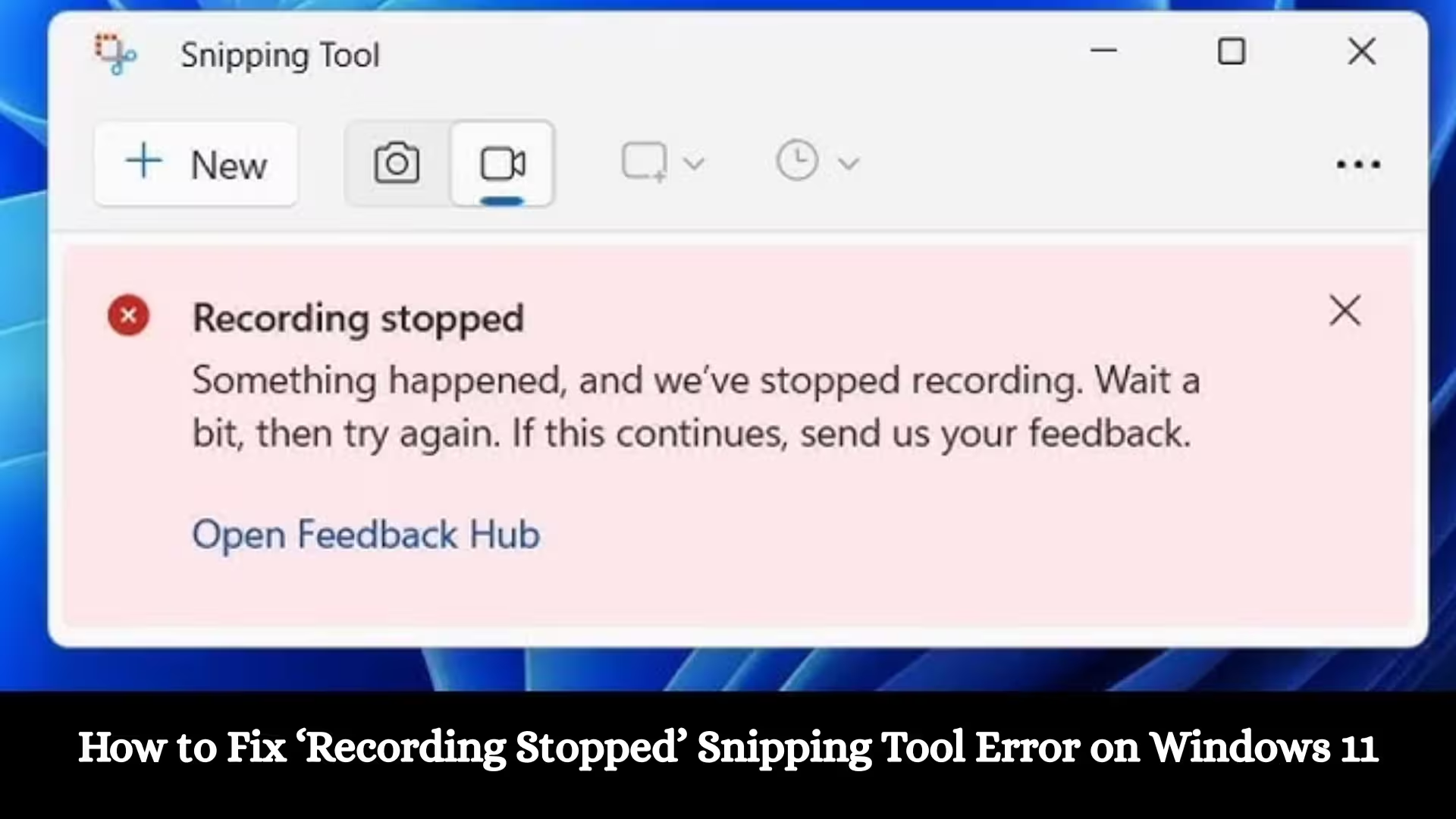
ByIf you’re experiencing the ‘Recording Stopped’ Snipping Tool Error while recording a screen in Windows 11, we’ve brought you a comprehensive and effective solution. Many users have encountered issues with Snipping Tool screen recordings that suddenly stop, files fail to save, or receive error messages. In this article, we’re sharing step-by-step, trusted, and tested methods to permanently fix this error.
Why Does the ‘Recording Stopped’ Error Occur in Snipping Tool?
The Windows 11 Snipping Tool Recording Error is primarily caused by the following:
- An unstable or outdated Windows update
- A graphics driver issue
- App cache or data corruption
- Low storage space
- Heavy programs running in the background
- Lack of system permissions or app permissions
Taking all these reasons into account, we’re presenting the most effective solutions below.
1. Update Windows 11 to the Latest Version
First, let’s make sure your system is on the latest update.
How to Update:
1. Open Settings
2. Click Windows Update
3. Select Check for Updates
4. Install available updates
5. Restart the system
Microsoft often releases Snipping Tool recording bug fixes in new updates. The issue may resolve automatically after the update.
2. Reset and Repair Snipping Tool
If the problem persists after the update, we’ll reset the app.
Snipping Tool Reset Steps:
1. Settings → Apps → Installed Apps
2. Find Snipping Tool in the list
3. Click the three dots → Advanced Options
4. Click Repair first
5. If the problem persists, select Reset
This process clears the app’s corrupt data and reactivates the recording function.
3. Update the Graphics Driver
Screen recording depends entirely on the graphics driver. If the driver is outdated or corrupt, recording may stop.
Driver Update Process:
1. Open Device Manager
2. Expand Display Adapters
3. Right-click your GPU
4. Select Update Driver → Search Automatically
If you use Intel, NVIDIA, or AMD graphics cards, download the latest drivers from their official websites.
Also read: How to Fix Internet Problems After a New SSD?
4. Free up storage space
When storage is low, Snipping Tool can’t save recordings and displays a ‘Recording Stopped’ error.
Storage Cleanup Steps:
Settings → System → Storage
Delete Temporary Files
Empty the Recycle Bin
Uninstall unnecessary apps
Have at least 5–10GB of free space.
5. Reinstall Snipping Tool
If the app keeps crashing, we can reinstall it.
Uninstall & Reinstall:
1. Settings → Apps → Installed Apps
2. Select Snipping Tool → Uninstall
3. Open the Microsoft Store
4. Search for Snipping Tool
5. Reinstall
A fresh installation often eliminates serious recording errors.
6. Close Background Apps
Heavy RAM-consuming apps, such as browsers, games, or editing software, can affect recording.
How to turn it off:
1. Press Ctrl + Shift + Esc
2. Open Task Manager
3. End Tasks for apps that are using high CPU or RAM.
This provides stability during recording.
7. Set Power Mode to Best Performance
The system may not be able to record properly in low power mode.
Change Power Mode:
1. Settings → System → Power & Battery
2. Select Power Mode → Best Performance
This improves recording quality and stability.
Also read: How to Record Videos With Background Music on iPhone?
8. Run the System File Checker (SFC Scan)
If system files are corrupt, the Snipping Tool may stop working.
SFC Scan Steps:
1. Open Command Prompt (Admin)
2. Type this command:
“`
sfc /scannow
“`
3. Let the process complete
4. Restart the system
This repairs Windows’ internal files.
9. Check App Permissions
Microphone and screen access permissions are required for recording.
Enable Permissions:
1. Open Settings → Privacy & Security
2. Open Microphone and App Permissions
3. Make sure Snipping Tool has permission.
10. Try an Alternative Recording Method
If the Snipping Tool repeatedly fails, you can use the Xbox Game Bar.
Use the Xbox Game Bar:
1. Press Win + G
2. Press the Record button
This is the built-in persistent recording option in Windows 11.
Tips to Permanently Stop the Recording Stopped Error
- Always keep Windows updated
- Keep drivers updated
- Close unnecessary apps before recording
- Ensure sufficient storage
- Perform regular system scans
Conclusion
We shared all the effective solutions to the Windows 11 Snipping Tool Recording Stopped Error Fix in this detailed guide. Implementing each of the steps above in the correct order will surely resolve your recording problem. This error is usually related to system settings, drivers, or app data, which can be easily fixed by managing them correctly.
If you follow all these steps, your Snipping Tool will start recording high-quality screens without interruption.
Frequently Asked Questions (FAQ) – Windows 11 Snipping Tool ‘Recording Stopped’ Error
1. Why does the ‘Recording Stopped’ error appear on Snipping Tool in Windows 11?
This error is usually caused by outdated Windows updates, corrupt app data, graphics driver issues, or low storage space. Sometimes, recording suddenly stops due to high background RAM usage.
2. Can updating Windows fix the Recording Error?
Yes, in many cases, installing a Windows Update automatically fixes this problem. Microsoft periodically releases bug fixes for Snipping Tool, so it’s important to keep your system up to date.
3. What will happen if you reset Snipping Tool?
Resetting clears the app’s cache and corrupt data, allowing the recording feature to function properly again. This does not affect your other system files.
4. Is it necessary to update the graphics driver?
Yes, screen recording depends entirely on the graphics driver. If the driver is outdated or incompatible, recording may stop. Installing the latest driver is extremely important.
5. Can low storage cause a Recording Stopped error?
Absolutely. If your system doesn’t have enough free space, the recording file can’t be saved and an error appears. It’s best to have at least 5–10GB of free space.
6. Is it safe to reinstall Snipping Tool?
Yes, it’s completely safe to uninstall and reinstall Snipping Tool. This fixes internal issues with the app and installs the latest version.
7. What settings should be kept correct while recording?
Set Power Mode to Best Performance
Close background apps
Have enough RAM available
Keep your system updated
8. What are the options if Snipping Tool doesn’t work?
You can use the Xbox Game Bar (Win + G) available in Windows 11. It’s a built-in screen recording tool and is considered a fairly stable option.
9. Can an SFC scan fix the Snipping Tool error?
Yes, if the problem is related to system files, running the sfc /scannow command can repair corrupt files and fix the recording problem.
10. Does this issue occur in all versions of Windows 11?
This issue typically appears with certain updates or builds. Most users find the issue resolved after installing the latest updates.
Are you searching for the best hosting plan? Click now and get 20% off