
 By
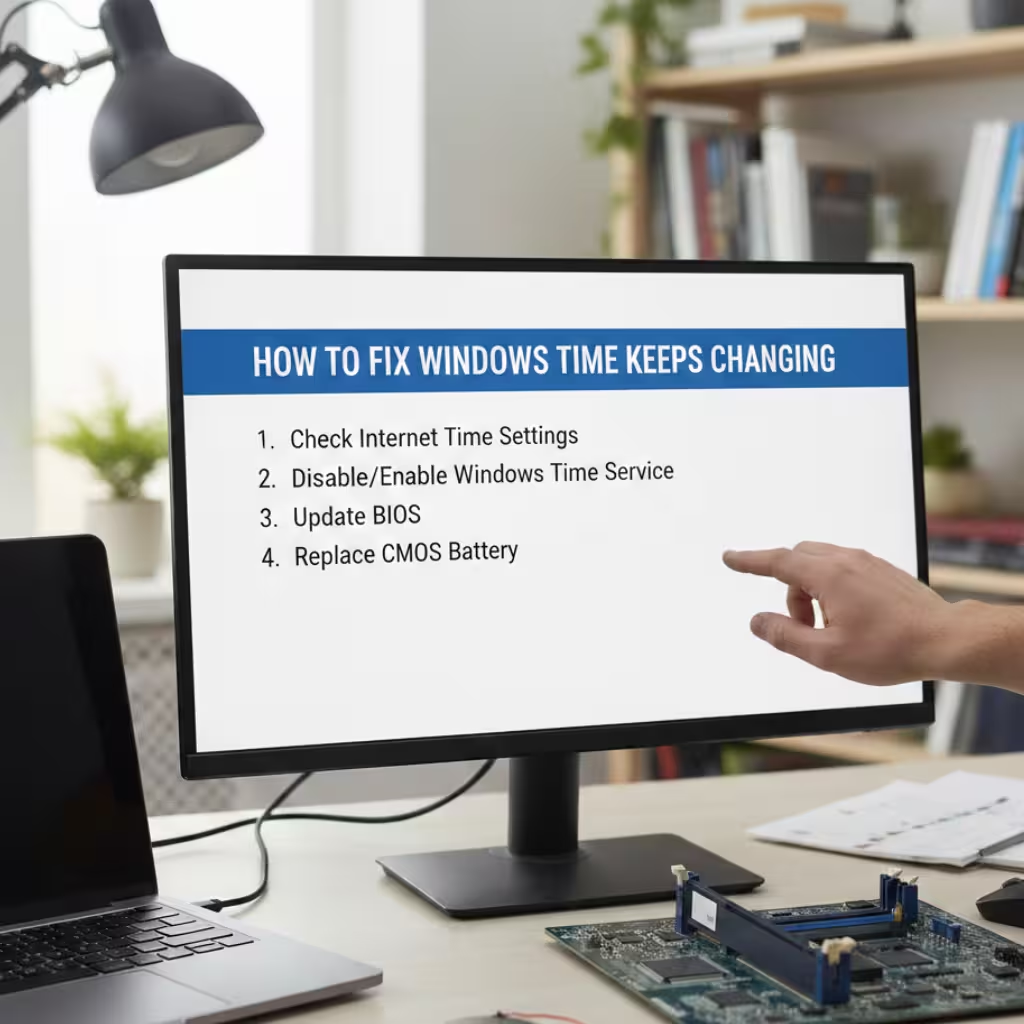
ByIf the time on a Windows PC or laptop is constantly changing, the clock is showing the wrong time, or the time is reset every time you restart the system, this problem is not only annoying but also affects services like internet browsing, software logins, email sync, and security certificates.
Here we are sharing accurate, practical, and advanced solutions to completely Fix Time Keeps Changing Problem in Windows. Follow all the steps below to eliminate the problem permanently.
1. Correct Automatic Time & Time Zone Settings
First, we must ensure that Windows’ Date & Time Settings are configured correctly.
Steps:
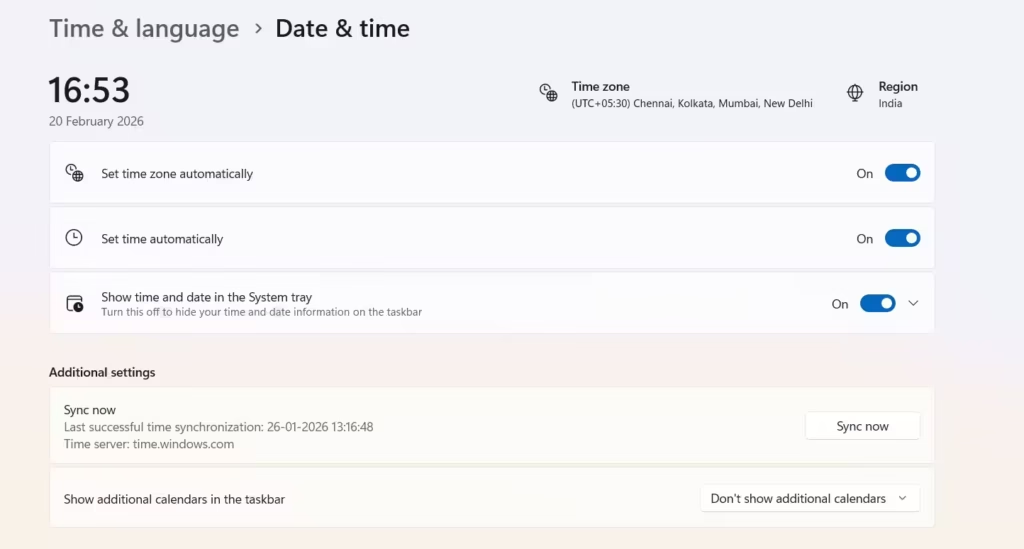
1. Open Settings (Win + I)
2. Click Time & Language
3. Select Date & Time
4. Turn on the following options:
- Set time automatically
- Set time zone automatically
If the automatic time zone is selecting the wrong one:
Select the correct zone from the Time zone dropdown (e.g., UTC+05:30 for India: Chennai, Kolkata, Mumbai, New Delhi)
Then press the Sync Now button to sync the time with the Microsoft server.
2. Restart and enable the Windows Time Service
Often, the time keeps fluctuating because the Windows Time Service (W32Time) is down or malfunctioning.
How to check the service:
1. Open Run (Win + R)
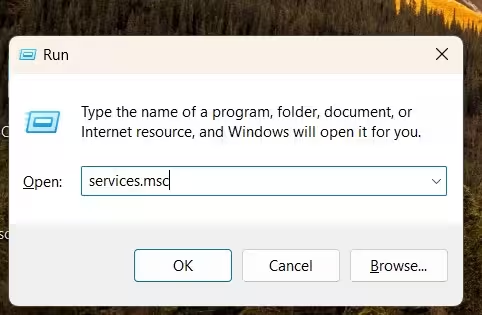
2. Type: `services.msc`
3. Press Enter
4. Find Windows Time from the list
5. Double-click it
Now:
- Set the Startup type to Automatic
- If the service is stopped, click Start
- Then Apply > OK
This process helps the system regularly sync with an Internet time server.
3. Replace the CMOS Battery (if the time is resetting on every restart)
If your system displays 2009, 2015, or an older year every time you shut it down, the CMOS battery may be the cause of the problem.
How to diagnose?
- The date resets after shutting down the system
- The time is also displayed incorrectly in the BIOS
Solution:
- Open the CPU cabinet
- Remove the round CR2032 CMOS battery from the motherboard
- Insert a new battery
- Go into the BIOS and set the correct time
This solution is especially important for desktop users.
Also read: How to Repair Windows 11?
4. Manually Change the Internet Time Server
Sometimes the default server doesn’t work correctly. We can manually set a better NTP server.
Steps:
1. Open the Control Panel
2. Click on Date and Time
3. Select the Internet Time tab
4. Click on Change settings
Now change the server:
`time.windows.com`
or `pool.ntp.org`
Press Update Now and OK.
5. Run a Malware or Virus Scan
Sometimes a virus or malware can alter the system clock.
Solution:
- Open Windows Security
- Click on Virus & Threat Protection
- Run a Full Scan
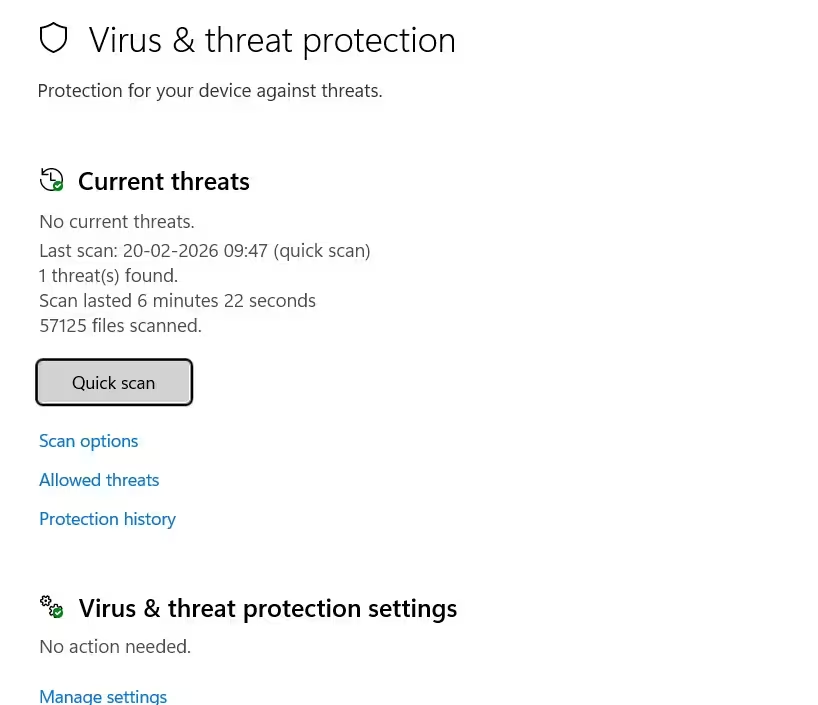
Or perform a deep scan with a trusted antivirus.
6. Correct the BIOS Time
If the time in the BIOS is incorrect, it will also be incorrect in Windows.
How to set the time in BIOS:
1. Restart the system
2. Press F2/DEL/F10 during boot
3. Go to BIOS Setup
4. Correct the Date & Time
5. Save & Exit
This step is especially important if Windows repeatedly displays the wrong time.
7. Fix Time Synchronization with the Command Prompt
For advanced users, syncing time using the Command Prompt is extremely effective.
Steps:
1. Search for `cmd` in Start
2. Select Run as Administrator
3. Type the following command:
net stop w32time
w32tm /unregister
w32tm /register
net start w32time
w32tm /resync
This command resets the Windows Time Service.
8. Fix Time on a Dual Boot System (Windows + Linux)
If you have both Windows and Linux installed on your system, time-changing problems are common because:
- Windows treats RTC as local time
- Linux treats RTC as UTC
Solution:
Edit the Registry in Windows:
1. Open Run
2. Type `regedit`
3. Go to:
HKEY_LOCAL_MACHINE\SYSTEM\CurrentControlSet\Control\TimeZoneInformation
4. Right-click > New > DWORD (32-bit)
5. Name it: `RealTimeIsUniversal`
6. Value: `1`
Restart.
9. Check Group Policy on Domain-Connected PCs
If your PC is connected to an Office Domain, the Domain Controller may override the time.
Solution:
- Contact your IT Admin
- Confirm Domain Time Sync Settings
- Check Local Policy (`gpedit.msc`)
10. Update Windows
Sometimes, time sync issues are caused by buggy updates.
Steps:
1. Open Settings
2. Go to Windows Update
3. Check for updates
4. Install pending updates
Restart your system after updating.
Permanent Solution to the Windows Time Keeps Changing Problem – Final Suggestion
Always ensure that:
- Automatic Time is ON
- Windows Time Service is ON
- CMOS Battery is correct
- BIOS Time is correct
- System is virus-free
- Internet Time Server is set correctly
After following all these steps, your Windows system will permanently display the correct time, and the problem of frequent changes will be eliminated.
Conclusion
The Windows Time Keeps Changing Problem is a common but serious technical issue that can be permanently resolved by correcting settings, service configuration, replacing the CMOS battery, and performing a command-line sync. If all steps are followed correctly, this problem will not recur in the future.
Frequently Asked Questions (FAQ) – Windows Time Keeps Changing Problem
1. Why does my Windows computer repeatedly display the wrong time?
This problem is usually caused by the Windows Time Service being turned off, Automatic Time Sync being off, incorrect time zone settings, or a weak CMOS battery. If the time changes after every restart, the CMOS battery may be the primary culprit.
2. Time is changing automatically in Windows 10/11, what to do immediately?
Go to Settings → Time & Language → Date & Time
Turn on Set time automatically
Turn on Set time zone automatically
Click on Sync Now
Then restart the system.
3. Why does the date and time reset every time you turn off the PC?
This is a sign that the CMOS battery (CR2032) is weak or drained. After replacing it, set the correct time in the BIOS.
4. What is the Windows Time Service, and how can it?
The Windows Time Service (W32Time) syncs the system clock with an Internet time server.
To fix this:
- Run → `services.msc`
- Select Windows Time
- Set the Startup Type to Automatic
- Start the Service
5. Can changing the Internet Time Server fix the problem?
Yes. If the default server isn’t working, go to Control Panel → Date & Time → Internet Time and change the server:
`time.windows.com`
`pool.ntp.org`
Then click Update Now.
6. Can a virus cause the time to change?
Yes. Some malware can alter system settings. A full system scan is necessary.
7. How to fix the time change issue in Dual Boot (Windows + Linux)?
Create the `RealTimeIsUniversal` DWORD in the Registry and set its value to 1. This eliminates the RTC conflict.
8. The time in the BIOS is correct, but appears incorrect in Windows. What should I do?
- Restart the Windows Time Service
- Perform Internet Sync manually
- Run `w32tm /resync` from the Command Prompt.
9. The time on your laptop is gradually falling behind. Is it a hardware problem?
If the time is falling behind by a few minutes every day, the CMOS battery may be weak, or Time Sync may be disabled.
10. Can updating Windows fix the time problem?
Yes. Sometimes, buggy updates affect Time Sync. Installing the latest Windows updates is beneficial.
11. The time on a domain PC is changing. What should I do?
If the PC is connected to an office domain, the domain controller may be overriding the time. Contact your IT administrator.
12. How to fix the time using the Command Prompt?
Open the Administrator Command Prompt and run these commands:
net stop w32time
w32tm /unregister
w32tm /register
net start w32time
w32tm /resync
This resets the Windows Time Service.
Are you searching for the best hosting plan? Click now and get 20% off










This is such a useful guide! It’s surprising how much a small time issue can affect things like email sync and logins. I didn’t know that adjusting the automatic settings could fix it so easily.