 By
ByToday, Windows 11 is not just an operating system, but a powerful performance platform. However, when the system slows down, apps start freezing, or boot time increases, a System Performance Report becomes essential. In this article, we will explain in detail how to generate a System Performance Report in Windows 11, how to interpret it, and how to improve system performance based on its findings.
What is a System Performance Report?
A System Performance Report is a detailed report that provides an in-depth analysis of your computer’s CPU, RAM, Disk, Network, and Background Services performance. This report is generated by Windows itself and includes:
Hardware Performance Details
Software and Driver Issues
System Bottlenecks
Warnings and Errors
Performance Optimization Suggestions
This report is particularly useful for IT professionals, advanced users, and for troubleshooting purposes.
Methods to Generate a System Performance Report in Windows 11
There are several effective ways to create a System Performance Report in Windows 11. Below, we explain all the important methods in detail.
Method 1: Generate a System Performance Report using Performance Monitor
This is the most official and recommended method.
Step-by-Step Process
1. Click on the Start Menu
2. Type “Performance Monitor” in the Search Box
3. Open Performance Monitor
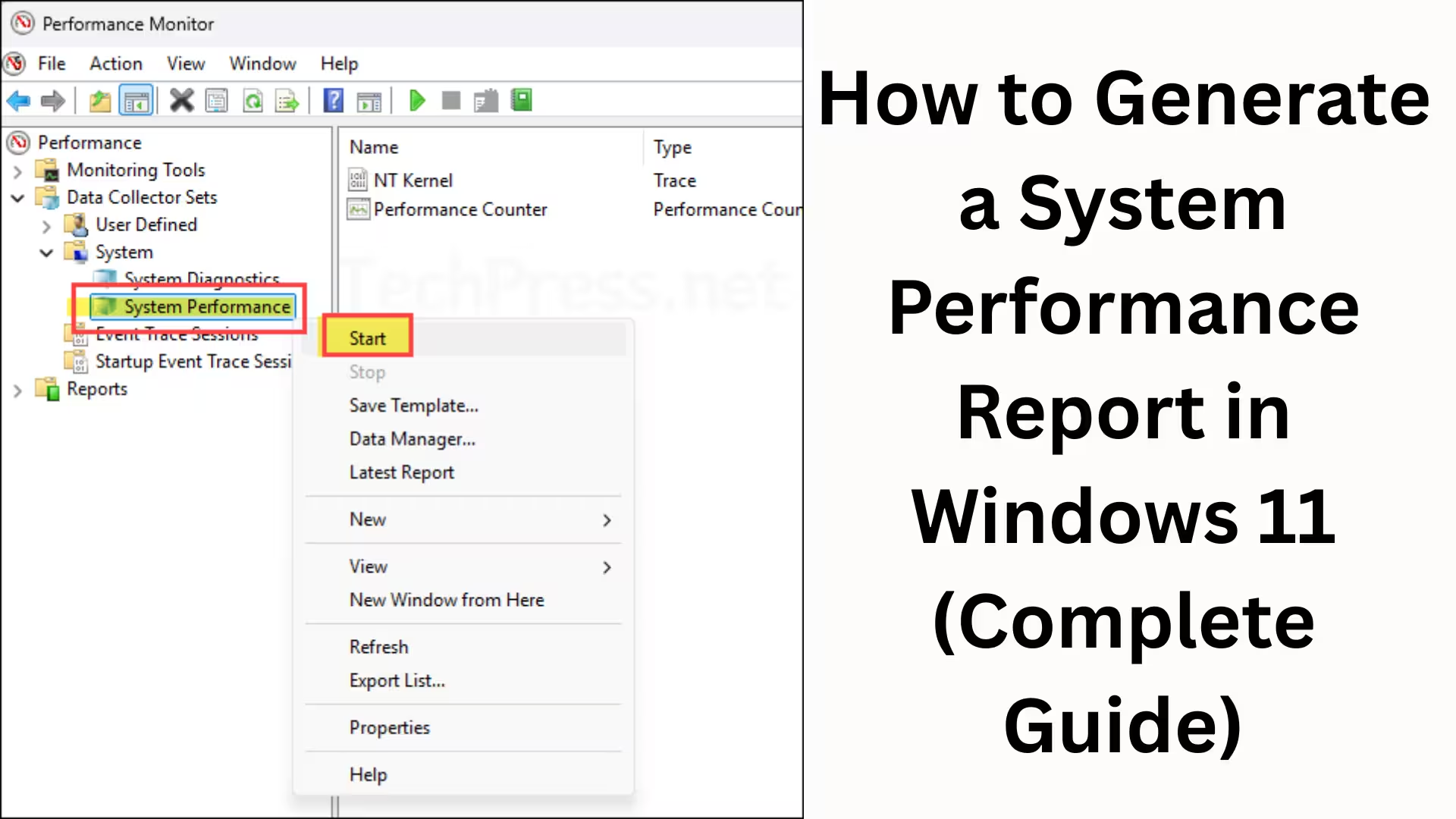
4. Go to the Left Side Panel:
Data Collector Sets → System
5. Here you will see System Performance
6. Right-click on System Performance
7. Click on Start
8. Let the system run for 60 seconds
9. After the process is complete, go to:
Reports → System → System Performance
Here you will find your complete System Performance Report.
What information does the System Performance Report contain?
Once the report is generated, it contains the following sections:
1. Diagnostic Results
In this section, Windows itself indicates whether there are any critical issues, warnings, or errors in the system. Green Checkmark – System is OK
Yellow Warning – Performance issues may be present
Red Cross – Serious problem exists
2. CPU Performance Analysis
Here you will find all the information related to the CPU:
Processor Utilization
High CPU Usage Processes
Context Switching
CPU Bottleneck Detection
If the CPU is constantly at 80–100% utilization, the system is bound to be slow.
3. Memory (RAM) Performance Report
This section related to RAM is extremely important:
Available Memory
Page File Usage
Hard Faults/sec
Memory Leaks
If there are many Hard Faults, it means that there is insufficient RAM.
4. Disk Performance Report
If the disk is slow, the entire system becomes slow. This section provides:
Disk Read/Write Speed
Disk Queue Length
Active Time
Disk Bottlenecks
If the Disk Queue Length is high, an SSD upgrade may be necessary.
5. Network Performance Details
This section shows:
Network Latency
Packet Loss
Bandwidth Utilization
Background Network Usage
This information is especially important for online work and gaming.
6. Software Configuration and Drivers
Here you will see:
Outdated Drivers
Incompatible Software
Startup Programs
Background Services
This is the reason for most startup slow issues.
Method 2: Generate a System Performance Report using Command Prompt
This method is quite useful for advanced users.
Steps
1. Open Command Prompt as Administrator
2. Type the following command:
“`
perfmon /report
“`
3. Press Enter
4. Windows will automatically generate the report in 60 seconds
5. The report will open automatically
This method is fast, easy, and very reliable.
Method 3: Using Windows Reliability Monitor
Although it doesn’t provide a complete performance report, it is useful for understanding system stability.
Steps
1. Start Menu → Search for Reliability Monitor
2. Open it
3. Look at the timeline for:
Software Crashes
Hardware Failures
Windows Errors
Combining this information with the Performance Report helps in quickly understanding the problem.
How to Read and Understand the System Performance Report
Generating the report is not enough; it is essential to analyze it correctly. Do not ignore warnings.
Pay attention to repeated errors.
Identify CPU and RAM bottlenecks.
Be sure to read the Disk and Network sections.
Note any software conflicts.
How to Optimize Windows 11 Based on the System Performance Report
1. Disable Startup Programs
Task Manager → Startup Apps → Disable Unnecessary Apps
2. Update Drivers
Outdated drivers slow down the system
3. Run Disk Cleanup and Enable Storage Sense
4. Upgrade RAM or Adjust Virtual Memory
5. Optimize Background Services
6. Use an SSD
If you currently have an HDD, an SSD will provide the biggest performance boost.
Who Needs the System Performance Report?
IT Professionals
Software Developers
Gamers
Content Creators
Office Users
Students
This report is essential for anyone who wants their Windows 11 system to run fast, stable, and reliably.
The Role of the System Report in Windows 11 Performance Troubleshooting
The System Performance Report takes you from guesswork to facts. Without making assumptions, you can find out:
Where the real problem lies
Whether a hardware upgrade is necessary
Whether it’s a software issue or a driver problem
Whether optimization will make a difference
Conclusion
Generating a System Performance Report in Windows 11 is an essential skill for every user. This report not only identifies problems but also provides a clear path to making the system better, faster, and more stable. By properly utilizing built-in tools like Performance Monitor and Command Prompt, we can analyze our system professionally without any third-party software.
Want to grow your website organically? Contact us now
Frequently Asked Questions (FAQ)
Q1. What is the System Performance Report in Windows 11?
The System Performance Report in Windows 11 is a detailed report that provides complete information about your computer’s CPU, RAM, Disk, Network, and Software Configuration. This makes it easy to identify slow system performance, errors, and bottlenecks.
Q2. How long does it take to generate the System Performance Report in Windows 11?
The System Performance Report usually generates in 60 seconds. During this time, Windows analyzes all the necessary components of your system.
Q3. Is an internet connection required to generate the System Performance Report?
No, the System Performance Report is generated completely offline. An internet connection is not required.
Q4. How to create a System Performance Report from the Command Prompt?
Open Command Prompt as Administrator and type this command:
`perfmon /report`
Pressing Enter will automatically generate the Performance Report in Windows 11.
Q5. What do the Red Cross or Warning symbols mean in the System Performance Report?
A Red Cross means there is a serious problem with the system.
A Yellow Warning means there may be performance issues in the future.
Both of these should not be ignored.
Q6. Does the System Performance Report show if the RAM is insufficient?
Yes, this report shows Available Memory, Hard Faults, and Page File Usage, which clearly indicates whether the RAM is sufficient or needs an upgrade.
Q7. Does the System Performance Report reveal the reason for a slow disk?
Absolutely, the Disk section shows Disk Queue Length, Active Time, and Read/Write Speed, making it easy to identify disk bottlenecks.
Q8. Does this report help improve Windows 11 gaming performance?
Yes, this report is very useful for gamers as it helps identify problems with the CPU, GPU, RAM, and background processes, leading to improved gaming performance.
Q9. Is the System Performance Report safe?
Yes, it is a built-in Windows tool and is completely safe. It does not involve any personal data or external sharing.
Q10. How often should a System Performance Report be generated?
If the system is slowing down, apps are crashing, or boot time has increased, generating a report 1-2 times a month or whenever a problem occurs is recommended.
Q11. Does this report work on both laptops and desktops?
Yes, the System Performance Report works equally well on all laptops and desktops running Windows 11.
Q12. Is third-party software required?
No, no third-party software is needed to generate the System Performance Report. All the necessary tools are included within Windows 11.
Q13. Does the System Performance Report detect viruses or malware?
This report doesn’t directly identify viruses, but high CPU usage, unknown background services, and suspicious processes can indicate the presence of malware.
Q14. Does generating the report slow down the system?
No, this process only takes about 60 seconds and does not have any permanent impact on the system.
Q15. How to optimize Windows 11 using the System Performance Report?
Based on the report, you can:
Disable unnecessary startup apps
Update outdated drivers
Decide whether to upgrade RAM and storage
Optimize background services