 By
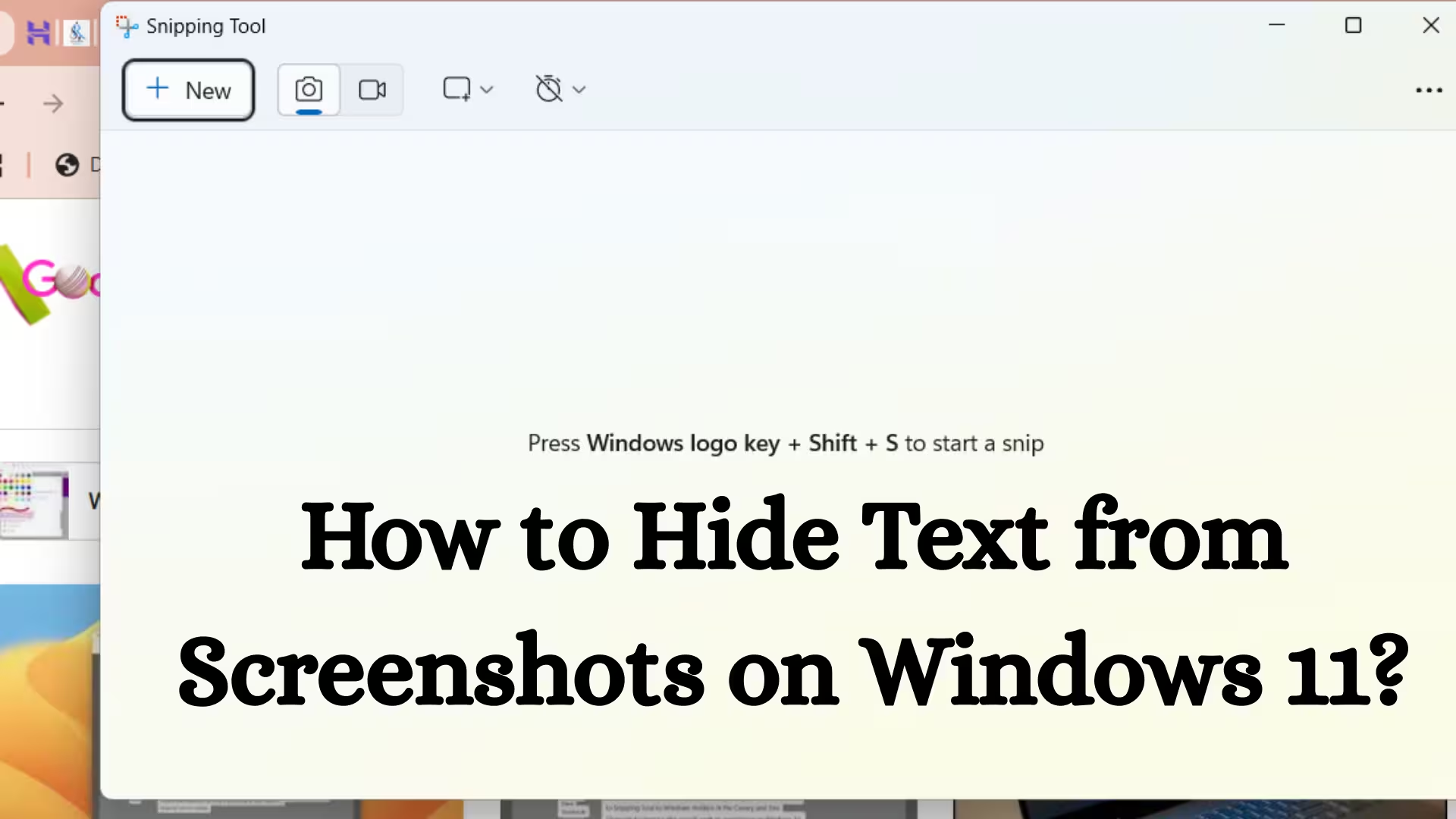
ByIn today’s digital age, data privacy and screen security have become extremely important. Often, we have to work with sensitive information on our systems, such as passwords, banking details, private chats, or confidential documents. If someone takes a screenshot, that information can easily be shared. In this article, we’ll explore in detail how to hide text from screenshots in Windows 11, ensuring your confidential information remains completely secure.
How do screenshots work in Windows 11?
There are several ways to take screenshots in Windows 11:
- Snipping Tool
- Print Screen (PrtSc) button
- Windows + Shift + S shortcut
- Third-party screenshot software
Whenever a screenshot is taken, it captures everything visible on the screen. Therefore, any text that is visible becomes part of the image. To address this issue, we need to use special methods.
Effective Ways to Hide Text from Screenshots in Windows 11
1. Use Secure Input Mode
Some applications, such as password managers or secure chat apps, have Secure Input Mode. This feature prevents screenshots from capturing text.
How to:
- Go to the application’s settings.
- Open Security or Privacy Settings.
- Enable the Block Screenshots or Prevent Screen Capture option.
This method is especially useful for passwords and sensitive form data.
2. App-level Screenshot Protection in Windows 11
Some modern UWP (Universal Windows Platform) apps have built-in screenshot protection.
Procedure:
1. Open the settings of the app you want to hide text in.
2. If available, enable Content Protection.
3. This will only show a black screen when taking screenshots.
This method is especially effective for streaming apps and secure note apps.
3. Use Remote Desktop or a Virtual Machine
If you need to work on highly confidential information, we recommend that you:
Use a Remote Desktop Session
Virtual Machine (VM).
When working in a VM, sensitive text is often protected when screenshots are taken from the host system.
4. Use Screen Overlay Technology
This is an advanced method in which we create a transparent layer (overlay) that displays the text on the screen, but prevents it from being captured in the screenshot.
How to:
Install a custom app or third-party software that supports Overlay Window Protection.
Display the text in overlay mode.
The text will not be visible when taking a normal screenshot.
This method is suitable for developers and advanced users.
5. Enable Screenshot Protection via PowerShell
Some security settings in Windows 11 can be controlled using PowerShell.
Steps:
1. Search for PowerShell in the Start menu.
2. Run as Administrator.
3. Apply the necessary security policies.
This method is especially useful in corporate environments.
6. Blur or Mask Sensitive Text
If you don’t want to completely hide text, but instead want to protect it in screenshots, you can:
Replace the text with a Blur Effect
or Mask Characters()
This method is especially useful during demos or presentations.
Enforce Screenshot Restrictions via the Registry Editor
In Windows 11, we can control screen captures using the Registry Editor.
Cautionary Procedure:
1. Press Win + R.
2. Type: `regedit.`
3. Go to the following path:
HKEY_LOCAL_MACHINE\SOFTWARE\Policies\Microsoft\Windows
4. Create a new key.
5. Apply the screenshot-related policy.
This method is for advanced users. Incorrect changes can affect the system.
Third-Party Tools That Block Screenshots
There are several professional software applications available that:
- Block screen captures
- Show text in encrypted mode
- Prevent screen recordings
These tools are particularly used in corporate security, online exams, and secure document viewing.
Stop Screenshots Using the Group Policy Editor
The Group Policy Editor is available in Windows 11 Pro and Enterprise editions.
Steps:
1. Press Win + R.
2. Type: `gpedit.msc`
3. Go to User Configuration → Administrative Templates.
4. Find the Screenshot or Screen Capture policy.
5. Enable the Disable or Restrict option.
This method is extremely effective in large organizations.
Embrace Dynamic Watermarking
If it’s not possible to completely block screenshots, we can use Dynamic Watermarking.
Show the username on the screen.
Display the time and IP address.
Place identifiable markings on each screen.
This makes it possible to identify the person responsible when sharing screenshots.
Enable Screenshot Notifications in Windows 11
Some security software provides alerts when screenshots are taken. This allows you to:
You can immediately know if someone has captured your screen.
You can take necessary action.
This feature is crucial in sensitive environments.
Using the Protected Window Flag in Developer Mode
If you’re a developer, you can:
Use the SetWindowDisplayAffinity API
In your application.
This API protects windows from screenshots and screen recordings.
This method is especially useful for secure app development.
Best Practices: Best Ways to Hide Text from Screenshots
Always Mask Sensitive Text
Use Secure Applications
Keep System Updates
Enforce Administrative Controls
Use a VM When Necessary
Conclusion
Hiding text from screenshots in Windows 11 is entirely possible if we use the right techniques and security settings. Whether you’re an individual user or part of an organization, the methods described above can help you protect your confidential information. With the right configuration, security policies, and advanced tools, we can effectively prevent screenshot-based data leaks.
Digital security is a necessity today, and Windows 11 provides us with ample controls and features to help us keep our sensitive data safe.
Frequently Asked Questions (FAQ) – How to Hide Text from Screenshots in Windows 11
1. Can text be completely hidden from screenshots in Windows 11?
Yes, in Windows 11, text can be prevented from appearing in screenshots using certain techniques, such as the SetWindowDisplayAffinity API, the Group Policy Editor, and the Secure Application Settings. While this feature isn’t available by default in the standard user interface, it can be implemented in advanced settings and at the developer level.
2. Can text be hidden from the Snipping Tool?
By default, the Snipping Tool captures everything visible on the screen. However, if an application has Screen Capture Protection enabled, the Snipping Tool won’t be able to capture that text, and a black screen or blank area will appear.
3. Can screenshots be completely disabled using the Group Policy Editor?
If you’re using Windows 11 Pro or Enterprise, you can enforce screen capture policies through the Group Policy Editor. This allows you to restrict screenshots for specific applications or at the user level.
4. Is the Registry Editor safe to use?
The Registry Editor is an advanced tool. If changes are made correctly, screenshot-related controls can be implemented. However, incorrect entries can impact the system. Therefore, only experienced users should use this method.
5. Is Screenshot Protection available in all apps?
No, not all apps offer this feature. Only some secure applications and corporate software offer Content Protection or Screenshot Block features.
6. Does a Virtual Machine (VM) protect text from screenshots?
Working in a Virtual Machine provides additional security. In many cases, capturing sensitive text directly from the host system becomes difficult. However, additional settings may be necessary for complete security.
7. Can screenshots be blocked from PowerShell?
The general screenshot feature cannot be disabled directly from PowerShell, but a controlled environment can be created through administrative policies and security configuration.
8. Is Screenshot Protection possible in Windows 11 Home edition?
The Group Policy Editor is not available in Windows 11 Home. However, we can use third-party tools, secure applications, and techniques like text masking.
9. Can text be hidden from screen recordings?
If the application has Display Affinity Protection or anti-recording enabled, text will not be visible during screen recording. This feature is primarily implemented by the developer.
10. What is the most secure way to hide text?
The most secure way is:
Using a secure application
SetWindowDisplayAffinity-based security
Masked Input Fields
Corporate-level policy control
Are you searching for the best hosting plan? Click now and get 20% off