 By
ByThe Antimalware Service Executable is a background process in the Windows operating system, controlled by Windows Defender Antivirus. It constantly scans the system, which significantly increases CPU and RAM usage. Many users notice that this process consumes high CPU, disk, and memory in Task Manager. In this detailed guide, we will explain the complete steps on how to kill the “Antimalware Service Executable” in Windows and how to permanently disable it.
What is Antimalware Service Executable, and why does it consume high CPU?
The Antimalware Service Executable is a crucial part of Windows Defender, which scans files, apps, and downloaded data running on your system under Real-Time Protection. Because of this, the process runs continuously in the background.
Main reasons for its high CPU usage:
Continuous Real-Time Scanning
Frequent Full Scans and Quick Scans
Automatic scans triggered by the Scheduler
Auto-scan triggered after malware signature updates
Scanning is initiated when files are downloaded or copied/pasted
How to Kill or Stop Antimalware Service Executable
Method 1: Kill the Process from Task Manager (Temporary)
1. Press Ctrl + Shift + Esc – Task Manager will open
2. Find Antimalware Service Executable
3. Right-click on it and click End Task
Note: This is a temporary solution, as Windows may restart it after a while.
Method 2: Disable Real-Time Protection in Windows Defender
1. Press Windows + I to open Settings
2. Go to Update & Security > Windows Security
3. Open Virus & Threat Protection
4. Click on Manage Settings
5. Turn off Real-Time Protection
This will stop Windows Defender scanning, and the Antimalware Service Executable will be killed or become idle.
Method 3: Disable Windows Defender using Group Policy Editor (Permanent Solution)
This method works in Windows Pro and Enterprise editions. 1. Press Windows + R
2. Type `gpedit.msc` and press Enter
3. Go to:
Computer Configuration
→ Administrative Templates
→ Windows Components
→ Microsoft Defender Antivirus
4. Select “Turn off Microsoft Defender Antivirus.”
5. Set it to Enabled
6. Apply → OK
Now Windows Defender will be completely disabled, and the related services will also stop running.
Method 4: Permanently Disable Antimalware Process using Registry Editor
This method is used in Windows Home Edition.
1. Press Windows + R
2. Type `regedit.`
3. Navigate to this path:
“`
HKEY_LOCAL_MACHINE\SOFTWARE\Policies\Microsoft\Windows Defender
“`
4. Right Click → New → DWORD (32-bit) Value
5. Name it: DisableAntiSpyware
6. Set the Value to 1
Restart your computer—the Antimalware Service Executable will stop running.
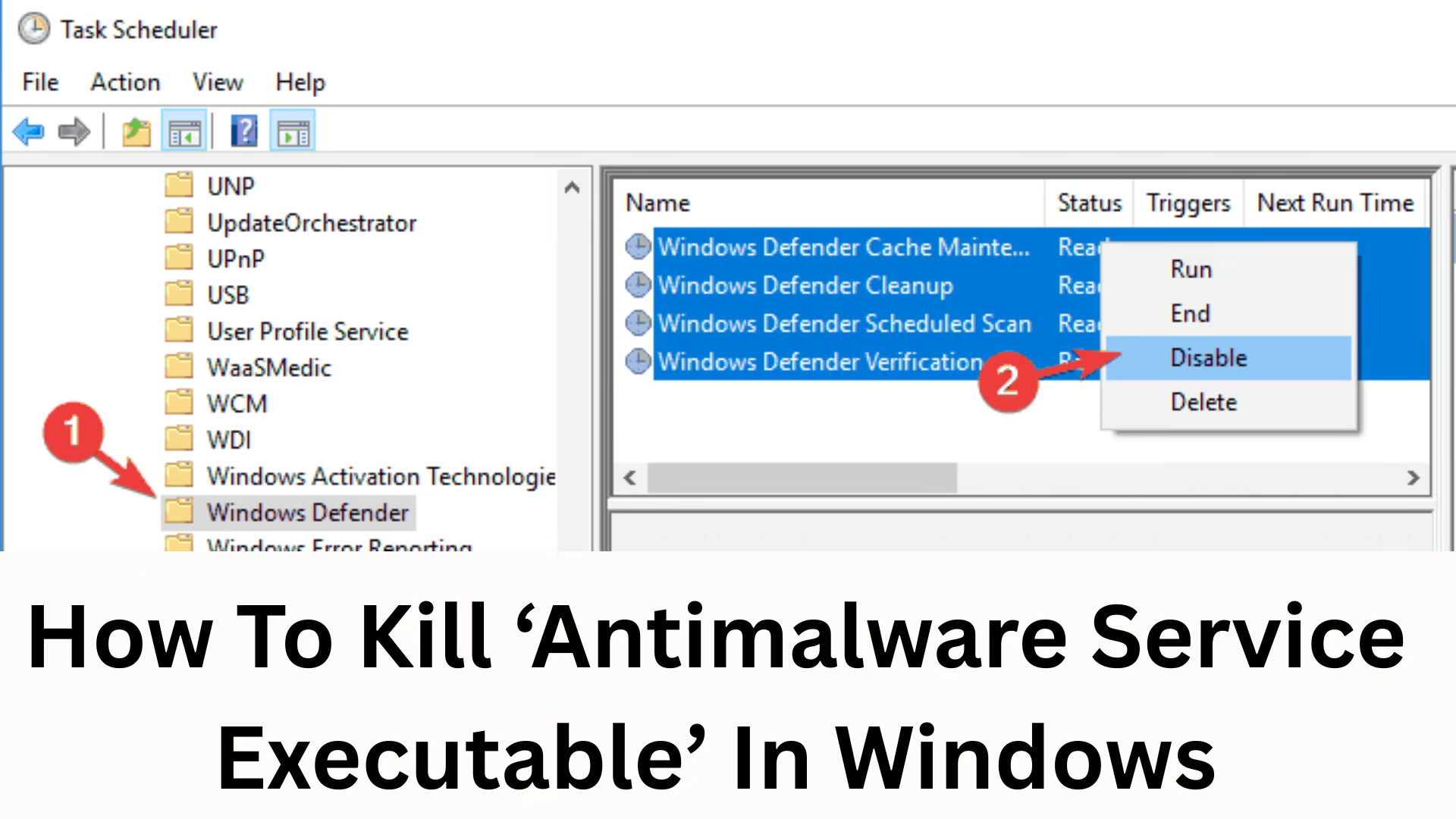
Method 5: Disable Windows Defender Scheduled Scan (Reduce Load from Scheduler)
1. Open Task Scheduler in Windows Search
2. Go to:
“`
Task Scheduler Library > Microsoft > Windows > Windows Defender
“`
3. Disable the following tasks one by one:
Windows Defender Scheduled Scan
Windows Defender Cleanup
Windows Defender Verification
Windows Defender Cache Maintenance
This significantly reduces system load and improves performance.
Method 6: Add Exclusions so that the Antimalware Service Executable does not scan your disk
Windows scans every file move, open, and installation. You can exclude specific disks or folders.
1. Go to Settings → Windows Security → Virus Protection
2. Manage Settings
3. Add or remove exclusions
4. Select the Folder or Entire Drive
If you exclude the C Drive, the load on the Antimalware Service Executable is reduced by 90%.
Advantages and Risks of Killing Antimalware
| Advantages | Risks |
| ————————– | ———————— |
| Reduced CPU, RAM, Disk Usage | Reduced System Security |
| Improved Gaming Performance | Risk of Malware Attack |
| Faster Software Installation | Risk of Viruses from bad downloads |
| Reduced Boot Time | Browser Hijack Risk | If you are using a third-party antivirus, then disabling Windows Defender is safe.
If you are running a system without any antivirus software, this method can be risky.
What to do after killing or disabling the Antimalware Service Executable?
Use a lightweight antivirus
Such as – Bitdefender, Kaspersky, AVG, Avast
Avoid downloading unknown software
Maintain regular backups
On both external drives and cloud storage.
How to prevent Antimalware Service Executable from starting repeatedly in Windows
Disable Task Scheduler
Block Defender using Group Policy
Create a permanently disabled key in the Registry
Install a third-party antivirus
Add the full drive to the exclusions list
These methods will prevent Windows Defender from running in the background and keep the Antimalware process killed or stopped.
Final Thoughts
The Antimalware Service Executable is an essential security component in Windows, but sometimes it consumes resources and slows down the system. You can kill, disable, or control it using the methods described above. If you are permanently disabling it, be sure to use a trusted antivirus program.
Want to grow your website organically? Contact us now
FAQ – Frequently Asked Questions about Antimalware Service Executable
Q1. What is Antimalware Service Executable?
It is a background system process of Windows Defender that scans for viruses and malware in real time.
Q2. Is it safe to kill the Antimalware Service Executable process?
It is considered safe to disable or kill it only if you have another trusted antivirus installed on your system. Turning it off without another antivirus is risky.
Q3. Why does the Antimalware Service Executable keep starting again?
Windows Defender is designed to maintain system security, so it automatically restarts after being killed from Task Manager or after a system restart.
Q4. Can the Antimalware Service Executable be permanently disabled?
Yes, Microsoft Defender can be permanently disabled using the Group Policy Editor or Registry Editor.
Q5. Does adding exclusions reduce CPU usage?
Yes, when you add a folder, drive, or file to the exclusion list, Windows Defender does not scan it, which reduces the processor load.
Q6. Why does the Antimalware Service Executable use so much CPU?
High CPU usage is due to real-time scanning, automatic full scans, automatic scans after updates are downloaded, and monitoring of file activities.
Q7. Is Windows still secure after disabling Windows Defender?
You will only be secure if you are using another antivirus. Without any security layer, the likelihood of a malware attack is higher.
Q8. Is it safe to disable scans from Task Scheduler?
Yes, it is safe because it only stops scheduled scans, not real-time protection. This significantly reduces the CPU load.