 By
ByProblems like a frozen desktop, an unresponsive taskbar, or suddenly disappearing icons are common for Windows 11 users. The most effective solution to these problems is to restart Windows Explorer.exe. This method is fast, safe, and system-friendly, allowing your desktop to respond immediately. In this detailed guide, we’ll delve into all the ways to restart Windows Explorer.exe so you can quickly fix any freezes or lags.
What is Windows Explorer.exe, and why does it freeze?
Windows Explorer.exe is a core part of Windows 11’s graphical user interface (GUI). This process controls your:
Desktop icons
Taskbar
Start menu
File Explorer
Notification area
Windows navigation elements
When Explorer.exe is malfunctioning due to a bug, overload, memory leak, or a third-party app, the entire desktop may freeze. In such a situation, restarting only Explorer.exe is the best solution instead of restarting the PC.
#Top Ways to Restart Windows Explorer.exe (Step-by-Step Guide)
Below, we’ve detailed all the reliable methods for restarting Windows Explorer.exe.
1. Restart Windows Explorer from Task Manager (Easiest Method)
This method is most useful when your desktop or taskbar is unresponsive.
Steps:
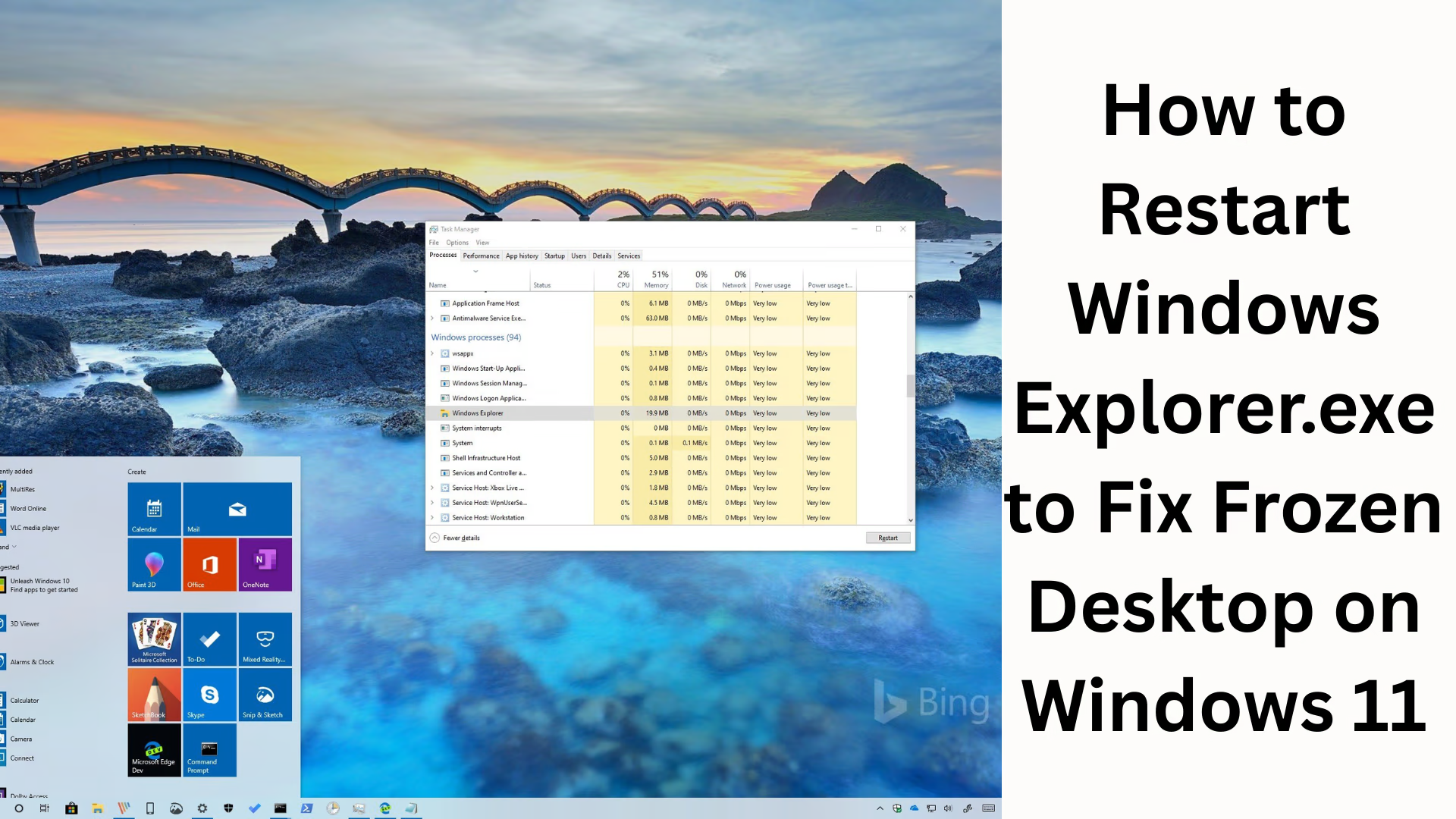
1. Press Ctrl + Shift + Esc to open Task Manager.
2. Go to the Processes tab.
3. Scroll down the list and find Windows Explorer.
4. Select it and click the Restart button in the top right.
➤ Once you click Restart, your taskbar, Start menu, and desktop icons will refresh and reappear immediately.
This method resolves the issue in about 90% of cases.
2. Manually restarting Explorer.exe from Task Manager (if the Restart button isn’t visible)
Sometimes Windows Explorer doesn’t appear in the list. In this case, you’ll need to manually close and restart it.
Steps:
1. Open the File menu in Task Manager.
2. Click Run new task.
3. Type: explorer.exe in the box.
4. Press OK.
Explorer.exe will restart as a new process and stabilize the system.
3. Restart Explorer.exe from Command Prompt (For Power Users)
If your desktop is completely frozen and Task Manager won’t open, this method is best.
Steps:
1. Press Ctrl + Alt + Delete.
2. Open Task Manager or launch Command Prompt from the Sign Out screen.
3. In CMD, type:
taskkill /f /im explorer.exe
start explorer.exe
“`
The first command will stop Explorer.exe, and the second will restart it.
4. Restart Windows Explorer from PowerShell (Advanced Method)
You can forcibly restart Explorer.exe using PowerShell.
Steps:
1. Open PowerShell with Run as Administrator.
2. Type the command below:
“`
Stop-Process -Name explorer -Force
Start-Process explorer.exe
“`
This method helps when Explorer.exe is completely hung, and the normal method doesn’t work.
5. Relaunch Explorer.exe from the Run Dialog
If your taskbar isn’t working but the Windows + R shortcut is working, this is the fastest method.
Steps:
1. Press Windows + R.
2. Type:
explorer.exe
3. Press OK.
This process force-refreshes Explorer and immediately reactivates the desktop.
6. Fix Explorer Errors with the System File Checker (if freezing repeatedly)
If Explorer is repeatedly freezing or crashing, there may be a problem with system files.
Steps:
1. Open CMD, Run as Administrator.
2. Run the command below:
sfc /scannow
sfc /scannow
3. Let the scan complete and restart the system.
This command fixes system file corruption and restores Explorer.exe.
7. Refresh Explorer.exe at Boot Time (If Lags at Startup)
If your Windows 11 taskbar or desktop freezes as soon as you boot, it’s best to create a new Explorer startup entry.
Steps:
1. Open Task Scheduler.
2. Create a new Task.
3. In Trigger — select At log on.
4. In Action — select Start a program.
5. In Program — type: explorer.exe
This technique starts Explorer cleanly at boot.
Reasons for Windows Explorer Freezing
Windows Explorer.exe can freeze for a variety of reasons, such as:
Bugs in Windows Updates
Third-party Context Menu extensions
Malware
Too many background processes
Low RAM
Corrupt system files
Heavy customization (Themes, Icons, Shell Mods)
If the problem recurs, a deep system cleanup may be necessary in addition to the methods mentioned above.
Some Pro Tips to Keep Explorer.exe Running Smoothly
Regularly install Windows 11 updates.
Reduce startup programs.
Remove unwanted context menu items.
Run Disk Cleanup.
Keep RAM and GPU drivers updated.
Perform malware scans regularly.
Conclusion
A frozen desktop or unresponsive Explorer.exe is a common problem on Windows 11, but the solutions are just as simple. All the methods described in this guide—whether restarting from Task Manager, CMD, or PowerShell—make the system stable and fast immediately. By using the right method, you can reactivate Windows Explorer without restarting your PC and get back to work quickly.
Want to grow your website organically? Contact us now
FAQs – How to Fix a Frozen Desktop by Restarting Windows Explorer.exe
1. What is Windows Explorer.exe?
Windows Explorer.exe is the main graphical interface in Windows 11 that controls the desktop, taskbar, File Explorer, Start menu, and other system visual elements.
2. Why does my desktop freeze?
The main causes of desktop freezing are:
Explorer.exe crashing
Lack of RAM
Interference from third-party apps
Problems with context menu extensions
System file corruption
Windows update bugs
3. How does restarting Windows Explorer fix the problem?
Restarting Explorer.exe refreshes the GUI, allowing:
Hanging desktop
Missing icons
Unresponsive taskbar
Frozen File Explorer
to be fixed instantly.
4. How do I restart Explorer.exe from Task Manager?
Press Ctrl + Shift + Esc
Select Windows Explorer
Click Restart
This is the easiest and fastest way.
5. What if Windows Explorer isn’t listed?
You can launch it manually by going to “Run new task” in Task Manager and typing explorer.exe.
6. Will restarting Explorer.exe delete my data?
No, restarting Explorer.exe is completely safe. It won’t affect any of your files or data.
7. How to restart Explorer.exe if the taskbar isn’t working?
You can restart it by pressing Windows + R and typing explorer.exe in the Run dialog.
8. How to restart Explorer.exe from CMD?
Type the following command in CMD:
taskkill /f /im explorer.exe
start explorer.exe
9. Explorer.exe keeps freezing. What should I do?
Run System File Checker (SFC)
Perform a malware scan
Remove third-party extensions
Update Windows
Reduce startup programs
10. Is restarting Explorer.exe the same as restarting the PC?
No, restarting Explorer.exe only refreshes the desktop interface. It doesn’t restart the PC and doesn’t interrupt your work.