 By
ByWindows 11 is a modern, secure, and smart operating system, but despite this, users sometimes encounter problems with internet connections, sound, printers, updates, Bluetooth, hardware, or system performance. In such cases, the Troubleshooter feature provided by Microsoft proves to be the most effective solution. In this article, we will explain in detail how to run Troubleshooter in Windows 11, which Troubleshooters are available, and which problems you can fix in just a few clicks.
What is Windows 11 Troubleshooter, and why is it important?
The Windows 11 Troubleshooter is an in-built diagnostic tool designed by Microsoft to automatically identify and fix common system problems. This tool checks your system without any third-party software and applies the necessary fixes.
Key Benefits:
Fast and secure solutions
No technical knowledge required
Automatic detection and fixes
Saves time and effort
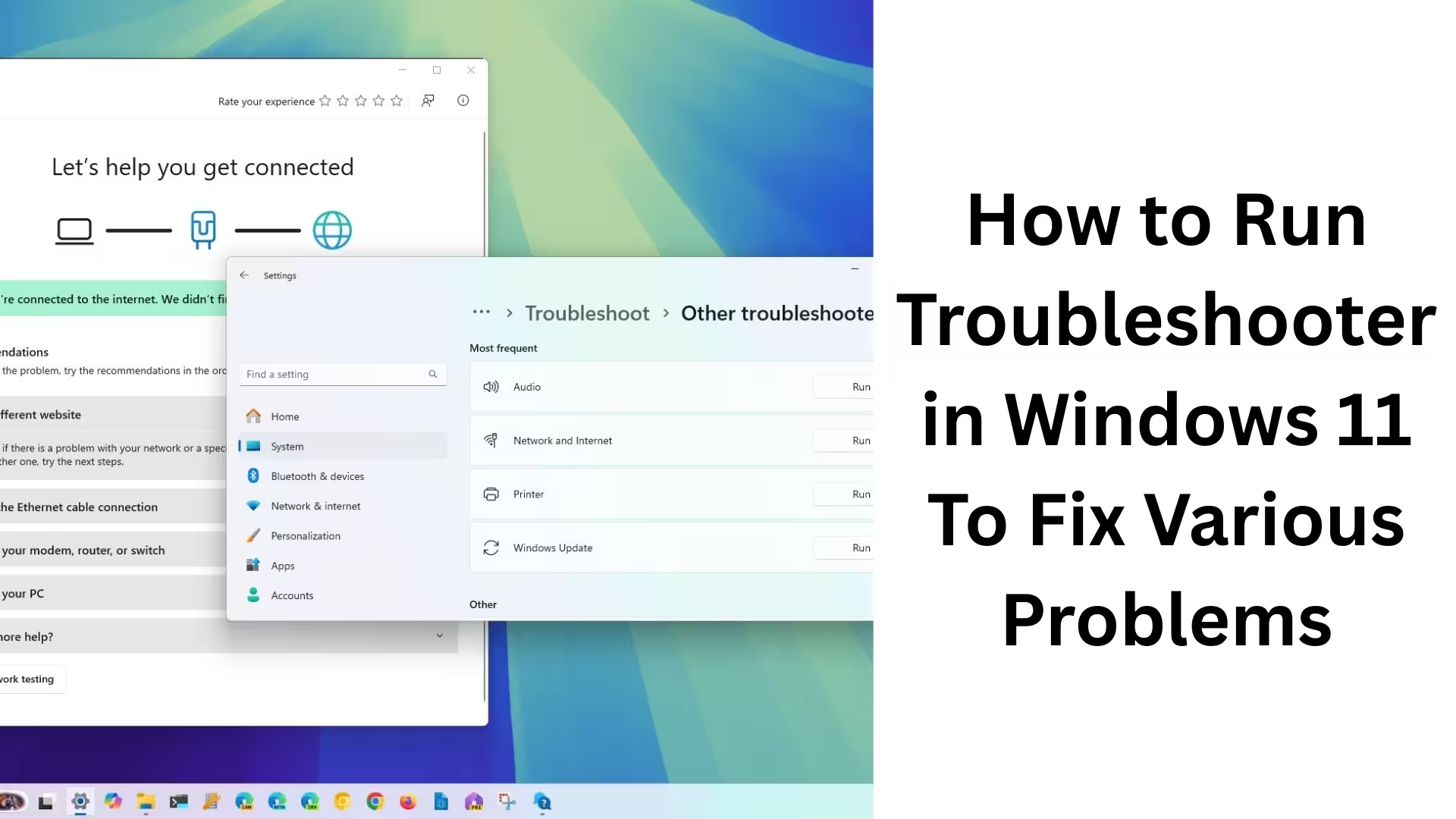
How to Run Windows 11 Troubleshooter via Settings
The easiest way to access the Troubleshooter in Windows 11 is through the Settings app.
Step-by-step process:
1. Open the Start Menu and click on Settings.
2. Go to the System section.
3. Scroll down and select Troubleshoot.
4. Now click on Other troubleshooters.
Here you will see Troubleshooters for different categories, such as:
Internet Connections
Windows Update
Playing Audio
Printer
Bluetooth
Keyboard
Camera
Power
Click on the Run button next to the problem you are facing.
Troubleshooter for Internet and Network Problems
If your Wi-Fi is not connecting, the internet is slow, or the network is frequently disconnecting, the Internet Connections Troubleshooter is the most effective solution. How to Run:
Settings → System → Troubleshoot → Other troubleshooters
Click Run next to Internet Connections
This tool:
Checks network adapters
Resets DNS and IP settings
Automatically fixes connection errors
Troubleshooter for Fixing Windows Update Problems
If Windows 11 updates aren’t downloading or installing, you’re getting error codes, or updates are stuck, use the Windows Update Troubleshooter.
Steps:
Go to Other troubleshooters
Run the Windows Update troubleshooter
This:
Clears the update cache
Restarts services
Fixes corrupted files
Troubleshooter for Sound and Audio Issues
No sound, microphone not working, or headphones not detected are common problems.
Playing Audio Troubleshooter:
Checks audio drivers
Sets the default output device
Restarts sound services
Simply click Run and follow the on-screen instructions.
How to Use the Bluetooth Troubleshooter
If your Bluetooth device isn’t connecting, keeps disconnecting, or isn’t showing up:
Settings → Troubleshoot → Other troubleshooters
Run the Bluetooth troubleshooter
This:
Checks Bluetooth drivers
Resets services
Fixes connection errors
Solve Printing Problems with the Printer Troubleshooter
For problems like Printer Offline, print commands getting stuck, or driver errors:
Run the Printer Troubleshooter
This:
Checks the printer connection
Clears the print queue
Fixes driver issues
Keyboard and Hardware Troubleshooter
If keyboard keys aren’t working, you’re experiencing touchpad issues, or hardware response is slow, run the relevant troubleshooter.
This tool:
Checks hardware compatibility
Fixes incorrect settings
Solves basic driver errors
The Classic Way to Run Troubleshooters from the Control Panel
Windows 11 still has the Control Panel available, where you can access older but effective troubleshooters. Method:
1. Search for Control Panel in the Start menu.
2. Click on System and Security.
3. Select Troubleshooting.
4. Select the category as needed.
Advanced Troubleshooting via Command Prompt
For advanced users, some troubleshooting commands are also useful:
sfc /scannow – Checks system files
DISM /Online /Cleanup-Image /RestoreHealth – Repairs the Windows image
Run these commands in an Administrator Command Prompt.
Important Tips When Using the Troubleshooter
Always keep the latest Windows updates installed.
Keep your internet connection active while running the troubleshooter.
Run only one troubleshooter at a time.
Restart your computer if the problem is not completely resolved.
What problems can the Windows 11 Troubleshooter fix?
Network and internet errors
Windows Update failures
Sound and microphone issues
Bluetooth connection problems
Printer and scanner errors
Hardware and power settings issues
Conclusion
The Windows 11 Troubleshooter is a powerful and reliable tool that allows you to fix the most common problems yourself without any extra software. Selecting the correct troubleshooter and using it properly improves both system performance and stability. If you want to use Windows 11 without interruptions, proper use of the Troubleshooter is essential.
Are you searching for the best hosting plan? Click now and get 20% off
Frequently Asked Questions (FAQ)
Question 1: Where can I find the Troubleshooter in Windows 11?
Answer: In Windows 11, the Troubleshooter is located in Settings → System → Troubleshoot → Other troubleshooters. From here, you can run the relevant Troubleshooter for different problems.
Question 2: Can the Windows 11 Troubleshooter fix all problems?
Answer: The Troubleshooter can fix most common problems, such as issues with the internet, sound, printer, Bluetooth, and updates, but hardware failures or serious system corruption may require manual repair.
Question 3: My internet is not working. Which Troubleshooter should I run?
Answer: You should run the Internet Connections Troubleshooter or the Network Adapter Troubleshooter, which automatically fixes network settings and connection errors.
Question 4: Windows Update is repeatedly failing. What should I do?
Answer: Run the Windows Update Troubleshooter. It automatically fixes update cache, services, and common errors.
Question 5: There is no sound in Windows 11. What is the solution?
Answer: Run the Playing Audio Troubleshooter. It fixes problems related to audio drivers, output devices, and sound services.
Question 6: My Bluetooth device is not connecting. Will the Troubleshooter help?
Answer: Yes, the Bluetooth Troubleshooter detects and fixes Bluetooth driver and connection errors.
Question 7: My printer is showing as offline. What should I do?
Answer: Run the Printer Troubleshooter. It fixes problems related to printer connections, drivers, and the print queue.
Question 8: Can I also run the Troubleshooter from the Control Panel?
Answer: Yes, you can access the classic Troubleshooters by going to Control Panel → System and Security → Troubleshooting.
Question 9: What should I do if the problem is not fixed even after running the Troubleshooter?
Answer: Restart your system, update drivers, or run the `sfc /scannow` and `DISM` commands from the Command Prompt.
Question 10: Is the Windows 11 Troubleshooter safe?
Answer: Absolutely, this is a built-in and secure tool from Microsoft, and it does not cause any harm to the system or data.