 By
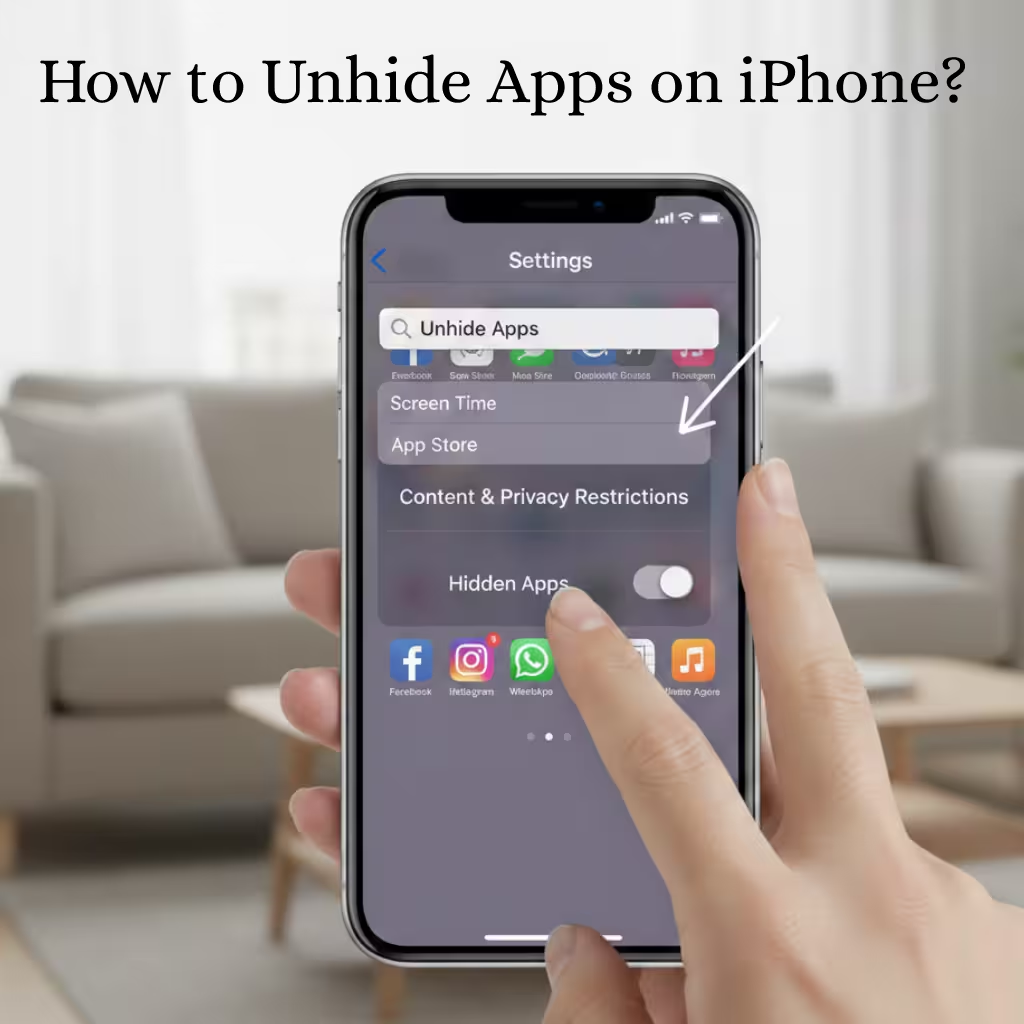
ByToday, iPhone users often hide apps to maintain privacy and organization on their devices. But when they want to use the same app again, and it’s not visible on the Home screen, it becomes a problem. In this detailed guide, we will explain how to unhide apps on iPhone, whether they’ve been removed from the Home screen, hidden in the App Library, restricted in Screen Time, or hidden in the App Store.
Why Do Apps Get Hidden on iPhone?
Apps can get hidden on an iPhone for various reasons:
- Removing them from the Home screen and moving them to the App Library
- Restricting apps through Screen Time Restrictions
- Hiding Apps Purchased from the App Store
- Apps Not Appearing in Search Settings
- Layout Changes After an iOS Update
Each situation requires a different solution. Let’s explore each method one by one.
How to Bring Back Apps Removed from the Home Screen
If you didn’t delete the app but only removed it from the Home screen, it will remain in the App Library.
Process to Unhide an App from the App Library
1. Swipe right on the Home screen until the App Library appears.
2. Type the app’s name in the search bar.
3. Long-press the app icon.
4. Select the “Add to Home Screen” option.
The app will now return to your Home screen.
How to Show Hidden Apps from Search
Sometimes, apps don’t even appear in Search results. To fix this:
1. Open Settings.
2. Tap “Siri & Search.”
3. Select the relevant app.
4. Enable the “Show App in Search” and “Show on Home Screen” options.
After this process, the app will reappear in Search and on the Home screen.
Unhide apps hidden by Screen Time Restrictions
If an app is restricted by Screen Time, to unhide it:
1. Go to Settings > Screen Time.
2. Select “Content & Privacy Restrictions.”
3. Tap “Allowed Apps.”
4. Enable the app that was hidden.
If you hid an app due to Age Restrictions:
1. Screen Time > Content Restrictions > Apps
2. Select “Allow All Apps.”
This will make all restricted apps visible again.
Also read: How to Add, Remove, or Reset Quick Settings in Windows 11?
Unhide apps hidden from the App Store
If you hid an app from the App Store, to restore it:
1. Open the App Store.
2. Tap the profile icon.
3. Go to Apple ID.
4. Select “Hidden Purchases.”
5. Tap “Unhide” next to the relevant app.
You can now download that app again.
Permanently Showing Hidden Apps in the App Library
In iOS 14 and later, apps can go directly to the App Library. If you want newly downloaded apps to appear directly on the Home Screen:
1. Open Settings.
2. Tap “Home Screen.”
3. Select the “Add to Home Screen” option.
This will prevent any apps from being hidden in the future.
How to Find Apps That Disappeared After an iOS Update
Sometimes the layout of apps changes after an iOS update.
Type the app’s name in the search bar.
Go to the App Store and check if the app is installed.
Search for the app in Settings > General > iPhone Storage.
If the app is installed, you can open it from there.
How to Restore Offloaded Apps
The iPhone has an “Offload Unused Apps” feature, which uninstalls apps without deleting app data to save storage.
1. Settings > General > iPhone Storage
2. Tap the app with the cloud icon next to it.
3. Select “Reinstall App.”
The app will now be reactivated.
Bringing Back Hidden Home Screen Pages
Sometimes, an entire Home Screen page is hidden.
1. Long-press on an empty area on the Home Screen.
2. Tap the dots that appear at the bottom.
3. Enable the hidden page by ticking it.
4. Press “Done.”
The entire page will now be visible.
Apps hidden due to Parental Controls
If Parental Controls are enabled on your device:
1. Settings > Screen Time
2. Enter the Screen Time passcode
3. Disable Content & Privacy Restrictions or allow required apps.
Also read: How to Remove or Hide Recycle Bin Icon in Windows 11?
This will remove all restrictions.
How to quickly find an app with Spotlight Search
1. Swipe down on the Home screen.
2. Type the app’s name.
3. Open the app icon when it appears.
4. Long-press “Add to Home Screen.”
This is the fastest method.
Opening Hidden Apps with Siri
You can say to Siri:
“Open [App Name]”
If the app is installed, it will open immediately.
Arranging All Apps with a Reset Home Screen Layout
If you need to return all apps to the default layout:
1. Go to Settings > General > Transfer or Reset iPhone
2. Select Reset
3. Tap “Reset Home Screen Layout.”
This will return all apps to their original order.
How to Prevent Apps from Being Hidden in the Future
Use Screen Time Restrictions carefully.
Be careful when choosing “Delete App” instead of “Remove from Home Screen.”
Keep the “Add to Home Screen” option enabled in Home Screen Settings.
Check the App Library regularly.
Conclusion
Unhiding hidden apps on iPhone is extremely easy if you follow the right method. Whether the app is in the App Library, restricted from Screen Time, hidden in the App Store, or offloaded, there’s a solution for every situation. By following all the methods above, we can restore any hidden app in just a few minutes and get our iPhone back to its former glory.
Frequently Asked Questions (FAQ) – How to Unhide Hidden Apps on iPhone
1. How to find a hidden app on iPhone?
We can first use Spotlight Search by swiping down on the Home screen. Type the app’s name there. If the app is installed, it will appear immediately. We can also search for an app by going to the App Library.
2. Are apps in the App Library considered hidden?
No, an app in the App Library is not deleted. It is simply removed from the Home screen. We can restore it by long-pressing on the app and selecting “Add to Home Screen.”
3. What to do if an app has disappeared due to Screen Time?
If an app is hidden due to Screen Time Restrictions, go to:
Settings > Screen Time > Content & Privacy Restrictions > Allowed Apps and enable the relevant app.
If an age restriction is in place, select “Allow All Apps.”
4. How to get an app back that’s hidden from the App Store?
We can “Unhide” the app by going to App Store > Profile > Apple ID > Hidden Purchases. The app can then be downloaded again.
5. Why isn’t an app showing up after an iPhone update?
Sometimes the home screen layout changes after an iOS update. In this case:
Search for the app in Spotlight Search
Check the app in Settings > General > iPhone Storage
If the app is installed, it can be opened from there.
6. What is an Offloaded App, and how to get it back?
An offloaded app has been temporarily removed to save storage, but its data remains intact.
To get it back:
Choose Settings > General > iPhone Storage > Reinstall App.
7. Can an entire home screen page be hidden?
Yes, an entire home screen page can be hidden on an iPhone.
Long-press on the Home screen → tap the dots at the bottom → tick the hidden page → press “Done.”
8. Can a hidden app be opened with Siri?
Yes, if the app is installed, we can say to Siri:
“Open [App Name].”
Siri will immediately open the app.
9. What happens if you reset the Home Screen Layout?
“Reset Home Screen Layout” restores all apps to their default order. This also makes hidden apps visible again, if they are installed.
10. How to prevent apps from being hidden in the future?
Use Screen Time Restrictions carefully
Select the “Add to Home Screen” option in Home Screen Settings
Keep unnecessary Offload features turned off
Check your App Library regularly
Are you searching for the best hosting plan? Click now and get 20% off