
 By
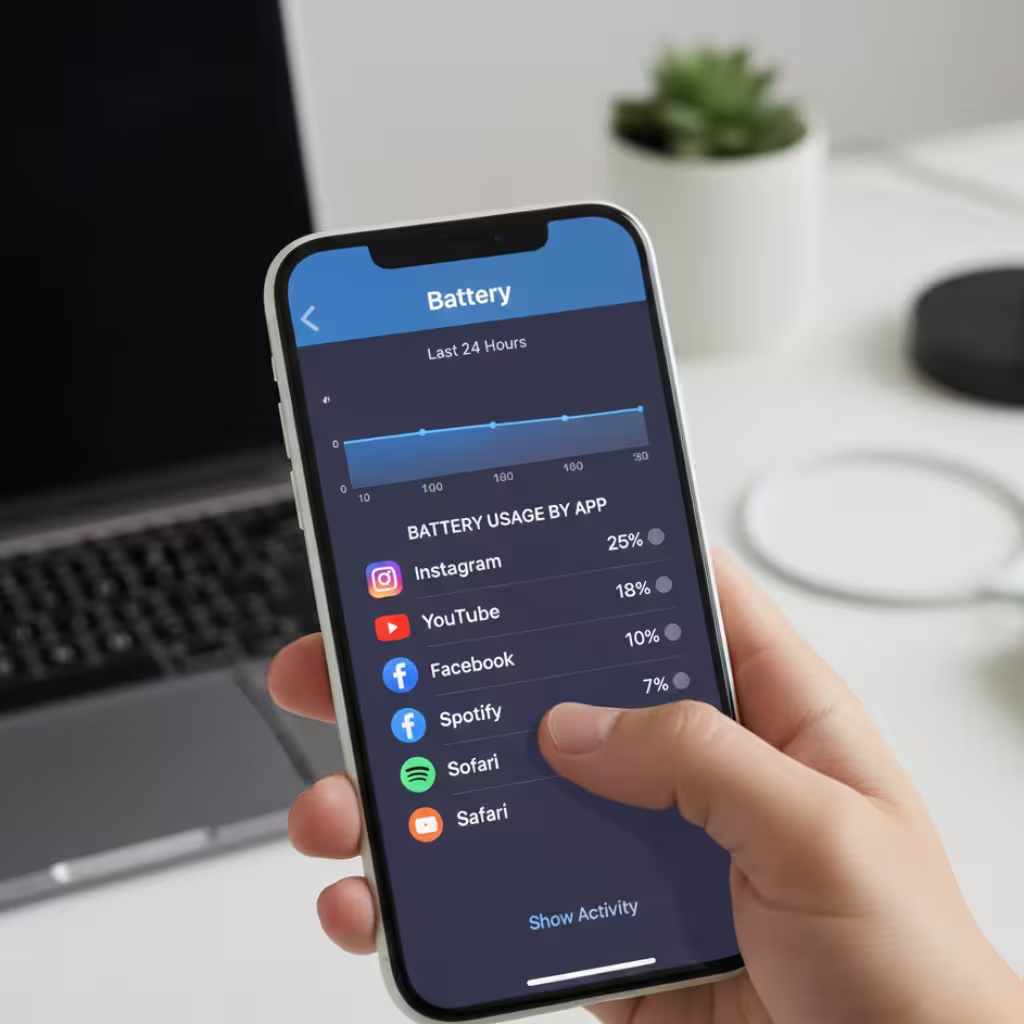
ByIf your iPhone’s battery is draining quickly, the easiest way to determine the cause is to check the Battery Usage report. This guide explains which apps are consuming how much power, how to detect background drain, and how to quickly improve battery life by changing settings. With a little monitoring, you can control unwanted consumption.
We often find that our iPhone battery drains faster than expected. The biggest question is: which app is consuming the most battery? If we have accurate information, battery life can be significantly improved.
In this detailed guide, we’ll explain how to view app battery usage on iPhone, what options are available, what the metrics mean, and how to use this information to improve battery life.
The Correct Way to Check Battery Usage on iPhone
First, let’s go directly to the full battery report.
1. Open Settings
2. Scroll down and tap Battery
3. Wait a few seconds – the system will load the data
4. You’ll now see a complete list of apps by battery usage.
This is where each app’s battery consumption is displayed in percentage.
Understanding the Battery Usage Screen
The Battery section contains more than just a percentage; it also hides a lot of important information. If we read it carefully, we can identify the problem.
Last 24 Hours vs. Last 10 Days
You have two options at the top:
Last 24 Hours – Details from the last day
Last 10 Days – Average usage over a long period
If an app is suddenly consuming more battery, the 24-hour data is useful. If the problem persists for a long time, look at the 10-day pattern.
Meaning of On-Screen and Background Activity
When we tap on an app, two types of activity appear:
On Screen – When the app was open, and we were using it
Background – When the app was closed but still running
If the Background number is very high, understand that the app is silently draining battery.
Which Apps Consume the Most Battery?
Certain types of apps typically consume the most battery:
- Video Streaming
- Games
- GPS/Maps
- Social Media
- Photo or Video Editing
These apps constantly use the internet, screen, and processor.
How to Stop Background Battery Drain
If an app is draining battery in the background, we can immediately control it.
Method:
1. Settings
2. General
3. Background App Refresh
4. Turn off unwanted apps
This will prevent them from drawing data from the background.
How to Save Battery with Location Services
Many apps constantly access location, causing battery drain.
How to Stop:
1. Settings
2. Privacy & Security
3. Location Services
4. Select an app
5. Choose While Using or Never
Also read: Chrome Bookmarks Not Showing on iPhone? The Complete Solution
Why does the battery percentage appear low even though we’ve used the phone less?
Sometimes, we find that our battery is drained even though we’ve used it less. This could be due to:
- Background syncing
- Notifications
- Software processes
- Poor network signal
Looking at the graph in the Battery section tells us when the drop occurred.
Learn to read the Battery Graph
The Battery page has a green and blue graph.
- Green – Battery level
- Blue – Activity
If the screen is off but there’s a blue line, apps were running in the background.
Proper use of Low Power Mode
When the battery is draining quickly, this is the quickest solution.
Settings → Battery → Low Power Mode → On
This can:
- Reduce background activity
- Reduce mail fetch
- Reduce visual effects
- Disable auto-downloads
Push notifications also drain battery
Many apps frequently connect to the server. It’s important to control them.
Settings → Notifications → Select App → Allow Notifications Off
Effect of Screen Brightness
Higher brightness = higher battery consumption.
Keep Auto Brightness on or manually reduce it.
Also check battery health
Sometimes the problem isn’t the app, but the battery’s lifespan.
Settings → Battery → Battery Health & Charging
If Maximum Capacity is significantly low, the battery may need to be replaced.
Pro tip for accurate diagnosis
Tap an app in the Battery list to see how many minutes or hours it lasted. Sometimes the percentage appears high, but the actual time is less.
When is it necessary to delete an app?
If an app:
- Low usage
- High background usage
- High notifications
- It’s best to delete it.
- System services also consume battery
Scroll down to see System Services. This includes things like networking, hotspot, and Siri.
Also read: The Complete Guide to Removing a Bluetooth Device in Windows 11
The Ultimate Strategy to Extend iPhone Battery Life
- Background Refresh Off
- Location Limit
- Notifications Control
- Low Power Mode
- Low Brightness
- Disable Bluetooth/AirDrop when not needed
Combined, we can see a significant difference in battery life.
What We Conclude
If we regularly monitor Battery Usage, no app can bother us. The iPhone offers complete transparency—we just need to look in the right place.
FAQ – iPhone Battery Usage
How to find out which app is consuming the most battery?
Apps displayed at the top of Settings → Battery are the ones consuming the most battery.
How to completely disable background activity?
Close apps with Background App Refresh or turn on Low Power Mode.
Will deleting apps save battery?
Yes, especially if they run frequently in the background.
Why does Battery Usage take time to update?
It takes a few seconds due to data analysis.
Should I check this every day?
If the battery is draining quickly, then definitely.









Great tips here! I had no idea that apps running in the background could drain so much battery. I’ll definitely start paying more attention to this section in my iPhone settings to keep my battery life in check.