 By
ByIntroduction
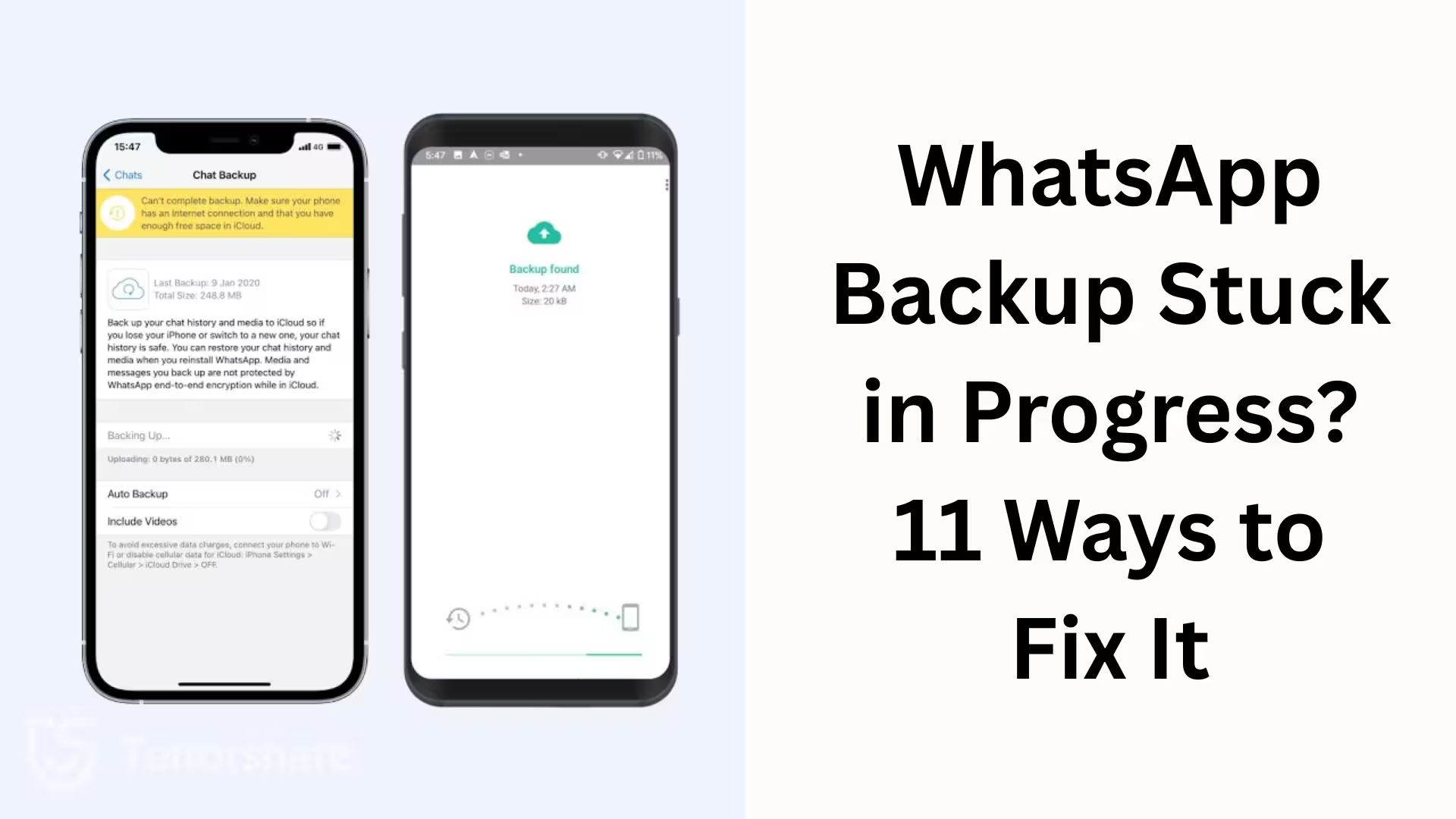
In today’s digital age, WhatsApp backup is crucial for protecting our chats, media files, and important documents. When the backup gets stuck on “Stuck in Progress,” the risk of data loss increases, and the user experience is disrupted. In this comprehensive guide, we present 11 effective and proven methods to permanently resolve the WhatsApp backup issue. This article is equally useful for both Android and iPhone users.
Key Signs of a Stuck WhatsApp Backup
Backup percentage doesn’t increase for a long time
Stuck on “Preparing backup” for hours
Upload to Google Drive or iCloud doesn’t start
Process doesn’t proceed even with Wi-Fi available
1. Ensure a Stable and Fast Internet Connection
A weak or unstable network is the biggest reason for WhatsApp backup getting stuck.
Use Wi-Fi, avoid mobile data
Restart your router
Keep VPN turned off
Try again after changing the network
2. Free Up Sufficient Storage in Google Drive / iCloud
Sufficient space in cloud storage is essential for backup.
Keep at least 2–3 GB free in Google Drive or iCloud
Delete unnecessary backups and files
Delete old WhatsApp backups
3. Free Up Local Storage on Your Phone
The backup process may stop if your phone storage is full.
Clear Photos, Videos, Cache
Uninstall unnecessary apps
Ensure at least 1–2 GB of free space
4. Update WhatsApp to the Latest Version
An outdated app version creates bugs and compatibility issues.
Install the latest update from the Google Play Store / App Store
Restart your phone after the update
5. Configure Backup Settings Correctly
Incorrect settings can prevent the backup.
WhatsApp → Settings → Chats → Chat Backup
Choose the correct Google account / iCloud account
Turn the Include Videos option on/off as needed
6. Turn Off Battery Optimization and Power Saving Mode
Power saving mode limits background processes. Disable Battery Saver / Low Power Mode
Allow WhatsApp Background Activity
7. Allow WhatsApp to run in the background
If the app closes in the background, the backup may stop.
Settings → Apps → WhatsApp → Battery / Background Data
Enable “Allow background usage.”
8. Check Google Play Services / iCloud
Google Play Services on Android and iCloud Services on iPhone are essential.
Update Google Play Services
Check sign-in status in iCloud
Log out of your account and log back in
9. Clear WhatsApp Cache and Data (Android)
A corrupted cache affects the backup.
Settings → Apps → WhatsApp → Storage
Clear Cache (not Data, if your chats are safe)
10. Restart your phone and start the backup again
A simple but effective method.
Restart your phone
Open WhatsApp and start a manual backup
Do not lock your phone during the backup
11. Reinstall WhatsApp (Last resort)
Use this method when all other methods fail.
Save your existing local backup
Uninstall WhatsApp
Reinstall and select Restore from Backup
Special tips for iPhone users
Keep iOS updated
Keep iCloud Drive on
Keep Low Power Mode off
Enable permissions for WhatsApp in iCloud
Special tips for Android users
Select the correct account in Google Drive
Turn off Data Saver mode
Keep the screen on during backup
How to prevent WhatsApp backup from getting stuck in the future
Clean up storage regularly
Maintain a weekly backup schedule
Use a strong Wi-Fi network
Keep apps and the system updated
Conclusion
The WhatsApp Backup Stuck in Progress problem is common, but with the right strategy, it can be permanently resolved. By following the 11 proven methods mentioned above, the backup process can be made smooth, and your important data can be kept safe. With regular maintenance and correct settings, this problem will not recur in the future.
Want to grow your website organically? Contact us now
Frequently Asked Questions (FAQ)
Question 1: Why does my WhatsApp backup get stuck on “Stuck in Progress”?
Answer: This problem is usually caused by a weak internet connection, low storage space, an outdated WhatsApp version, battery saver mode, or a Google Drive/iCloud sync error.
Question 2: How long does a WhatsApp backup take?
Answer: The backup time depends on the size of your chat data, video files, and internet speed. Generally, it can take from a few minutes to 1–2 hours.
Question 3: Can I back up WhatsApp using mobile data?
Answer: Yes, but using Wi-Fi is safer and faster. Backups are more likely to get stuck or fail on mobile data.
Question 4: My backup isn’t showing up in Google Drive. What should I do?
Answer:
Check if the correct Google account is selected.
Free up storage space in Google Drive.
Update Google Play Services.
Log out of your account and log back in.
Question 5: Why is my WhatsApp backup not working on iCloud on my iPhone?
Answer: The main reasons are full iCloud storage, Low Power Mode being on, or iCloud Drive being turned off. Check WhatsApp permissions in your iCloud settings.
Question 6: Will clearing WhatsApp cache delete my chats?
Answer: No, clearing the cache does not delete chats. However, clearing data might delete your data, so be careful.
Question 7: Is my backup safe if I uninstall WhatsApp?
Answer: If a Google Drive or iCloud backup already exists, you can restore it after reinstalling. Make sure you have a backup before uninstalling.
Question 8: How much storage space is needed for a WhatsApp backup?
Answer: This depends on your chats and media. It’s generally recommended to have at least 2–3 GB of free storage.
Question 9: Is it okay to lock my phone during a backup?
Answer: No, it’s better to keep your phone unlocked and allow WhatsApp to run in the background during the backup process.
Question 10: Is it good to back up WhatsApp daily? Answer: Yes, daily backup is the safest option, especially if you regularly share important chats and media.
Question 11: My WhatsApp backup is failing repeatedly. What is the last resort?
Answer:
Update WhatsApp
Check storage and internet connection
Re-link your Google Drive/iCloud account
As a last resort, reinstall WhatsApp
Question 12: How to avoid WhatsApp backup problems in the future?
Answer:
Keep your phone and cloud storage clean regularly
Use a strong Wi-Fi connection
Keep battery saver mode turned off
Keep WhatsApp and your system updated