 By
ByWhat Are Windows 11 Feature Flags, and Why Are They a Game-Changer?
Windows 11 has consistently introduced new features and updates to enhance the user experience. Now, an update has emerged that promises to be particularly significant for users of the Windows Insider Program. Microsoft is now integrating a Native Feature Flags system, allowing users to toggle experimental features on or off without the need for any third-party tools.
This feature was first spotted in Build 26300.8155, although it is not currently active by default. However, its presence signals that Microsoft is moving towards making its system more user-friendly and transparent.
Why Will ViveTool No Longer Be Necessary?
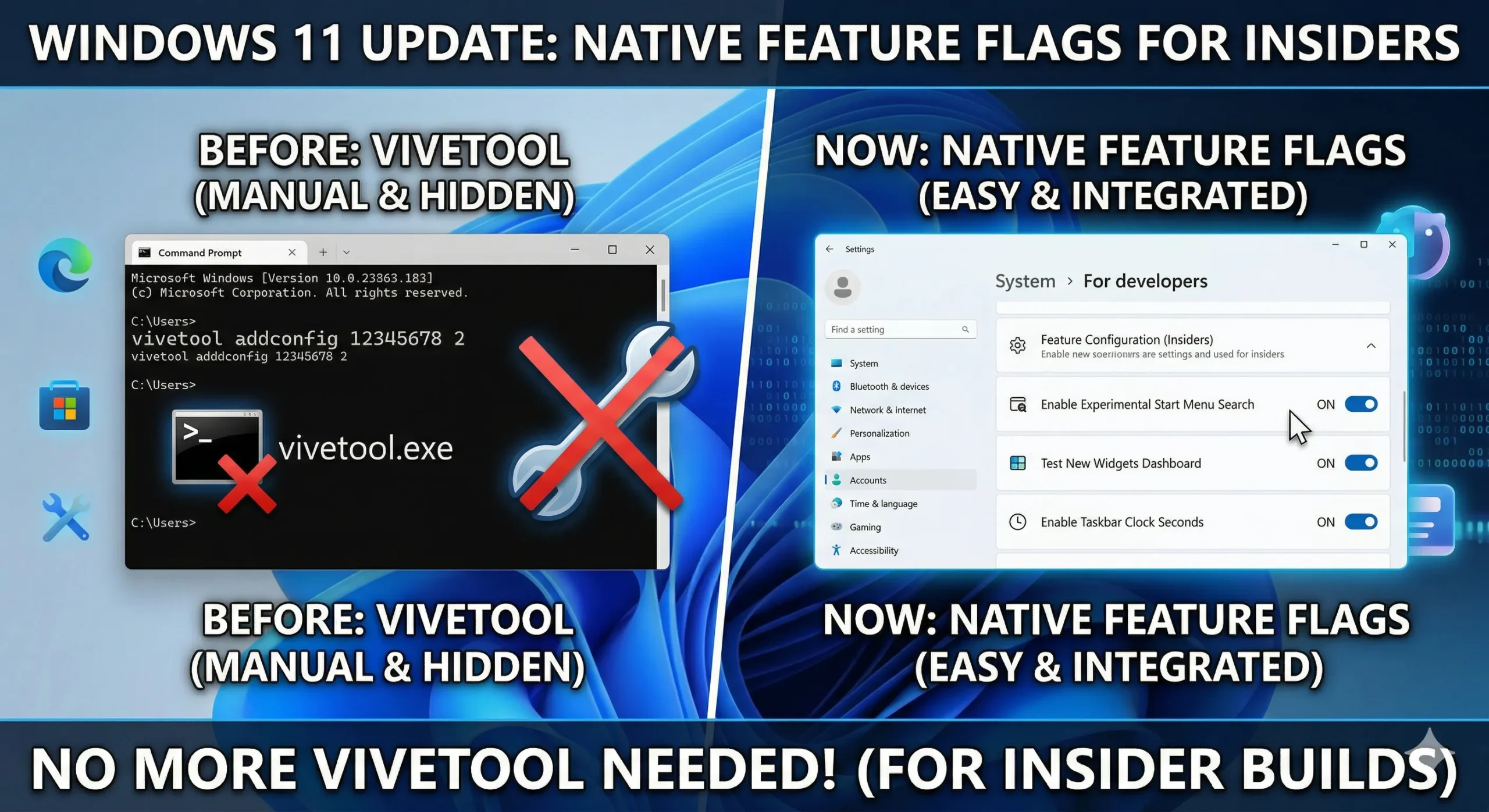
Until now, Windows Insider users had to rely on tools like ViveTool to access hidden features. This is a command-line-based tool, the use of which requires technical expertise.
Problems Associated with ViveTool:
Requires command-line knowledge
Risk of system crashes or bugs
Accidental activation of unintended features
Impact on security and stability
Now, with the introduction of the Feature Flags Page, all these issues will be resolved because:
Users will have access to a GUI (Graphical User Interface)
Features can be toggled ON/OFF with just a single click
The system will remain more secure and stable
Feature Flags Page: A New Change in Windows Insider Settings
Microsoft has integrated this feature directly into the Windows Insider Settings. This means you will no longer require any external tools or scripts. What Will You Find on the Feature Flags Page?
A list of all experimental features
ON/OFF toggle buttons
Basic descriptions of each feature
The ability to apply changes instantly without a reboot (in some cases)
This system is exactly like what we see in Google Chrome Flags or Microsoft Edge Flags.
How to Use Windows 11 Feature Flags?
Once this feature is fully rolled out, using it will be incredibly simple:
Step-by-Step Guide:
1. Open Settings
2. Navigate to the Windows Insider Program section
3. Click on the Feature Flags Page
4. Browse the list of available features
5. Toggle ON the feature you wish to activate
6. Save the changes
This entire process can be completed without the need for any code or commands.
Microsoft’s New Approach: Transparency and Control
With this new update, Microsoft is introducing a major shift. Previously, features were kept hidden and released gradually—a process known as Controlled Feature Rollouts (CFR).
Now:
Users will receive information in advance
Users can test experimental features themselves
Developers will receive better feedback
This change is transforming Windows into an open and user-centric platform.
Also read: How to Install Hyper-V on Windows 11 Home?
What Are the Benefits for Advanced Users?
While this has become easier for new users, Advanced Users stand to benefit significantly as well.
Key Benefits:
No need to search for Feature IDs
No more Reverse Engineering
Precise control and experimentation
Faster testing and debugging
Now, developers and tech experts can test new features without any associated risks.
Why Is This Feature Hidden Right Now?
Although this feature is present in build 26300.8155, it is currently not visible to users. This means that Microsoft is currently testing it and fine-tuning it before a full-scale release.
Microsoft’s Head of Design has also indicated that:
More details regarding this will be shared in upcoming updates.
This feature will soon be available to all Insider users.
What Does This Mean for Windows Insider Users?
This change is not merely a single feature; rather, it signifies the future direction of Windows.
What Changes Can Be Expected?
Users will gain greater control.
They will be able to test new features sooner.
The system will become more stable and secure.
There will be easier access to experimental features.
This is particularly significant for all those users who wish to be the first to experience new Windows features.
Feature Flags vs. ViveTool: A Comparison
| Feature | Feature Flags | ViveTool |
| ————— | ————- | ———— |
| Method of Use | GUI-based | Command-line |
| Ease of Use | Very Easy | Difficult |
| Risk | Low | High |
| Access | Official | Unofficial |
| Stability | High | Low |
Feature Flags are the superior and safer option.
What to Expect in the Future?
This move by Microsoft indicates that in the times to come:
More features will be introduced in this manner.
User control will increase.
The need for third-party tools will diminish.
Windows will evolve into a more dynamic and customizable OS.
Conclusion: Windows 11’s Biggest Insider Upgrade
Windows 11 Feature Flags is an update that has the potential to completely transform the Insider Program. It is not merely a new tool, but a new experience—one where the user decides for themselves exactly which features they wish to utilize.
Now:
No complex commands.
No risky tools.
Just simple and secure control.
This update makes Windows even more user-friendly, transparent, and powerful.
Also read: How to Enable Remote Desktop in Windows 11?
FAQ (Frequently Asked Questions)
1. What are Windows 11 Feature Flags?
Windows 11 Feature Flags is a new feature that allows users to enable or disable experimental features directly from the system settings, without the need for any third-party tools.
2. Will ViveTool no longer be needed at all?
Yes, as the Feature Flags page is fully rolled out, users will no longer require tools like ViveTool, as all features will be accessible through an official interface.
3. In which Windows Build have Feature Flags been observed?
This feature was first spotted in Windows 11 Insider Build 26300.8155, although it is not currently active by default.
4. How do I use Feature Flags?
Once this feature becomes available, you can:
Go to Settings
Open the Windows Insider Program section
Click on the Feature Flags page
Toggle the desired feature ON/OFF
5. Are Feature Flags safe?
Yes, this is an official Microsoft feature; therefore, it is more secure and stable compared to unofficial tools like ViveTool.
6. Will all users receive this feature?
Initially, this feature will be available only to Windows Insider users; it may be rolled out to all users at a later stage.
7. Will Feature Flags impact system performance?
If you enable an experimental feature, you may occasionally encounter minor bugs; however, overall, this feature makes the system more controllable and secure.
8. Can Feature Flags be used without technical knowledge?
Yes, its interface will be very user-friendly, allowing any user to easily control features.
9. Is this similar to Chrome or Edge Flags?
Yes, it functions quite similarly to Google Chrome Flags and Microsoft Edge Flags, where you can test experimental features.
10. What is the biggest advantage of Feature Flags?
Its biggest advantage is that users will now:
Have direct control
Does not require any external tools
Be able to test new features with reduced risk
11. Do Feature Flags take effect immediately?
Some features may take effect immediately, while others may require a system restart.
12. Will this feature become a permanent part of Windows in the future?
Likely, Microsoft will permanently integrate this into Windows, as it enhances the user experience and improves transparency.
Are you searching for the best hosting plan? Click now and get 20% off