 By
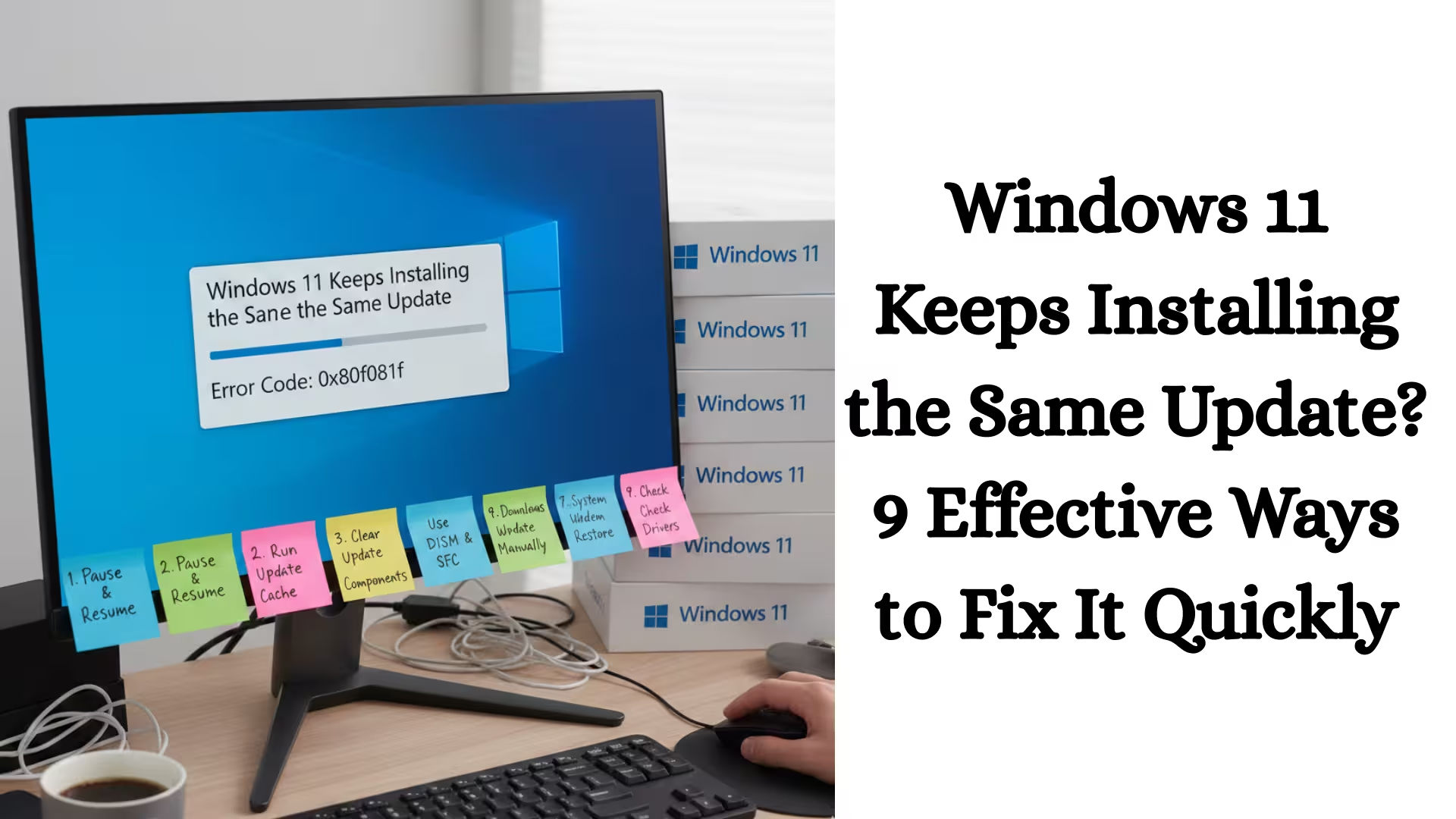
ByIf the Windows 11 Keeps Installing the Same Update issue keeps recurring on your system, it’s not only annoying but can also impact system performance, storage, and stability. Here, we’re sharing 9 proven and practical solutions to permanently fix this problem, allowing you to restore your Windows 11 to normal.
Why Does Windows 11 Keep Installing the Same Update?
When Windows 11 can’t install an update correctly, it tries to download and install it again. The main reasons for this are:
Corrupted Windows Update Files
Error in the Software Distribution Folder
Corrupted System Files
Error in the Windows Update Service
Disk Error or Storage Problem
Now, let’s move on to the solutions.
1. Run the Windows Update Troubleshooter
Windows 11 includes a built-in Windows Update Troubleshooter that automatically fixes common update-related issues.
Procedure:
1. Open Settings
2. Go to System > Troubleshoot > Other Troubleshooters
3. Click “Run” next to Windows Update.
This tool identifies potential errors and automatically fixes them.
2. Reset the Software Distribution Folder
Sometimes, update files become corrupted, causing Windows to repeatedly install the same update.
Steps:
1. Open Command Prompt (Admin)
2. Type the following command:
net stop wuauserv
net stop bits
3. Now go to this location:
`C:\Windows\SoftwareDistribution`
4. Delete all files in this folder
5. Then run the command:
net start wuauserv
net start bits
This process clears the Windows Update cache.
Also read: How to Check RAM Usage on Android?
3. Restart the Windows Update Service
Sometimes the Update Service gets stuck.
Method:
1. Press Run (Win + R)
2. Type `services.msc`
3. Right-click on Windows Update
4. Select Restart
Then restart the system.
4. Run SFC and DISM scans
If system files are corrupted, updates won’t install properly.
SFC command:
sfc /scannow
DISM command:
DISM /Online /Cleanup-Image /RestoreHealth
Both of these tools repair system files.
5. Install Pending Updates Manually
Sometimes Windows Update won’t install completely.
1. Settings > Windows Update
2. View Update History
3. If an update is failing, note its KB number.
4. Download it manually from the Microsoft Update Catalog.
This method often provides a permanent solution.
6. Install updates via Clean Boot
Third-party software can also interfere with updates.
How to perform a Clean Boot:
1. Run (Win + R) → `msconfig`
2. Tick “Hide all Microsoft services” in the Services tab.
3. Disable all other services.
4. Restart the system.
Now install the update.
Also read: How to Find Hidden Apps on Samsung Phones?
7. Check for Disk Errors
If there are errors on the hard drive, the update installation process may repeatedly fail.
Command:
chkdsk /f /r
This command scans and fixes disk errors.
8. Completely Reset Windows Update Components
This method is considered the most effective.
Steps:
Stop Windows Update Services
Rename the Catroot2 and SoftwareDistribution folders
Restart Services
This process restarts the update system from scratch.
9. Repair Install Windows 11
If all of the above methods fail, a Repair Install (In-place Upgrade) is the ultimate solution.
How to:
1. Download the Windows 11 ISO from Microsoft’s official website.
2. Mount the ISO file.
3. Run Setup.exe.
4. Select the “Keep Personal Files and Apps” option.
This process reinstalls Windows without deleting any data.
Additional Important Tips
Ensure your system has at least 20GB of free storage available.
Temporarily disable your antivirus.
Keep your BIOS and drivers updated.
Maintain a stable internet connection during Windows updates.
How to ensure the problem doesn’t recur?
Perform regular system maintenance.
Clear unnecessary files and cache.
Keep your drivers and system updated.
Run a system scan at least once a month.
Conclusion
If your Windows 11 is repeatedly installing the same update, there’s no need to panic. The 9 effective and technically proven solutions above can eliminate this problem at its root. We’ve presented each solution in a clear and practical way so you can implement it without any additional assistance. Following these steps in the correct order will make your system stable, secure, and error-free.
Frequently Asked Questions (FAQ) – Windows 11 Repeatedly Installing the Same Update
1. Why does Windows 11 repeatedly install the same update?
When a Windows Update fails to install correctly or its files become corrupted, the system attempts to download and install it again. This problem is often caused by a corrupted update cache, a system file error, or a glitch in the Windows Update service.
2. How to find out which update is repeatedly installing?
You can go to Settings > Windows Update > Update History to see which KB update number is repeatedly failing. There, you’ll find information about “Failed” or “Successfully Installed.”
3. Is it safe to clear the Windows Update Cache?
Yes, clearing the SoftwareDistribution folder is completely safe. This only removes temporary update files; it doesn’t affect your personal data or applications.
4. Can SFC and DISM scans fix the problem?
Yes, if the problem is caused by system file corruption, the SFC (/scannow) and DISM RestoreHealth commands can fix it. They repair core Windows files.
5. Can antivirus software interfere with updates?
In some cases, third-party antivirus software can block the Windows Update process. In such cases, temporarily disabling the antivirus and installing updates can help.
6. Will a Repair Install delete my data?
No, if you select the “Keep Personal Files and Apps” option, your data, files, and installed apps are preserved. This process only reinstalls Windows system files.
7. Can low storage also cause this problem?
Yes, if your system drive doesn’t have enough free space (at least 20GB), updates may repeatedly fail and try to install again.
8. What is the benefit of resetting Windows Update components?
This process completely refreshes the Windows Update system. If there are serious errors in update files or services, this method provides a permanent solution.
9. Can a clean boot fix update issues?
Yes, if third-party software or drivers are interfering with the update process, installing updates in clean boot mode may fix the problem.
10. What if all other solutions fail?
In such a situation, a Windows 11 Repair Install or Reset This PC may be the last resort. This can also fix serious system errors.
Are you searching for the best hosting plan? Click now and get 20% off