 By
ByIf you frequently access a specific folder on your system, mounting it as a drive can make your workflow significantly easier. In this guide, we will explain in detail how to mount any folder as a drive in Windows 11, allowing you to use it directly within “This PC” just like a separate drive.
Benefits of Mounting a Folder as a Drive
Faster Access: No need to repeatedly open the folder.
Better Organization: Keep important data organized as a separate drive.
Professional Workflow: Useful for developers, designers, and editors.
Custom Drive Letter: Assign a drive letter of your choice.
Method 1: Creating a Drive from a Folder using the SUBST Command
This is the easiest and fastest method.
Steps:
1. Open Command Prompt (in Admin Mode)
2. Type the following command:
“`
subst X: “C:\YourFolderPath”
“`
Here:
X: = The drive letter you wish to assign.
C:\YourFolderPath = The path to your folder.
Example:
“`
subst Z: “C:\Projects”
“`
Now, your Projects folder will appear as the Z drive.
How to Remove the Drive
“`
subst Z: /d
“`
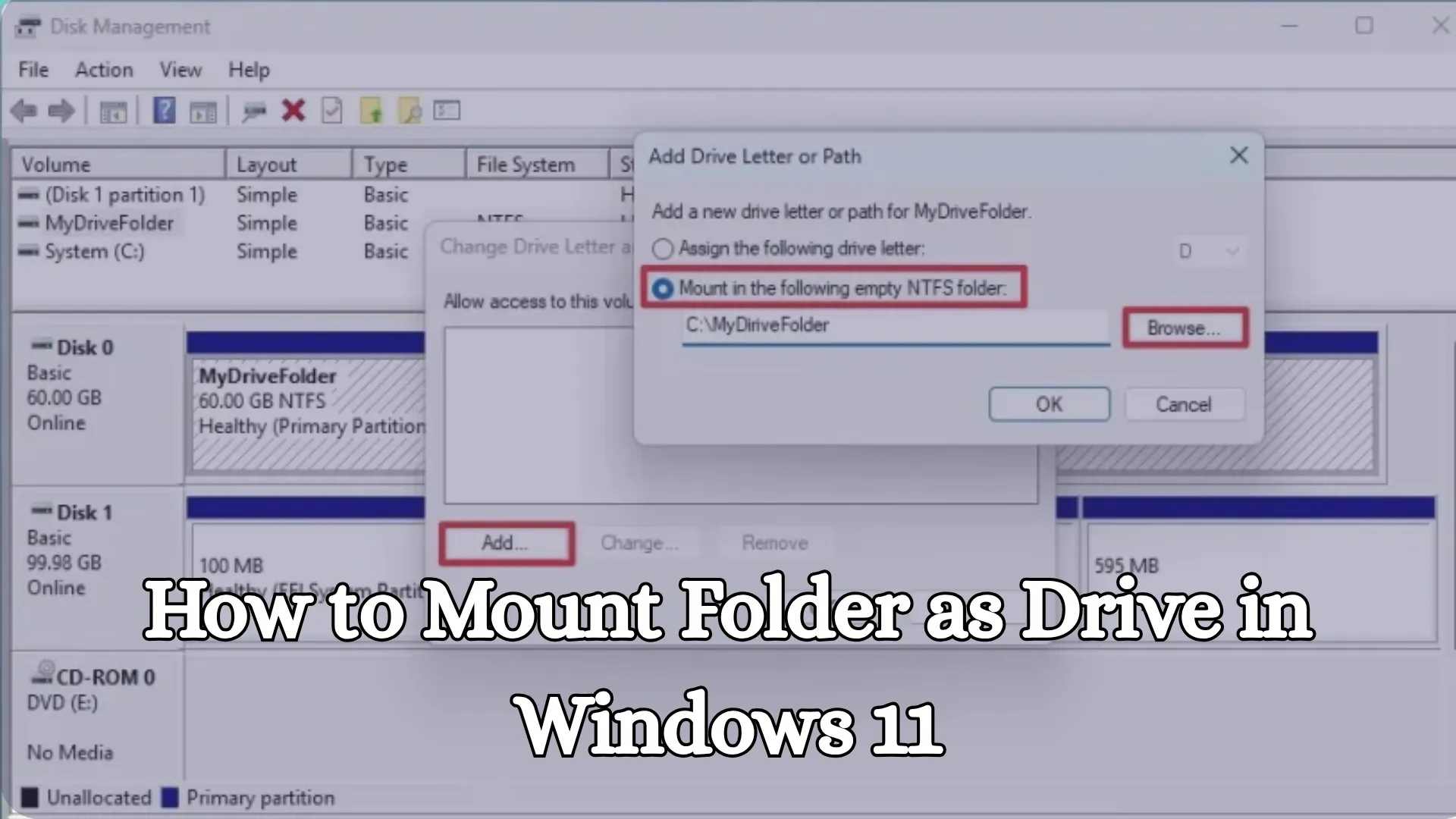
Method 2: Mounting via Disk Management (Advanced Method)
This method is slightly more advanced but offers a more permanent solution.
Steps:
1. Press Windows + X → Open Disk Management
2. Select the drive containing the folder
3. Right-click → Change Drive Letter and Paths
4. Click on Add
5. Select Mount in the following empty NTFS folder
6. Select the folder path
7. Press OK
This will turn your folder into a Mount Point.
Method 3: Create a Batch File for Permanent Mounting
If you want the drive to be created automatically every time the system starts, this method is useful.
Steps:
1. Open Notepad
2. Enter the following code:
“`
@echo off
subst X: “C:\YourFolderPath”
“`
3. Save the file with a .bat extension
4. Place it in the Startup folder:
“`
C:\Users\YourUsername\AppData\Roaming\Microsoft\Windows\Start Menu\Programs\Startup
“`
Now, the drive will be created automatically every time your PC starts up.
Also read: 9 Best Ways to Check RAM Information in Windows 11
Method 4: Mounting a Folder using PowerShell
This method is ideal for PowerShell users.
Command:
“`
New-PSDrive -Name “X” -PSProvider FileSystem -Root “C:\YourFolderPath” -Persist
“`
This will permanently mount your drive.
Method 5: Network Drive Trick (Works for Local Folders Too)
You can also mount your local folders just like a network drive.
Steps:
1. Right-click on the folder → Properties
2. Sharing Tab → Advanced Sharing
3. Check the box for Share this folder
4. Assign a Share name
Now:
1. Open This PC
2. Click on Map Network Drive
3. Enter the folder path:
“`
\\localhost\YourFolderName
“`
It will now appear as a drive.
Best Practices: Things to Keep in Mind When Mounting Folders
Always check for Drive Letter conflicts.
Avoid mounting system folders.
Ensure you maintain a backup.
Use the NTFS format.
Common Problems and Their Solutions
Drive Not Visible
Run the Command Prompt as an Administrator.
Drive Disappeared After Restart
Use a Batch file or the PowerShell method.
“Access Denied” Error
Check folder permissions.
Professional Use Cases
Developers: Quickly access project folders by mapping them as drives.
Video Editors: Map large media folders to a separate dedicated drive.
Business Users: Create a dedicated drive for important documents.
Also read: 7 Best Ways to Reset Firewall Settings in Windows 11
Conclusion
Mounting a folder as a drive in Windows 11 is an incredibly powerful feature that makes your work faster, more organized, and more professional. Whether you use the SUBST command, PowerShell, or Disk Management, each method offers its own distinct advantages. Choose the method that best suits your needs and take your workflow to the next level.
FAQ (Frequently Asked Questions)
Q1. What is the easiest way to mount a folder as a drive in Windows 11?
The easiest method is the `SUBST` command. With this, you can instantly transform any folder into a drive simply by typing a single command. It is a quick and simple approach.
Q2. Can a folder be made into a permanent drive?
Yes, you can make a folder a permanent drive by using a PowerShell command or a Startup Batch File, ensuring that it appears automatically every time the system starts up.
Q3. Why does the drive disappear after restarting?
If you used the `SUBST` command, the drive is removed after a restart. To fix this, you need to add a Batch File to your Startup items or utilize the persistent method via PowerShell.
Q4. Can I turn multiple folders into separate drives?
Yes, you can easily mount multiple folders as separate drives by assigning them different drive letters (such as D:, E:, F:, etc.).
Q5. Is this method safe?
Yes, it is completely safe. It is merely a shortcut mapping; your actual data is neither moved nor deleted in the process.
Q6. Can I also mount a folder located on an external drive or USB device?
Yes, you can mount a folder located on any external drive, USB device, or internal storage as a drive.
Q7. Which method is the best—SUBST, PowerShell, or Disk Management?
SUBST: For quick and temporary tasks.
PowerShell: For permanent and reliable solutions.
Disk Management: For advanced and system-level mounting.
Q8. Are Admin permissions required?
Some methods, such as `SUBST` and Disk Management, require Admin permissions to allow you to make system-level changes.
Q9. What should I do if the drive letter is already in use?
If the selected drive letter is already in use, you will need to choose another available letter, such as X:, Y:, Z:, etc.
Q10. Is this feature available in all versions of Windows 11? Yes, this feature is available in all editions of Windows 11 (Home, Pro, Enterprise) and works without any additional software.
Q11. Can a network folder also be converted into a drive?
Yes, you can convert any network folder into a drive using the “Map Network Drive” feature.
Q12. Does mounting a folder affect system performance?
No, it does not have any significant impact on performance, as it is merely a path-mapping technique.
Are you searching for the best hosting plan? Click now and get 20% off