
 By
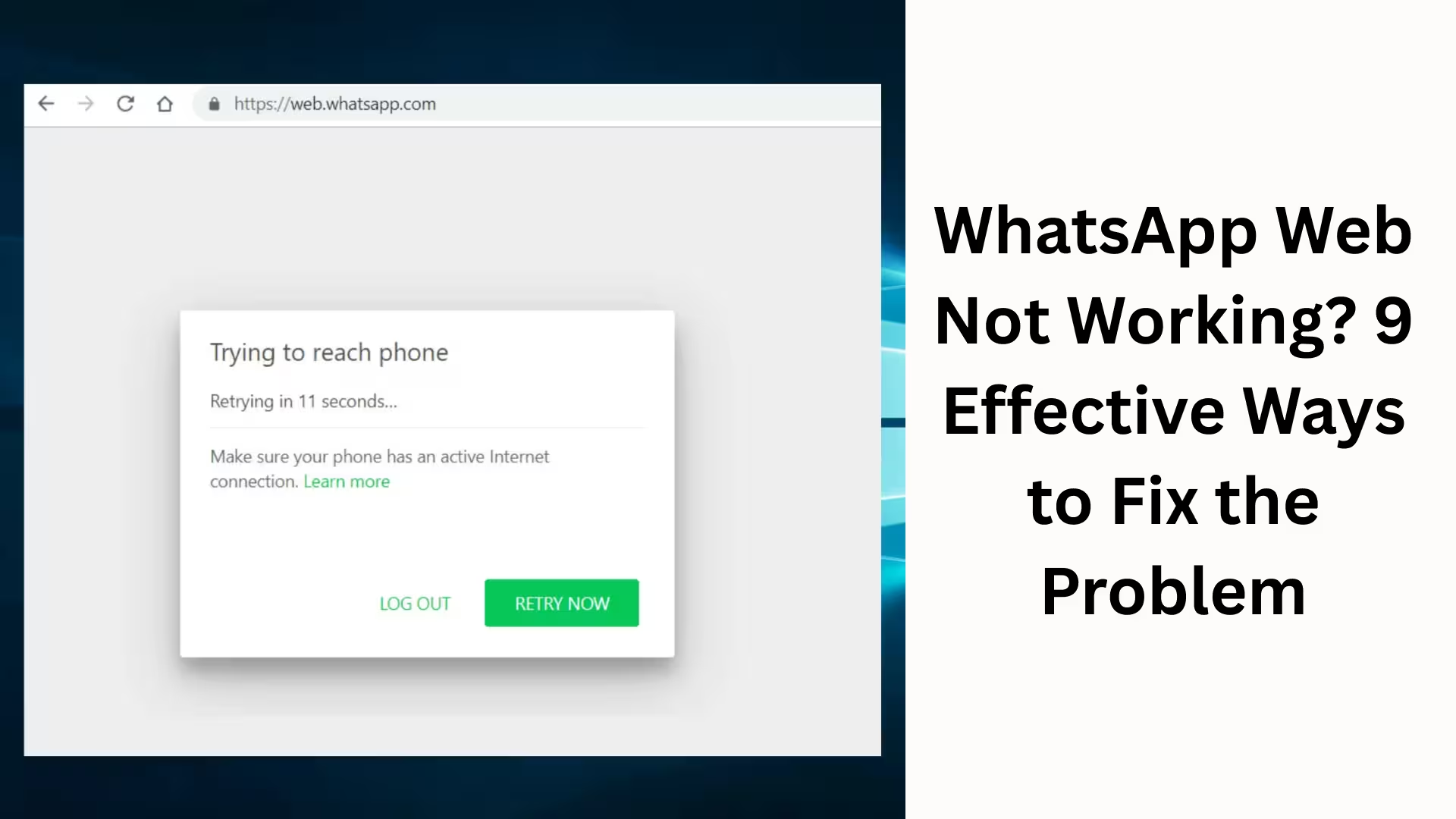
ByIn today’s digital age, WhatsApp Web has become an essential tool for offices, businesses, and personal use. We all want WhatsApp to work seamlessly on both our mobile devices and desktops. However, sometimes WhatsApp Web doesn’t work, fails to connect, disconnects frequently, or doesn’t log in even after scanning the QR code. This directly impacts productivity.
Here, we understand the root cause of the WhatsApp Web Not Working problem and present 9 of the most effective and practical solutions that you can use to permanently fix this issue.
1. Check the Stability of Your Internet Connection
For WhatsApp Web to function correctly, a stable and fast internet connection is essential on both your mobile device and computer. If the network is slow, unstable, or disconnects frequently, WhatsApp Web will immediately stop working.
Ensure that your mobile data or Wi-Fi is working correctly.
Test your internet connection by opening other websites on your computer.
If possible, try switching networks and try again.
2. Update WhatsApp on Your Mobile Device
Sometimes, an older WhatsApp version doesn’t sync properly with WhatsApp Web. In such cases, the web version doesn’t load or logs out frequently.
Open the Google Play Store or Apple App Store.
Install the latest update for WhatsApp.
Restart your mobile device after the update.
3. Refresh and Update Your Browser
WhatsApp Web is entirely dependent on the browser. If the browser is outdated, slow, or filled with corrupted cache, problems arise.
Use browsers like Google Chrome, Microsoft Edge, or Firefox.
Keep your browser updated to the latest version.
Perform a hard refresh by pressing Ctrl + F5.
4. Clear Browser Cache and Cookies
Accumulated cache and cookie data can hinder WhatsApp Web from loading. Open browser settings
Select the Clear Browsing Data option
Delete cache, cookies, and site data
Close and reopen the browser
5. Log out of WhatsApp Web and log in again
If WhatsApp Web has been open for a long time, the session may expire.
Open WhatsApp on your mobile phone
Go to Linked Devices
Log out from all devices
Scan the new QR code on the website
6. Keep your mobile phone near your computer
WhatsApp Web works by syncing completely with mobile WhatsApp. If the mobile network is weak or the phone goes into sleep mode, the web connection breaks.
Keep your mobile phone in an area with good network coverage
Turn off battery saver mode
Prevent your mobile screen from locking
7. Turn off VPN or Proxy
VPN or proxy servers can interfere with WhatsApp Web’s server connection.
Disable VPN on both your computer and mobile phone
Turn off any third-party network tools
Reconnect to a normal network
8. Correct your system date and time
Incorrect Date & Time settings cause SSL and server connection errors, preventing WhatsApp Web from working.
Enable Automatic Date & Time on both your computer and mobile phone
Select the correct time zone
Restart your system after making changes
9. Use a different browser or the WhatsApp Desktop App
If the problem is browser-specific, switching to an alternative is the best solution.
Open web.whatsapp.com in a different browser
Or install the WhatsApp Desktop App
The Desktop App provides a more stable and faster experience
Common reasons why WhatsApp Web doesn’t connect:
Unstable mobile internet
Outdated WhatsApp version
Browser extension conflicts
Firewall or antivirus blocking
System cache and cookie errors
Identifying and addressing these reasons will permanently resolve the problem. Tips for using WhatsApp Web more effectively and securely
Always use the official website
Remember to log out after using a public computer
Do not install suspicious extensions
Keep your app and browser updated regularly
Conclusion
Here, we have shared in detail 9 of the most reliable and practical ways to fix the WhatsApp Web Not Working problem. By following these steps, you can use WhatsApp Web again quickly, securely, and without any interruptions. Whether the problem is related to the network, the browser, or the app settings, a solution is possible by taking the right steps.
If you use WhatsApp Web for work, business, or personal communication, this guide will prove extremely useful for you.
Want to grow your website organically? Contact us now
Frequently Asked Questions (FAQ)
Why is WhatsApp Web not working?
The main reasons why WhatsApp Web might not be working include a weak internet connection, an outdated WhatsApp version, browser cache issues, or a broken sync between your mobile and computer.
Can WhatsApp Web work without mobile internet?
No, WhatsApp Web requires an active connection to the mobile WhatsApp app. If the internet is turned off on your mobile, WhatsApp Web will automatically disconnect.
Why am I not able to log in even after scanning the QR code?
This problem is usually caused by browser cache, VPN, or mobile camera focus issues. Clear your cache and try again after turning off your VPN.
Why does WhatsApp Web keep logging me out?
If your mobile network is unstable, battery saver is on, or WhatsApp is being closed in the background, the web session may terminate repeatedly.
Which browser is best for WhatsApp Web?
Google Chrome, Microsoft Edge, and Mozilla Firefox are considered the most stable and secure browsers for WhatsApp Web.
Is WhatsApp Web secure?
Yes, WhatsApp Web is secure with end-to-end encryption, provided we use only the official website and trusted devices.
What is the difference between the WhatsApp Desktop App and WhatsApp Web?
The WhatsApp Desktop App is more stable, faster, and less browser-dependent, while WhatsApp Web is entirely browser-based.
Why doesn’t WhatsApp Web work when my VPN is on?
Many VPN servers block WhatsApp’s network, causing the web connection to fail. Turning off the VPN is necessary to resolve this.
Can I use WhatsApp Web on more than one computer?
Yes, with WhatsApp’s Linked Devices feature, you can use WhatsApp Web or the Desktop App on multiple devices simultaneously.
WhatsApp Web is running slowly. What should I do?
Clear your browser cache, remove unnecessary extensions, use a faster internet connection, and free up system RAM.
Is it safe to use WhatsApp Web on a public computer?
It is only safe if you log out completely after use. Otherwise, there is a risk of account access.
WhatsApp Web disconnects automatically. What is the solution?
Keep your mobile phone within network coverage, turn off battery saver, and allow WhatsApp to run in the background on your phone.


