 By
ByIn today’s digital age, System Security is one of the most critical aspects of computing. The Windows 11 Firewall serves to protect your computer from unauthorized access, malware, and online threats. However, Firewall settings can sometimes become corrupted due to misconfigurations, third-party applications, or network errors. In such instances, resetting the Firewall proves to be the most effective solution.
In this comprehensive guide, we present the 7 most effective methods to reset Firewall settings in Windows 11, which will help you resolve your issue immediately.
1. Resetting the Firewall via Windows Security
This is the easiest and safest method to restore your Firewall to its default settings.
Steps:
Open the Start Menu and search for Windows Security
Click on “Firewall & Network Protection”
Scroll down and select the Restore Firewalls to Default option
Click “Yes” to confirm
This method removes all custom Firewall settings from your system and reverts them to the Default Configuration.
2. Resetting the Firewall via the Control Panel
Resetting the Firewall using the Control Panel is another reliable method.
Steps:
Open Run (Win + R) and type: `control.`
Navigate to “System and Security”
Open “Windows Defender Firewall”
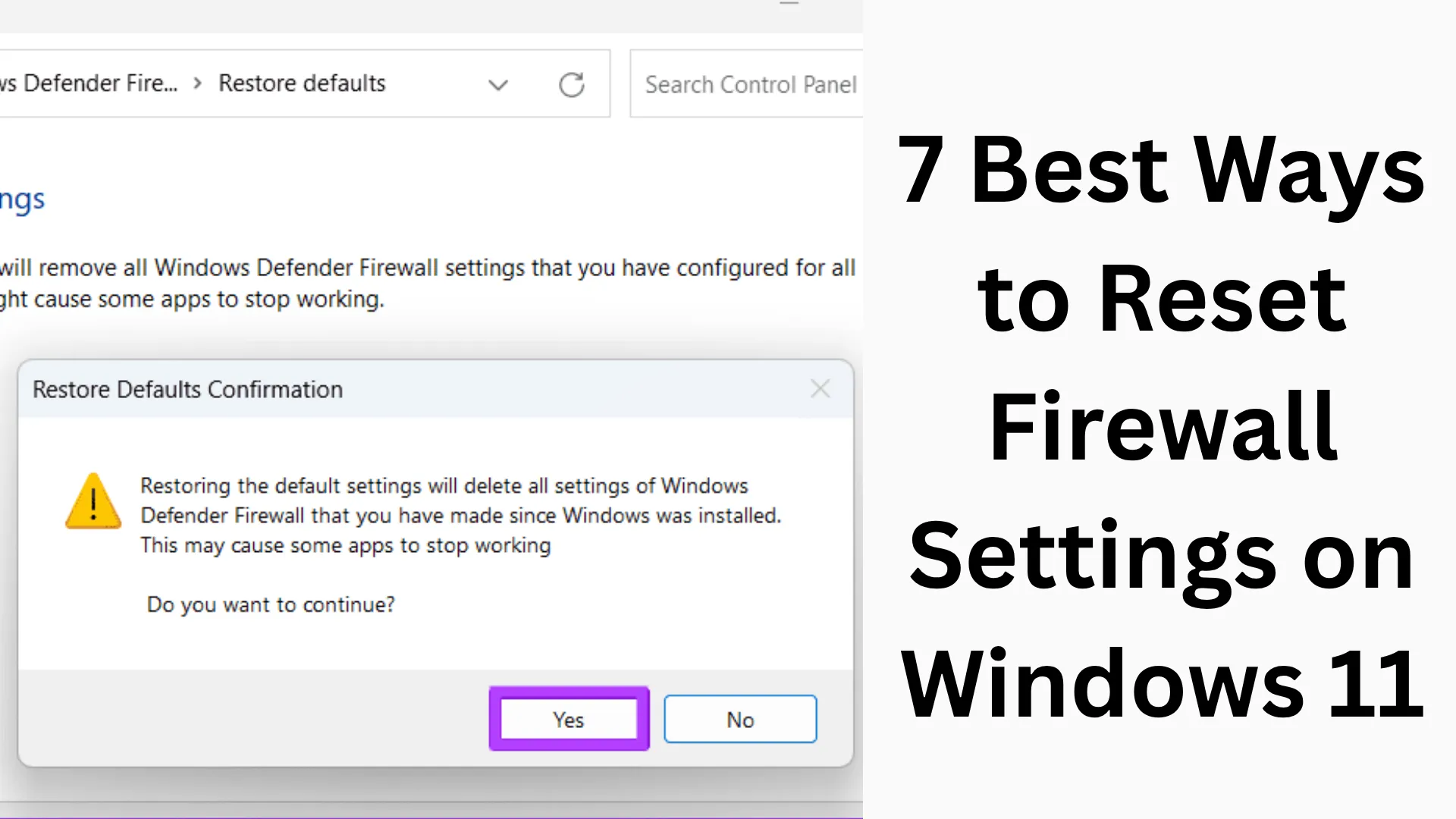
Click on Restore Defaults from the left-hand pane
Confirm by clicking the “Restore Defaults” button
This method is particularly useful for users who prefer the classic interface.
3. Resetting the Firewall via Command Prompt (CMD)
If you are a technically inclined user, resetting the Firewall via CMD is a fast and efficient method. Command:
“`
netsh advfirewall reset
“`
Steps:
Open Command Prompt (Admin) from the Start Menu
Type the command provided above
Press Enter
This command immediately resets all Firewall rules to their default state.
4. Resetting the Firewall via PowerShell
Using PowerShell is a powerful option for advanced users.
Command:
“`
(New-Object -ComObject HNetCfg.FwPolicy2).RestoreLocalFirewallDefaults()
“`
Steps:
Open PowerShell by selecting Run as Administrator
Paste the command and press Enter
This method allows you to reset the Firewall using scripting and automation.
5. Resetting the Firewall via Windows Settings
It is also possible to reset the Firewall using the Windows 11 Settings app.
Steps:
Open Settings (Win + I)
Go to “Privacy & Security”
Select “Windows Security”
Click on “Firewall & Network Protection”
Select the “Restore Defaults” option
This method offers a simple solution with a user-friendly interface.
Also read: 9 Best Ways to Check RAM Information in Windows 11
6. Resetting the Firewall via Group Policy Editor
This method is useful for professional and enterprise users.
Steps:
Open Run (Win + R) and type: `gpedit.msc`
Navigate to: Computer Configuration → Windows Settings → Security Settings → Windows Defender Firewall
Restore the Default Policy
This method is suitable for large networks and IT administrators.
7. Resetting the Firewall via Registry Editor
If other methods do not work, the Registry Editor can serve as a final option.
Steps:
Open Run (Win + R) and type: `regedit`
Navigate to this path:
“`
HKEY_LOCAL_MACHINE\SYSTEM\CurrentControlSet\Services\SharedAccess\Parameters\FirewallPolicy
“`
Delete `FirewallPolicy`
Restart the system
Use this method with caution, as incorrect changes to the Registry can damage the system.
Benefits of Resetting the Firewall
Network errors are resolved immediately
Blocked applications start working again
System security is enhanced
Incorrect rules are removed
When Should You Reset the Firewall?
When the internet connection is frequently blocked
When a specific application is unable to access the network
When experiencing issues with VPNs or gaming
When Firewall settings have become misconfigured
Important Precautions
Back up essential rules before performing the reset
Temporarily disable any third-party security software
Re-grant permissions to the necessary applications after the reset
Also read: Can’t Download or Update Apps from the Play Store? 9 Best Solutions (Fixes)
Conclusion
In this comprehensive guide, we have shared the 7 most effective methods for resetting Firewall settings in Windows 11. Each method is suitable for different user proficiency levels—whether you are a beginner or an advanced user. Resetting the Firewall correctly will not only keep your system secure but also instantly resolve any network-related issues.
If you wish to maintain consistent system security, periodically reviewing your Firewall settings—and resetting them when necessary—is a smart and proactive step.
FAQ (Frequently Asked Questions)
1. What is the fastest way to reset the Firewall in Windows 11?
The fastest method is to run the command `netsh advfirewall reset` via the Command Prompt (CMD), which instantly restores all settings to their defaults.
2. Does resetting the Firewall increase internet speed?
Not directly; however, if the Firewall settings were misconfigured and were blocking network traffic, internet performance may improve after a reset.
3. Will all apps be blocked after resetting the Firewall?
Yes, some apps for which you had previously granted permission may be blocked again. You will need to manually allow them.
4. Is resetting the Firewall safe?
Yes, it is a completely safe process, as it merely restores settings to their defaults and does not affect system files or data.
5. Does resetting the Firewall affect antivirus software?
No, resetting the Firewall has no direct impact on your antivirus software, although some security rules may change.
6. Can we reset the Firewall without Admin access?
No, Administrator permission is required to reset the Firewall.
7. When should I reset the Firewall?
It is advisable to reset the Firewall when you encounter network connectivity issues, app blocking problems, or Firewall errors.
8. Does resetting the Firewall remove viruses?
No, resetting the Firewall does not remove viruses. For that, you will need to run an antivirus scan.
9. Is it okay to reset the Firewall frequently?
There is no need to reset it frequently. You should only do so when a technical issue arises.
10. Is it necessary to restart the system after a Firewall Reset?
It is not always necessary, but restarting is recommended for optimal results.
11. Can a Firewall Reset resolve VPN issues?
Yes, often a VPN fails to work due to incorrect Firewall rules. This issue can be resolved after a reset.
12. Which settings change after a Firewall Reset?
All custom rules are removed.
The Block/Allow list is reset.
Default security settings are applied.
13. Does a Firewall Reset reduce gaming lag?
If the Firewall was blocking the game server, the gaming experience may improve after a reset.
14. Can we reset the Firewall for only one specific network (Public/Private)?
No, performing a reset reverts the settings for all network profiles to their defaults simultaneously.
15. What should be done after a Firewall Reset?
Allow necessary applications.
Check your network connection.
Restart the system.
Re-verify your security settings.
Are you searching for the best hosting plan? Click now and get 20% off