 By
ByIn Windows 11, the Windows Recovery Environment (WinRE) is a crucial feature that helps you recover your computer in the event of system crashes, boot errors, or other technical issues. If your system is not booting correctly or you require advanced troubleshooting, WinRE can prove to be a lifesaver. In this article, we will explain in detail how to enable WinRE in Windows 11, what its benefits are, and how to use it effectively.
What is the Windows Recovery Environment (WinRE)?
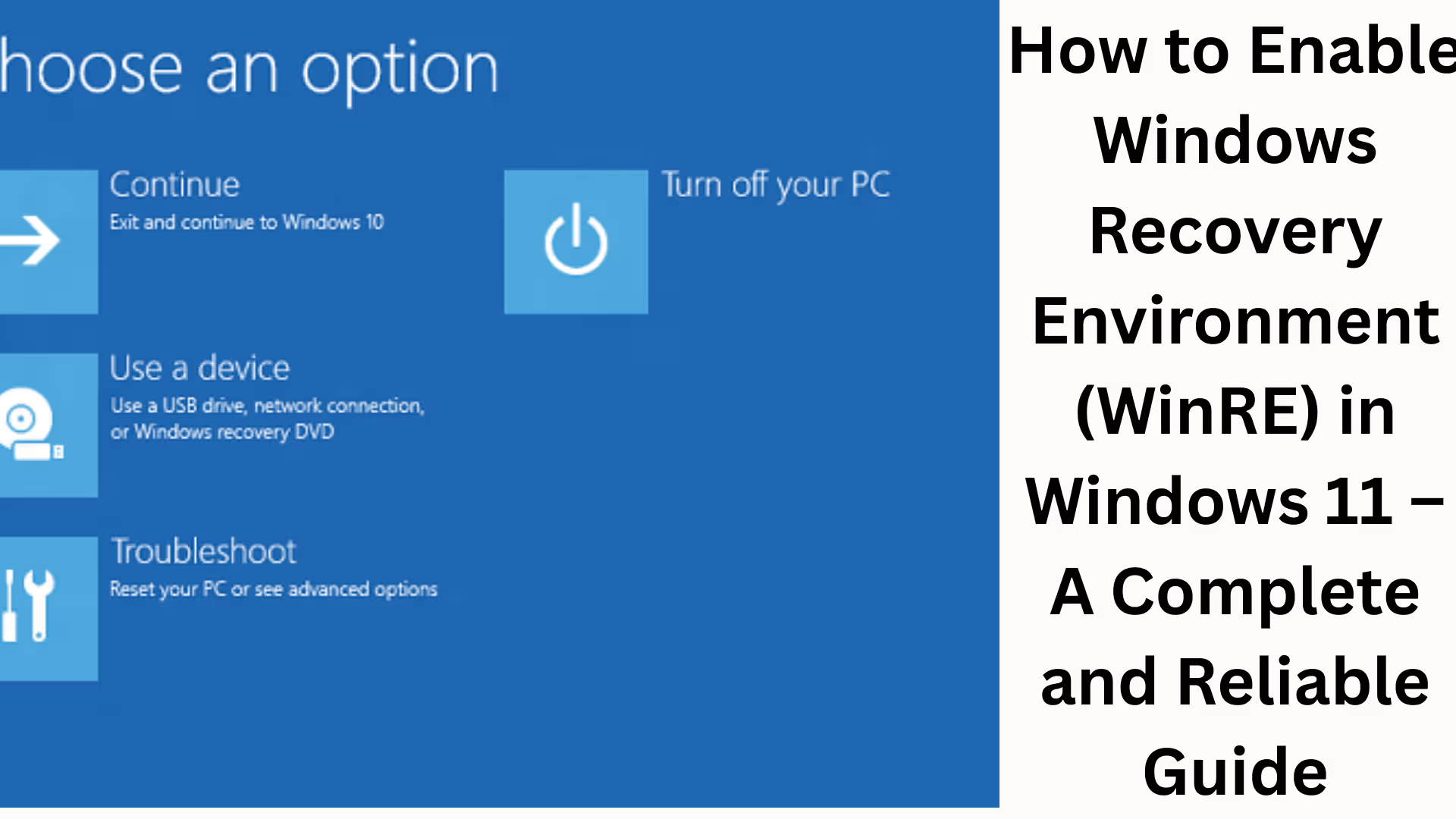
The Windows Recovery Environment (WinRE) is a specialized recovery mode that comes pre-installed in Windows 11. It allows you to perform the following tasks:
Startup Repair
System Restore
Command Prompt Access
System Image Recovery
Reset This PC
This feature comes in handy when your system fails to start in the normal manner.
How to Check if WinRE is Enabled
First, it is essential to verify whether WinRE is currently enabled on your system.
Steps:
1. Open the Start Menu.
2. Open Command Prompt (Admin) or Windows Terminal (Admin).
3. Type the following command:
“`
reagentc /info
“`
Interpreting the Result:
If it displays: Windows RE Status: Enabled → WinRE is already active.
If it displays: Disabled → You will need to enable it.
How to Enable WinRE in Windows 11
If your WinRE is currently disabled, follow the simple steps outlined below:
Method 1: Enable via Command Prompt
Steps:
1. Open Command Prompt (Admin).
2. Type the following command:
“`
reagentc /enable
“`
3. Press Enter.
Success Message:
You should see: Operation Successful.
Also read: BitTorrent Classic Not Opening on Windows 11? 9 Effective Ways to Fix It
Method 2: Enable by Fixing the WinRE Image Path
Sometimes, WinRE fails to enable because its file path is incorrect. Steps:
1. Open Command Prompt (Admin).
2. Enter this command:
“`
reagentc /setreimage /path C:\Windows\System32\Recovery
“`
3. Then, enable it:
“`
reagentc /enable
“`
Method 3: Check Disk Partitions
WinRE requires a separate Recovery Partition to function.
To check:
1. Open Disk Management.
2. Verify whether a Recovery Partition (500MB–1GB) exists.
If it does not exist:
You will need to create a new Recovery Partition,
or perform a Windows Repair Install.
Why does WinRE get disabled?
WinRE often becomes disabled automatically; some of the main reasons for this include:
Errors during Windows Updates
Disk Partition issues
Missing Recovery Image
System File corruption
Key Features of WinRE
Once WinRE is enabled, you gain access to several advanced features:
1. Startup Repair
This feature automatically fixes boot-related issues.
2. System Restore
You can revert the system to a previous state.
3. Command Prompt
Provides access to the Command Prompt (CMD) for advanced troubleshooting.
4. Reset This PC
Allows you to reset the entire system.
5. Uninstall Updates
Enables you to remove updates that may have caused system issues. How to Access WinRE
Once WinRE is enabled, you can access it in several ways:
Method 1: Via Settings
1. Open Settings
2. Go to System → Recovery
3. Select Advanced Startup → Restart Now
Method 2: During Boot
Force restart the system 2–3 times.
WinRE will open automatically.
Method 3: Via Command Prompt
“`
shutdown /r /o /f /t 0
“`
Benefits of Enabling WinRE
Immediate solutions in the event of a system crash
Protection against data loss
Access to advanced troubleshooting tools
Safe recovery options
Common Errors and Their Solutions
Error 1: Operation Failed
Solution:
Open CMD (Command Prompt) in Admin Mode.
Ensure the file path is set correctly.
Error 2: WinRE Image Missing
Solution:
Restore recovery files from a Windows ISO image.
Error 3: Access Denied
Solution:
Ensure you have Administrator privileges.
Best Practices (Important Tips)
Always maintain a System Restore Point.
Do not delete the Recovery Partition.
Perform Windows Updates regularly.
Always maintain a backup of your data.
Also read: Services.msc Not Opening in Windows? 11 Best Ways to Fix It Instantly
Conclusion
Enabling the Windows Recovery Environment (WinRE) in Windows 11 is crucial for every user. It not only enhances your system’s security but also provides immediate solutions in the event of any technical issues. By following the steps outlined above, you can easily enable WinRE and make your system more secure and stable.
Final Words:
If you wish to keep your Windows 11 system secure, enabling WinRE is mandatory. It empowers you to tackle various system-related issues and helps safeguard your data.
FAQ (Frequently Asked Questions)
Q1: What is the Windows Recovery Environment (WinRE)?
Answer: WinRE is an advanced recovery tool included in Windows 11 that helps resolve system crashes, boot errors, or other issues.
Q2: How do I check if WinRE is enabled?
Answer: Open Command Prompt (Admin) and run the command `reagentc /info`. If the Status shows “Enabled,” then WinRE is active.
Q3: Which command is used to enable WinRE?
Answer: To enable WinRE, run the following command:
“`
reagentc /enable
“`
Q4: What should I do if WinRE is not enabled?
Answer: First, set the correct path:
“`
reagentc /setreimage /path C:\Windows\System32\Recovery
“`
Then, run the enable command again.
Q5: How do I access WinRE?
Answer:
Settings → System → Recovery → Advanced Startup
or by using the command `shutdown /r /o /f /t 0`
or by performing a force restart 2–3 times.
Q6: Does WinRE delete data?
Answer: No, WinRE does not delete data on its own. However, if you select the “Reset This PC” option, your data may be removed.
Q7: Why does WinRE sometimes become disabled?
Answer: The main reasons for this may include:
Windows Update Errors
Missing Recovery Partition
System File Corruption
Disk Partition Issues
Q8: Is WinRE present on all Windows 11 systems?
Answer: Yes, it is included in Windows 11 by default, though it may occasionally become disabled.
Q9: What is the most useful feature of WinRE?
Answer: Startup Repair and System Restore are the most useful features, as they help resolve system issues quickly.
Q10: Can WinRE be enabled without a Recovery Partition?
Answer: No, a Recovery Partition is required for WinRE to function. If one is missing, you will need to create it or perform a Windows repair.
Q11: What is the difference between WinRE and Safe Mode?
Answer:
WinRE: Provides advanced recovery tools.
Safe Mode: Runs Windows in a limited environment.
Q12: Is it advisable to disable WinRE?
Answer: No, it is not safe to disable WinRE, as it is essential for emergency recovery.